Giving a product several barcodes
- For
- Manager
- Where
- Back office
- Permission
- Manage the catalogue
- Checked on
The same product can have several barcodes: the old packaging and the new one, the manufacturer's code and another supplier's, or an in-house code. Each one scans and leads to the same product. This guide adds codes to an existing product.
Before you start
- Your role must have the Manage the catalogue permission.
- A product has up to 20 barcodes, each one only once. To learn what each kind of code is for, see Understanding product codes and barcodes.
Add a barcode
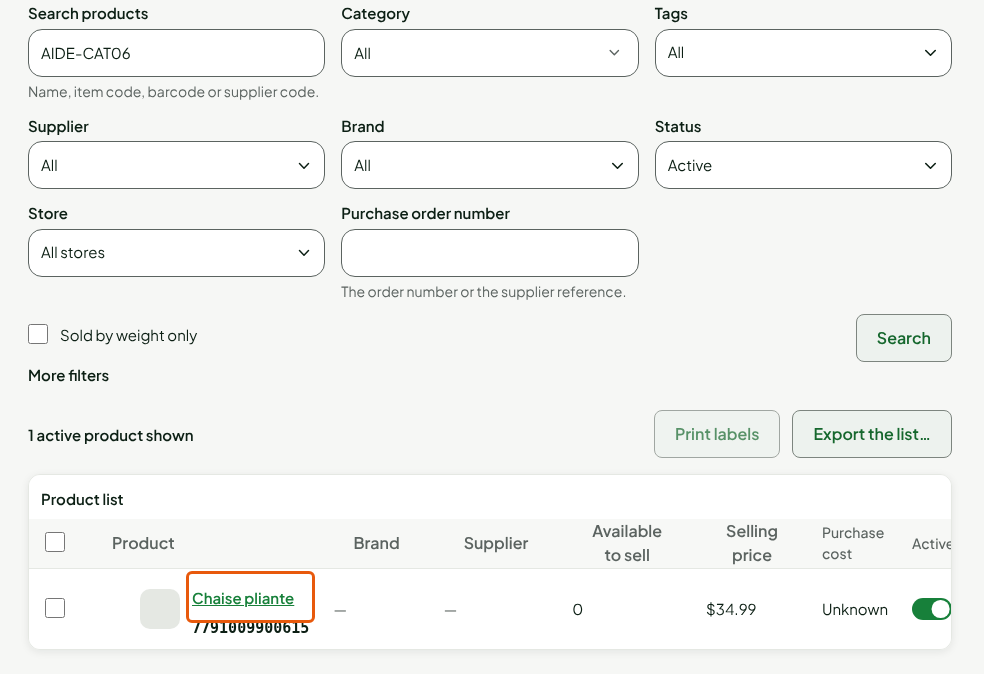
Open Catalog > Products, search for the product, then click its name.
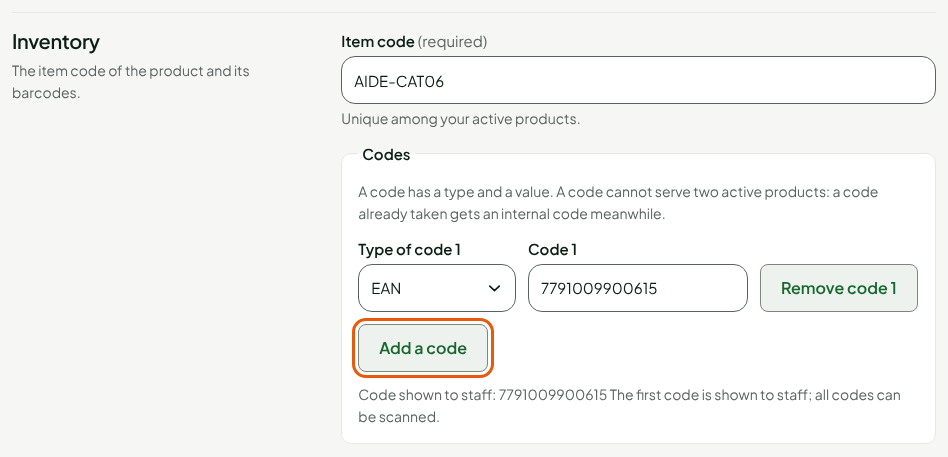
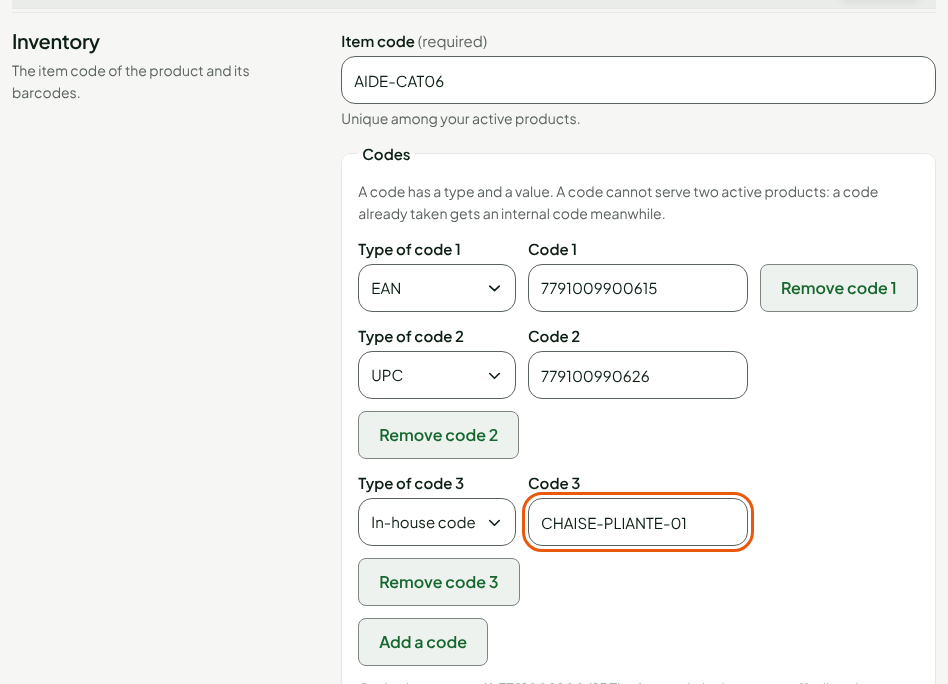
Scroll down to the Inventory section. Under Codes, the product shows its current codes. Click Add a code.
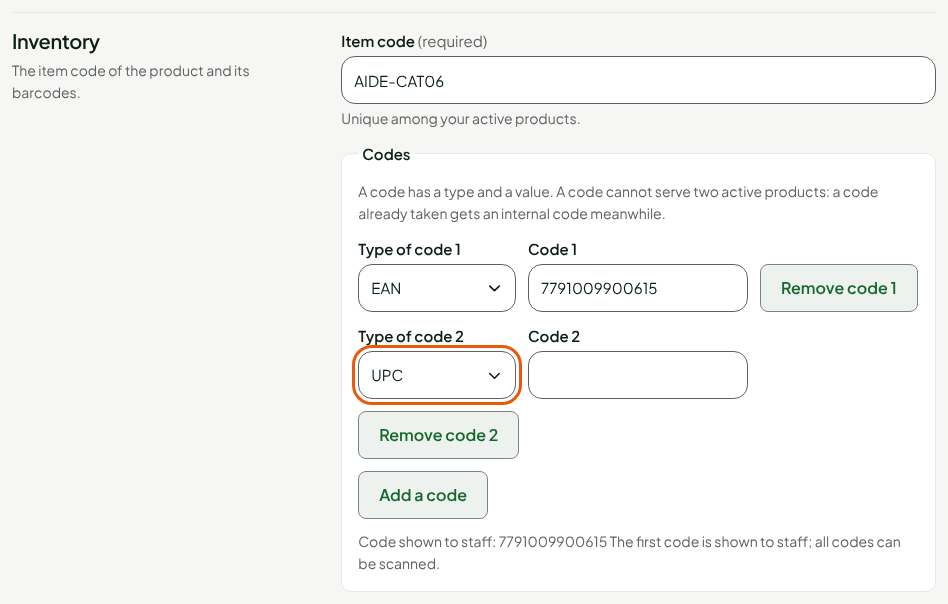
In Type of code 2, choose the type of the new code, for example UPC.
In Code 2, type the code, for example
779100990626.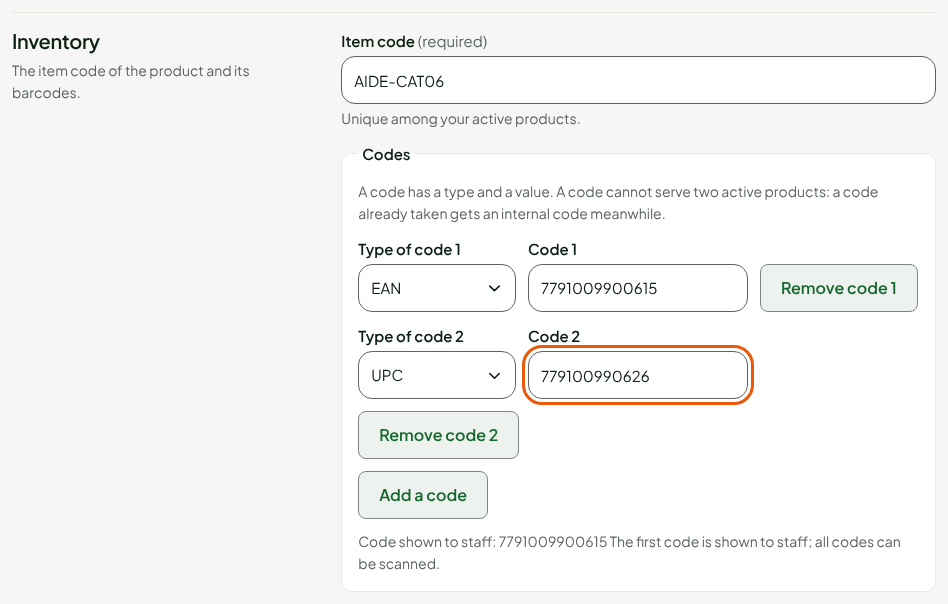
For a third code, click Add a code again, choose In-house code in Type of code 3 and type the code in Code 3. An in-house code is a code you create yourself: the software does not check its form.
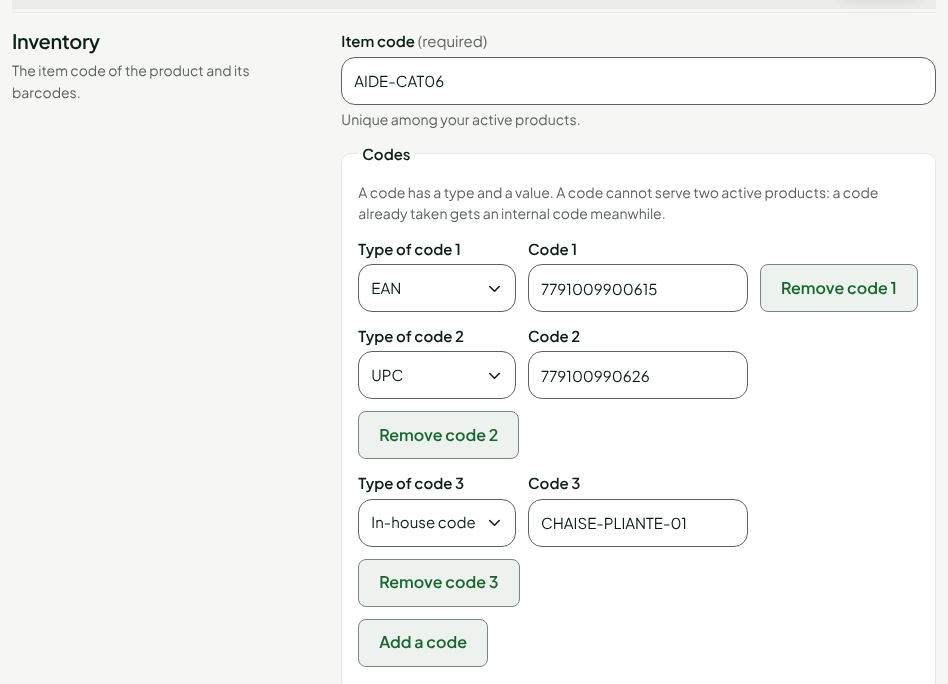
Click Save, in the bar at the top of the sheet.

The sheet keeps the three codes. The first one in the list is the one the sheet shows to staff: "Code shown to staff". All the codes scan.
Find the product by one of its codes
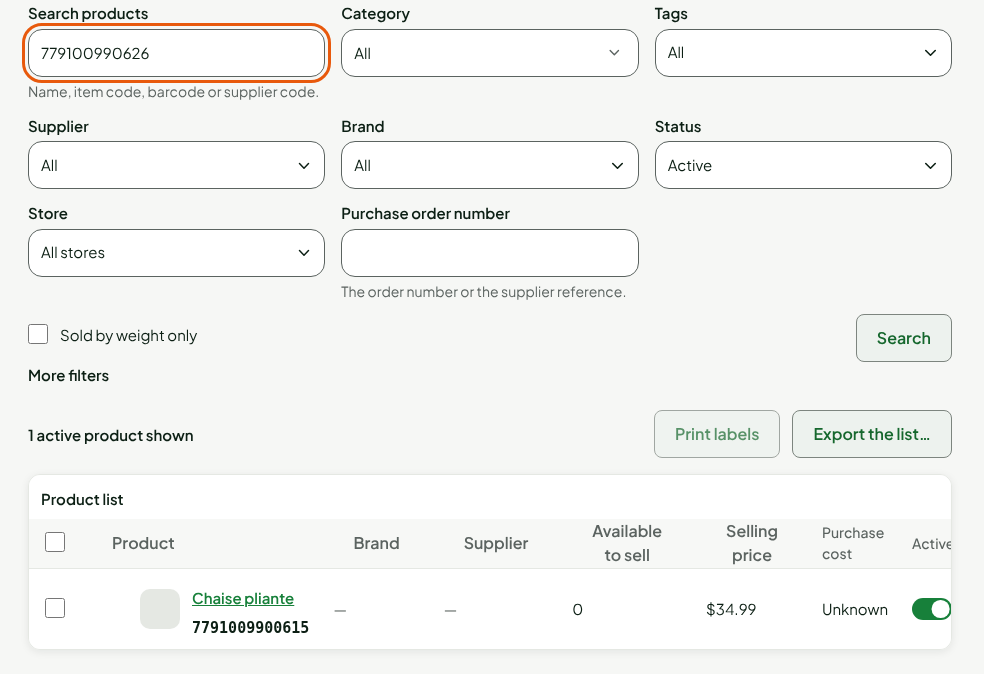
In Catalog > Products, Search products accepts any of the codes. Typing the UPC code, for example, brings up the product, under its first code.
Remove a barcode
- Open the product's sheet, Inventory section.
- Click Remove code followed by the code's number.
- Click Save.
The code is released: another active product can carry it. The product keeps its item code and its other codes.
Troubleshooting
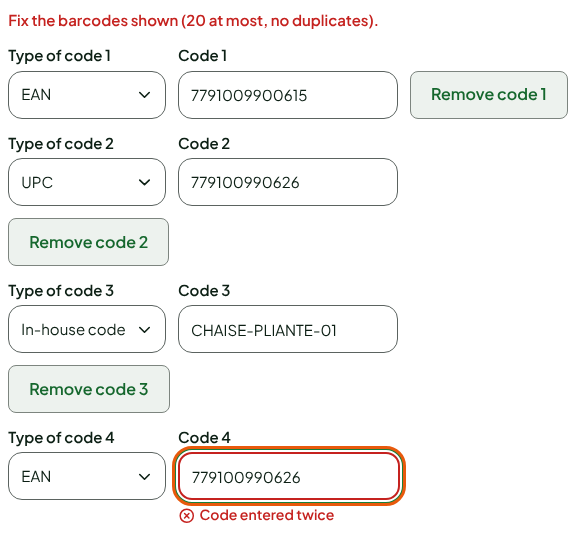
"Code entered twice"
The same code is on two lines of the list. Remove one of them: a code appears only once on a product.
"Invalid code for this type (length or check digit)"
The code does not have the form of its type. Check the type chosen in Type of code, or type the code again.
The code already belongs to another product
Saving is not refused: the product receives an internal code until the other product releases the code. See Understanding product codes and barcodes.