Preparing a web order
- For
- Cashier, Manager
- Where
- Back office
- Permission
- Sell at the register, View reports, All sales at assigned stores
- Checked on
A web order arrives in the back office already placed and, most often, already paid: the customer comes to the store to pick it up. The store prepares the items, then marks the order ready. This guide shows those two steps; handing the order over to the customer is done at the register.
Before you start
- To see the orders, your role must have View reports and All sales at assigned stores. To prepare them, it also needs Sell at the register: without it, the order can only be viewed.
- Web orders arrive on their own, one by one, in the Received state. They are not created in the back office.
A web order goes through the states Received, Prepared and Ready, then is Handed over to the customer at the register. Each step is made on the version you read: if someone changed the order in the meantime, the screen reads it again and overwrites nothing.
Finding the order
To open an order:
Open Sales > Web orders. The page lists the orders to pick up, newest first.
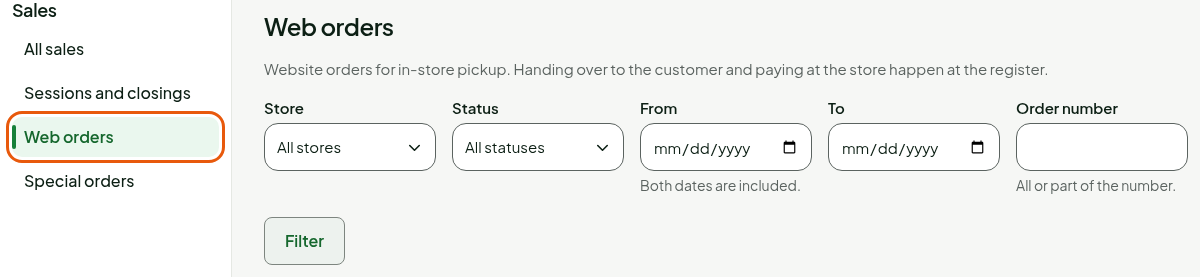
If needed, filter by Store, Status, From and To, or type all or part of the Order number, then click Filter. Searching by number only covers the page shown.
Click the order's number.
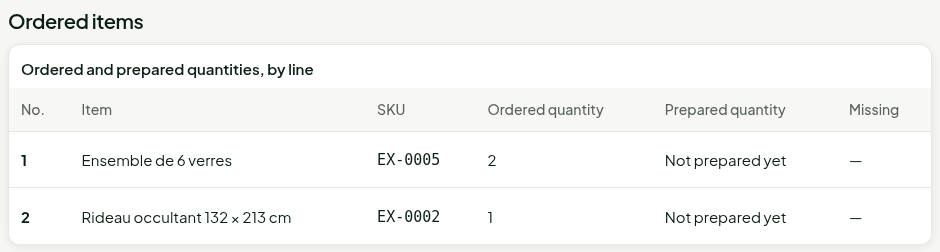
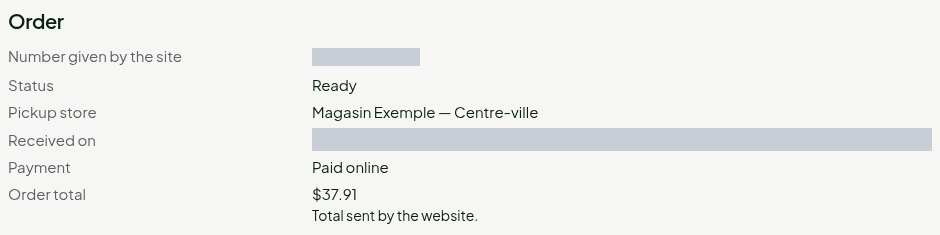
The order page gives the Number given by the site, the Status, the Pickup store, the Payment type (Paid online or Pay at store) and the total sent by the site, which the register does not recalculate. Under Ordered items, each line shows the ordered quantity and the prepared quantity.
Recording the preparation
To prepare the order:
Under Pickup > Record the preparation, check the Prepared quantity of each line. The screen offers the ordered quantity; change it if the store does not have everything. Type 0 for an item you cannot find.
Click Mark as prepared.
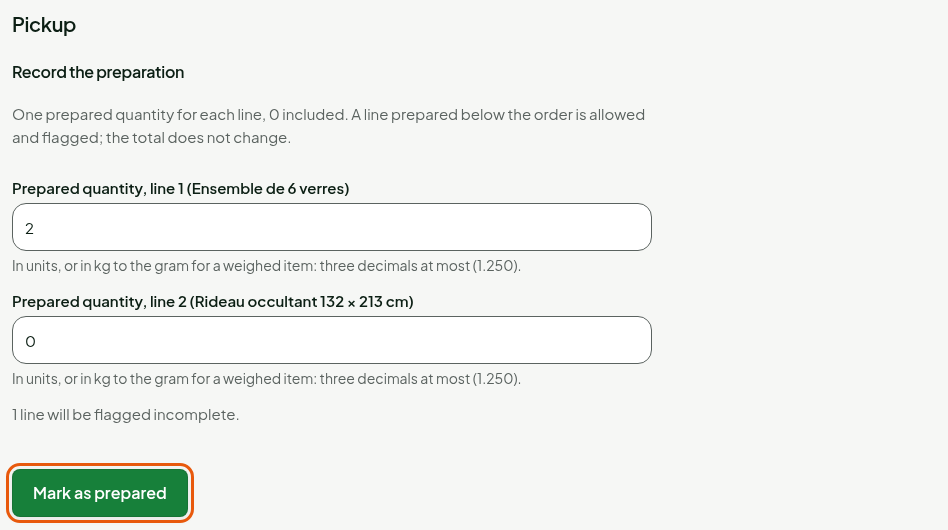
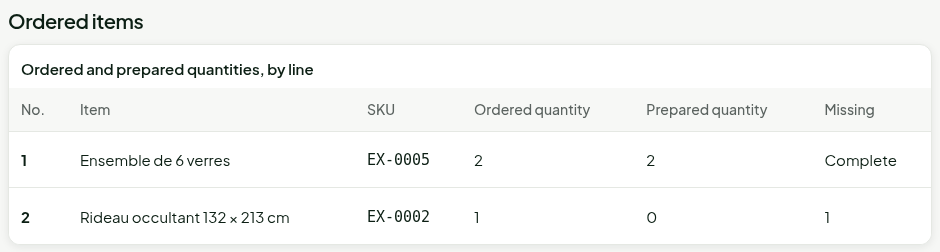
A line prepared below the order is allowed and flagged incomplete; the total does not change. The screen shows "Order marked as prepared, 1 incomplete line." and the Missing column gives what is missing.
A weighed item is recorded in kilos, to the gram: three decimals at most (1.250).
Marking the order ready
When the items are waiting for the customer at the counter:
Under Pickup, click Mark as ready.
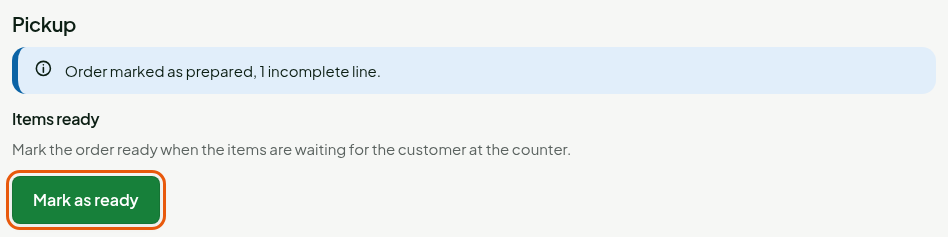
The screen shows "Order marked as ready." and reminds you that handing the order over to the customer happens at the register.

The order page now says Ready. The POS sends no notice to the customer: it only tracks the order.
This guide stops at Ready. To hand the order over to the customer, see Handing over an order for pickup. The back office does not cancel a web order: the site cancels it, as long as no register holds it and it has not been handed over.
Troubleshooting
"The order changed since you read it"
Someone else moved the order forward. The screen read it again and nothing was overwritten: check its state before starting over.
"Order closed: no status change is possible."
The order is Handed over or Cancelled: it is finished.