Closing a pay period
- For
- Manager, Administrator
- Where
- Back office
- Permission
- Close the register
- Checked on
A pay period settles employees' commissions for a range of days. Close it once payroll is paid: its amounts are then recorded and no longer change. A return, a void or a late sale becomes an adjustment to the next period.
Before you start
- Your role needs the permission Close the register.
- Commissions come from the commission rules (Setting up commissions). A sale keeps the rate of the rule in force on the day it is received.
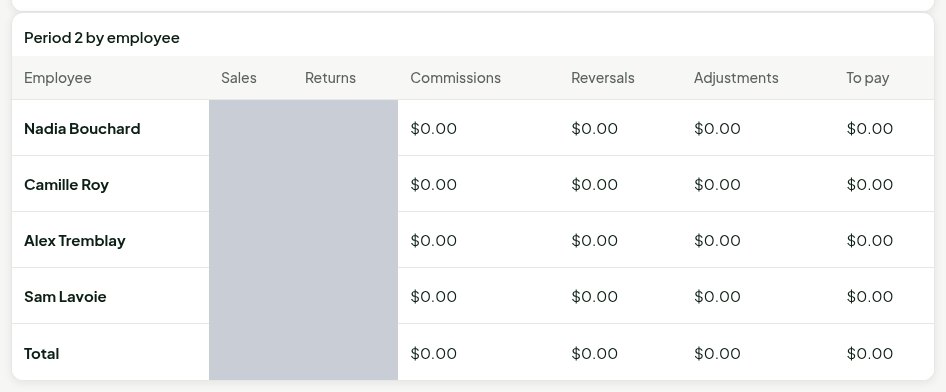
- In this guide's images, commissions are $0.00: the demonstration store's sales were received before its first commission rule, and a sale's rate is fixed when it is received.
A closing is never reopened. Check the preview before confirming.
Closing the next period
Periods follow one another with no gap. The first starts at the oldest fact to settle; each following one starts the day after the previous one ends.
Open Team > Pay periods.

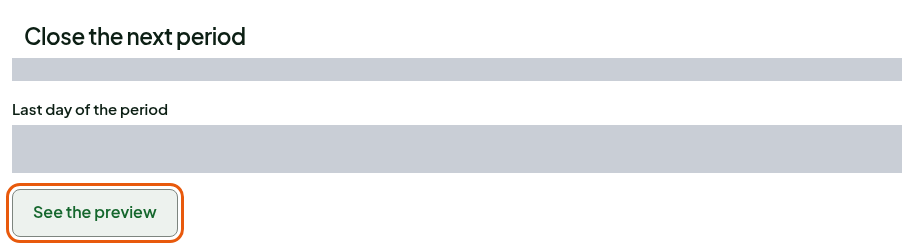
Under Close the next period, choose the day the period ends in Last day of the period. That day must be over in every store.
Click See the preview.
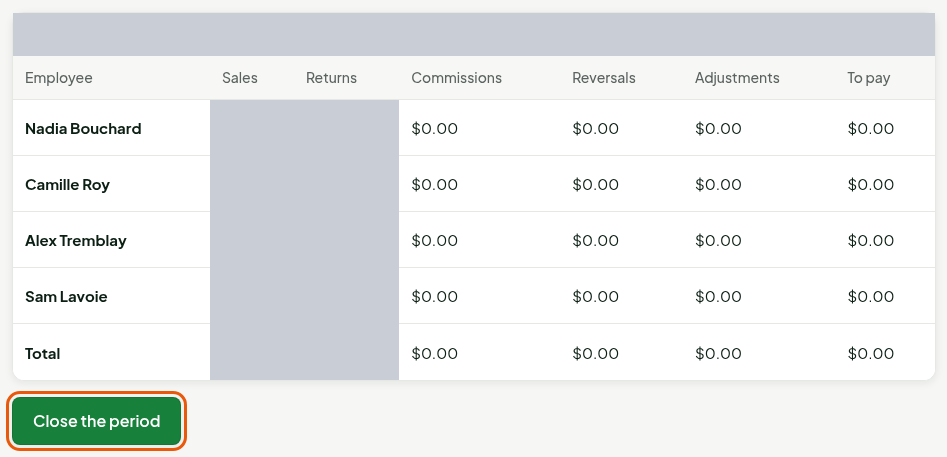
Read the preview: one row per employee, with their Sales, Returns, Commissions, Reversals, Adjustments and the To pay amount, and a Total row. To pay = commissions − reversals + adjustments.
Click Close the period.
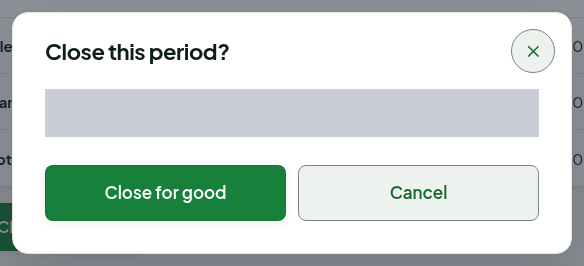
In the Close this period? window, reread the sentence: it gives the dates and the amount to pay, and reminds you that a closed period never reopens. Click Close for good.
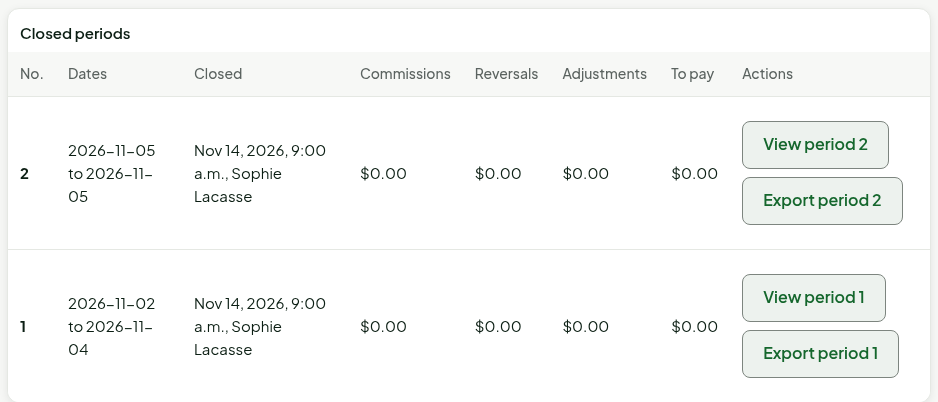
The screen shows "Period 2 is closed." The period appears under Closed periods, with its dates, the time it was closed, the name of the person who closed it and its totals. The screen now offers the next period.
Reviewing or exporting a closed period
In Closed periods, click View period followed by the number.

The detail per employee appears under the list.
To send the amounts to payroll, click Export period followed by the number: the browser downloads a file.
Troubleshooting
"This day is not over in every store."
The last day you chose is not finished in every store. Choose an earlier day.
"The last day comes before the start of the period."
The last day must be the period's first day or a later one. The start is written under the title, for example "Period 2, starting…".
"Commissions arrived since the preview. Nothing was closed: review the preview before confirming."
A sale arrived between the preview and the closing, for example from an offline register. Click See the preview again, then close.
"Another closing went through in the meantime."
Another manager closed a period while you were preparing yours. The list is reloaded: review the preview.
"Too many facts at once: choose a closer end date."
The period is too long to close at once. Choose a last day closer to its start.