Sending and tracking a purchase order
- For
- Manager, Administrator
- Where
- Back office
- Permission
- Manage purchase orders
- Checked on
A purchase order goes through statuses: draft, sent, partially received, received. This guide shows how to mark an order as sent, read where it stands, and close or cancel it.
Before you start
- Your role needs the permission Manage purchase orders.
- The order must exist as a draft (Creating a purchase order).
- Costs and an order's total (Unit cost, Value at cost, Total at cost) are only shown with the permission View purchase costs.
Send the order changes the order's status in the software: nothing is transmitted to the supplier. Send the supplier the order yourself, by email or by phone.
A sent order can no longer be edited: its lines are frozen. To correct it, cancel it as long as nothing has been received, then create a new one.
Finding an order
Open Stock > Purchase orders.
In Supplier, Status or Store, choose what you are looking for, then click Show.
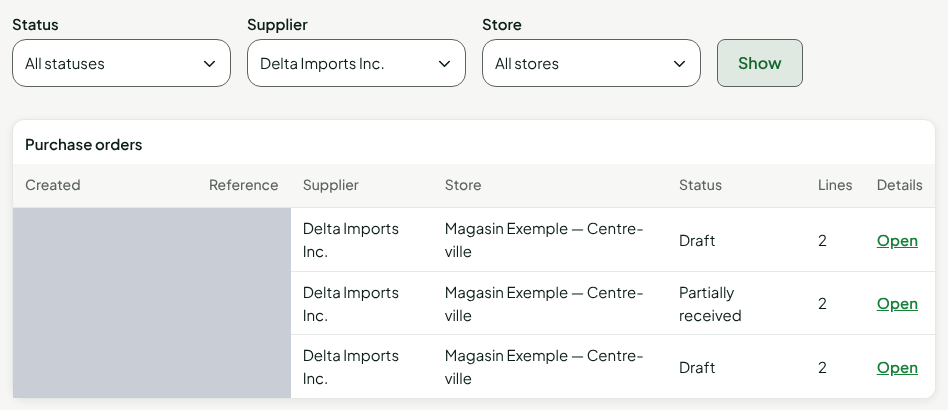
Click Open at the end of the order's row.
Sending an order
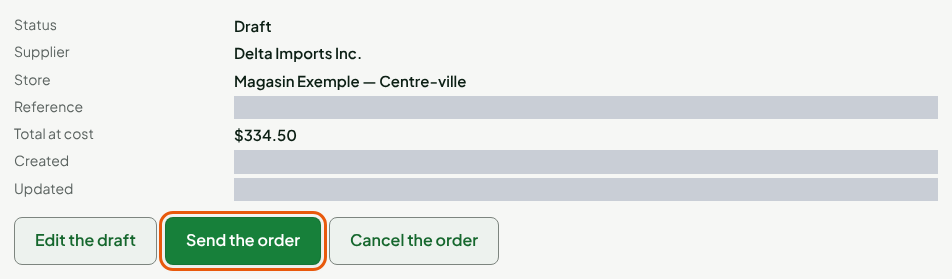
Open the order, in the Draft status. Check the supplier, the store and the lines.
Click Send the order.
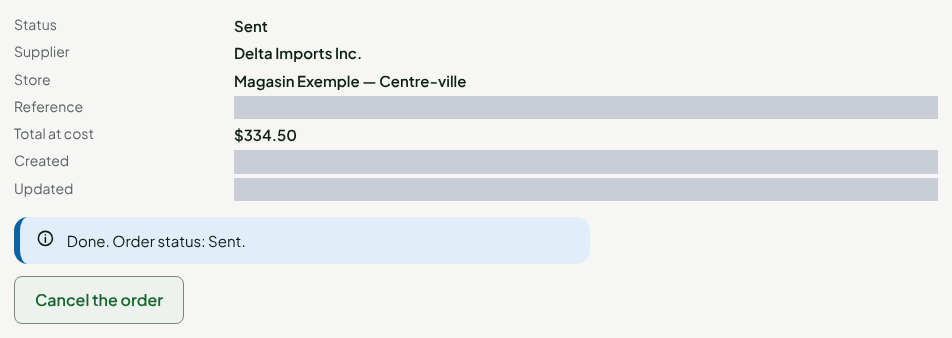
The screen shows "Done. Order status: Sent.". Only the Cancel the order button remains: the order is no longer a draft.
Tracking an order
When the goods arrive, receiving the order moves its status along by itself (Receiving a purchase order). The order becomes Partially received after an incomplete delivery, then Received once every line has received at least the quantity ordered.
To find out where an order stands:
Open the order.
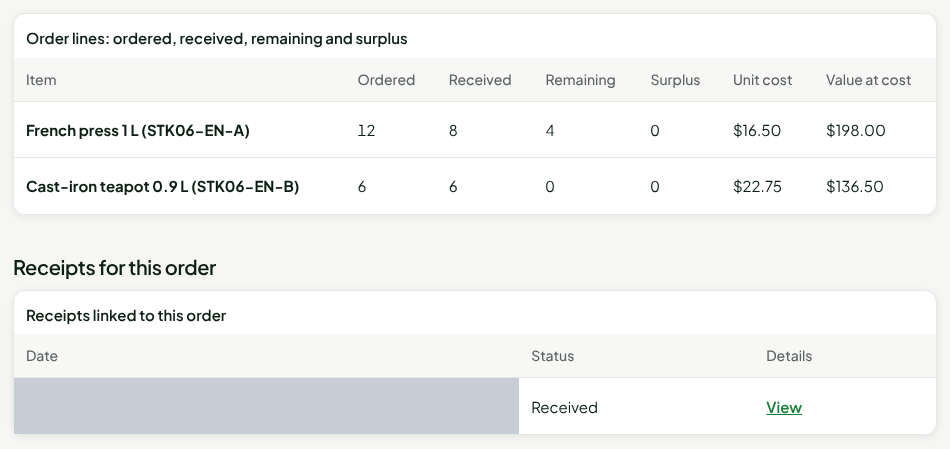
Read the Order lines table: for each item, the quantity Ordered, Received, the Remaining to receive and the Surplus.
Under Receipts for this order, read the deliveries already received. Click View to open one of them.
Under History, each status change is noted with its date and the person who made it.
Closing a partially received order
If the rest of an order will not arrive, close it: what remains to be received is declared missing.
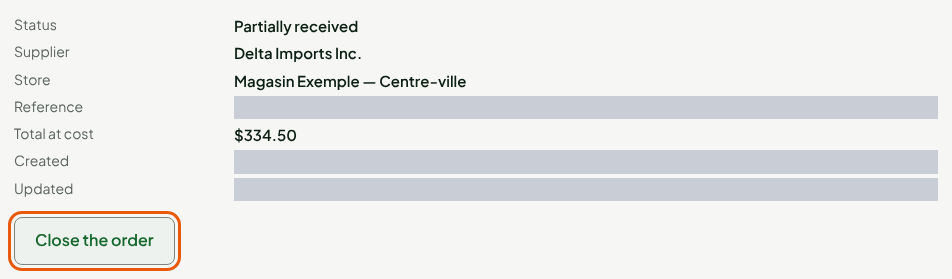
Open the order, in the Partially received status.
Click Close the order.
Click Confirm. To change your mind, click Do nothing.

The order becomes Received. If a receipt is still expected, receive it or cancel it first.
Cancelling an order
An order can be cancelled while it is a draft, or when it is sent and nothing has been received.
Open the order.
Click Cancel the order, then Confirm.
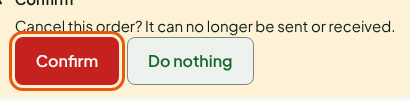
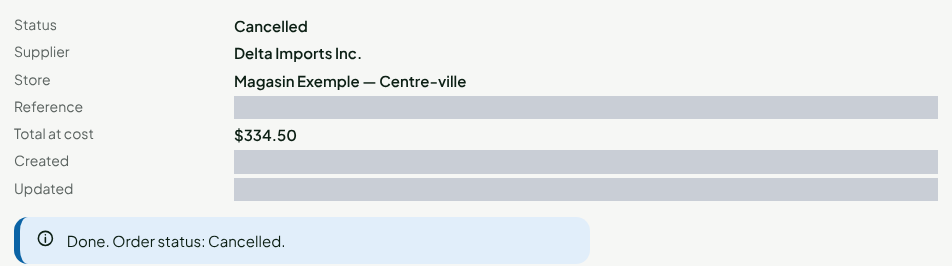
The order becomes Cancelled: it can no longer be sent or received.
Troubleshooting
"A receipt is expected: receive or cancel it before cancelling or closing the order."
A receipt was prepared for this order and has not been received yet. Receive it, or cancel it in Stock > Stock receipts, then try again.
"This action is no longer possible in the document’s current status."
The order's status changed since you last looked at it. Click Refresh, then check its status.