Setting up the customer display
- For
- Administrator
- Where
- Installed register
- Permission
- No permission required
- Checked on
The customer display is a second screen, facing the customer, that shows them their purchase while the cashier works. It is for looking only: the customer touches it only to choose their language.
Before you start
- You need a second monitor, connected to the register computer (Supported hardware).
- The customer display is a feature of the installed register. The web register, in a browser, does not have one.
Put the customer display into service
There is nothing to open in the register: the customer display opens on its own.
- Connect the second monitor to the register computer, then switch it on.
- Start the register.
- Turn the monitor towards the customer.
At startup, the register opens a second window on a monitor that is not the register's own. With no second monitor, nothing opens and the register sells as usual.
The customer display setting (turning it off, or choosing which monitor shows it) is made when the station is installed, not on the register screen. To change it, ask the person who installed the register.
What the customer sees
The customer display follows the sale in progress, with nothing for the cashier to do.
At rest, before the first line of the sale, a welcome screen with your store's name, “Welcome!” and “Your cashier will be with you in a moment.”
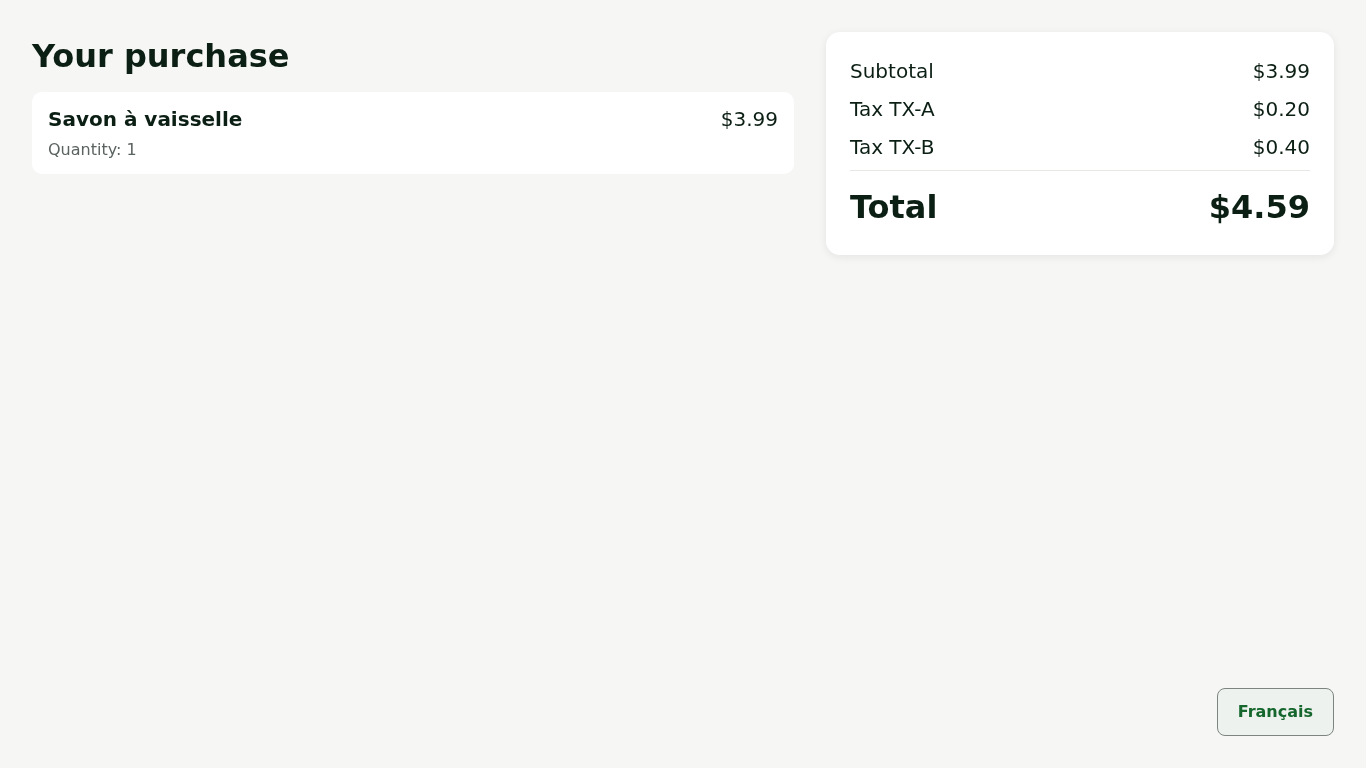
During the sale, Your purchase: each item with its quantity (or weight) and discounts, then the Subtotal, the taxes and the Total.
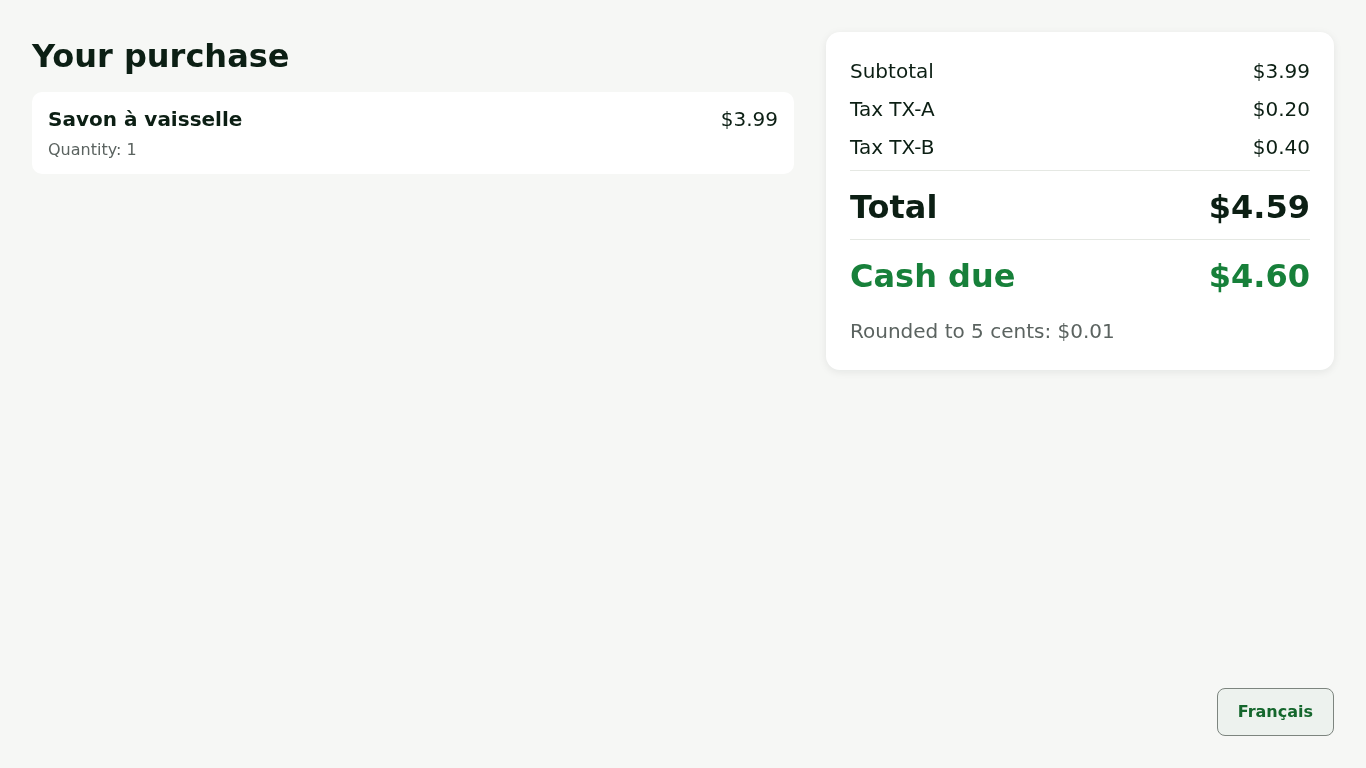
At payment, the total is followed by Cash due, with the rounding to 5 cents.
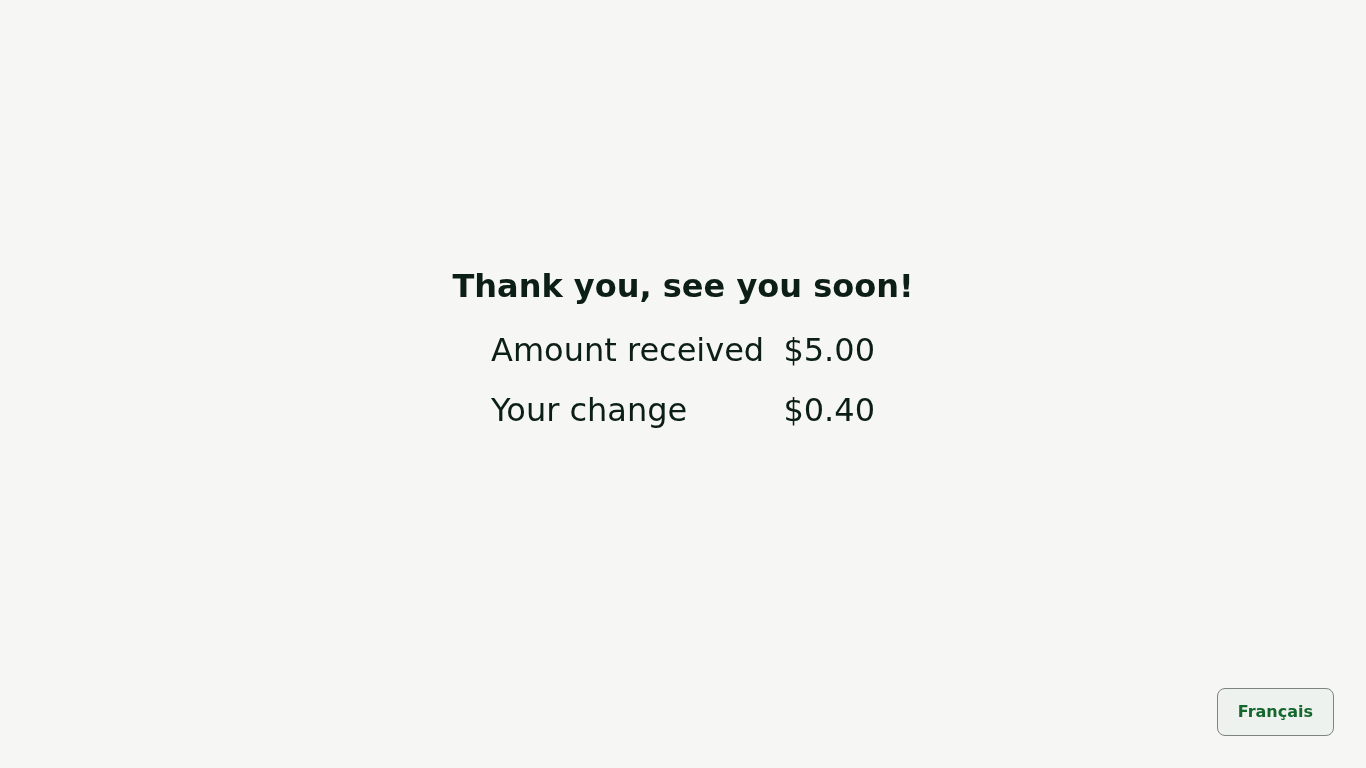
Once the sale is paid, Thank you, see you soon!, with the Amount received and Your change.
The customer display never shows the cashier's name, a PIN or the sale's customer.
Change the customer display language
The customer can read their screen in the other language.
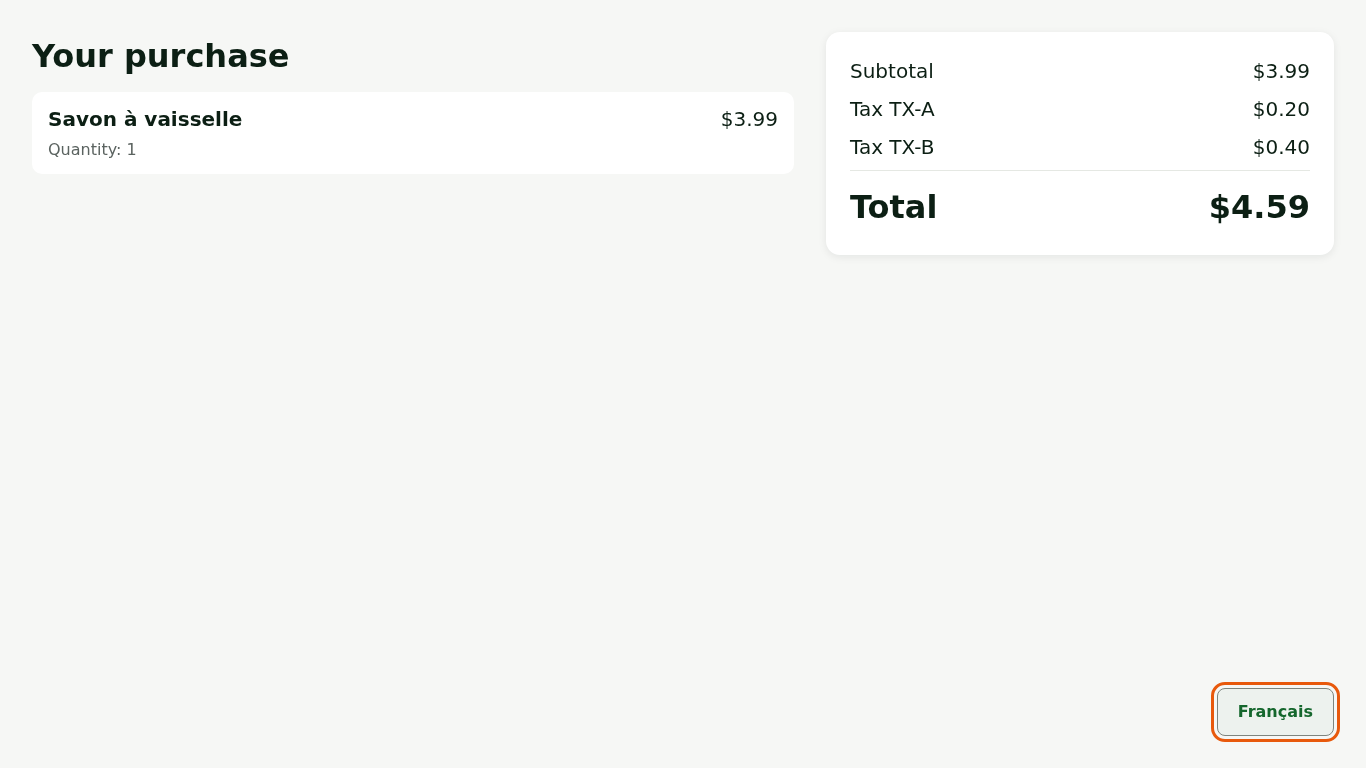
Press the Français (or English) button, at the bottom right of the customer display.
Troubleshooting
The customer display does not open
First check that the second monitor is connected and switched on before you start the register. If you connected it afterwards, restart the register. If the customer display still does not open, its setting may have turned it off: call the person who installed the register.