Store credit balances
- For
- Manager
- Where
- Back office
- Permission
- View reports, All sales at assigned stores
- Checked on
The "Store credit balances" report shows how much store credit was issued and used over a period, and how much remains in circulation, customer by customer. Store credit that has not been spent is money the business still owes its customers: use this report to know that.
The report always covers all stores: credit issued in one store can be spent in the others.
Showing the report
To see the summary of a period:
Open Reports > Store credit balances.
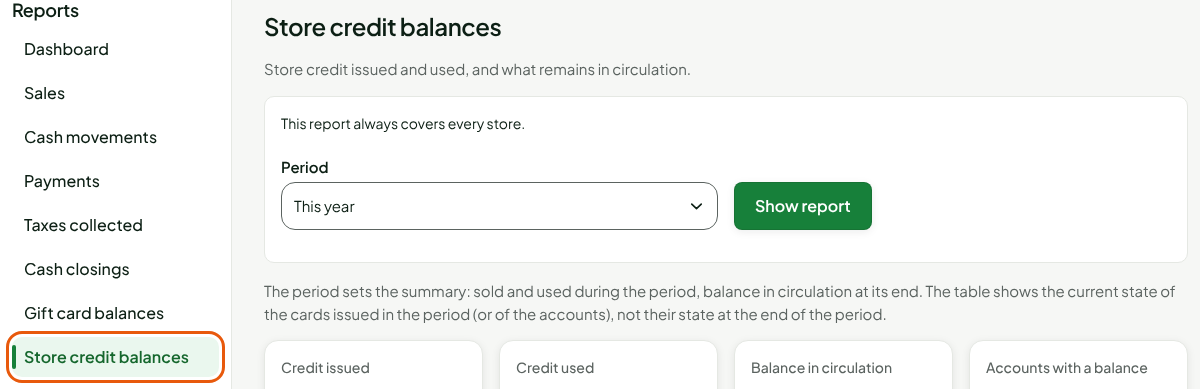
Choose the period under Period (the report opens on This year), then click Show report.
The summary gives four figures:

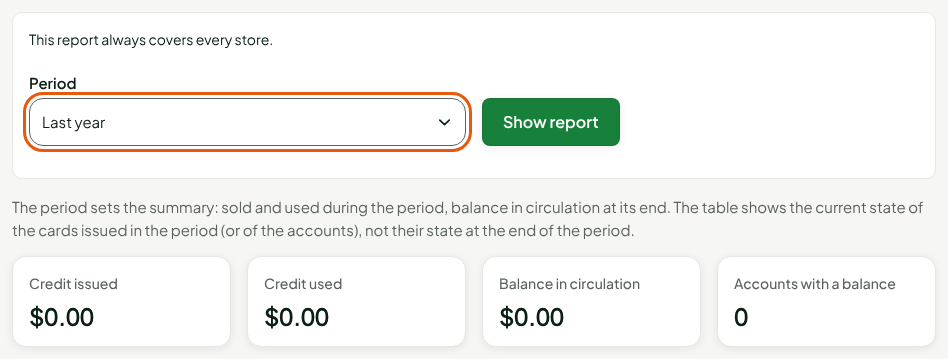
- Credit issued: the credit given to customers during the period (returns refunded as credit, cancelled layaways, credit imported from a former system);
- Credit used: the credit spent during the period;
- Balance in circulation: what remains at the end of the period;
- Accounts with a balance: the number of customers who still have credit.
Reading a customer's account
Under the summary, the table has one row per customer who has a store credit account.
Find the customer's row.

The Balance is what was Issued minus what was Used. An account at zero stays in the list: it has a history.

The table shows the current state of each account, not its state at the end of the period. Only the summary follows the period.
Opening a customer's account
To see what happened on an account:
Click View the account of followed by the customer's name, in the customer's row.

The account opens under the table.

It shows:
- Account: the Balance, the Available amount (the balance minus active holds), the Active holds, the number of Movements, the Last movement and Account opened;
- Movement history: each issue and each spend, with its date, store, register and origin;
- Holds: the credit held while a sale is being paid. An expired hold no longer holds anything.
Click Close account to close it again.
Changing the period
Choose another period under Period, then click Show report.
Understanding the columns
| Column | What it shows |
|---|---|
| Customer | The customer's name. Without the Manage customers permission, the column shows "Customer". |
| Issued | The credit the customer received: return refunded as credit, cancelled layaway, credit imported from a former system. |
| Used | The credit the customer spent. |
| Balance | What remains: issued minus used. |
| Account | View the account of followed by the customer's name: opens the account under the table. |
The Export to CSV button, above the table, saves this table to a file (guide "Exporting a report to CSV").
Troubleshooting
"Imported credit not yet converted"
This banner, under the summary, says that accounts imported from a former system have not been converted yet: their amount is owed, on top of the balance in circulation in the summary.
A name is missing in the Customer column
A customer's name shows only if your role has the Manage customers permission. Otherwise, the column says "Customer".