Taking and handing over a special order
- For
- Cashier, Manager
- Where
- Web register, Back office
- Permission
- Sell at the register, View reports, Resolve an orphaned return
- Checked on
A special order is for when a customer wants an item the store does not carry: you order it for them, notify them when it arrives, then hand it over against the balance. This guide goes from taking the order at the register to handing it over, through the follow-up in the back office.
Before you start
- Your role must allow selling (permission Sell at the register). Reading the list in the back office also requires View reports.
- The order is taken for a customer: add them to the sale first. It is handed over at the store where it was taken.
- To take a deposit or the balance, the register must be open. The web register only takes cash.
A special order goes through the states Requested, Ordered, Received, Customer notified, then Handed over (or Cancelled).
Taking the order at the register
To create a special order:
Open Sell > Sell, add the customer to the sale, then click Orders, above the cart.
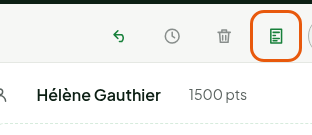
In the Special orders tab, click New special order.
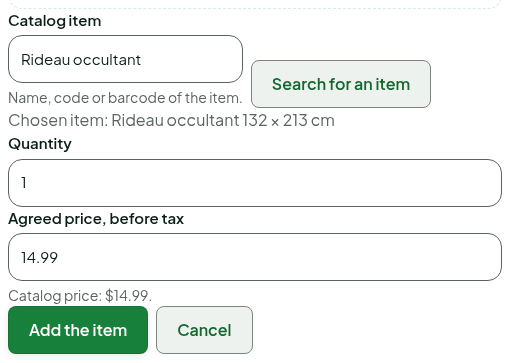
Type the item's name in Catalog item, click Search for an item, then choose the item in the list. Change the Quantity or the Agreed price, before tax if needed, then click Add the item.
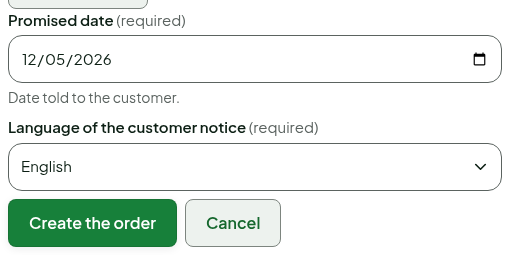
Choose the Promised date and the Language of the customer notice, then click Create the order.
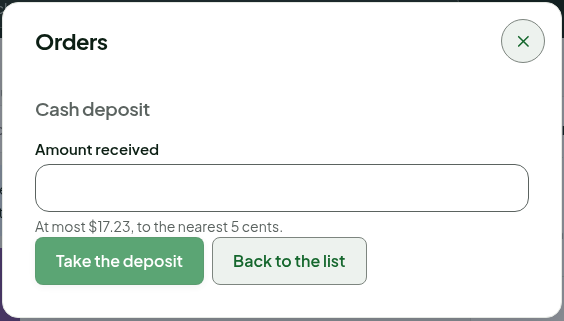
The screen shows "Order created: total $17.23" (taxes included). The deposit is optional: take it right away, or go back to the list.
An item that is not in the catalog is described under Item outside the catalog: description, tax category, quantity and agreed price. A price different from the catalog's requires the permission to change a price, or a manager's approval.
Taking a deposit
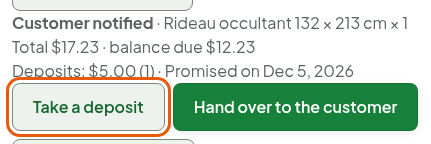
In the Orders window, click Orders of the sale’s customer, then Take a deposit under the order. Type the amount in Amount received (at most the balance, to the nearest 5 cents) and click Take the deposit. An order receives at most three deposits. The balance at handover is never limited.
Moving the order forward in the back office
When the store orders, receives and notifies:
Open Sales > Special orders, then click the order's date.
Under Order follow-up, click Mark as ordered when the item has been ordered from the supplier.

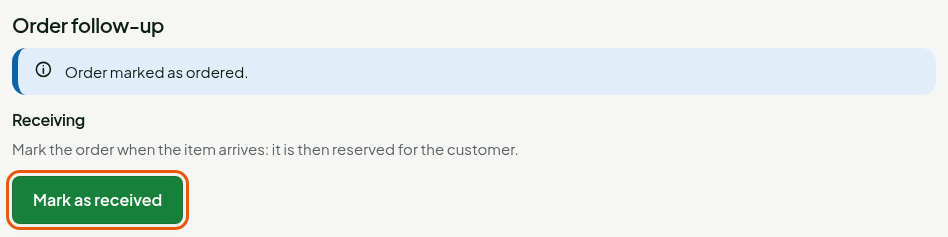
Click Mark as received when the item arrives: it is then reserved for the customer.
Click Notify by email (the email goes out only once, to the address on the customer's record), or Note a notice given another way if you reached the customer another way.
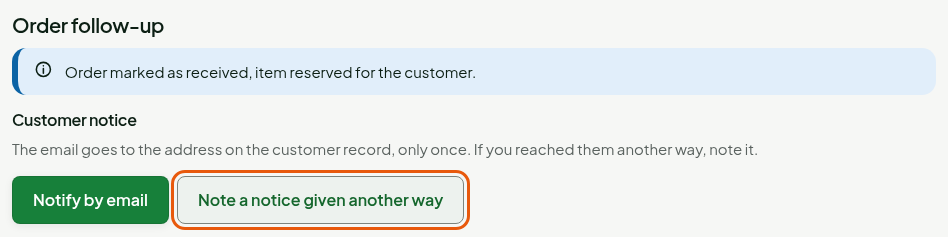
The order moves to Customer notified.
Handing the order over to the customer
To hand the item over:
At the register, add the customer to the sale, click Orders, then Orders of the sale’s customer.
Under the order, click Hand over to the customer. The order must be received, and the customer must come to the pickup store.
The screen says how much to take in cash. Click the button that shows the balance, for example Take $12.23 and hand over (the $17.23 order in the example received a $5 deposit). If everything is already paid, click Hand over.
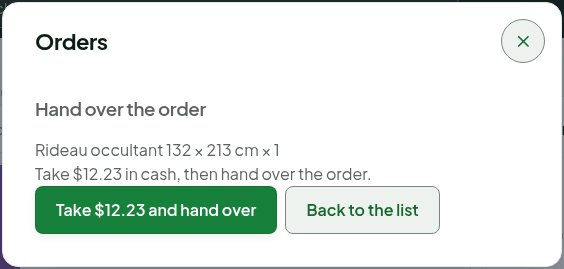
The screen shows "Order handed over."
Cancelling an order
With no deposit, cancelling is done in the back office: open the order, type the Reason for cancelling, then click Cancel the order. It is final.
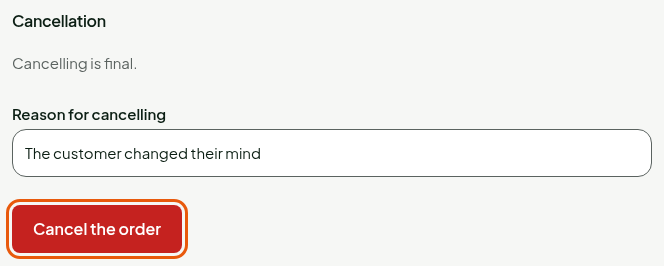
With a deposit, cancelling is done at the register: click Cancel and refund under the order (permission Process a return and refund), type the reason and give the deposit back to the customer.
A cancellation cannot be undone. An order that is handed over or cancelled is closed: no further change is possible, except giving an overpayment back to the customer.
Giving an overpayment back to the customer New
An overpayment is money taken that the order cannot keep. The most common case: a deposit taken at an offline register reaches the server after the order was cancelled. The order then shows "Overpayment to give back to the customer", with the amount. This money belongs to the customer.
To give it back:
- At the register, add the customer to the sale, click Orders, then Orders of the sale’s customer.
- Under the order, click Give back the overpayment. The button is offered even when the order is cancelled or handed over. It requires the permission Process a return and refund and an open register.
- The screen says how much to hand over in cash, rounded to the nearest 5 cents. Click the button that shows the amount, for example Give back $50.00.
- When the screen shows "Overpayment given back: $50.00 handed to the customer.", hand the money to the customer.
The order owes nothing more, and the button goes away: an overpayment is given back only once.
The register gives back cash only. An overpayment paid by card cannot be given back at the register yet: it stays owed to the customer, shown on the order.
In the back office, the order history (Sales > Special orders) shows the line "Overpayment given back to the customer", with the amount.
Releasing an order blocked by a lost register New
When a register starts handing over or cancelling an order, it reserves it: no other register can touch it until that register is done. In the back office, the order page then shows "A register is handing over this order." (or "cancelling"). If that register was lost, or if its handover or cancellation was refused, an administrator can release the reservation. A replaced register must first empty its send queue, then be revoked.
Before releasing, check that nothing was handed over or refunded to the customer: this action records no amount. If the item was handed over or the deposit given back, do not release the reservation.
To release the reservation:
If the register was lost or stolen, revoke it first in Settings > Installed registers.
Open Sales > Special orders, then click the order's date.
Under Release a register's reservation, type the Reason, then the Proof that nothing was handed over or refunded (for example the drawer count for the session, or the payment terminal statement).
Click Release the reservation.
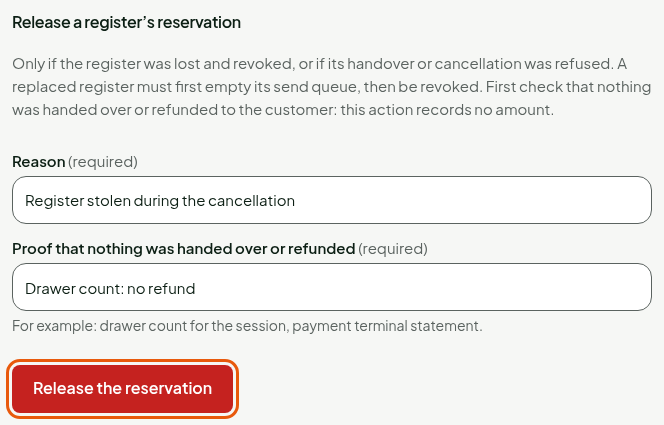
The screen shows "Reservation released: another register can now hand over or cancel this order." The reason, the proof and your name are kept in the log.
The form only appears with the Resolve an orphaned return permission, given to administrators. As long as the register holding the order is still active and has sent nothing in error, the release is refused: that register can still finish its operation.
Troubleshooting
"The register session was opened with older rules: close it and open it again."
This register was opened before the update that counts the money of orders. Close the register session and open it again, then redo the deposit or the handover.
"This overpayment has already been given back, in whole or in part: read the order again. Nothing was recorded."
Another register gave this overpayment back while you were looking at the order. Do not hand over any money: read the order again; it shows what is left to give back, if anything.
"The register holding this order is still active"
The release is refused as long as that register can finish its operation. If it is lost, revoke it in Settings > Installed registers, then try again.
"A handover or cancellation from this register is quarantined and can still be replayed"
The register sent its handover or cancellation, but it has not been applied yet. Do not release the reservation: have the operation replayed from Register uploads.
"Not yet received in store."
The handover waits for the Received state. A manager must first click Mark as received in the back office.