Managing categories
- For
- Manager
- Where
- Back office
- Permission
- Manage the catalogue
- Checked on
Categories sort your products into a tree of three levels at most, for example Articles de fête › Décorations › Guirlandes. They help you find a product, filter the product list, the inventory and the reports, and have a customer's age checked at the register.
Before you start
- A product goes into its category when you create it, in Category (guide Adding a product). To move an existing product, open its sheet and change its Category.
- A category can also carry a deposit: see the guide Managing deposits.
Add a category
To create a category and its subcategories in one go:
Open Catalog > Categories.
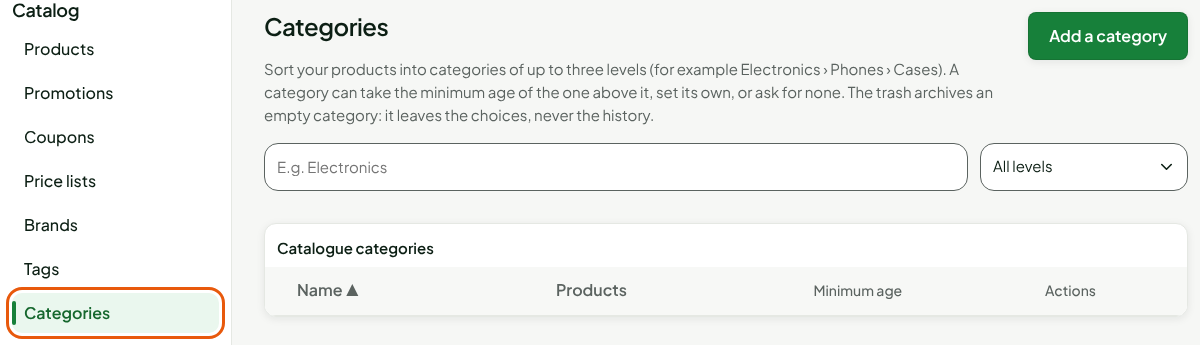
Click Add a category.
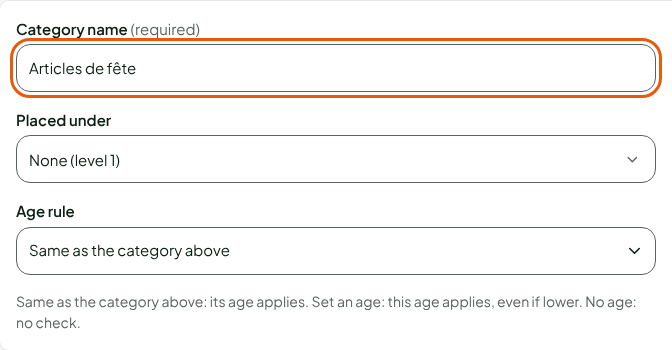
Type the name in Category name, for example
Articles de fête.Leave Placed under at None (level 1) for a first-level category. For a subcategory, choose the category above it.
Choose the Age rule: Same as the category above (the default), Set an age or No age.
Under Subcategories, click + Level 2 for each subcategory, then type its name, for example
BallonsandDécorations. Click + Level 3 under a line to add one more subcategory, for exampleGuirlandes. The trash on a line removes it before you save.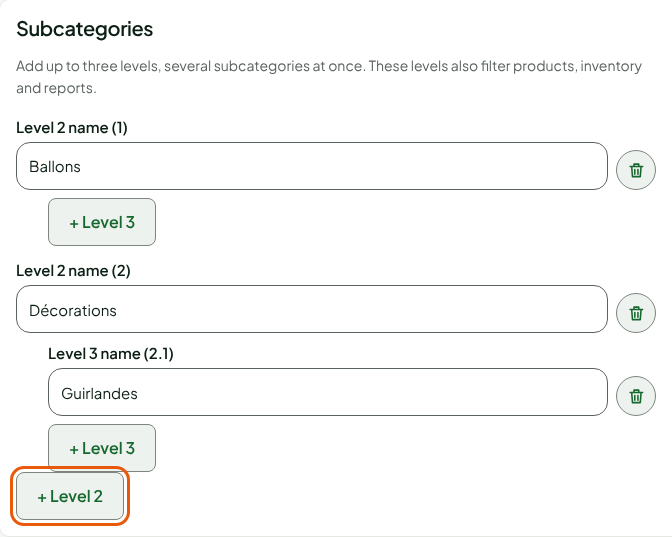
Click Save, in the bar at the bottom of the window.
The list comes back with the notice "Category “Articles de fête” created with 3 subcategories." Everything is created or nothing is: if one line is refused, no category is written.
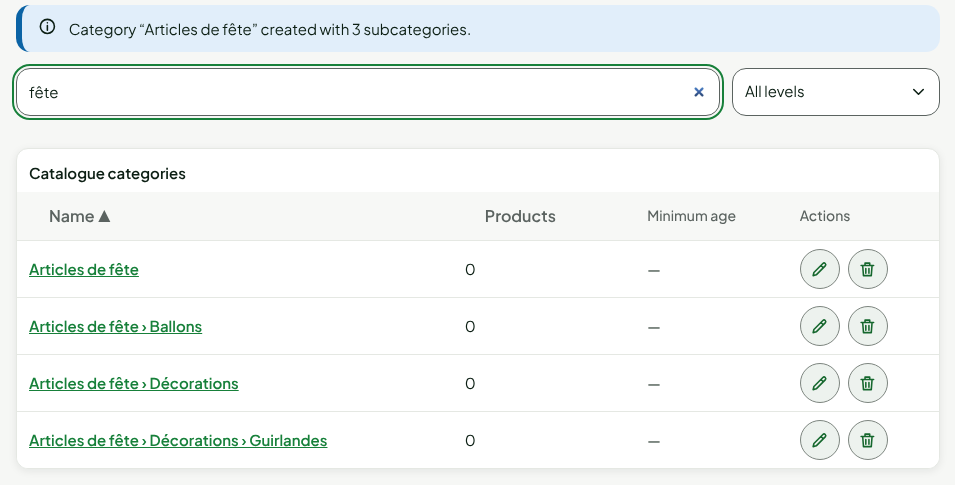
A category has three levels at most. To search the list, type part of the name in Search for a category: the list then shows each category with its full name. All levels filters by level.
Edit a category
The name, the place in the tree, the age rule and the deposit change in the same form as creation.
Open Catalog > Categories and look for the category in Search for a category.
Click its name, or the pencil on its line.
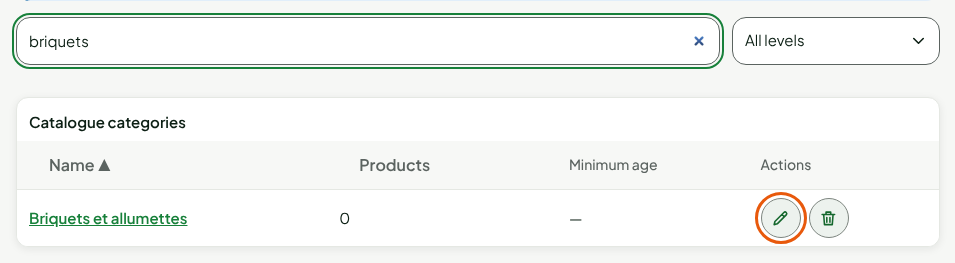
Change the name, Placed under or the Age rule. With Set an age, type the age in Minimum age: a whole number from 1 to 120.
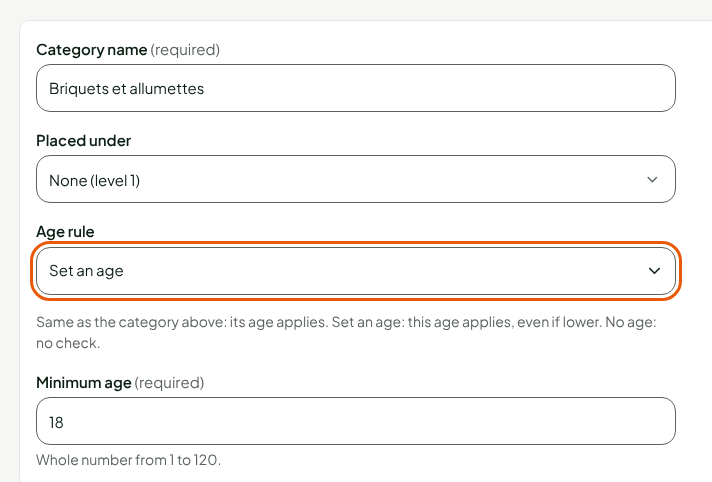
Click Save.
The screen shows "Category “Briquets et allumettes” saved. The minimum age of the products concerned has been updated." When the age comes from the category above, the list shows it followed by "(inherited)".
A category's minimum age applies to its products: the register has it checked at the sale. Set an age applies even if it is lower than the age of the category above; No age stops all checking.
To add subcategories to an existing category, use New subcategories on the same page: the current subcategories are listed above.
View a category's products
Open Catalog > Categories and look for the category.
Click View products in the Products column of its line.
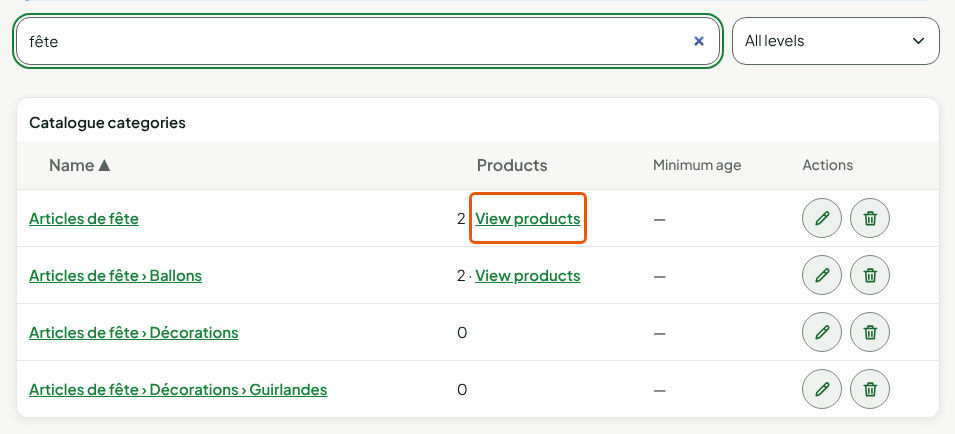
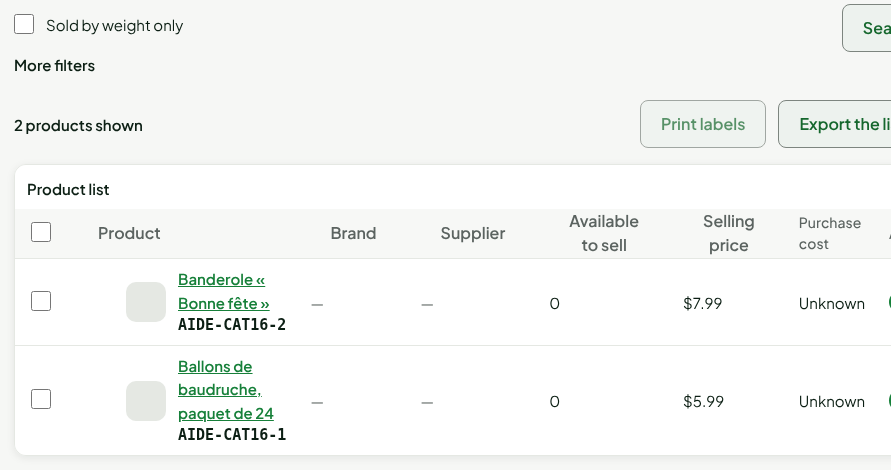
The product list opens, filtered on the category and its subcategories.
Archive a category
A category is never deleted: it is archived. It leaves the choices (product sheet, filters, import) but its history stays readable, and its name is free again among neighbouring categories.
- Open Catalog > Categories and look for the category.
- Click the trash on its line.
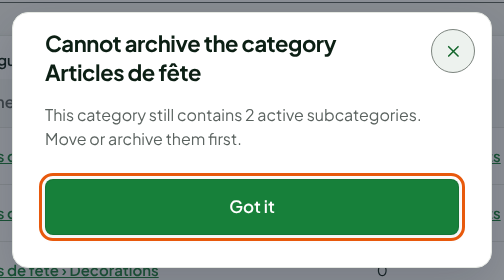
If the category still contains products or active subcategories, the screen refuses and says how many.
An empty category asks for a confirmation:
Click Archive.
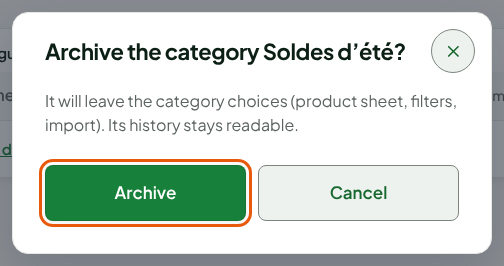
The screen shows "Category “Soldes d’été” archived."
A deactivated product keeps its category. To archive a category, first move all its products, active or not, to another category.
Troubleshooting
"A category with this name already exists at the same place"
Two neighbouring categories cannot share a name (case and accents are ignored). Choose another name, or archive the old category.
"A category has three levels at most"
The category, with its subcategories, would go beyond three levels. Choose another place in Placed under.