Setting up a webhook
- For
- Administrator
- Where
- Back office
- Permission
- Manage API clients and webhooks
- Checked on
A webhook tells another program when something changes in Braavu POS. The notice contains no customer data: it only says there is news, and the program then goes and reads it itself.
Before you start
- Have the address the receiving program gave you. It must start with
https://, be public on the Internet and contain no username or password. - The program must already have its access, with the Follow POS activity right (see the guide Connecting software through the API). The webhook warns it; the access lets it read.
- You can have five active webhooks at most.
A webhook is just a signal, never the source of the data. If a notice is lost, the program finds everything by reading the POS activity. Braavu POS never waits for the receiving program: a slow answer or an outage on its side slows down neither the register nor the server.
Declaring a webhook
Open Settings > Webhooks.
Click Declare a webhook.

Type the address in Recipient address, for example
https://example.com/notices/accounting.Click Declare the webhook.
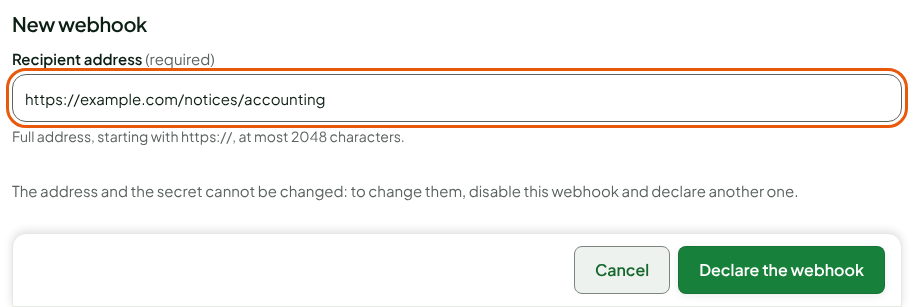
The address and the secret cannot be changed. To change the address, disable the webhook and declare another one.
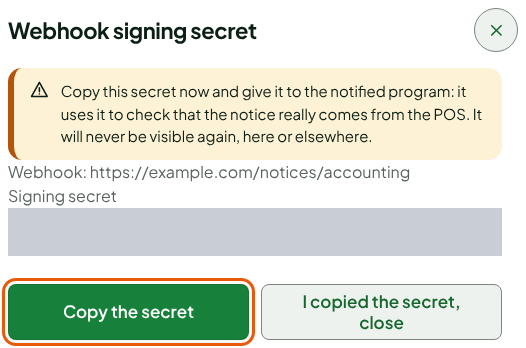
A window shows the webhook's Signing secret. The receiving program uses it to check that a notice really comes from Braavu POS. It is shown only once.
Click Copy the secret.
Give the secret to the receiving program's team by a safe means.
Click I copied the secret, close.
The webhook joins the list, in the Active status. Its Last notification column says "No notification yet" until something has been sent.

Testing a webhook
The test sends a trial notice to the recipient, to check that the address answers.
Click Test, in the webhook's row.

The screen says "Test notice prepared for… Refresh the list in a moment to see the result."

- Wait a moment, then click Refresh the list.
The Last notification column gives the test outcome: received by the recipient, waiting to be sent or abandoned, with the last failure if there was one.
| Last failure | What it means |
|---|---|
| no response in time | The recipient is too slow or stopped. |
| recipient unreachable | The address leads to no server. Check it. |
| address refused (internal or not public) | The address is not public on the Internet. |
| HTTP … response from the recipient | The recipient answered with a refusal. Ask them why. |
After several attempts, Braavu POS may abandon a notice. An abandoned notice is not lost to the program: it finds it by reading the activity.
Disabling a webhook
Disable a webhook when the program no longer needs to be told. It is final.
Click Disable, in the webhook's row.
Read the warning: the program will no longer receive any notice, and pending ones are cancelled.
Click Disable permanently.
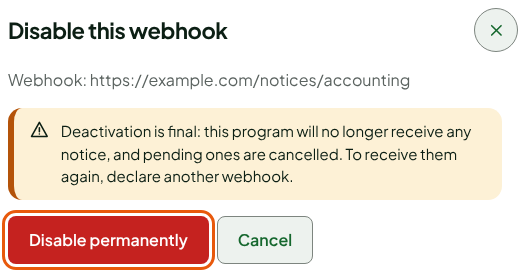
The screen says "Webhook … disabled." The row changes to Disabled, with no action left, and the count of active webhooks goes down by one. To receive notices again, declare another webhook.

Troubleshooting
"This address is not accepted: it must be public on the Internet."
The address leads to a private or internal network. Use the public address the receiving program gave you.
"An active webhook already exists for this address."
This address is already declared. Use the existing webhook, or disable it before declaring another.
"You already have 5 active webhooks, the maximum."
Disable a webhook you no longer use before declaring another.