Receiving a purchase order
- For
- Manager, Administrator
- Where
- Back office
- Permission
- Receive a delivery, Manage purchase orders
- Checked on
When a supplier's delivery arrives, you receive it against its purchase order: you count what came, note the discrepancies, and the store's stock goes up. The order moves along by itself, from Sent to Partially received then Received.
Before you start
- The order must be in the Sent or Partially received status (Sending and tracking a purchase order).
- Your role needs the permission Manage purchase orders (to open the order) and Receive a delivery (to receive). Without the second one, the order screen says that receiving takes the right to receive goods.
- Count the delivery on the pallet before you enter anything: quantities are typed line by line.
- Costs and an order's total (Unit cost, Value at cost, Total at cost) are only shown with the permission View purchase costs.
A validated receipt goes into stock and can no longer be edited. A mistake is fixed by an adjustment (Adjusting stock).
Receiving the delivery
Open Stock > Purchase orders, then open the order (Sending and tracking a purchase order).
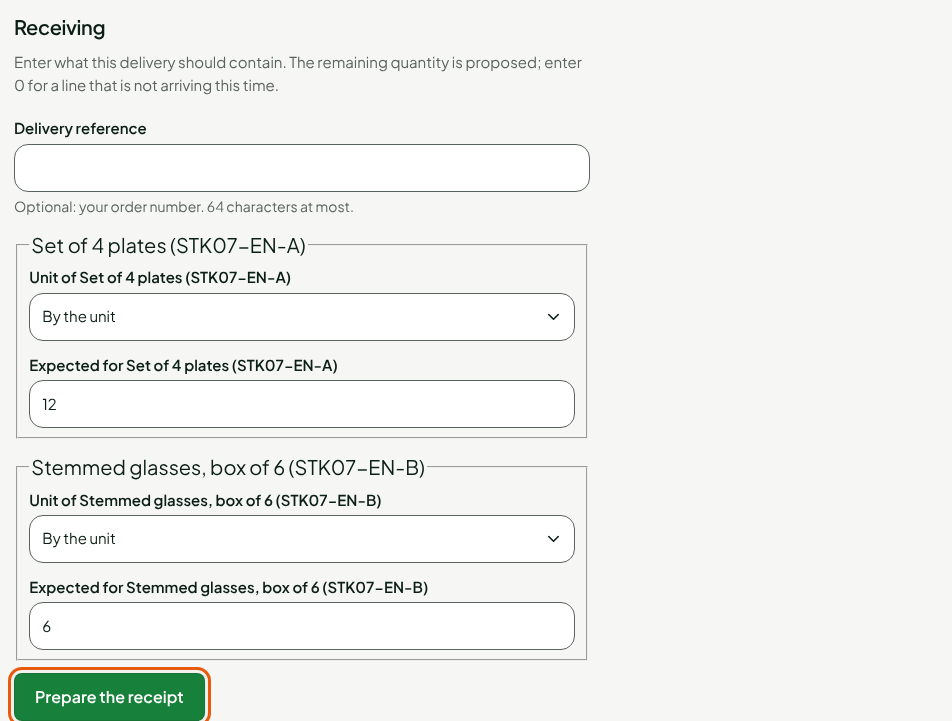
Under Receiving, check the Expected for quantity of each item. The screen proposes the remaining quantity. Enter 0 for an item that is not arriving this time.
In Delivery reference, type the number of the supplier's delivery slip, if you have one.
Click Prepare the receipt.
The Received quantities screen opens, one row per item. The proposed received quantity is the expected quantity.
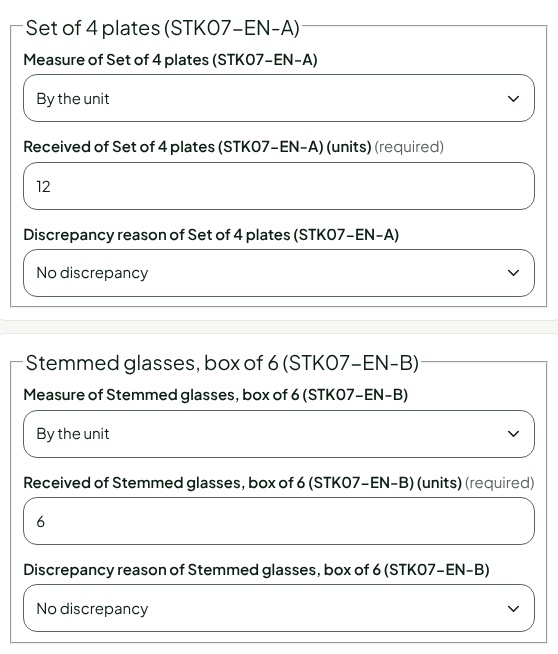
For each item, correct the quantity in Received of followed by the item's name, according to what you counted. For an item sold by weight, first choose By weight (kg, to the gram) in Measure of followed by the item's name: the quantity is then typed in kg, to the gram.
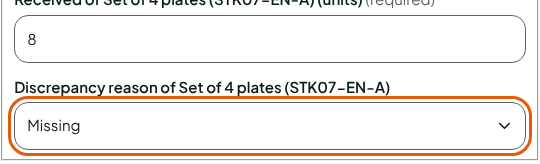
If the received quantity differs from the expected one, choose the Discrepancy reason: Missing, Damaged (not put in stock), Received in excess or Other. No discrepancy when everything arrived.
Click Validate the receipt.
Reading the result
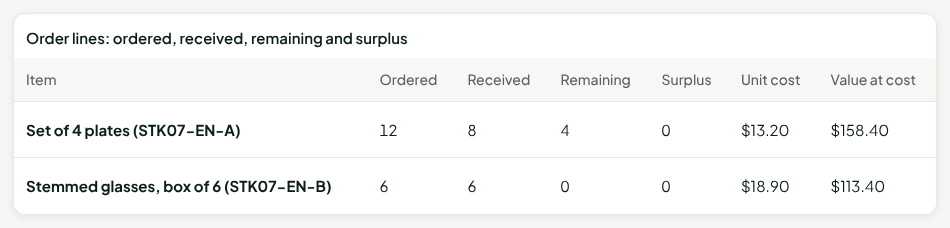
The screen goes back to the order. Its status is Partially received as long as a line has not received at least the quantity ordered, Received otherwise. The Order lines table shows, for each item, the Ordered, Received, Remaining and Surplus quantities.
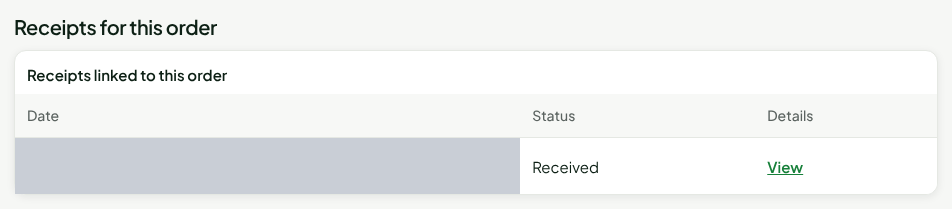
Under Receipts for this order, the delivery is noted in the Received status. Click View to open it.
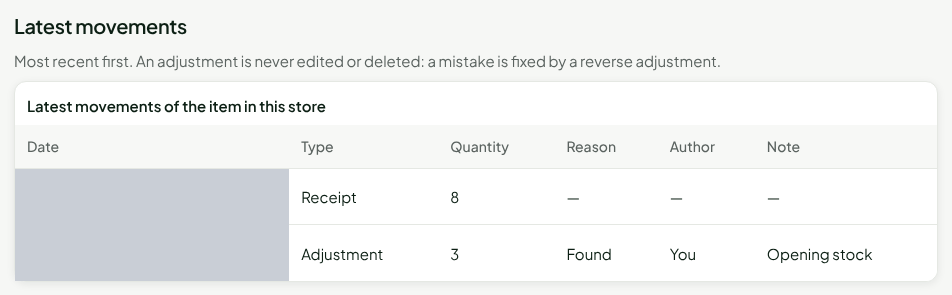
The store's stock is up to date: each item received has a movement of type Receipt, which you read in Stock > Inventory (Viewing stock levels and movements).
The reason Damaged (not put in stock) says that damaged goods are not put in stock: do not count them in the received quantity. A Surplus is noted on its line: it never makes up for another item's shortage.
Receiving the rest
When the rest arrives, reopen the order and start again. The screen proposes the remaining quantity. Only one receipt at a time is expected for an order: receive it or cancel it before preparing another. If the rest will not come, close the order (Sending and tracking a purchase order).
Troubleshooting
"A receipt is already expected for this order: receive or cancel it first."
A prepared receipt was not validated. Open it from Receipts for this order to validate it, or cancel it with Cancel the receipt in Stock > Stock receipts.
"Only a sent or partially received order can be received."
The order is still a draft, or it is already received or cancelled. Send it first if it is a draft.
"This whole order has already been received."
Every line is settled: there is nothing left to receive.