Awarding points to a customer
- For
- Cashier, Manager
- Where
- Web register
- Permission
- Sell at the register, Manage customers
- Checked on
There is no sign-up for the loyalty program: a customer earns points as soon as they have a record and it is on the sale. Add their record to the cart before you take payment. This guide follows the web register of the back office.
Before you start
- The loyalty program must be active (Setting up the loyalty program). Otherwise no sale earns points.
- The customer must have a record. Without one, create it in the middle of the sale: Creating a customer at the register.
- Your role must allow selling and managing customers. Without the latter, the Add a customer field does not appear.
Add the customer's record to the sale
For a sale to earn points:
Put the items in the cart.
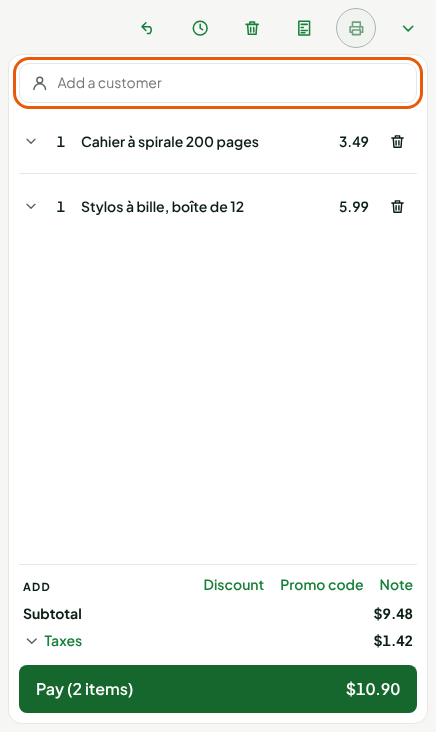
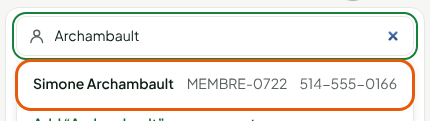
In Add a customer, type the customer's name, phone number or membership card code. The search starts at 2 characters.
Click the record in the Customers found list. The row shows the name, the code and the phone number, enough to tell two customers with the same name apart.
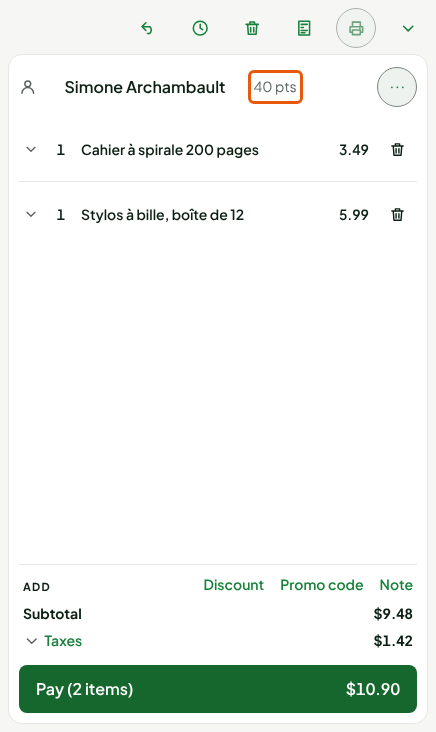
The customer's name and points appear at the top of the cart.
When the register reminds you
When you pay, a sale with no customer opens the Warning: no customer on the sale window. It prompts you to ask the customer if they want to earn points. The business can change this message, or remove it, in the settings.
Click Add a customer.
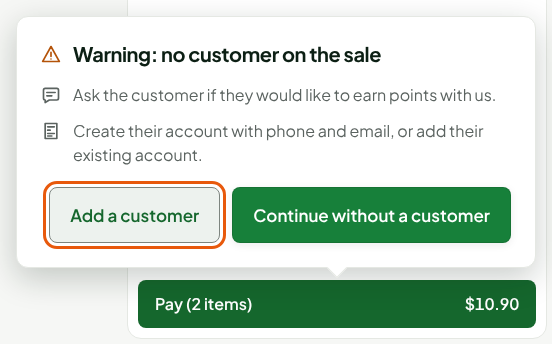
Search for the record, then click it. The Pay screen opens again, this time with the customer: the Loyalty tile is offered next to Layaway and Store credit.
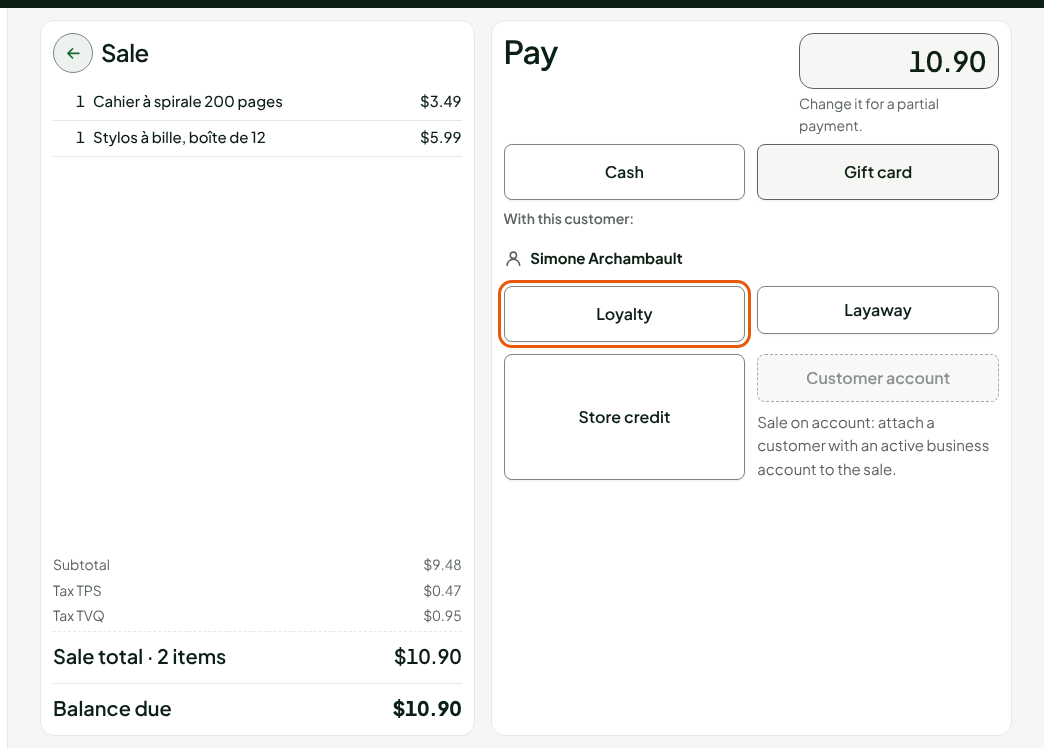
To pay without a record, click Continue without a customer: the sale then earns no points.
See what the sale earns
Take payment as usual. On the confirmation screen, the Loyalty box of the customer's card shows their new balance. Here, 40 points plus 9: items of $9.48 before taxes, at 1 point per dollar, earn 9 points, rounded down.
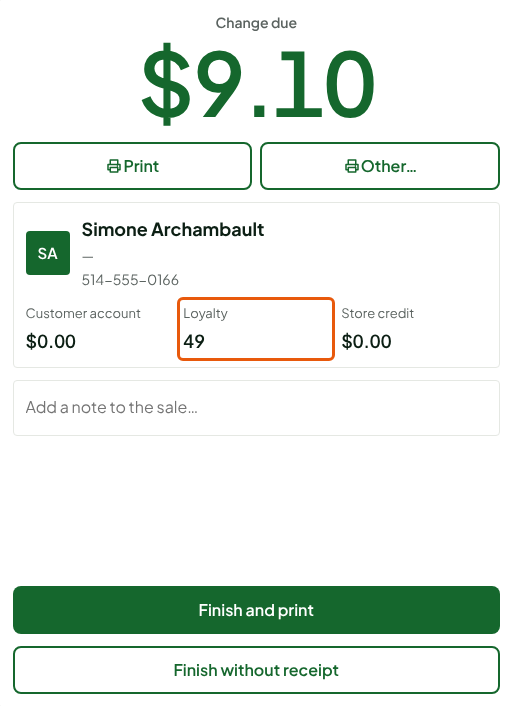
To understand the calculation, and to redeem points, see Earning and redeeming points at the register.
A customer without a record can be invited to sign up by a QR code printed on the receipt: see Showing loyalty on the receipt.
Troubleshooting
"Points unavailable." next to the customer's name
The register could not read the customer's balance. The sale can go on, and the points are still earned at payment. If the message keeps coming back, check the workstation's connection.
I forgot to add the customer before paying
A paid sale can receive its record afterwards. Open the sale in Sell > Sales history, click Edit, then search for the customer in Add a customer and click Save. The sale's points then go to that customer, once. The screen refuses the change if the sale is cancelled, returned in whole or in part, or paid with points.
This customer has no points, yet they have already bought here
Points are earned only when their record is on the sale. A purchase made without a record earns nothing, unless you add the record to that sale afterwards (see above).