Counting on a phone
- For
- Cashier, Manager
- Where
- Phone
- Permission
- Run an inventory count
- Checked on
To count an aisle, a shelf or a whole store, you walk with your phone: you scan or type each item, enter the quantity you see, and the screen keeps your entries even when the network drops. The office then checks the differences and closes the count.
Before you begin
- A count must be open at the office, in Stock > Inventory counts. If there is none, the phone's list says "No open count".
- Open the back office in the phone's browser and sign in. A Bluetooth barcode reader in keyboard mode can replace typing the code.
- The browser must allow the site's storage: without it, the screen refuses to keep your entries.
The count is blind: the phone never shows the quantity the software expects. Count what you see, without guessing.
Open a count
To choose the count to do:
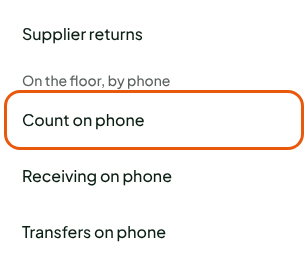
Tap Open menu, then Count on phone, under On the floor, by phone.
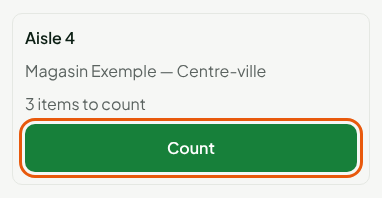
Tap Count on the count's card. The card shows its name, its store and the number of items to count.
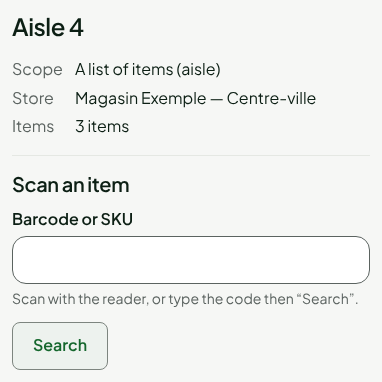
The count screen shows its Scope (the whole store, a category or a list of items), its Store and its number of Items, then the Scan an item form.
Enter a quantity
To count an item:
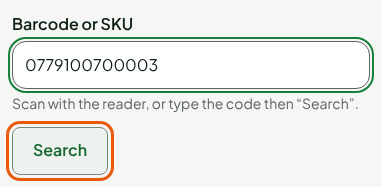
Scan the item's barcode with the reader. Without a reader, type its barcode (or its SKU) in Barcode or SKU, then tap Search.
Type the number of items counted in Quantity (units), then tap Save the entry. Type 0 if the item is missing.
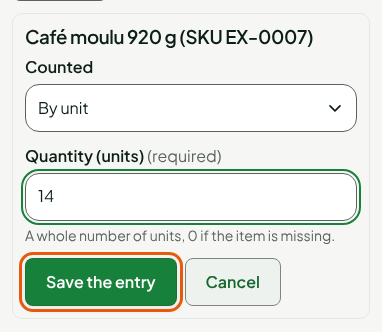
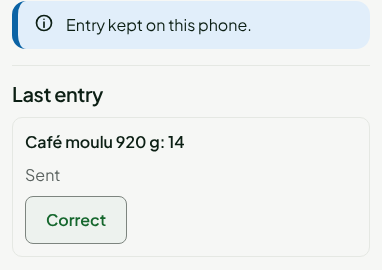
The screen shows "Entry kept on this phone.", then the Last entry with its state: Waiting to be sent or Sent. Move on to the next item.
For an item sold by weight, choose By weight (kg) in Counted and type the weight in kilograms, with three decimals at most (1.234 for 1 kg and 234 g).
The screen recognizes an item by its barcode (secondary codes too) or its SKU, like the register: a code that is neither the SKU nor a barcode of an item in the count is refused (see Troubleshooting a count). An item outside the count's scope cannot be counted.
Count without a network
Without a network, keep counting as usual. Each entry is first kept on the phone, then sent once, in order, when the network is back.
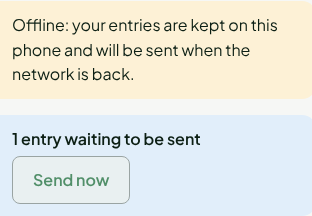
To send right away once the network is back, tap Send now. Otherwise, sending retries on its own every fifteen seconds while entries remain.
Correct the last entry
You can only correct the last entry. To correct it:
Tap Correct, under Last entry.
Type the right quantity in Quantity (units). The new quantity replaces the previous one; 0 cancels the entry.
Tap Save the correction.
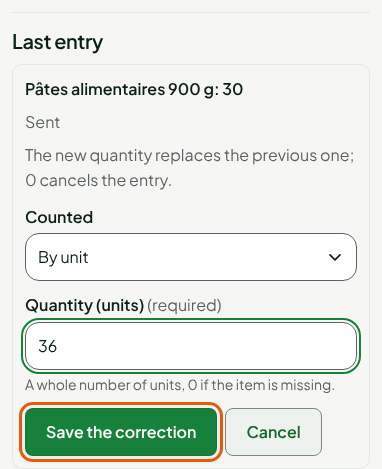
The correction is added to the original entry; the screen shows it as "Correction of the previous entry".
Finish the count
When everything is counted:
Tap Finish the count, at the bottom of the screen. The button stays grayed out while entries are waiting to be sent, or without a network.
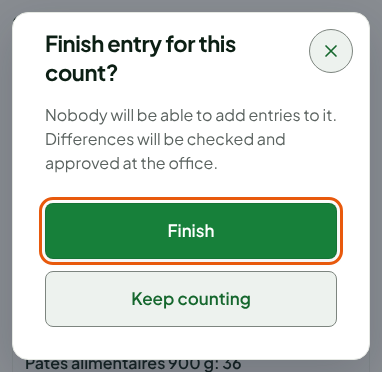
Tap Finish in the "Finish entry for this count?" window.
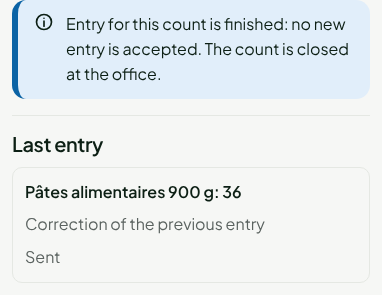
The screen shows "Entry for this count is finished: no new entry is accepted. The count is closed at the office." Nobody can add an entry any more.
Finishing does not change the stock. The differences are checked, then the count is closed at the office by someone who can adjust stock. An item nobody counted stays unchanged.