Adjusting a customer's points balance
- For
- Manager, Administrator
- Where
- Back office
- Permission
- Manage customers, Configure the loyalty program
- Checked on
A correction adds or removes points on a customer's account: a goodwill gesture, points from an old system, a mistake to repair. It is added to the history; it never erases it.
Before you start
- Your role must have the permissions Manage customers and Configure the loyalty program. Without the second one, the account is read only.
- Open the customer's account first: see Viewing a customer's loyalty account.
- The record must not be anonymized: the points of an anonymized customer can no longer be corrected.
Add or remove points
To correct the balance:
Open the customer's account (Loyalty: point balance and movements, on their record), then go to the Correct points form, under the movements.
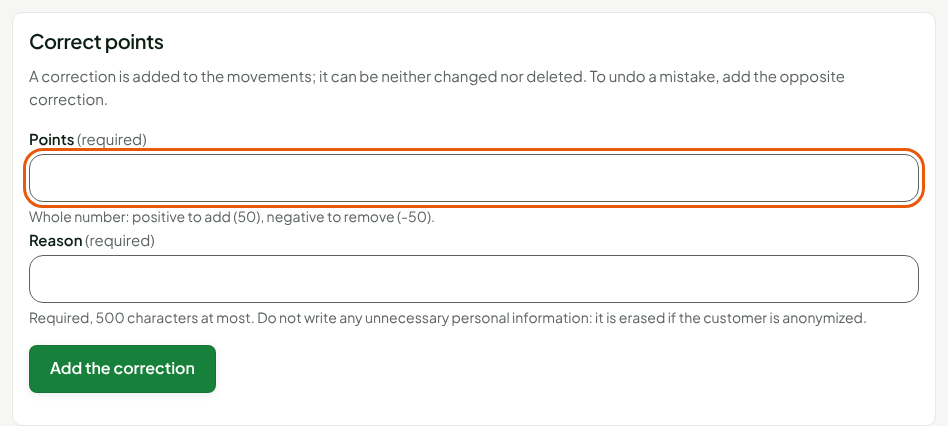
Type the number in Points: a positive whole number to add (
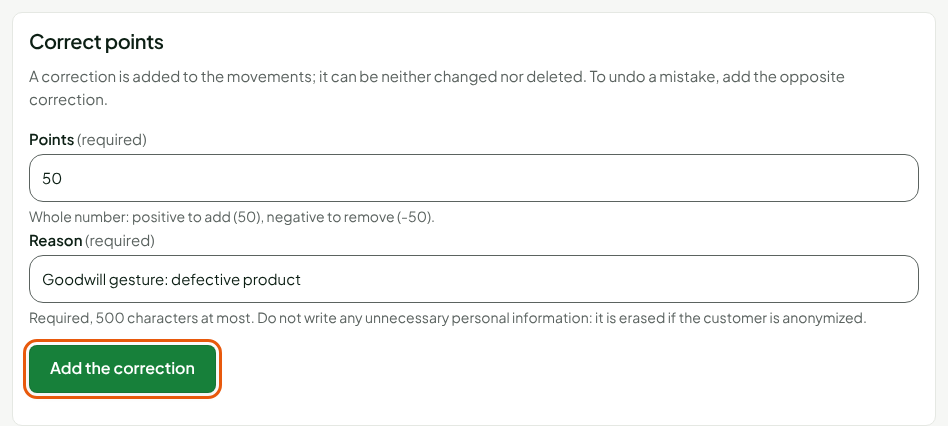
50), a negative one to remove (-50).Type the reason in Reason. It is required, 500 characters at most.
Click Add the correction.
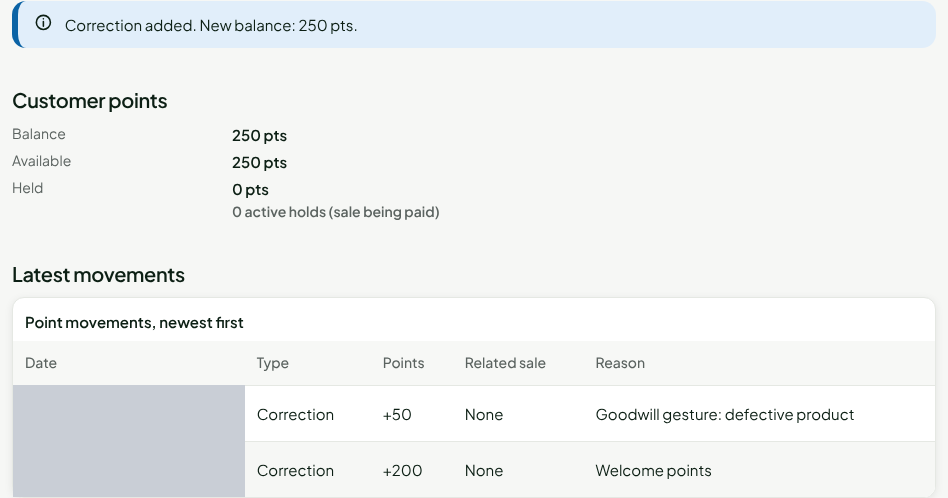
The message Correction added. New balance: 250 pts. appears. The Balance is up to date, and the correction is the first line of the movements, with its reason. The form empties: another correction is a new entry.
Do not write any unnecessary personal information in the Reason. It is erased if the customer is anonymized, but it can be read until then.
Repair a mistake
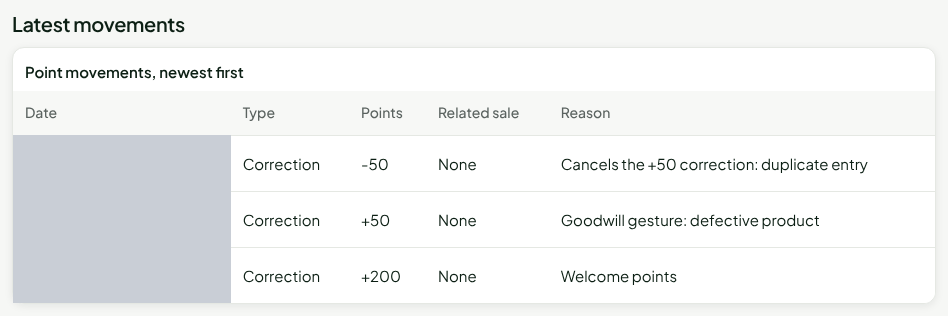
A correction can be neither changed nor deleted. To undo a mistake, add the opposite correction: if you added 50 points by mistake, add a correction of -50, with a reason that says which one it cancels.
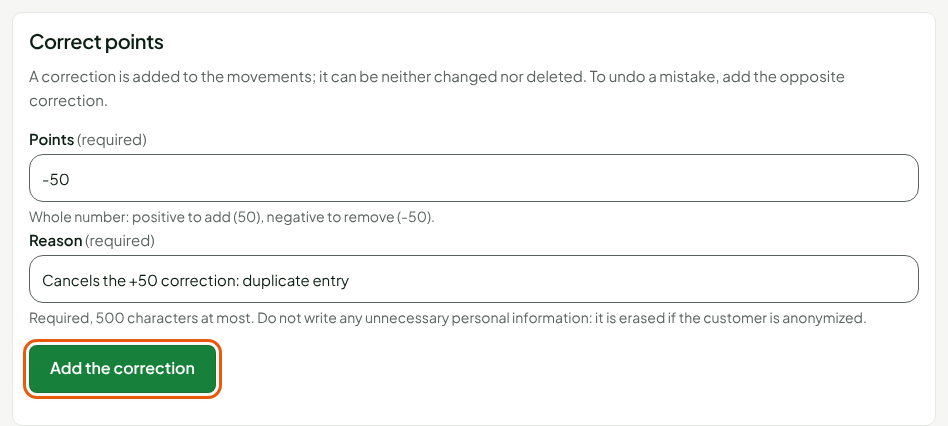
Both corrections stay in the movements, side by side. They read as the story of what happened.
What the account refuses
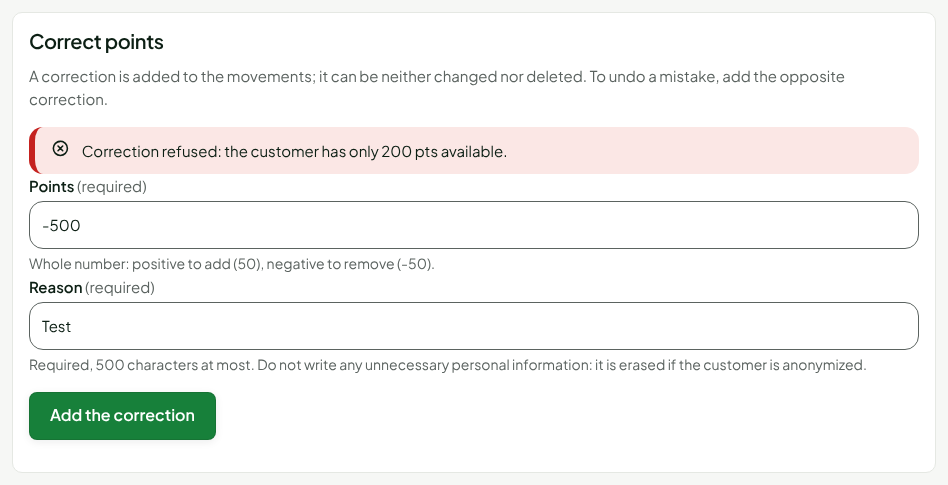
A removal cannot exceed the customer's available points: the balance never goes below the points held by a sale being paid, so never below zero. The screen states the available balance: Correction refused: the customer has only 200 pts available. and nothing is written. When a sale in progress holds points, it says so too: Correction refused: the customer has only 75 pts available (30 pts held by a sale in progress). Fix the number of points, or wait until the sale in progress is over.
A correction that adds points counts as a points credit: it pushes the expiry of the customer's points back by 2 years (see Understanding how points expire).
Troubleshooting
"A correction cannot be 0 points." or "Invalid number of points"
Type a whole number other than zero: 50 or -50, with no decimal point or letter.
"The reason is required."
The Reason field is empty. Write why you are correcting the balance.
"This correction was already saved"
The connection dropped while sending: the server had received the correction. Nothing was added a second time, and the message gives the balance after this correction. Do not do it again.
"Entry already used"
This entry was already saved with other contents. Click Reload the account and start a new entry, read the movements, then type the correction again if it is still wanted.