Connecting software through the API
- For
- Administrator
- Where
- Back office
- Permission
- Manage API clients and webhooks, Grant sensitive API scopes
- Checked on
Another program (accounting, online store, product management) can read Braavu POS activity and write the catalogue. It does so itself, with its own access key, which you create here and which gives only the rights you tick.
Before you start
- This feature is for the team that programs the other software: you create the access, they put the key in. Ask them which rights the software needs.
- Granting the write rights and reading the activity also needs the Grant sensitive API scopes permission.
- Each software has its own key: do not share a key between two programs.
Braavu POS never calls a connected software. The connected software comes to read and write. If the connected software goes down, the registers keep selling as usual. A key is revoked on its own, without touching the others.
Creating an access
Open Settings > Connected software.
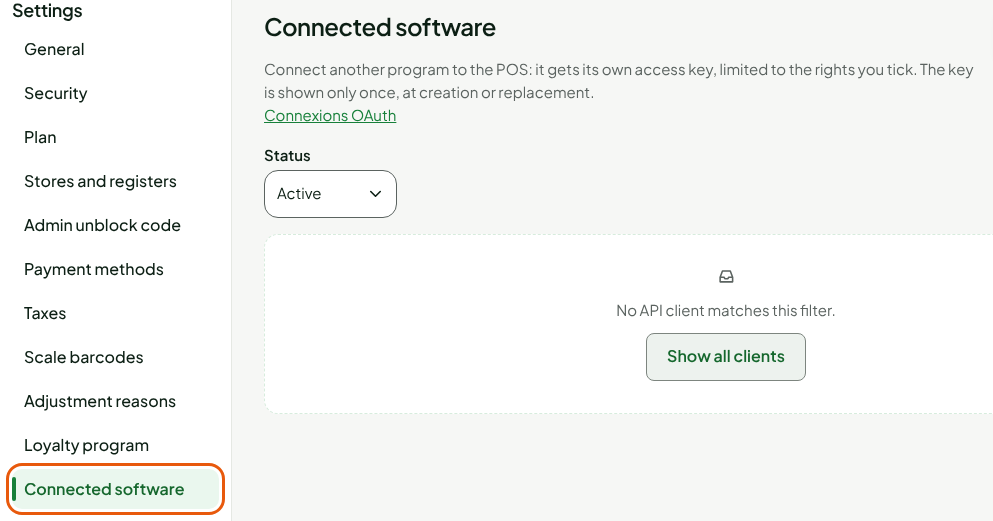
Click Create an API client.
Type a Name that says what the access is for, for example the software's name.

Search for a right in the Search rights field, under Rights, then tick it. For example Manage the catalogue, so the software can write products.
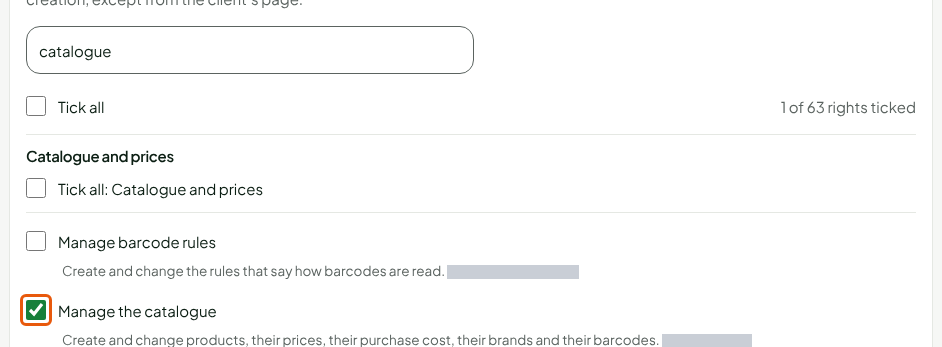
Tick Follow POS activity the same way, so the software can read sales, returns and stock movements.
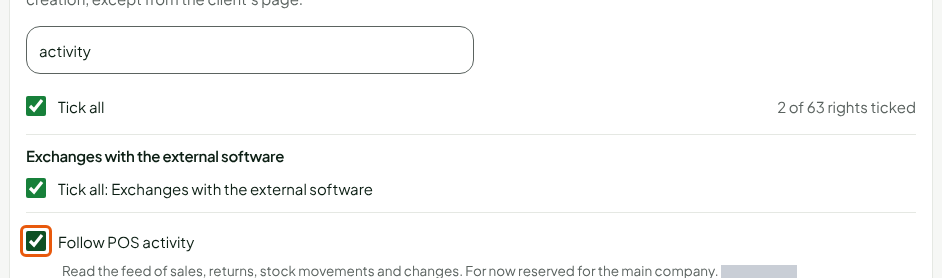
Tick only what the software needs. Tick all exists, but gives far more than necessary.
Check the Software that sends this data. A new software is chosen for you: nothing to type. Pick a software from the list only if it is already known to Braavu POS.

Click Create the client.
Handing the key to the software
A window shows the client's Access key. It is shown only once.
- Click Copy the key.
- Give the key to the software's team by a safe means: never by ordinary email or group message.
- Click I copied the key, close.
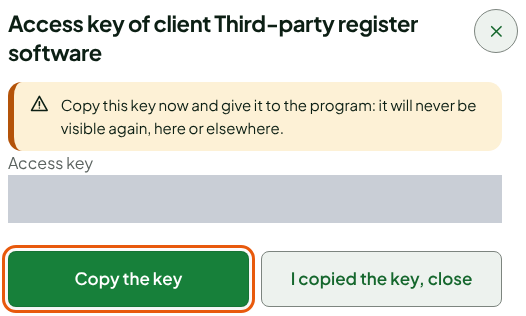
The key will never be visible again, here or anywhere else. If it is lost, it must be replaced (see below). Never paste it in a shared document.
Reading an access record
In the Connected software list, click the client's name. The record gives its status (Active or Revoked), the creation date, who created it and the Last used (Never used until the software has read something). It has three buttons: Change rights, Replace the key and Revoke this client.
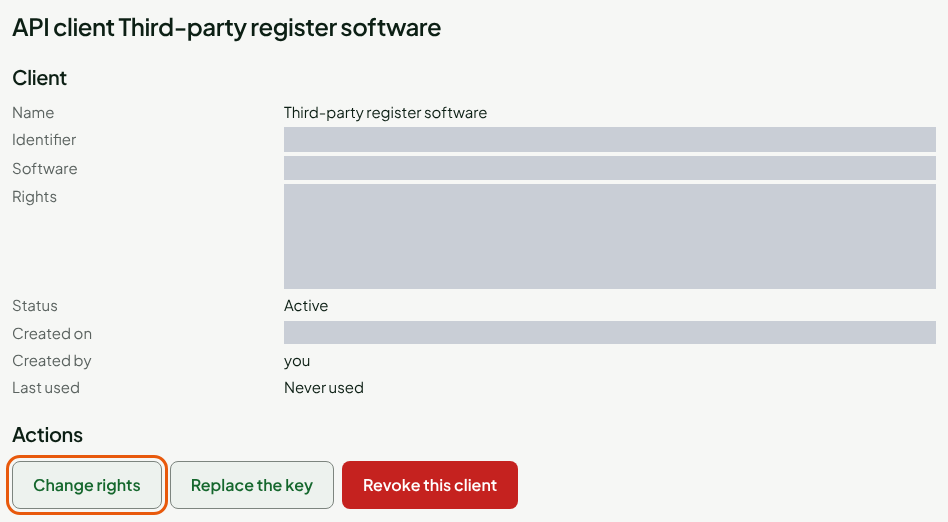
Changing the rights
- Click Change rights.
- Tick or untick the rights, then click Save rights.
The software follows the change at once, with the same key. A client keeps at least one right: to remove them all, revoke it.
Replacing the key
Replace the key if it is lost or if someone who knew it leaves the team.
Click Replace the key.
Read the warning: the old key is refused at once.
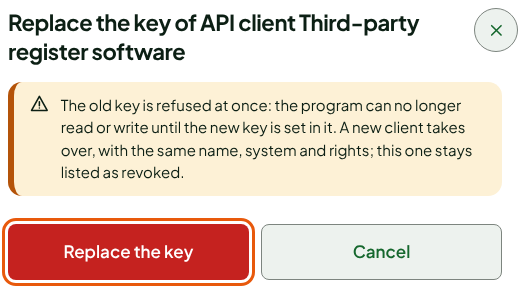
Click Replace the key, then copy the new key as at creation.
A new client takes over, with the same name and rights. The old one stays in the list, Revoked.
Revoking an access
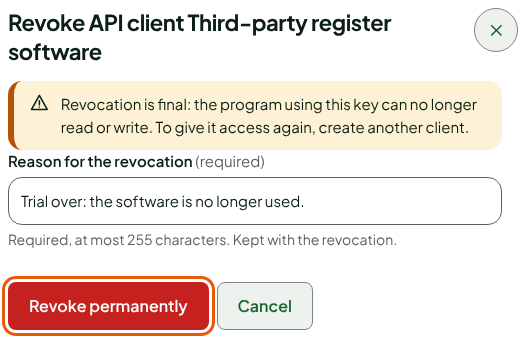
Revoke an access when the software is no longer used. It is final: to give it access again, create another client.
Click Revoke this client.
Type the Reason for the revocation.
Click Revoke permanently.
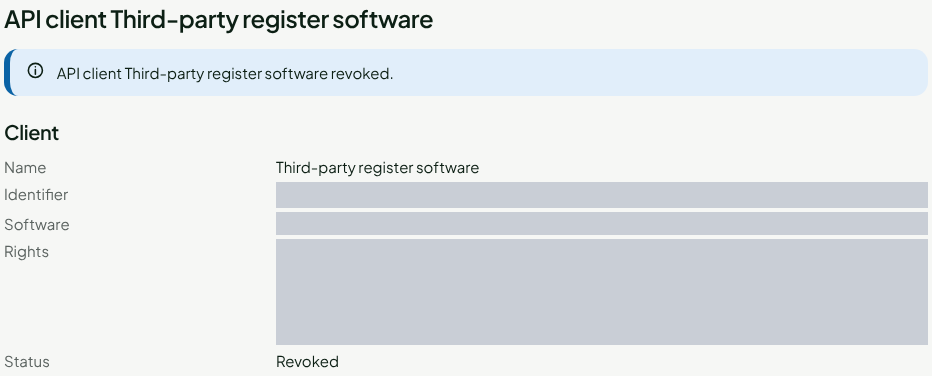
The screen shows "API client … revoked." and the Status changes to Revoked. The software can no longer read or write anything.
Troubleshooting
"Your role cannot grant one of the ticked rights."
A right needs a permission your role does not have. Untick it, or ask an administrator.