Getting started: hardware and workstations
- For
- Administrator
- Where
- Back office, Installed register
- Permission
- Manage stores and settings, Issue a register code
- Checked on
Each counter has its workstation: a Windows computer where the installed register runs, with its receipt printer, its cash drawer, its barcode scanner and, if needed, a customer display. This guide gives the recommended order: choose the hardware, install the register on each workstation, then connect the devices. Each step points to the guide that details it.
Before you start
- The stores and their registers already exist (Getting started: your business settings). A register is the point of sale; the workstation is the computer you install it on.
- Read Supported hardware before buying: only the receipt printer is a specific model, and the drawer opens through it.
- The store network must be ready: the register sells without it, but it needs it for its registration and to send its sales (Preparing the store network).
Installing the register on each workstation
Open Settings > Stores and registers, click the store's pencil, then expand the register with the arrow to the left of its name.
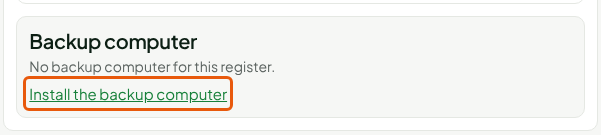
Click Install the backup computer, under Backup computer.
Click Download the installer (Windows), then run the file on the workstation.
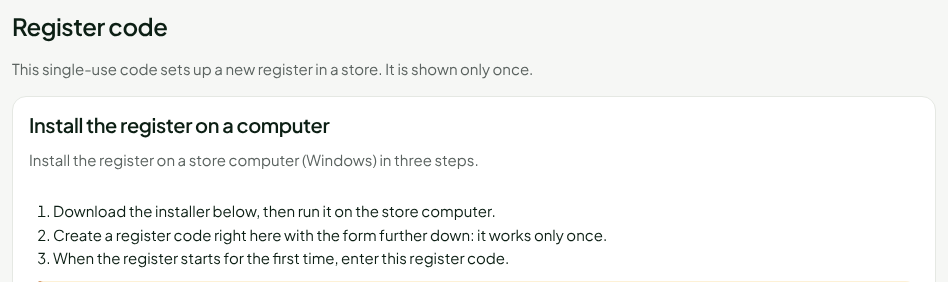
Click Issue the register code, further down the same screen, then write down the code.
Start the register on the workstation, type the code in Station code, then click Register the station.
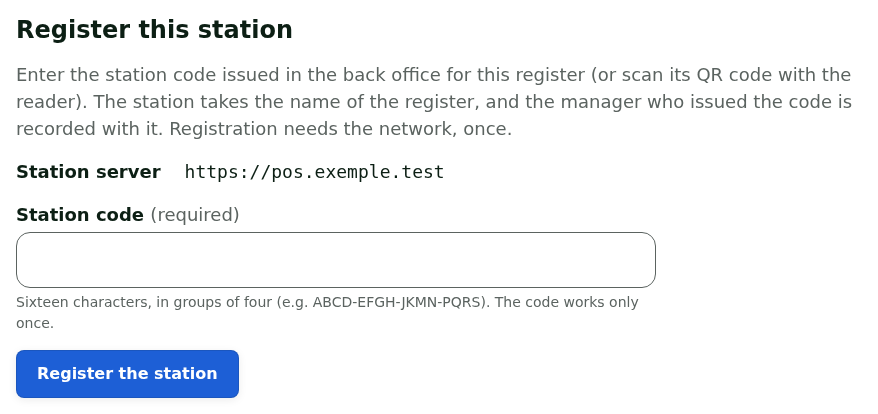
The screen shows "Station registered": the workstation becomes the register's backup computer, and the register's record shows "In service", followed by the workstation's receipt prefix. The guide: Installing the register on a workstation and enrolling it.
The register code is shown only once, works only once and expires 24 hours after it is issued. If it is lost or refused, issue a new one.
Connecting the devices
Make these connections on each workstation, the installed register.
The receipt printer and the cash drawer. The drawer plugs into the printer, and the printer opens it. To check the connection without making a sale, a manager opens the drawer from the register's Manager menu. The guides: Setting up the receipt printer and Connecting the cash drawer.
The barcode scanner. It behaves like a keyboard: a scanned code goes into the search field of the sale screen, and the item is added to the cart. The guide: Setting up a barcode scanner.

The customer display. A second monitor, turned toward the customer, shows the cart and the total during the sale. The guide: Setting up the customer display.

After setting up
The installed register is updated on the workstation: Updating the register. A computer that is changed, lost or reinstalled becomes a new workstation, registered in turn: Replacing or restoring a workstation.