Customers' personal information and Quebec Law 25
- For
- Manager, Administrator
- Where
- Back office
- Permission
- Manage customers, Export a customer’s data
- Checked on
A customer's record holds personal information. This guide says what Braavu POS keeps, and where the software lets you view, export, correct, and erase it: consents, the export, and anonymization.
This guide is not legal advice. It describes what the software does and where to find it. What the law requires of your business, and the deadlines to meet, are questions for the person responsible for personal information protection at your company, or for a legal adviser.
Before you start
- Your role must have the Manage customers permission. Exporting information also needs Export a customer’s data.
What the software keeps about a customer
| Information | Where it is |
|---|---|
| Name, phone, customer code | The record, and the customer copy on each installed register, to look a customer up even without a network |
| Receipt email, address, company, note | The record only: never on the installed registers |
| Loyalty points, store credit, layaways | The record, read from the server |
| Sales and returns linked to the customer | The server, like any sale |
| Consents and their proof | The server, never on an installed register |
The software keeps neither the customer's date of birth, nor their payment card number, nor an identity document. When a product with a minimum age is sold, it keeps only the trace that the cashier checked the age, never the date of birth.
Managing consents
A customer consents to each thing separately: Marketing emails, Marketing SMS, and the Privacy policy. Each consent has its own status: Never asked, Given, Withdrawn, or To reconfirm. The emailed receipt, which the customer requests, needs no consent.
To record a consent:
Open the customer's record (guide "Reading a customer record"), then scroll down to Consents.
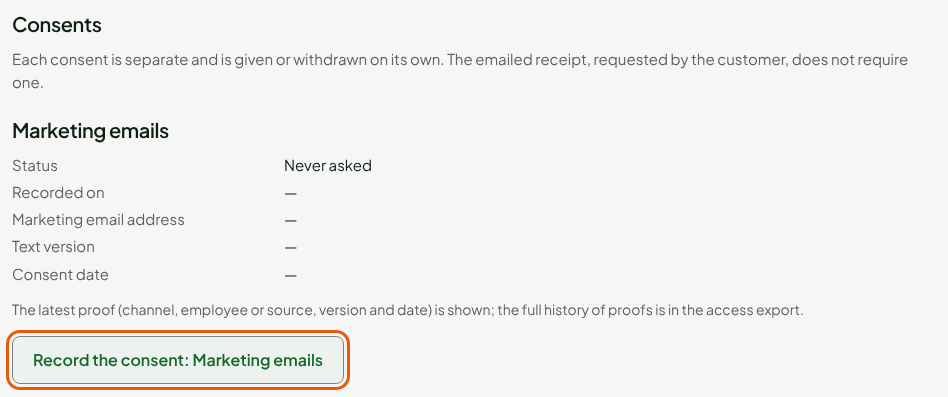
Click Record the consent under the item you want.
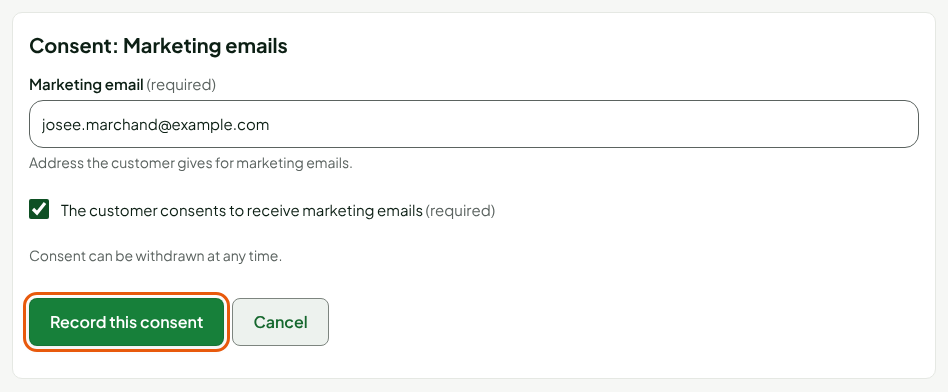
Type the address the customer gives, then tick The customer consents to receive marketing emails only if they say so. No box is ticked in advance.
Click Record this consent.
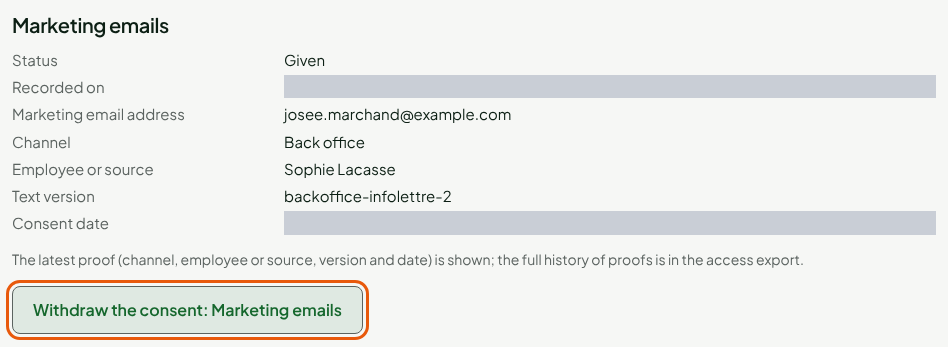
The status changes to Given. The software keeps the proof: the address, the Channel, the Employee or source, the Text version shown, and the date. To withdraw the consent, click Withdraw the consent. The history of proofs stays; it is not rewritten.
To reconfirm means the consent was imported without complete proof. Send no marketing message to this customer until they reconfirm.
The software sends no SMS: the marketing SMS consent is only a proof, at the phone number on the record. It needs a phone number on the record.
Exporting a customer's information
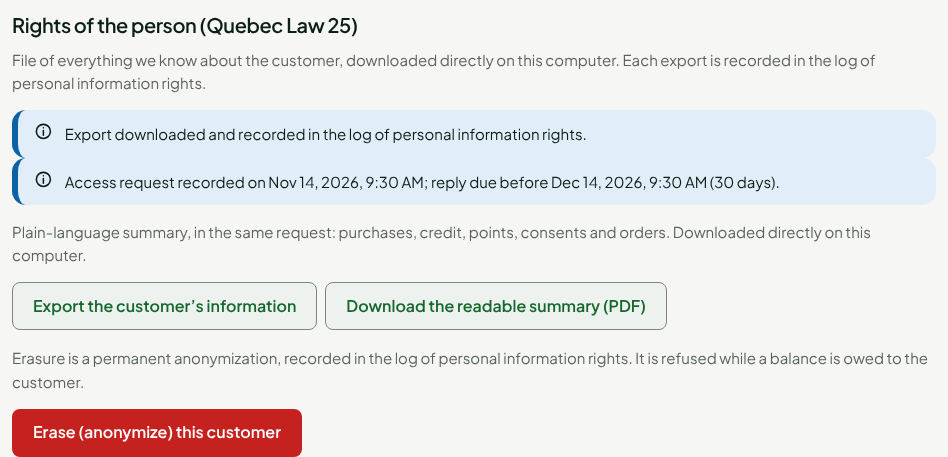
The bottom of the record, Rights of the person (Quebec Law 25), groups the export and the erasure.
Click Export the customer’s information for a file of everything the software knows about the customer, or Download the readable summary (PDF) for a plain-language summary: purchases, credit, points, consents, and orders.
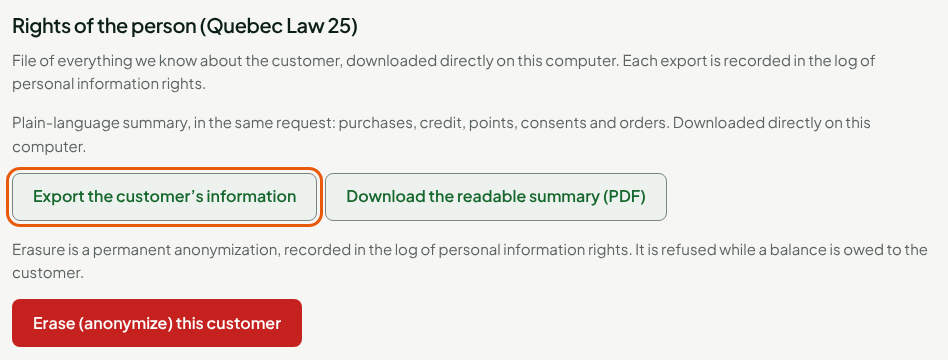
The file is downloaded directly to your computer. The screen writes that the export is recorded in the log of personal information rights, and it shows the request date and a reply date, 30 days later.
It is up to you to send the file to the person: the software does not write to them.
Erasing a customer: anonymization
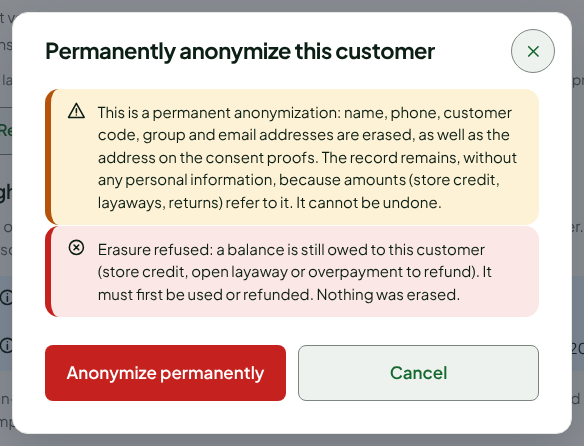
Anonymization erases the name, phone, code, group, emails, and the address on the consent proofs. The record stays, empty of any information, because amounts refer to it. It cannot be undone (guide "Adding, editing, and anonymizing customers").
- Click Erase (anonymize) this customer.
- Read the warning, then click Anonymize permanently.
The software may refuse, or erase only part.
A balance is owed. A customer who has store credit, an open layaway, or an overpayment to refund is not anonymized: the screen says "Erasure refused: a balance is still owed to this customer", and nothing is erased.
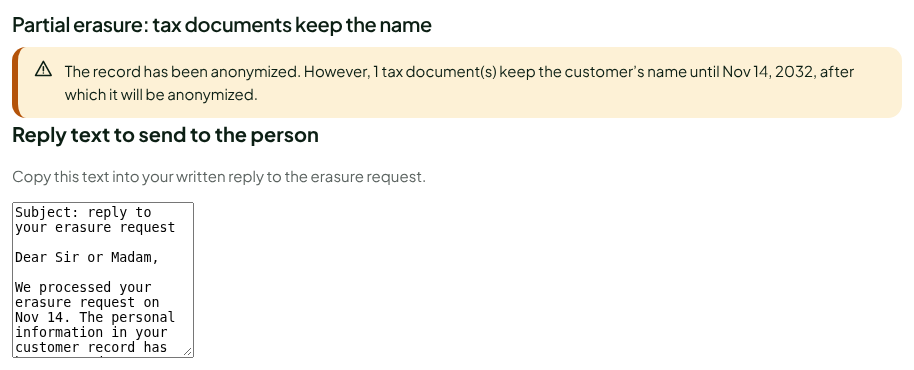
Tax documents keep the name. A sale or a return is a financial fact: it is never changed. The customer's name stays on its document until the date the screen shows, then it is anonymized. The screen then offers a Reply text to send to the person, to copy into your written reply.
What the software logs
Every customer export, its PDF summary, and every anonymization is written to the log of personal information rights, with the author and the date, never with the customer's information. Exporting the customer list is logged too (guide "Exporting the customer list").
Troubleshooting
"Your role does not allow the access export."
You lack the Export a customer’s data permission. Ask an administrator for it.
"Anonymized customer: no consent can be recorded any more."
The record is anonymized: it does not reopen.
"This record has no phone number"
Add a phone number to the record before recording the SMS consent.