Handling “Sale to verify” after a failure
- For
- Cashier, Manager
- Where
- Installed register
- Permission
- Sell at the register, Close the register
- Checked on
The money and the sales are safe: when the register could not confirm that a sale is recorded, it decides nothing on its own. At restart, it finds the sale and shows it to you before the next payment. Your part: check, and never make the customer pay again.
What you see
Right after Take payment, instead of the receipt, a red banner: Sale to verify: its recording could not be confirmed. The cart stays on screen, kept on the station.
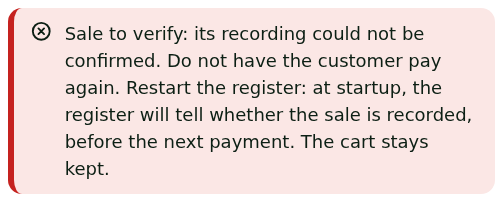
The customer may already have paid. The register blocks payments until it restarts: this is intended.
What to do
Restarting the register
- Right-click the register icon in the Windows notification area, then click Quitter / Quit.
- Reopen the Register app.
- Open your session with your PIN, then click Sell. The kept cart comes back.
Checking the sales before taking payment
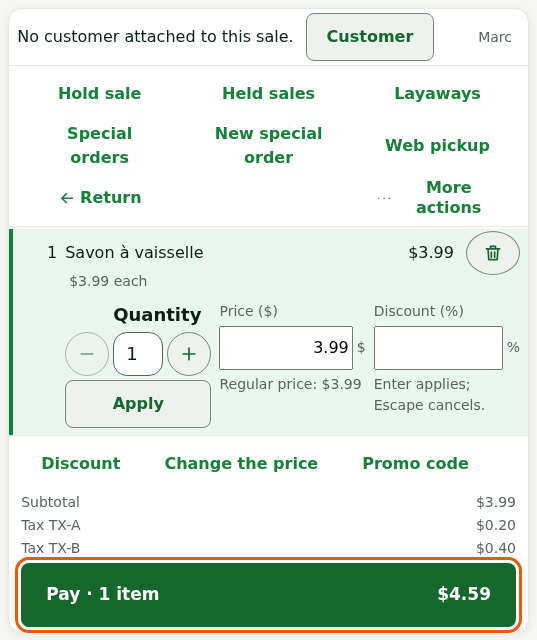
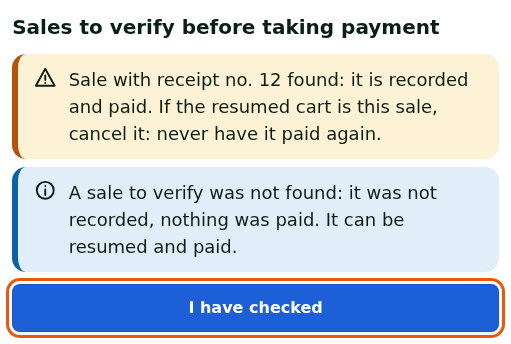
At the next payment, the register shows what it found:
Click Pay.
Read the list Sales to verify before taking payment. Each sale has its own line.
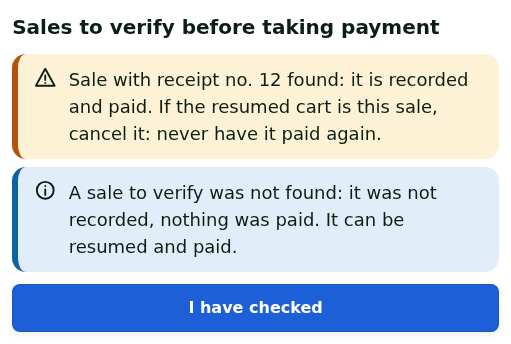
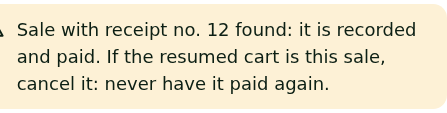
Found (orange banner, with its receipt number): it is recorded and paid. The customer does not pay a second time.
Missing (blue banner): it was not recorded, nothing was paid. It can be resumed and paid.
Click I have checked.
If the cart's sale was missing, take payment as usual.
Cancelling the cart of a found sale
If the resumed cart is the found sale, already paid, it must not be paid:
Click the Back to the sale arrow, at the top of Pay.
Click More actions, then Cancel the sale.
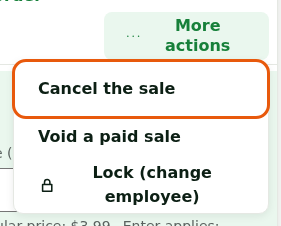
Click Cancel the sale to confirm.
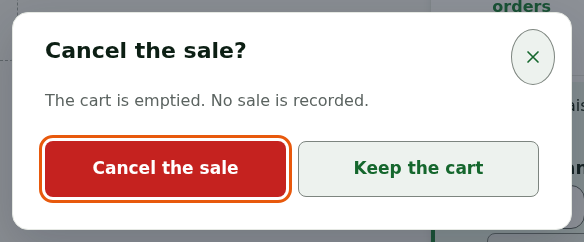
The cart is emptied; the found sale stays recorded and paid. If the customer wants the receipt, a manager reprints it from the Manager menu.
An interrupted cash refund
If the register stops during a return refunded in cash, the Return screen then shows Cash handout in progress: manager decision. Nothing is handed out again, and no new return is possible before the decision.
A manager checks the drawer and asks the customer whether they received the money, then chooses, with their PIN, Cash handed out (finalize the return) or Cash not handed out (back to the drawer, cancel). Only an employee allowed to close the register decides.
What not to do
- Never make a customer pay again for a sale to verify: wait for what the register says at restart.
- Do not redo an interrupted cash refund without a manager's decision.
- Do not delete anything or reinstall the register to "unblock" payment: restart it.
When to call an administrator
- After the restart, the list shows A sale to verify still has an unknown outcome and it comes back at every restart.
- The register no longer starts: see Handling a register that no longer starts.
Give them the station's name, the time of the sale and its receipt number if shown.