Troubleshooting receipt printers
- For
- Cashier, Manager
- Where
- Installed register
- Permission
- Sell at the register
- Checked on
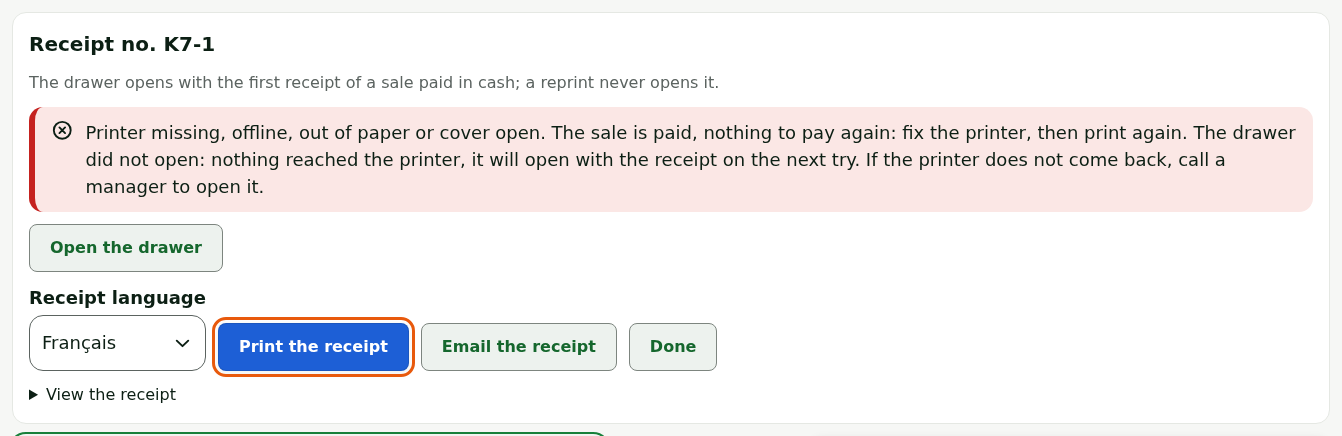
When the receipt does not come out, the register says so under Receipt no., with the cause. The sale itself is paid: fix the printer, then print again. Never ask the customer to pay again.
Before you start
The messages in this guide are those of the installed register. Each one ends with the same rule: the sale is paid, nothing to pay again.
Only the first receipt of a sale paid in cash opens the drawer. As long as nothing has reached the printer (printer missing, not found, print job refused), the receipt is still the first one: the button says Print the receipt and the drawer will open with it. Once a receipt has come out, or may have, the button says Reprint (receipt only): a reprint goes to the Reçu seul queue and never opens the drawer.
Print a receipt that did not come out
To print the receipt after fixing the printer:
Read the message under Receipt no. and fix the cause (see below).
Click Print the receipt (or Reprint (receipt only) if a receipt of the sale may already have come out).
The receipt of an earlier sale that did not come out stays in the Unprinted receipts of earlier sales (sales paid) list: it is not lost, even if another sale is paid in the meantime.
Troubleshooting
“Printer missing, offline, out of paper or cover open”
The printer cannot take the job. Check, in order:
- that it is switched on and its cable is plugged into the computer;
- that there is paper left on the roll;
- that the cover is properly closed;
- that it is not “offline” in Windows (Control Panel > Devices and Printers).
Then click Print the receipt. If the first receipt of a cash sale did not come out, the drawer stayed closed: it will open with the receipt on this try. If the printer does not come back, a manager can open it: see Connecting the cash drawer.
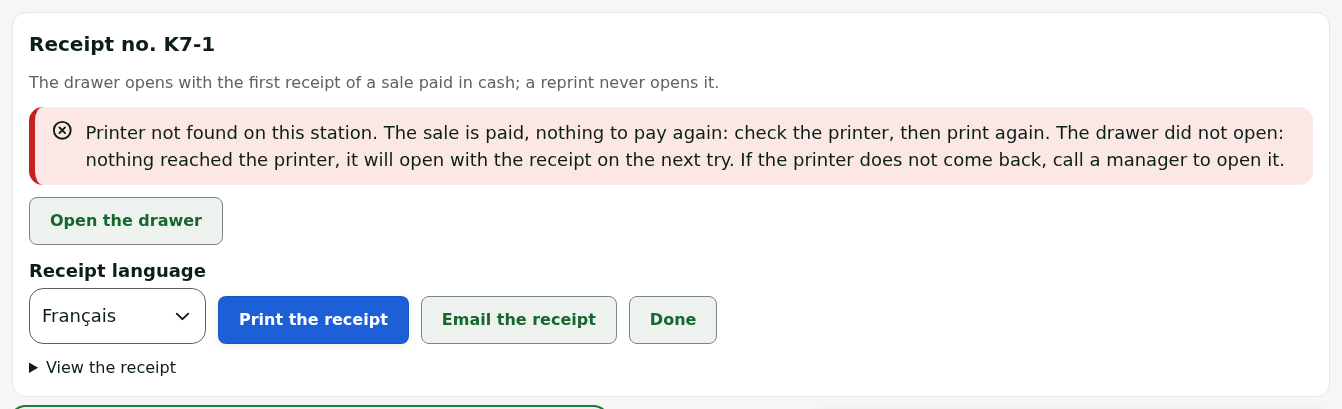
“Printer not found on this station”
Windows cannot find the print queue the register asks for. It may have been deleted or renamed. The two queues must be named Reçu + tiroir and Reçu seul: see Setting up the receipt printer.
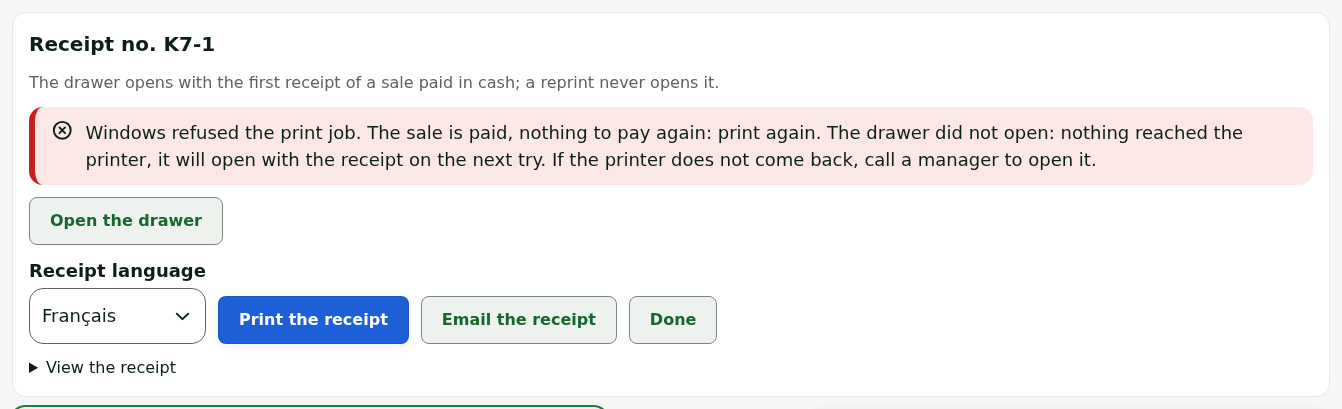
“Windows refused the print job”
Windows refused the job. Click Reprint (receipt only). If the refusal comes back, restart the printer, then call the person who looks after the register computer.
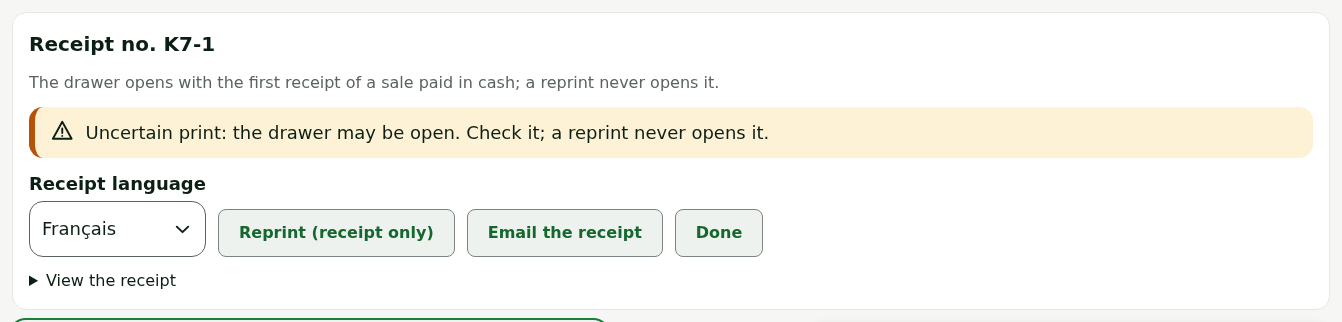
“Uncertain print: the receipt may have come out”
The register does not know whether the receipt was sent. Look at the printer before reprinting: if the receipt came out, a second receipt would be of no use.
When the message adds that the drawer may be open, check it: a reprint never opens it.
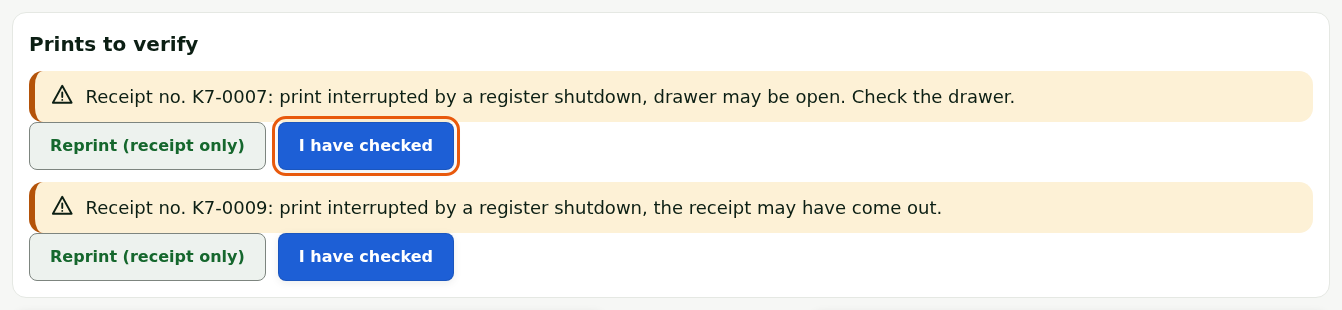
“Prints to verify” when the register restarts
If the register stopped during a receipt, it shows it on return in the sales screen, under Prints to verify, with the receipt number. For each one:
- Look whether the receipt came out of the printer, and whether the drawer is open when the message says so.
- Click Reprint (receipt only) if it did not come out.
- Click I have checked.
“The station's printer configuration was refused: call a supervisor”
The station's two queues are not set up the way the register expects. Call the person who installed the register, with the message shown.