Understanding negative stock
- For
- Manager, Administrator
- Where
- Back office, Installed register, Web register
- Permission
- Manage stores and settings, Adjust stock
- Checked on
An item's stock goes negative when the software has sold more units than it has received or counted: a delivery never entered, a count that is late. The register always sells, even then. Each store chooses whether the register warns the cashier at the time of the sale.
Before you start
- The warning is a store setting, ticked to begin with. A store that unticks it sees nothing at the register; the other stores keep theirs.
- The warning compares the cart to the item's available quantity: what is on hand, minus what is reserved (layaways, prepared web orders). Available can therefore be zero or negative.
The warning never blocks a sale. The cashier reads the message and carries on, with or without a network.
Turn the warning on or off
To set a store's warning:
Open Settings > Stores and registers, then click the pencil of the store in the list.

In the Sales screen section, find the Negative stock: warn when selling more than what is available box. Ticked, the register warns.

To turn the warning off, untick the box, then click Save. The installed register receives the setting at its next sync.

The other fields of the store page are described in Adding or editing a store.
Read an item's level
To see how many are left, open Stock > Inventory, choose the store, then search for the item. The Quantity on hand column gives the level and Available what is left to sell; a value below zero is negative stock. The example item, a garden chair, has 2 at Centre-ville.

To see where a figure comes from, see Viewing stock levels and movements.
What the cashier sees
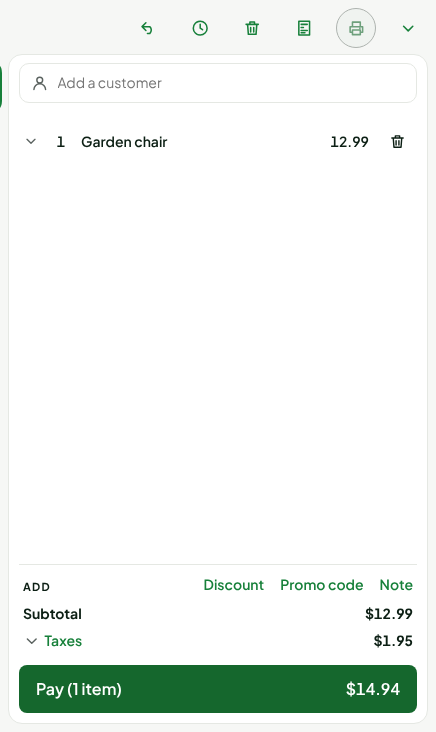
When the quantity of an item in the cart goes above what is available, a warning line appears under that cart line, at the installed register as well as at the web register. With 1 garden chair (2 in stock), the screen says nothing.
Once the quantity is set to 3, the line shows "More than the available stock (2)": the number in brackets is the item's available quantity. The Pay button stays active.
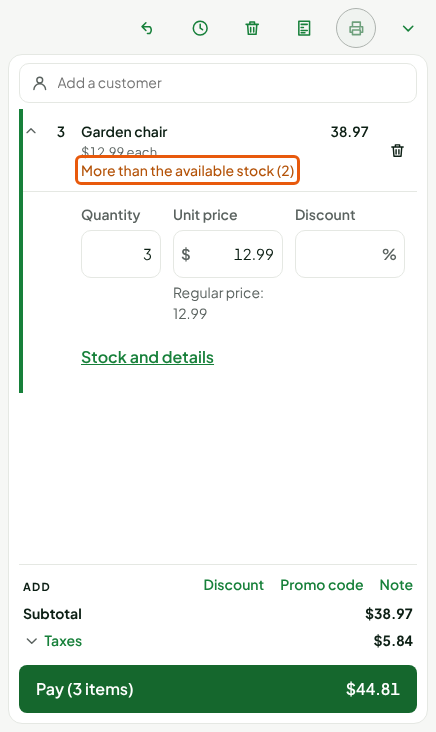
The message goes away as soon as the quantity is back under what is available, and it counts every line of the same item.
Without a network, the installed register uses the last stock received from the server. If it knows none for an item, it says nothing. An item whose Track this product’s stock box is unticked (see Setting up replenishment for a product) never triggers the warning.
Fix negative stock
Negative stock is fixed by putting the stock back to its true level: enter the goods received (Receiving stock without a purchase order), do a count (Running a full count) or adjust the item (Adjusting stock). Sales already made do not change: a financial fact is never edited.
Troubleshooting
The register does not warn
Check, in order:
- The Negative stock box is ticked on the page of the register's store.
- The item's available quantity is known to the register: an item with no receipt, count or sale has no level, and the register does not guess.
- Track this product’s stock is ticked on the item's page.
- The cart quantity really goes above what is available: at exactly the available quantity, there is no warning.