Adding a product with variants
- For
- Manager
- Where
- Back office
- Permission
- Manage the catalogue
- Checked on
An article sold in several sizes, colours or formats is created as a family with variants: one name, attributes (Size, Colour) and one line per variant, each with its own item code and its own barcode. Everything is created at once, or nothing is.
Before you start
- Your role must have the Manage the catalogue permission.
- Tax classes must exist (guide Setting up taxes).
- For an article with no size or colour, create a simple product: guide Adding a product.
A family's attributes (here Taille and Couleur) cannot be changed once the family is created. Decide them before you save. A family has 1 to 3 attributes and 1 to 100 variants.
Create the family
Open Catalog > Products, then click New family with variants.

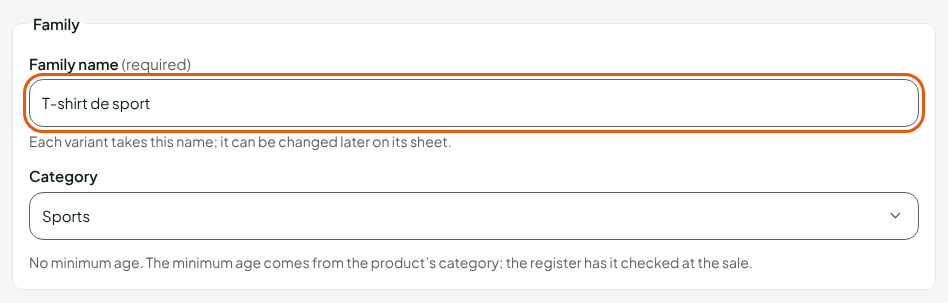
In Family name, type the name shared by all variants, for example
T-shirt de sport. Each variant takes this name; it can be changed later on its sheet.In Category, choose the category, for example Sports.
Under Shared by all variants, in Tax class, choose the tax class. If needed, tick Prices include taxes or With serial number: these settings apply to every variant.

Under Prices, in Selling price, type the price shared by all stores, for example
24.99. Left empty, the product cannot be sold anywhere until a price is given.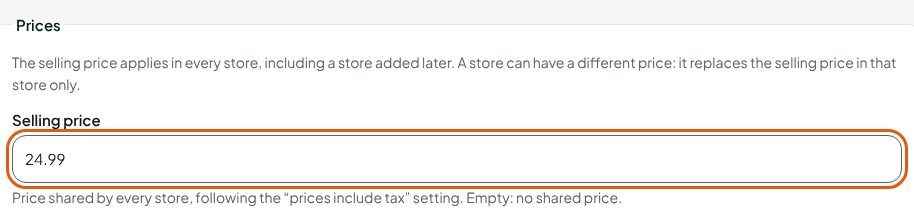
Choose the attributes and add the variants
Under Attributes, in Attribute 1, type
Taille.Click Add an attribute, then type
Couleurin Attribute 2.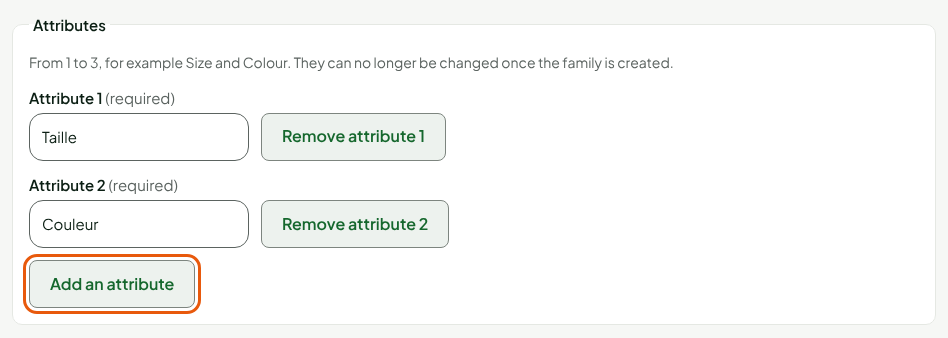
Under Variants, fill in the first line: the value of each attribute (
MandBleu), the Item code (AIDE-CAT02-M-BLEU) and, optionally, the Barcode with its Code type.Click Add a variant for each further variant, and fill in its line. The Purchase cost of each variant is optional.
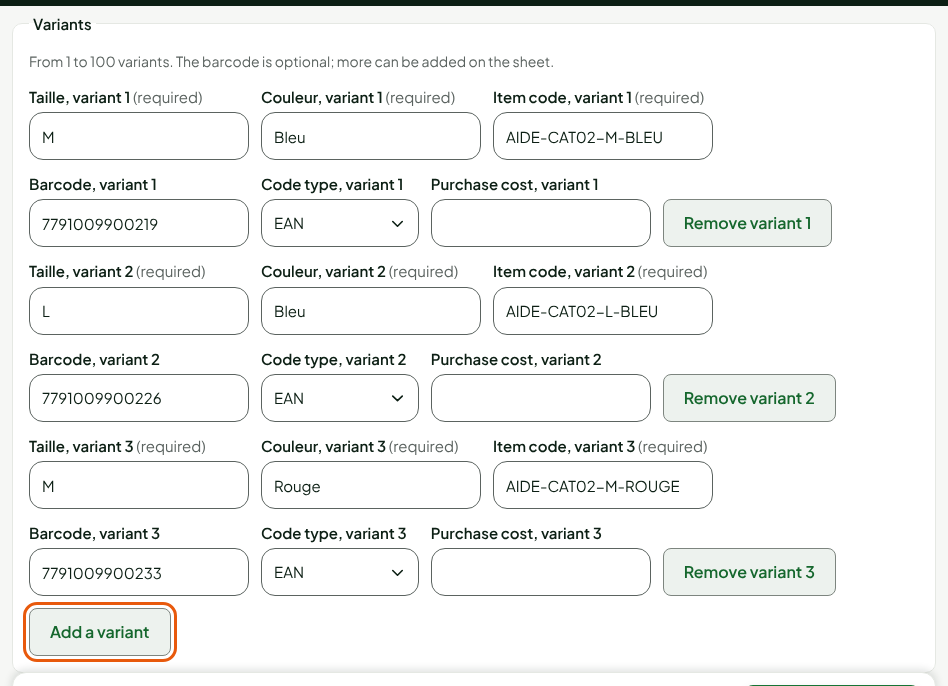
Each item code is unique among active products, and two variants never have the same values.
Create the family
Click Create the family, in the bar at the bottom of the window.
The screen shows "Family T-shirt de sport created with 3 variants." and the product list now shows only the articles of the new family. Click Show all families to go back to the whole list.

Each variant is a product in its own right, with its own sheet, stock and price. The tax class, the settings and the prices can then be changed variant by variant, on each sheet. To add a variant later, open a variant's sheet, then click Add variants in the Variants section.
Troubleshooting
"Correct the flagged attributes."
An attribute is empty, too long (60 characters at most) or written twice. Correct it before creating the family.
"Another variant already has these values"
Two lines have the same attribute values (for example M and Bleu twice). Change one of them.
"This item code is already taken by another variant"
Two lines have the same item code. Each variant has its own.