Setting up scale barcodes
- For
- Administrator
- Where
- Back office
- Permission
- Manage stores and settings
- Checked on
The scale prints labels that carry the item's code and its price or weight. Reading rules tell the register how to read them. Add a rule when your scale prints a different label type than the one the register already reads.
Before you start
- Hold a label printed by the scale and count its digits: a label type is recognised by its length, then, in order, by its start, the item code and the price or weight.
- Know whether your label carries the price or the weight: with the price, the register sells at the printed price, as is; with the weight, the amount is the weight multiplied by the price on the item's record.
- The rule supplied with the register reads 13-digit labels starting with 20, with the price in the label. If your scale prints that type, there is nothing to set up.
Rules read the label. Each item's scale code, its unit (kg or lb) and its price are set on the product record, in the “Sold by weight” section (see the guide "Adding an item sold by weight").
Adding a reading rule
Open Settings > Scale barcodes.
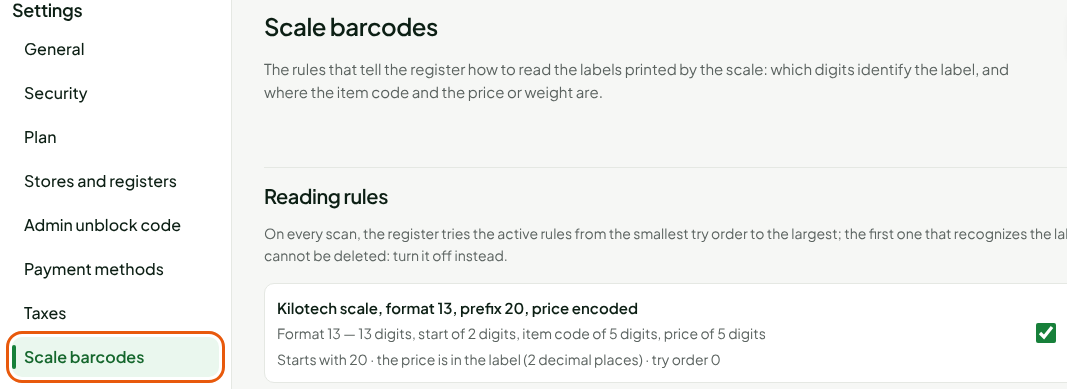
The Reading rules list shows the rule supplied with the register. At each scan, the register tries the rules that are on, from the smallest try order to the largest; the first one that recognises the label applies.

Click Add a rule.

Type a name in Rule name, to find it again, for example
Counter scale.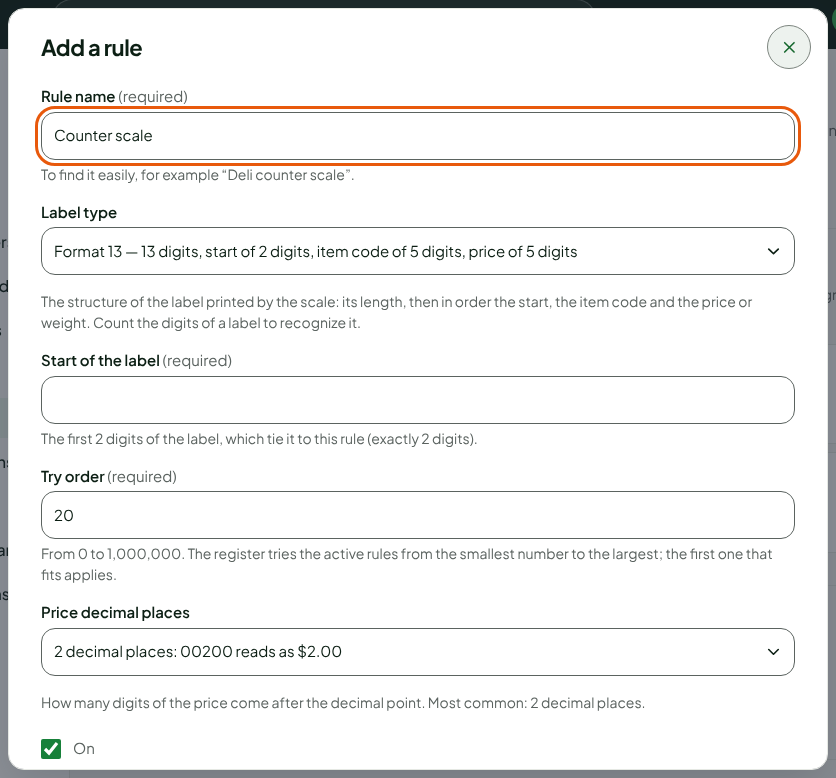
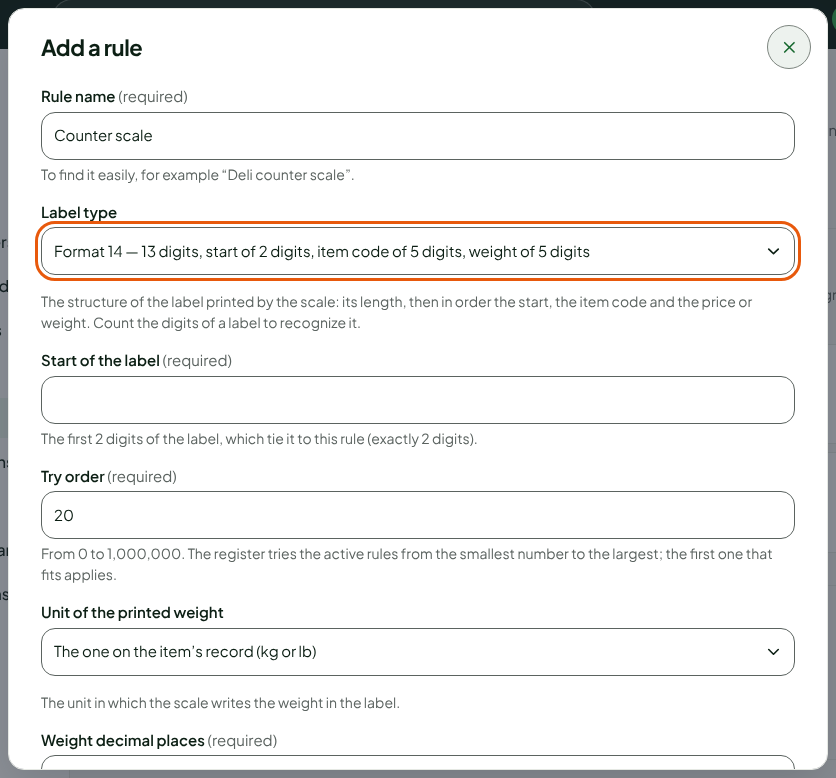
Choose your label's type in Label type, for example the 13-digit format with a 5-digit weight.
Type the first digits of the label in Start of the label, for example
21. The field says how many digits are needed.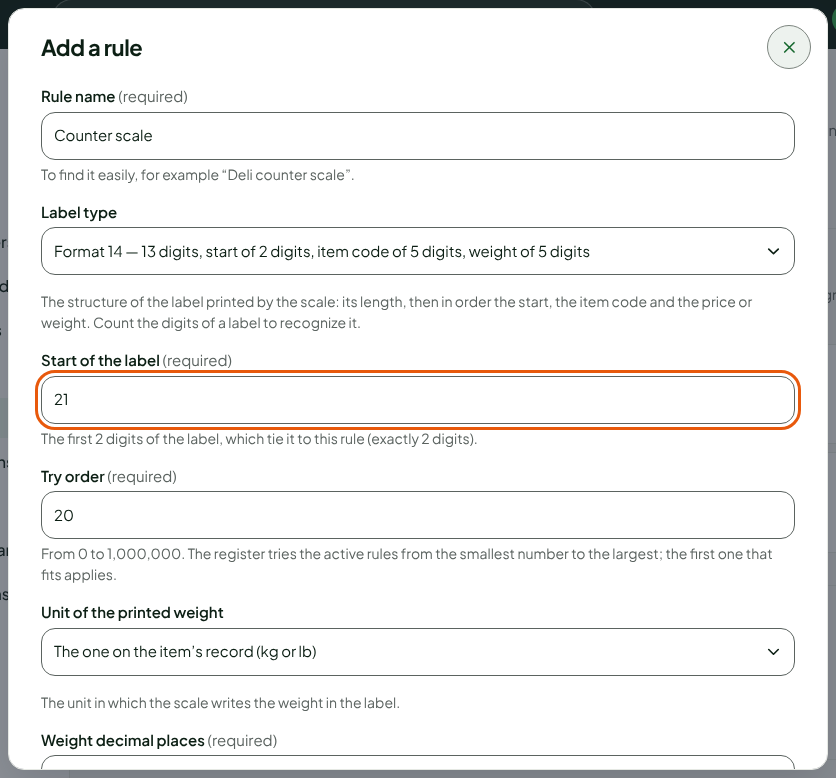
For a label that carries the weight, choose the unit in Unit of the printed weight, for example Kilograms (kg), then the digits after the decimal point in Weight decimal places, for example
3. For a label that carries the price, it is Price decimal places. The field gives an example of how it reads.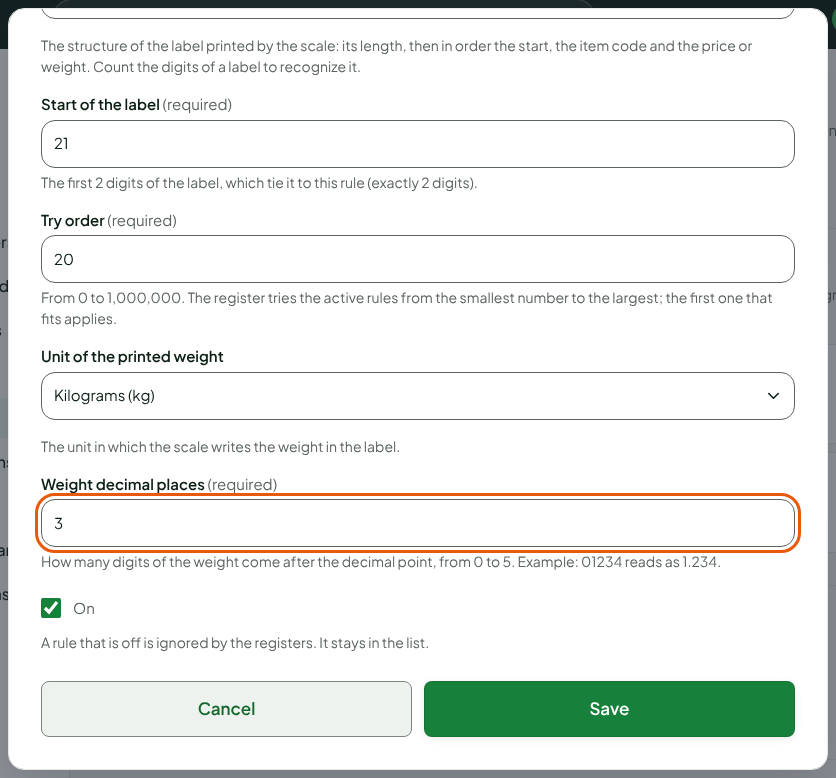
Click Save, at the bottom of the window.
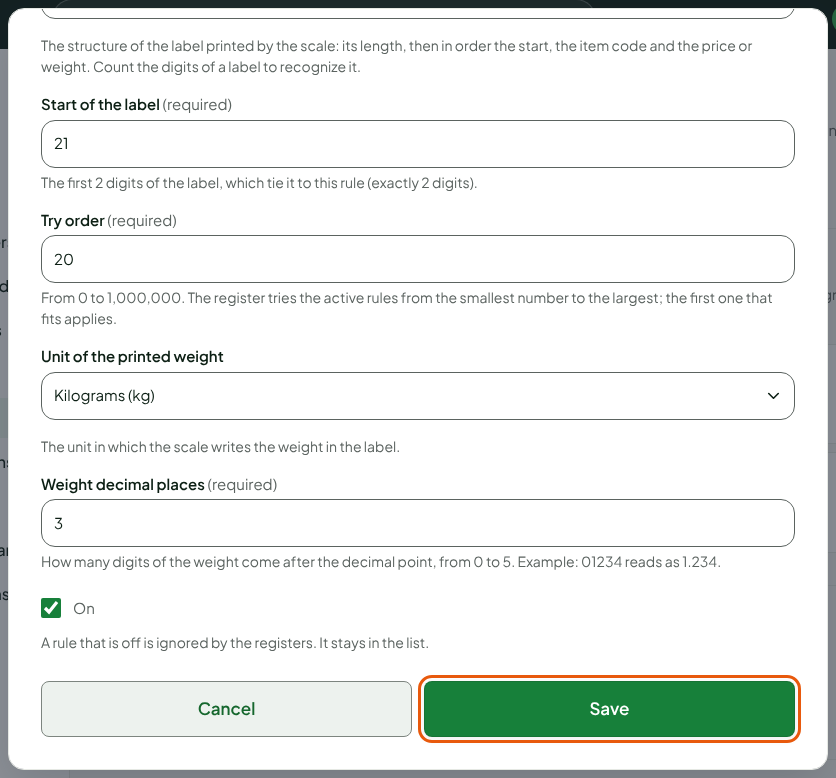
The screen shows "Rule “Counter scale” added." and the rule appears in the list, turned on: it says what it reads, for example "Starts with 21 · the weight is in the label (kg, 3 decimal places)".

The first time you save a rule, the rule supplied with the register is saved too: adding a rule does not remove that one unless you choose to.
Turning a rule off
A rule cannot be deleted: turn it off so the register stops reading it. It stays in the list.
Open Settings > Scale barcodes.
Uncheck On, in the rule's row.

The screen shows "Rule “Counter scale” turned off." To put it back in service, check On again. Edit changes the rest of the rule.
If you turn off every rule, the register no longer recognises any scale label: the screen says so. Keep at least one rule on.
Troubleshooting
"The rules were changed in the meantime."
Someone changed the rules while you were working. The list reloads: make your change again.
"Some fields need to be corrected before saving."
The name is required, the start of the label must have exactly the number of digits shown under the field, and the try order must be a whole number from 0 to 1,000,000.