Reading security alerts
- For
- Administrator
- Where
- Back office
- Permission
- View logs
- Checked on
The back-office home page flags what needs your attention on the register side: an operation the server set aside, or several refused manager PINs on a locked device. This guide says what each alert means and what to do.
Before you start
- Alerts only show with the View logs permission. Without it, the home page shows none.
- An alert is a warning: it blocks neither a sale nor a register. The register always sells.
- An alert holds no personal data: you read a store, a device and a number, never a customer's name or a PIN.
Seeing the alerts on the home page
Open Home.
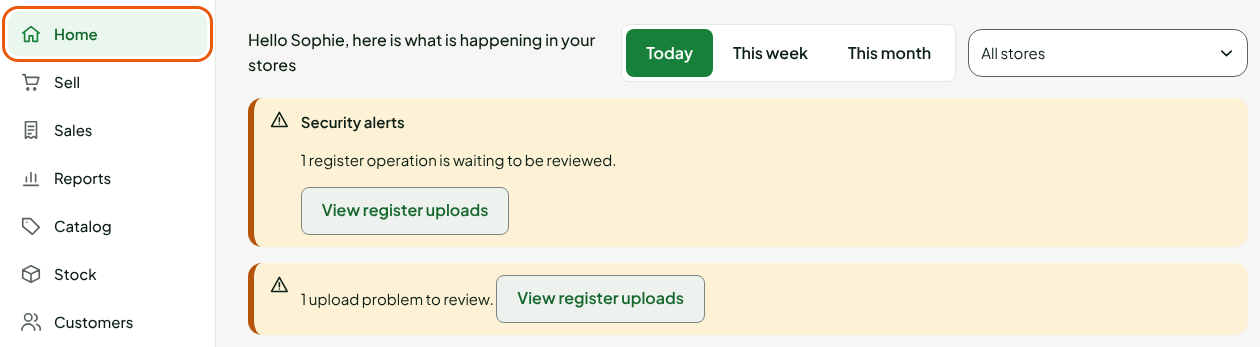
When all is well, no banner shows. When there is something to see, one banner appears under the greeting, or two. Each one shows on its own, when it has something to flag. The Security alerts banner refreshes every minute; the upload problems banner is read when you open the home page (reload the page to see it up to date).
The "Security alerts" banner
It says how many register operations are waiting to be reviewed: "1 register operation is waiting to be reviewed." The banner stays up until the operation is handled. It disappears on its own as soon as none is left.

The same banner can carry a PIN alert: "Store, device Device name: 5 failed manager PINs on a locked device." It means someone tried a manager PIN several times, unsuccessfully, on a locked device (over 24 hours without contact). These alerts show for seven days, then disappear on their own: there is nothing to handle on the screen. Call the store to find out whether a manager tried. If nobody recognizes it, call support.
Each new alert is also emailed to the administrators.
The upload problems banner
It counts all the register upload problems: "1 upload problem to review." On top of the operations to review, it adds differing copies, missing sends and registers out of touch.

Going to see what is waiting
- Click View register uploads in the Security alerts banner. The button of the same name in the second banner leads to the same screen. The See the anomalies button, shown with a PIN alert, leads to the Anomalies screen (see Handling an anomaly).
The Register uploads screen opens. The operation to review is there, under Operations to review.
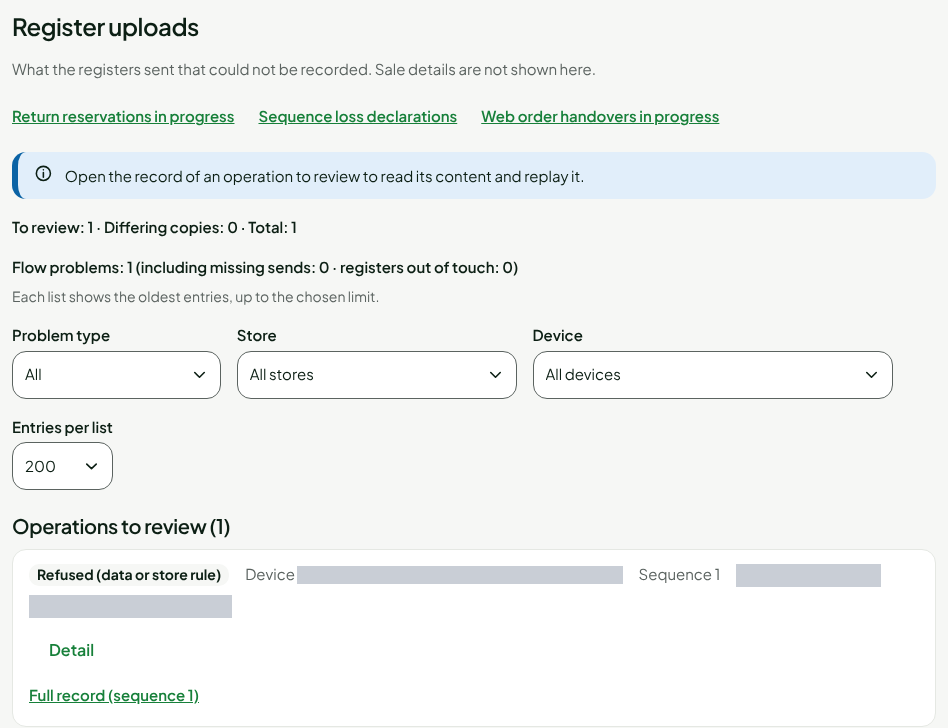
Click Full record to open the operation.
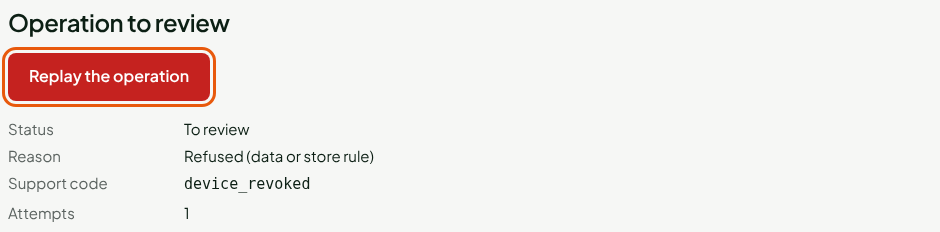
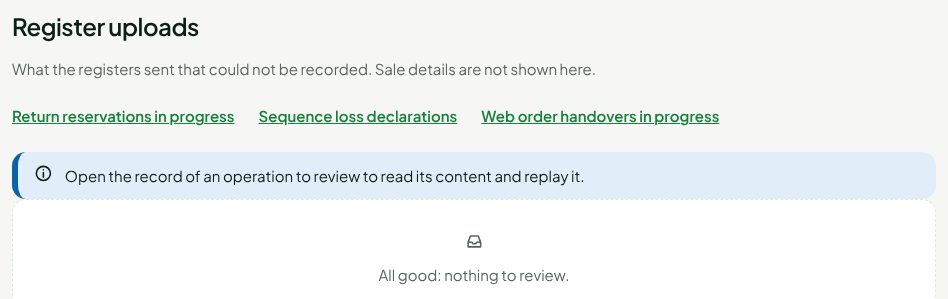
To understand the record, see Following register uploads. To replay the operation, see Handling an anomaly. Once the operation is replayed and applied, the banner disappears.
Troubleshooting
"The security alerts could not be read."
The read failed, often because of the Internet. The rest of the home page keeps working. Reload the page in a moment. While this message shows, alerts may be missing: open Settings > Register uploads to check.
I see no alert
Either there are none, or your role does not have the View logs permission. Ask an administrator for it.