Managing suppliers
- For
- Manager, Administrator
- Where
- Back office
- Permission
- Manage suppliers, View purchase costs, Manage the catalogue
- Checked on
A supplier's record brings together its contact details, its usual lead times and the items it sells you, with their purchase cost. A purchase order always starts from a supplier in this list: create the supplier before you buy.
Before you start
- Your role needs the permission Manage suppliers to open the screen and to create or edit a record.
- To link an item to a supplier, you also need View purchase costs (the cost is part of the link) and Manage the catalogue (to search for the item). Without them, the screen tells you so in place of the Add an item button.
- The items must already exist in the catalogue.
A supplier is never deleted: it is deactivated. A deactivated supplier can no longer receive purchase orders or returns. Its record and items are kept, and you can reactivate it.
Creating a supplier
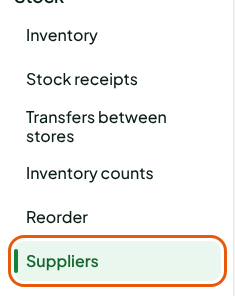
Open Stock > Suppliers, then click Create a supplier. If the list is empty, the button is called Create a first supplier.

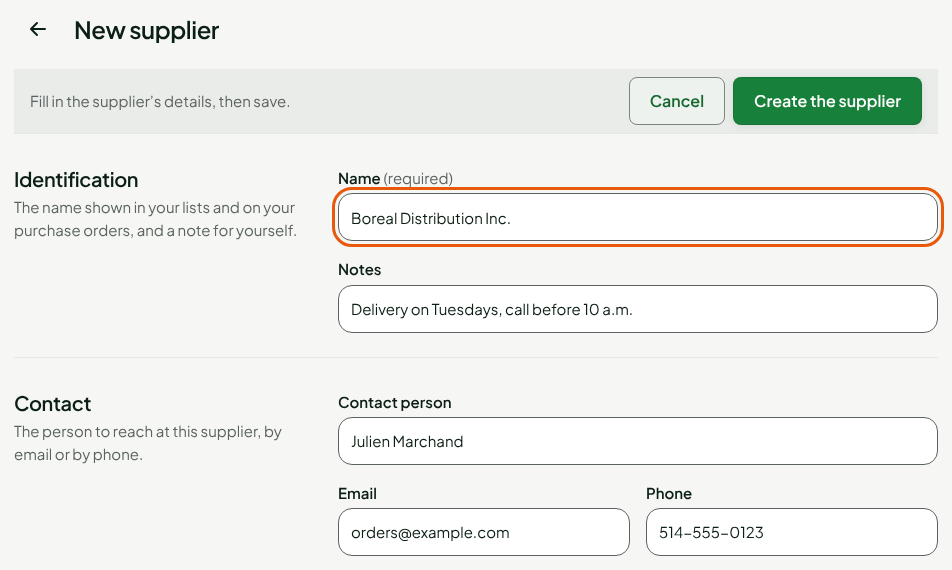
Under Identification, type the supplier's Name: it is the one shown in your lists and on your purchase orders. Add a note in Notes if you wish.
Under Contact, fill in the Contact person, the Email and the Phone.
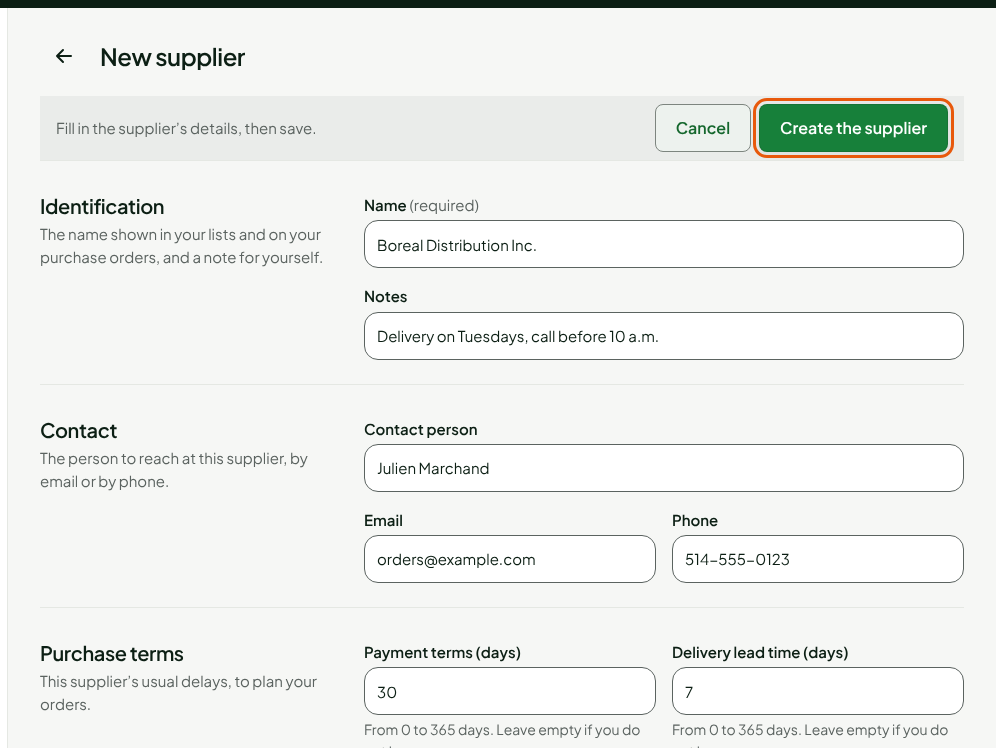
Under Purchase terms, type the Payment terms (days) and the Delivery lead time (days), from 0 to 365 days. Leave them empty if you do not know them.
Click Create the supplier.
The record opens: the Status is Active, with the contact details and lead times you entered.
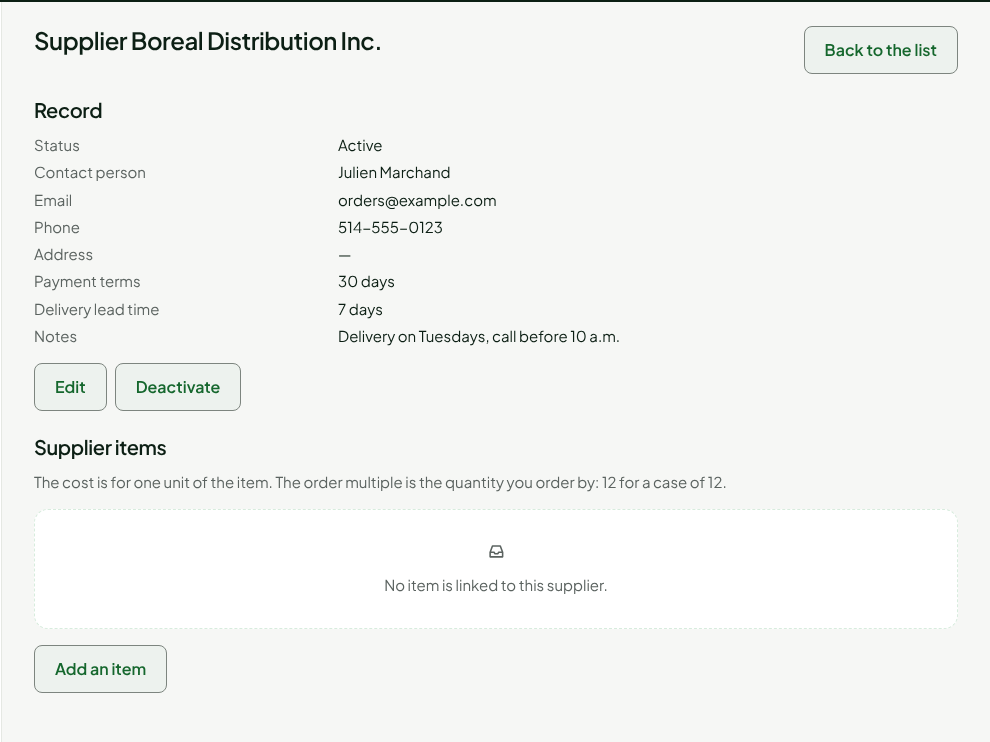
The Address is optional. An address once started must be complete: line 1, city, region, postal code and country (two letters, for example CA). To change the record later, click Edit.
Linking items to the supplier
To say which items this supplier sells you, and at what cost:
On the record, under Supplier items, click Add an item.
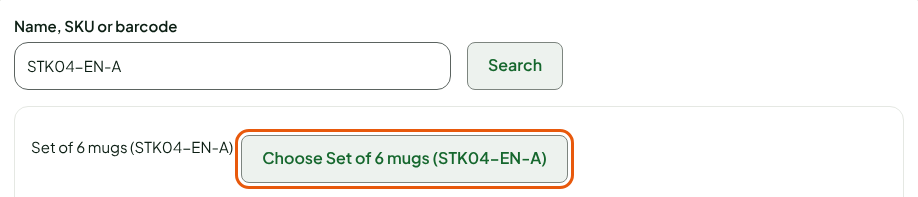
In Name, SKU or barcode, type your search, then click Search.
Click the Choose button of the item you want. An item that is already linked is no longer offered.
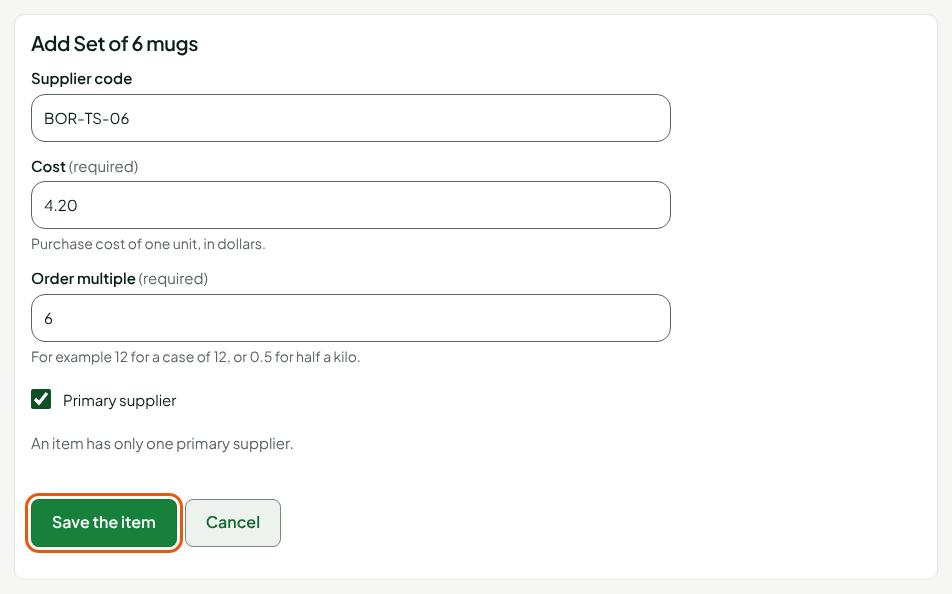
Fill in the Supplier code (optional: the code the supplier gives the item), the Cost of one unit, in dollars, and the Order multiple: the quantity you order by, for example 12 for a case of 12.
Check Primary supplier if this is where you usually buy this item. An item has only one primary supplier.
Click Save the item.
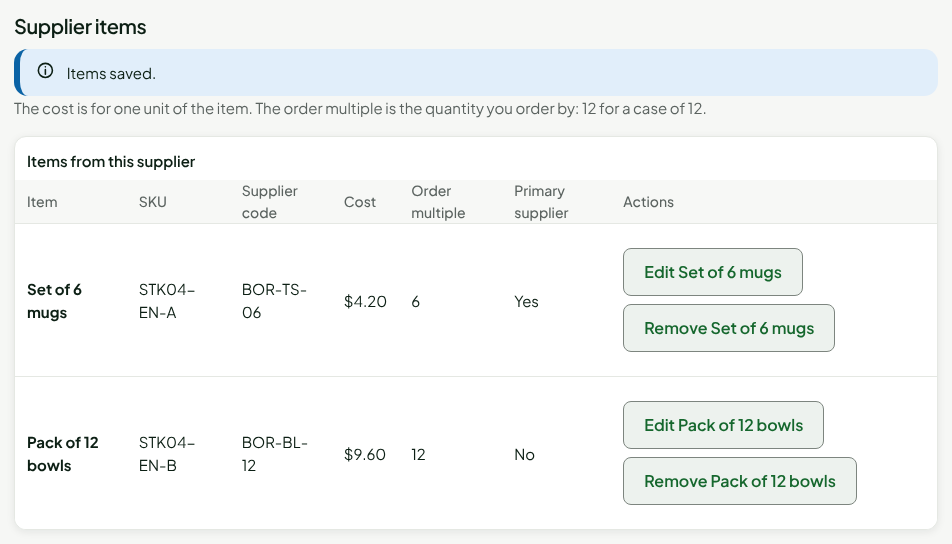
The message "Items saved." appears, and the item is in the list, with its cost and its multiple. To link another one, start again. To correct a cost, click Edit followed by the item's name; to unlink it, click Remove followed by its name (the item stays in the catalogue and purchase orders already created keep their lines).
Deactivating a supplier
Open the supplier's record from Stock > Suppliers.
Click Deactivate.
In the window, click Deactivate the supplier.
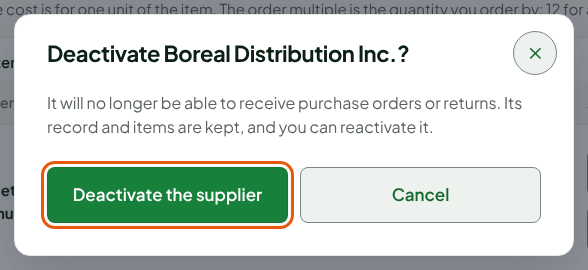
The screen shows "Supplier deactivated.". To put it back in service, click Reactivate, then Reactivate the supplier.
Troubleshooting
"This item already has another primary supplier."
An item has only one primary supplier. Uncheck Primary supplier, or change it at the other supplier first.
"This supplier changed since it was displayed."
Someone else changed it while you had the record open. Reload it, then redo your changes.