Signing in to the back office
- For
- Manager, Administrator
- Where
- Back office
- Permission
- Sign in to the back office
- Checked on
The back office opens in a web browser, at the address that belongs to your business. You sign in with your email and your password: no company code is asked for, the address is enough to recognize your business.
Before you start
- Have the back-office address of your business. The person who opened your account gives it to you; an administrator finds it in Settings > General, under Back-office address. Keep it in your browser's bookmarks.
- You need an employee record with a role that gives access to the back office, such as Gérant (manager) or Administrateur (administrator). The Caissier (cashier) role sells at the register, but does not enter the back office (Adding an employee).
- The first time, you receive by email a link to choose your password. It is valid for 30 minutes and works only once.
Signing in
Open your business's back-office address in the browser.
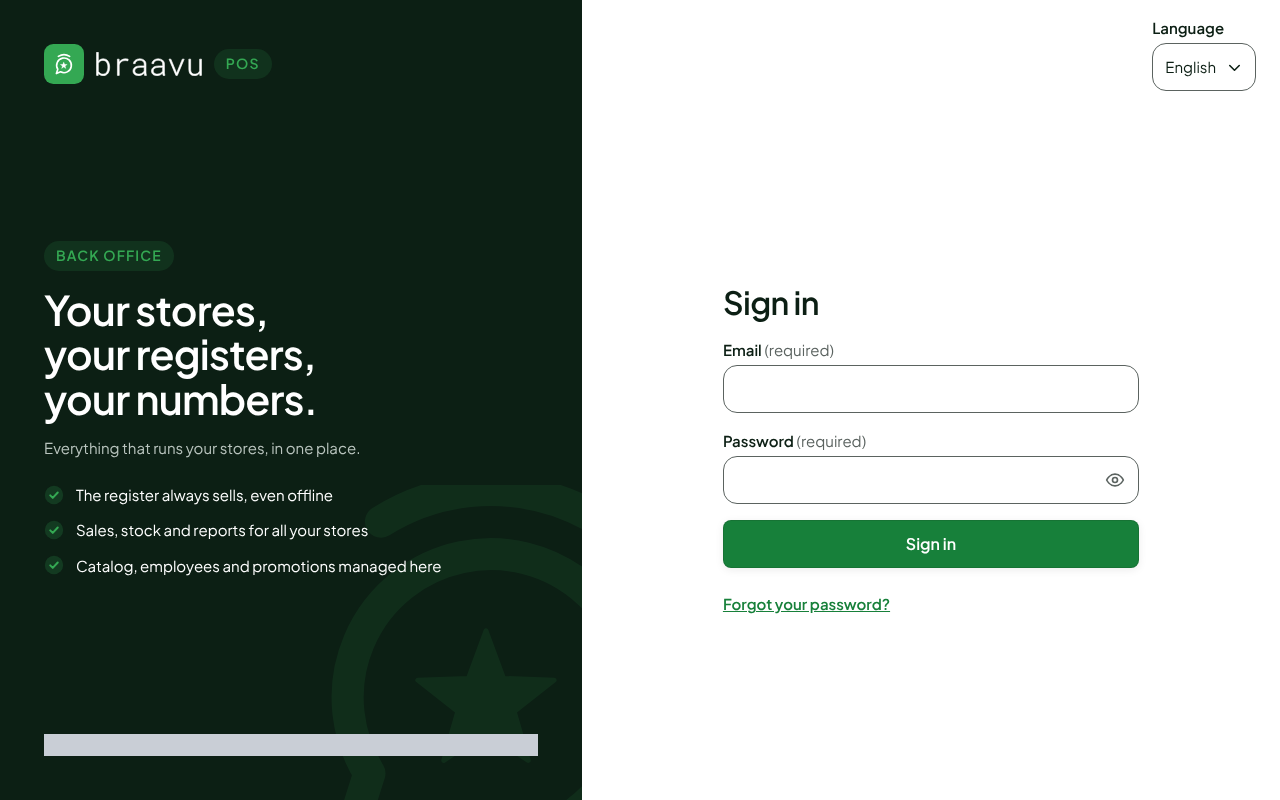
Type your email in Email.
Type your password in Password. The eye, at the end of the field, shows what you typed.
Click Sign in.
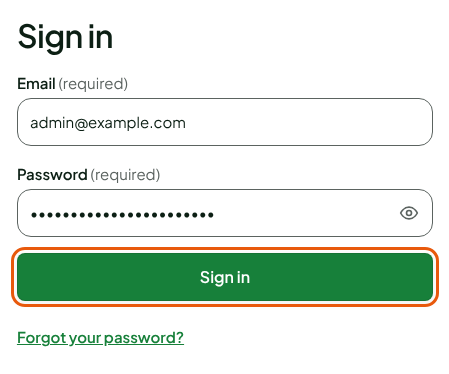
The home page opens. Your name is shown at the top right: you are signed in.

Always sign in at your business's address. Your email and your password only work there: at another address, the sign-in is refused.
If a code is asked for
Your business can require a code on top of the password: this is two-step sign-in. After Sign in, the Verification code screen opens. Type the 6-digit code from your authenticator app in Code, then click Verify. Lost your phone? A backup code replaces the app code.
If your role requires the code and you have not turned it on yet, the Turn on two-step sign-in screen has you turn it on right away, before you enter. The steps are in Setting up account security.
Choosing the language of the page
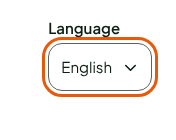
The sign-in page is shown in French or in English. Choose the language in the Language list, at the top right of the page.
Getting a link when you forgot your password
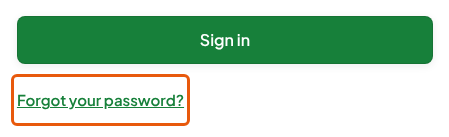
Click Forgot your password?, under Sign in.
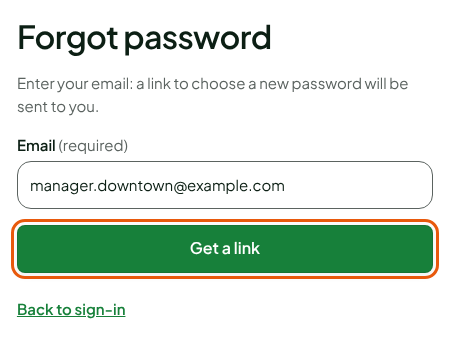
Type your email in Email.
Click Get a link.
The screen shows "If an account matches this email, a link has just been sent to it. It is valid for 30 minutes and works only once." Open the link you received, choose your new password, then sign in with it.
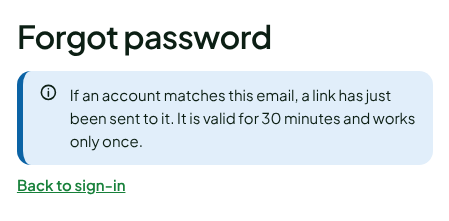
The message is the same whether the email has an account or not. Nothing arrives? Check your junk folder, then ask an administrator to check the email of your access.
Signing out
Click your name, at the top right.
Click Sign out.
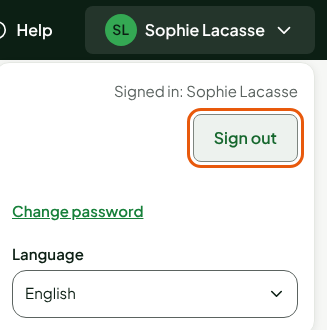
The sign-in page comes back with "You are signed out." Always sign out on a shared computer.
Troubleshooting
"Sign-in refused: check the email and the password."
The email or the password is wrong, or you are not at your business's address. Type them again; if in doubt, request a link with Forgot your password?.
"Sign-in refused: your role does not give access to the back office."
Your password is right, but your role only allows the register. Ask an administrator to change your role.
"Too many attempts. Try again in 15 minutes or request a reset link."
After too many failed attempts, sign-in for this email is suspended for 15 minutes. Wait, or request a link with Forgot your password?.
"Your session has expired. Sign in again to continue."
Your session ended while you were on a page. Sign in again: you come back to the page you were on.