Setting up quick keys
- For
- Manager, Administrator
- Where
- Back office, Web register
- Permission
- Manage the catalogue, Sell at the register
- Checked on
Quick keys are the large tiles on the sale screen: one touch adds the item to the cart, with no scan or search. You build them in a template, then assign the template to stores. This guide creates a template of three items and shows it at the web register.
Before you start
- Your role must have the Manage the catalogue permission (code
catalog_manage). To see the result at the web register, it also needs Sell at the register (codesell). - The items must be active in the catalogue: the search only finds those.
A template applies to all the registers of the stores you assign it to, including registers created later. A store has only one template: assigning it a new one removes the old one.
Create a template and add items to it
To create a template:
Open Sell > Settings, then click Add a template, under Quick keys.

Type the name in Template name, for example
Centre-ville register, then click Create the template.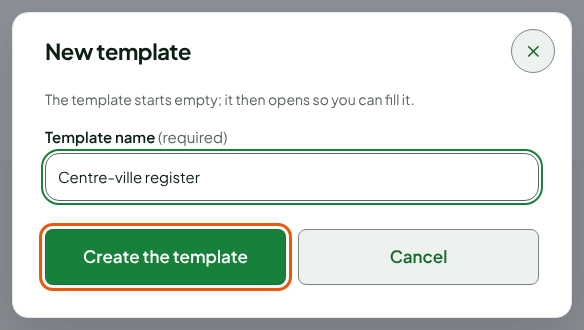
Type a name or a code in Search an item (name or code), then click the item found. It takes the first empty cell of the template.
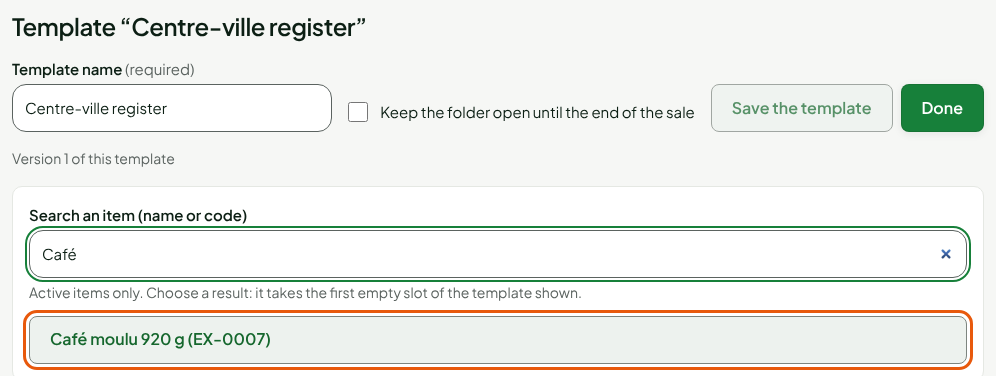
Repeat for each item. The keys line up in the cells, under Template.

To move a key, drag it to an empty cell. Dropped on a folder, it is stored in it; dropped on another key, it forms a new folder with it. To create an empty folder, click Add a folder, type its name in Folder label, then click Create the folder. Check Keep the folder open until the end of the sale to keep a folder open until the end of the sale.
Change the label and colour of a key
To edit a key:
Click the key.
Change the Label (1 to 40 characters), then click a swatch under Colour. Clicking the chosen swatch again removes it.
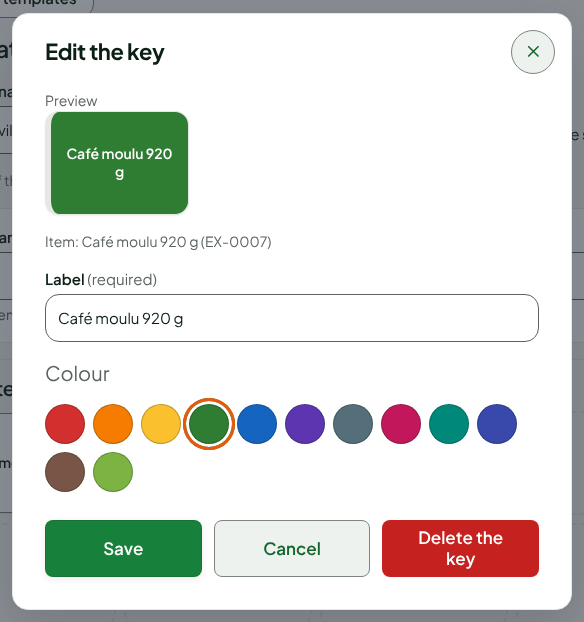
Click Save. To remove the key from the template, click Delete the key.
Save the template
Nothing is kept until you save: the screen shows “Unsaved changes.”.
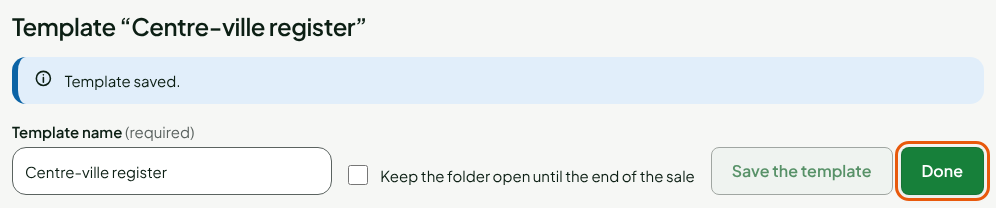
Click Save the template. The screen shows “Template saved.”.
Click Done.
Assign the template to stores
For the registers to receive the template:
In the list, click the Stores: list of the template. It shows None as long as no store uses it.

Check the stores you want, then click Confirm.
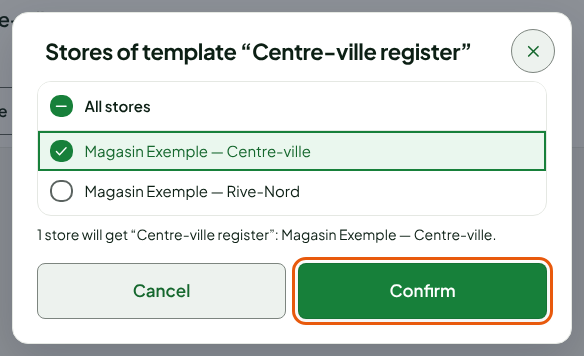
The screen shows “Stores of template “…” saved.”. The store's registers receive the change at their next sync.
See the keys at the register
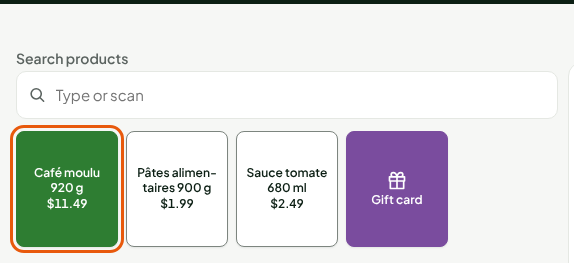
At the web register, open Sell > Sell: the template's keys appear under Search products, with their colour and price. Clicking a key adds the item to the cart; a folder opens in place. The Gift card key is always added to yours.
Troubleshooting
No keys at the register
The store has no template (Stores: shows None), or the register has not yet received the change. Reopen the web register.
“Deletion refused: this template is used by a store.”
A template in use cannot be deleted. Remove it from its stores first, or give them another template.
“An item of the template is unknown or deactivated: remove its key.”
An item of the template has been deactivated. Click its key, then Delete the key, or reactivate the item.