Reports overview
- For
- Manager
- Where
- Back office
- Permission
- View reports, All sales at assigned stores
- Checked on
The Reports section of the back office gathers nine reports. They let you read sales, payments, taxes, registers and current values without changing anything. This guide covers what they have in common: where to find them, how to choose what they show and how to keep their result.
Before you start
Your role needs the View reports permission. To read the sales of every employee, it also needs All sales at assigned stores.
- Without All sales at assigned stores, the Sales and Payments reports only count your own sales. The other sales reports (dashboard, cash movements, taxes collected, cash closings, gift card and store credit balances) do not appear in your menu.
- Cost of goods, gross profit and margin only show with the View purchase costs permission. Without it, the screen says so and does not show them.
A report only reads. It never creates, changes or deletes a sale.
Opening a report
To see the list of reports:
Click Reports in the left column.
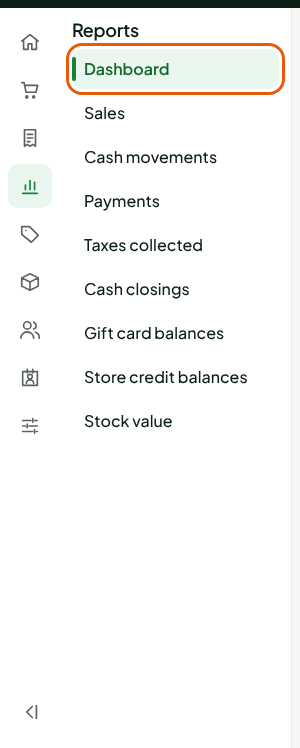
Click the report you want.
Here is what each report shows.
| Report | What it shows | Guide |
|---|---|---|
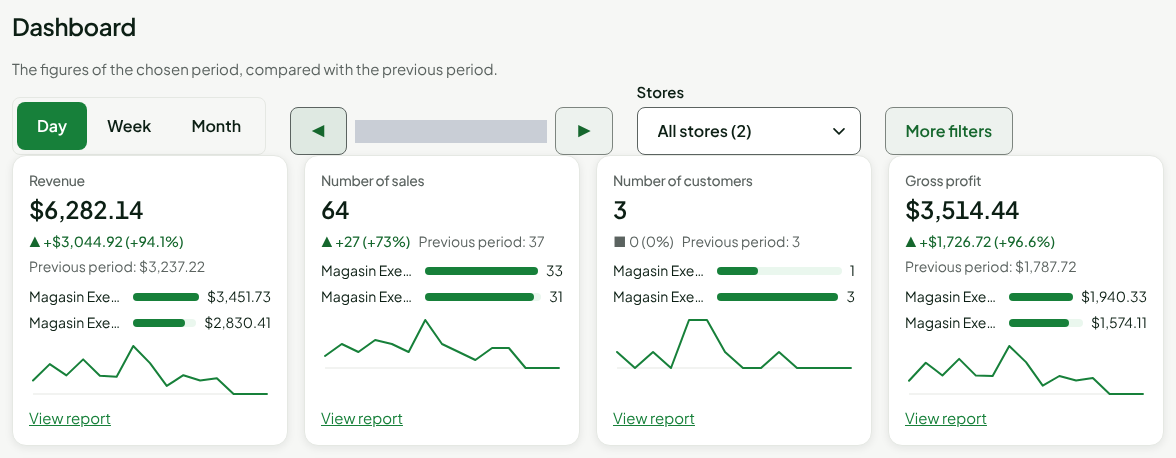
| Dashboard | The key figures of a day, a week or a month, compared with the previous period. | Dashboard |
| Sales | Revenue, cost, gross profit, margin and taxes, by employee, by item or by hour. | Sales |
| Cash movements | The cash going in and out of the registers, by type. | Cash movements |
| Payments | What was collected and refunded, by payment method. | Payments |
| Taxes collected | The taxes collected and refunded, component by component, for tax returns. | Taxes collected |
| Cash closings | The registers that were closed, with the expected amount, the counted amount and the variance. | Cash closings |
| Gift card balances | The value sold, the value used and the balance in circulation. | |
| Store credit balances | The credit issued, the credit used and the balance in circulation. | |
| Stock value | The value of the stock, by store, by category or by item. |
The dashboard is laid out as cards.
Choosing what the report shows
Each report has its criteria at the top of the page. For the Sales report:
Open Reports > Sales.
Under Period, choose a period, for example Yesterday.
Click Show report.
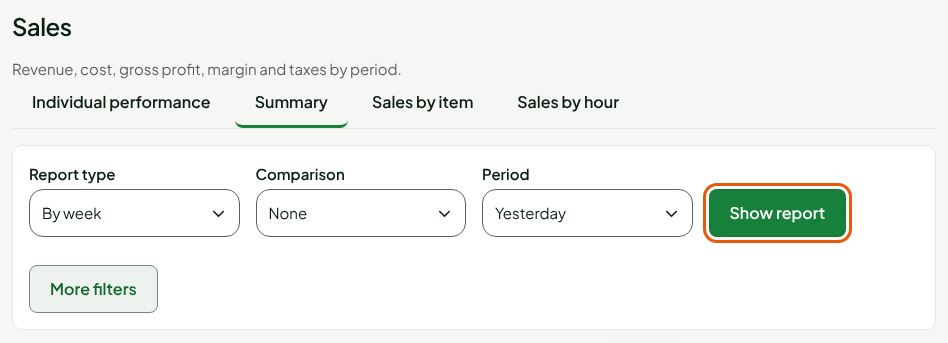
The choice of period and stores only counts after you click Show report. The guide "Choosing the period and the stores of a report" gives the details.
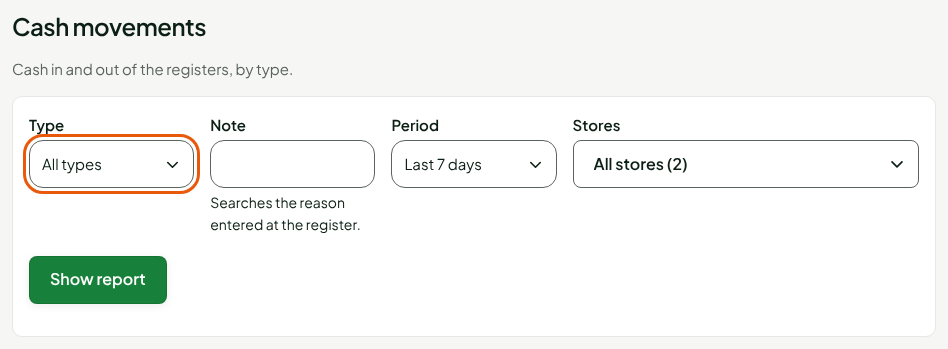
Each report adds its own criteria. Cash movements adds Type and Note, Sales and Payments add Report type and Comparison, and Taxes collected offers two views as tabs.

Reading the result and exporting it
Under the criteria, a line recalls the period that was read: "On Nov 13, 2026" for one day, "From Nov 8, 2026 to Nov 13, 2026" for several. The table follows, with its totals.
A report day is a day of the store that made the sale: each store's hours decide which day a sale counts for.
To keep the table that is shown:
Click Export to CSV.
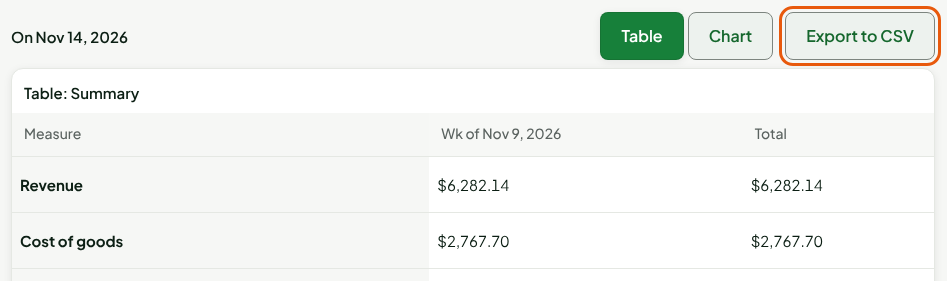
The file holds the columns that are shown, with the totals.
Going from the dashboard to a report
Each card of the dashboard has a View report link.
In the card, click View report.
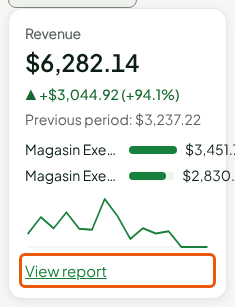
The Sales report opens on the same period and the same stores, on the Summary tab.
Troubleshooting
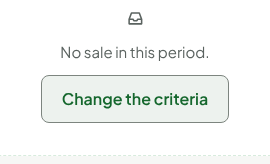
"No sale in this period."
Nothing was sold in the period you chose. Click Change the criteria to go back to the criteria, then choose another period or other stores. Each report has its own message: "No payment in this period.", "No cash movement with these criteria."
A message says the report could not be read
Each report has its own message: "The sales report could not be read.", "The payments could not be read." The text below gives the reason: "Your session has expired. Sign in again.", "Your role does not allow viewing reports." or "This report is too large. Shorten the period or choose fewer stores." Fix the cause, then click Try again.
When a new read fails while a result is already shown, the result stays on screen under the message "The report shown could not be refreshed: it may be out of date."