Changing the language
- For
- Manager, Administrator
- Where
- Back office
- Permission
- Manage employee records, Manage back-office access
- Checked on
Braavu POS appears in French or in English. Two languages are set separately: the back-office language, which each person changes in one click, and the language of the register screens, which is a setting of the employee record.
Before you start
- Changing the back-office language needs no permission.
- Changing the register language needs the permission Manage employee records or Manage back-office access, like the whole Team > Employees screen.
Changing the back-office language does not change the register language, and the other way round.
Changing the back-office language
Click your name, at the top right.

In the panel, find the Language list.
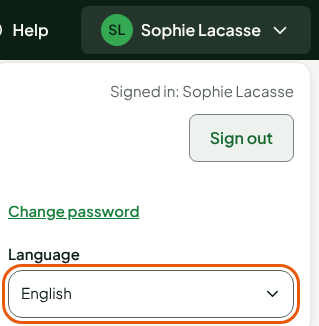
Choose French in the list.
Click your name again to fold the panel.
The whole screen switches to French at once: the top bar, the menu, the titles, the buttons.

The browser keeps this choice from one visit to the next. At your next sign-in, the back-office goes back to the language saved on your access, which another administrator sets in the access record.
Changing the register language
The web register, like the installed register, shows its screens in the language of the signed-in employee's record.
Open Team > Employees.

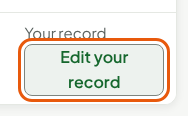
In the row with your name, click Edit your record.
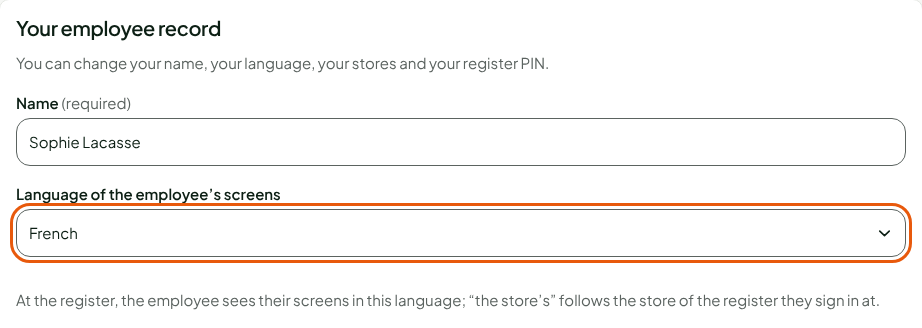
In Language of the employee’s screens, choose French.
Click Save.
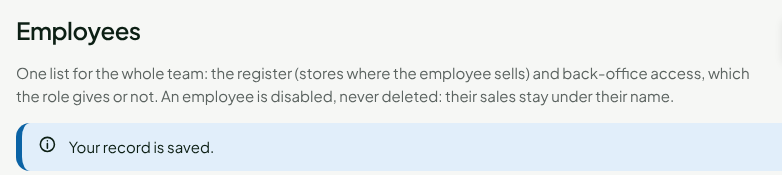
The screen shows "Your record is saved."
At the register, your screens are in French from your next session. To go back to English, choose English in step 3.
The choice The store’s (default) follows the language of the store of the register the employee signs in at. It suits most employees; only change it for a person who works in the other language.
To change another employee's language, an administrator opens their record with Edit in their row and sets the same field.
Troubleshooting
The back-office went back to the other language
You signed in again: the back-office then takes the language saved on your access. Change it again in the panel under your name, or ask an administrator to change the language of your access.
The register stayed in the old language
The installed register receives employee records when it syncs with the server: wait for the next sync, with the register online. On the web register, reopen the register.