Setting up a barcode scanner
- For
- Administrator, Cashier
- Where
- Installed register
- Permission
- Sell at the register
- Checked on
A barcode scanner connects to the register computer and puts items in the cart without searching for them. Braavu POS has nothing to install or set up for it: the register takes it for a keyboard.
Before you start
- The scanner must behave like a keyboard: it “types” the code it reads, very fast, then ends with the Enter key (or Tab). That is what tells it apart from a person typing.
- It does not add any character before or after the code.
- The codes read must be at least 6 characters long. Common item codes (EAN-8, UPC-A, EAN-13) respect that rule.
The register has no scanner settings screen. If the scanner itself needs a setting (sending Enter at the end of the code, for example), it is made with the manufacturer's documentation, not in Braavu POS.
Connect the scanner
Connect the scanner to the register computer, following its manual.
Open the register's sales screen.
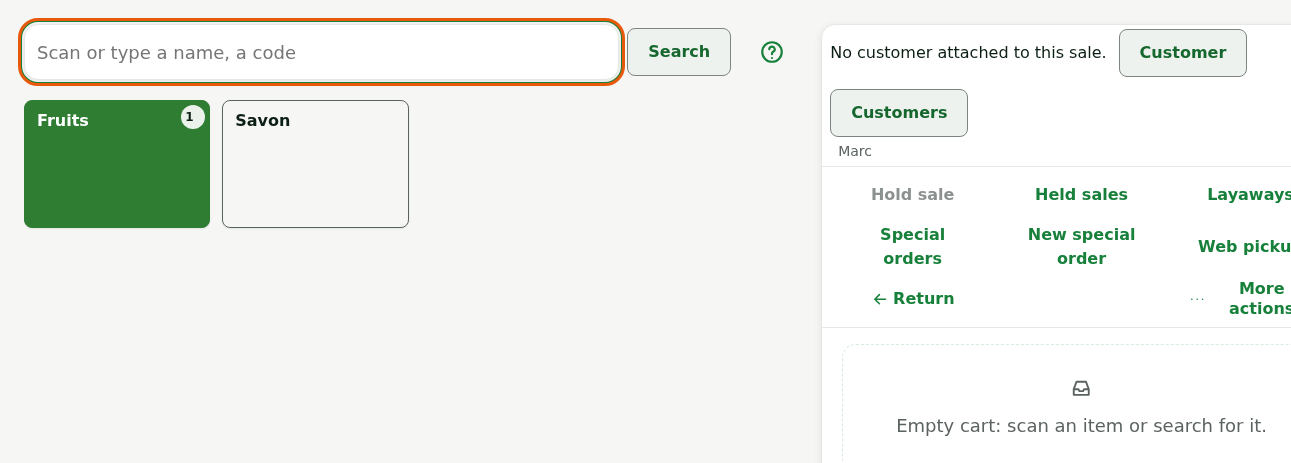
Click in the search field to test it, then read an item's code.
The sales search field receives the code as if it were typed. The register recognises the scanner's fast burst: it does not wait for you to click Search.
Scan an item
To add an item:
Open the sales screen.
Read the item's barcode with the scanner.
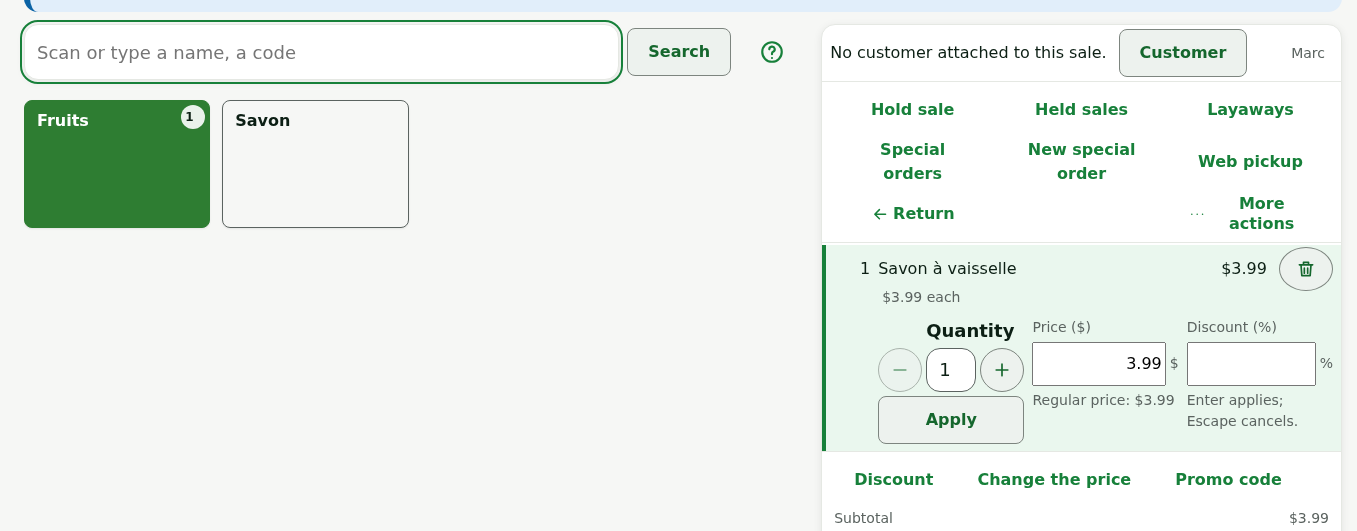
The item goes into the cart, with the message “Savon à vaisselle added.” The field is ready for the next item: there is no button to touch between two scans.
The scanner is also used to read the code on a price or weight label, and a customer's or a receipt's code where the screen asks for one.
Keyboard shortcuts
To see the sales screen keys:
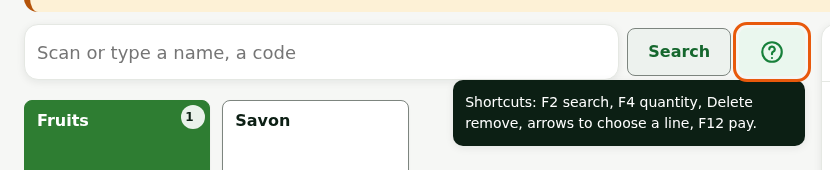
Click the question mark, to the right of Search.
Troubleshooting
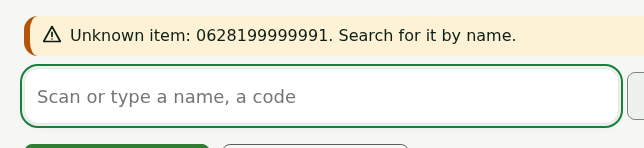
“Unknown item:” followed by the code
The code read matches no item in the station's catalog. Search for the item by name. If the item exists, its barcode may not be on its catalog record yet.
The code appears in the field but the item does not go into the cart
The scanner does not send the Enter key (or Tab) at the end of the code, or its characters arrive too slowly: the register sees typing by hand. Press Enter (or click Search) to look the code up, then set the scanner up following its manual.
“Scan ignored” followed by the code: “finish the current action, then rescan”
A window or an action is open on the sales screen. Finish it or close it, then read the code again.