Returning items and refunding
- For
- Cashier, Manager
- Where
- Web register
- Permission
- Sell at the register, Process a return and refund
- Checked on
A customer brings back one or more items from a sale that was already paid. The return puts them back in stock and refunds the customer, without touching the original sale.
Before you start
- Your role must allow refunds (permission Process a return and refund). In the base roles, managers and administrators have it, cashiers do not. A cashier without it asks an employee who has it to make the return.
- The register must be open: the cash part of the refund comes out of the drawer.
- The sale must have been paid in cash, by gift card, with store credit or entirely on account (the refund is then a credit note to the customer account, see below). A sale paid, even in part, by payment card cannot be refunded yet at any register (see below).
- The chosen register must be the one of the store where the sale was made: a return is made in the sale's store.
- The return starts from the original sale, which you find in the history with its receipt (Finding a sale in the history). A voided sale cannot be returned.
A paid sale is never edited. The return is added to the original sale and stays linked to it: the sale is neither erased nor changed, and its status becomes Returned (fully or partly).
Returning items
To return items from the sales history:
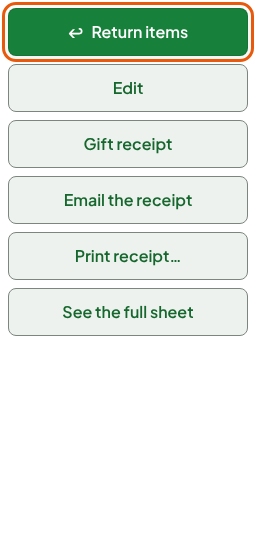
Open Sell > Sales history, find the sale by its receipt number, then click Return items.
The web register opens on the Sell screen. The return is in the cart: every item of the sale is there, in negative.
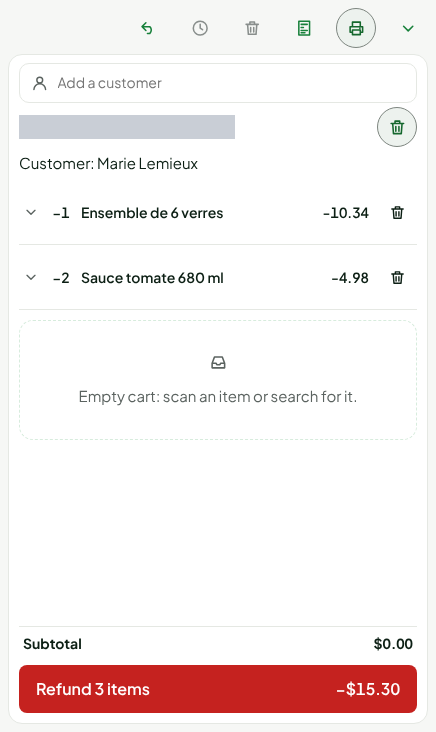
Keep only the items the customer brings back. To remove a line, click the trash can at the end of the line.
Click an item's line, then the − button (One less unit), to return fewer units of it. The text of 2 returnable shows the maximum: an item can only be returned once.
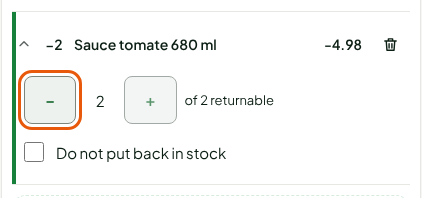
Check Do not put back in stock if the item must not go back into stock (by default, it does).
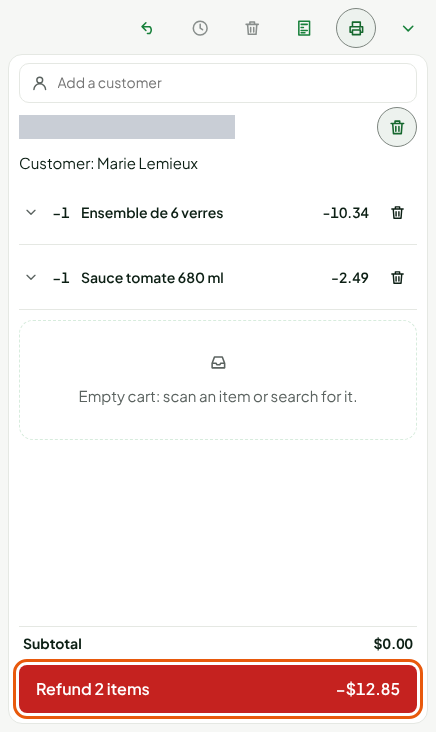
Click Refund 2 items. The button shows the amount, rounded to 5 cents.
If the sale has no customer, the Customer name for the refund window opens: type the customer's name (required), then click Refund. You can also add a customer to the cart before refunding.
Refunding in cash
The web register refunds to the original payment method: in cash, on the gift card that paid, as store credit, or with a credit note to the account for a sale on account (see below). The refund includes the tax recorded on each returned line. For a sale paid in cash:
Read the Refund screen: it details the items, the total, and the amount to hand out.
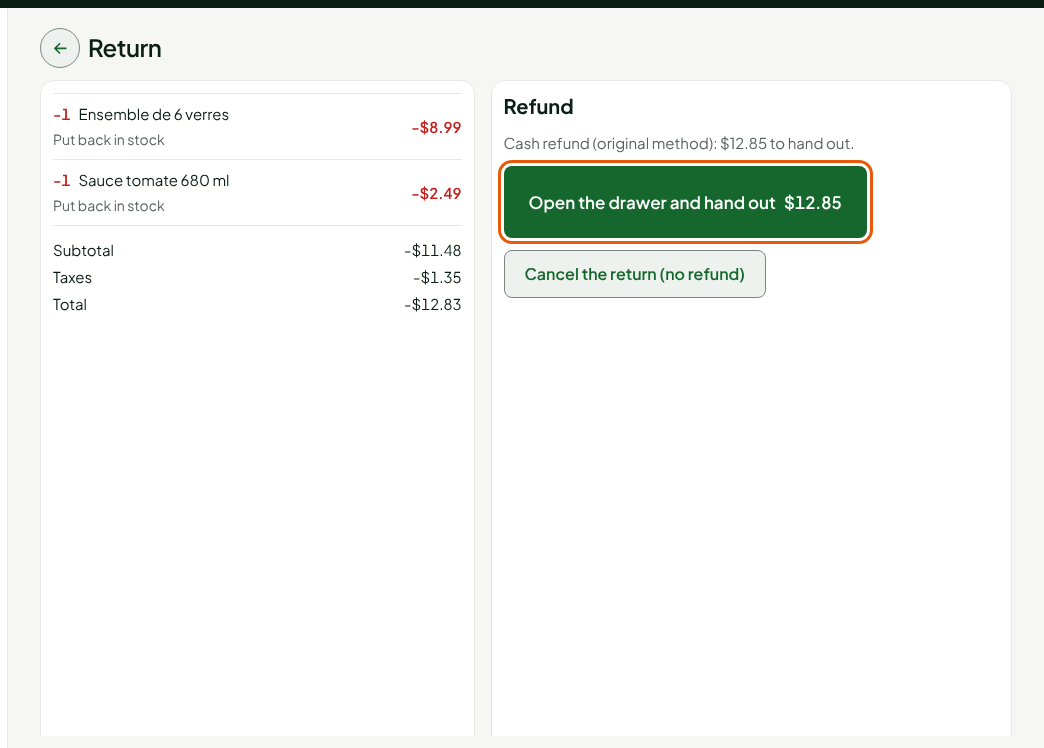
Click Open the drawer and hand out.
Hand the amount to the customer.
Click Cash handed to the customer.
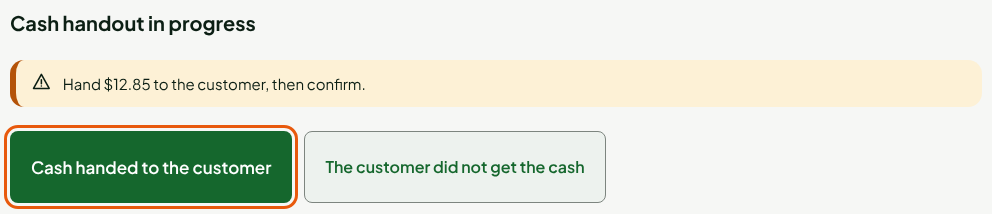
Click Cash handed to the customer only after handing out the cash. If the customer did not get it, click The customer did not get the cash: the return is cancelled and nothing is refunded.
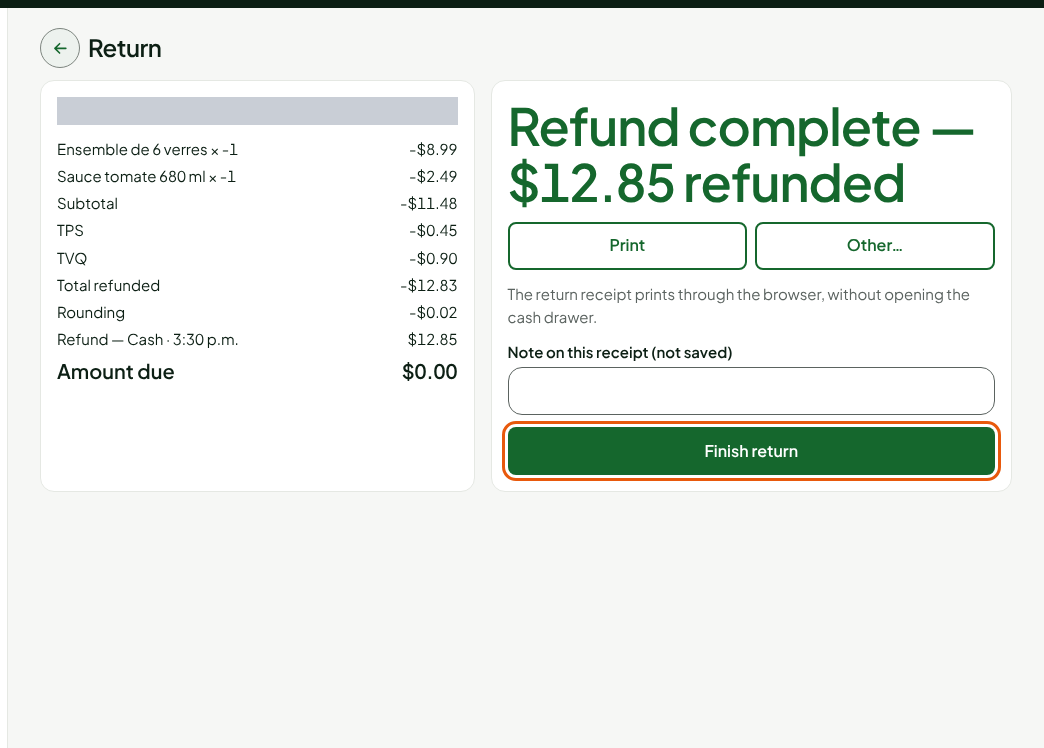
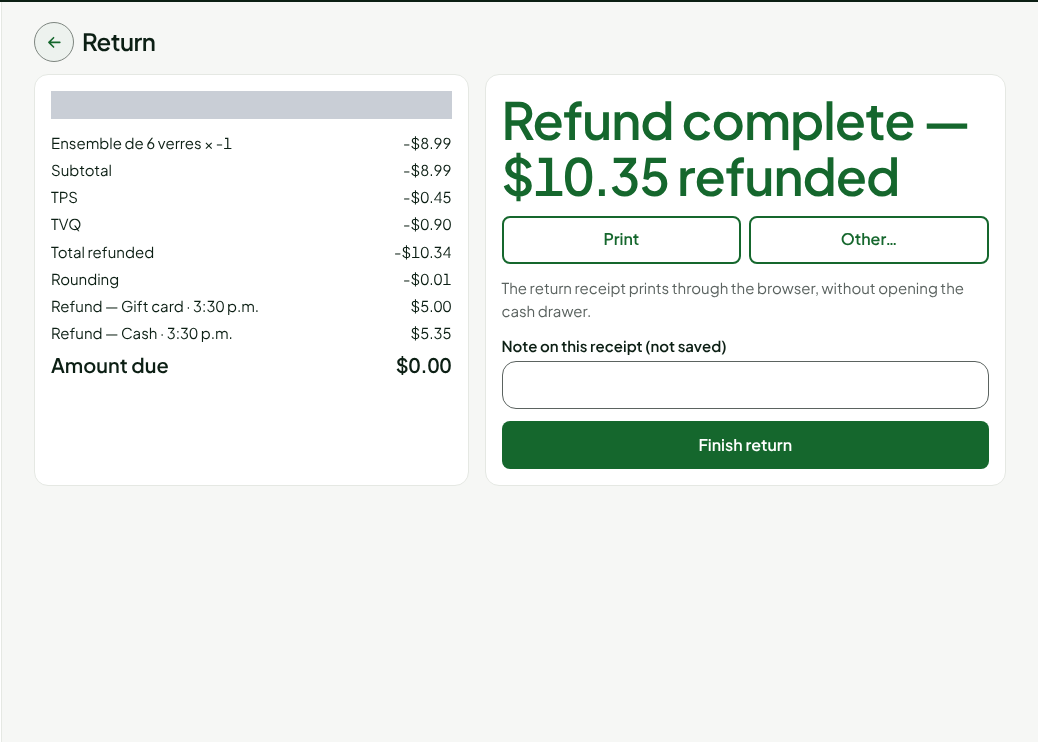
The screen shows Refund complete with the amount refunded, then the return receipt. Click Print to print it, then Finish return. The Sell screen comes back, with an empty cart.
If a return goes over the refund threshold set by your business, another employee who can refund must approve it with their PIN before the refund.
Refunding a sale paid by gift card or store credit
The part paid by gift card goes back on the card that paid, and the part paid with store credit goes back to the sale's customer, as credit. The rest is refunded in cash. The Refund screen does the split.
Read the Refund screen: it shows Reload the gift card that paid for the sale, followed by the amount, or Give back to the store credit of the sale's customer, followed by the amount. The Open the drawer and hand out button stays greyed out until the card or the credit is given back.
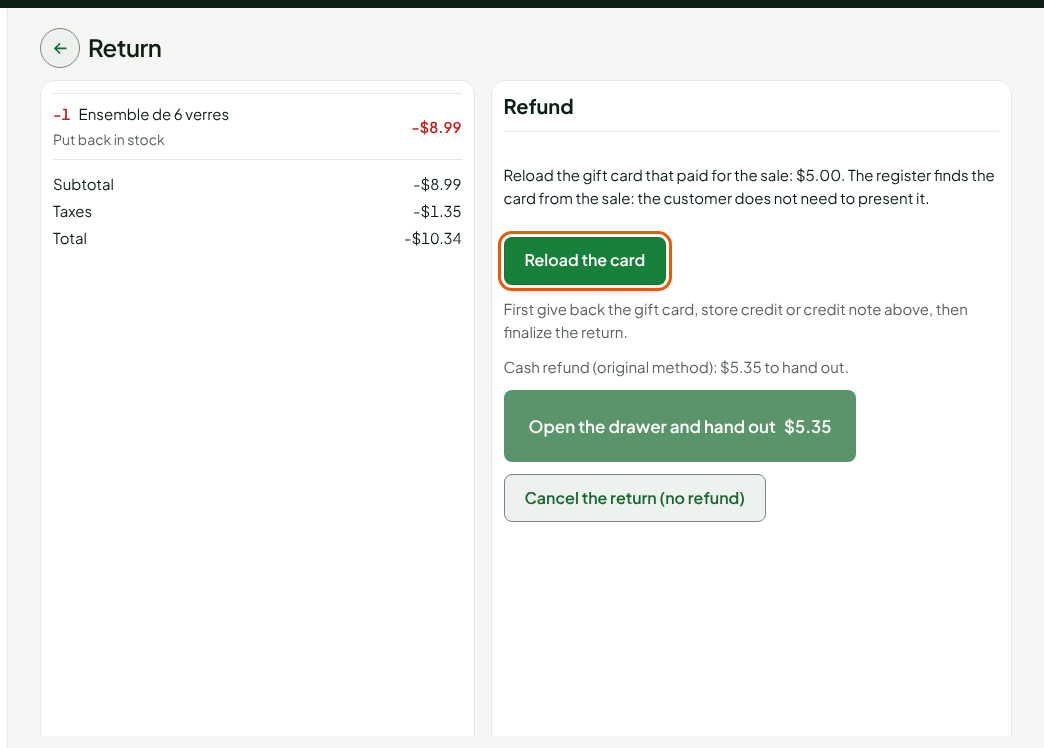
Click Reload the card. The customer does not need to present the card: the register finds it from the sale.
Click Issue the credit, if there is credit to give back.
If an amount in cash remains, click Open the drawer and hand out, hand out the amount, then click Cash handed to the customer. Otherwise, click Finalize the return.
The return receipt shows each method: Refund — Gift card, Refund — Store credit and Refund — Cash. Rounding to 5 cents applies to cash only.
Once the card is reloaded or the credit given back, the return can no longer be cancelled: finish it.
If the sale was paid by payment card
The web register refuses this return: "The sale was paid by payment card: no register refunds a card yet, the payment terminal is not connected. Nothing was reserved." The installed register does not refund it either. Warn a manager before promising a refund.
A sale paid with points or by another configured payment method cannot be refunded at any register either: the screen says so, and nothing is reserved. A sale on account, however, is returned at the web register (see below).
If the sale was paid on account
A sale paid Customer account is returned at the web register like any other: Return items, keep the returned items, then Refund. No cash is handed over: the Refund screen says "Sale paid on account: a credit note … is issued to the customer account (its balance due goes down). No cash is given back."
- Click Issue the credit note. The credit note is created on the customer account, linked to the sale invoice; the account balance due goes down by the same amount.
- Click Finalize the return.
Once the credit note is issued, the return can no longer be cancelled: it is finalized. A second return of the same sale waits until the first one ends. A sale paid only partly on account cannot be returned at the web register.
Troubleshooting
"Cash handout in progress: manager decision"
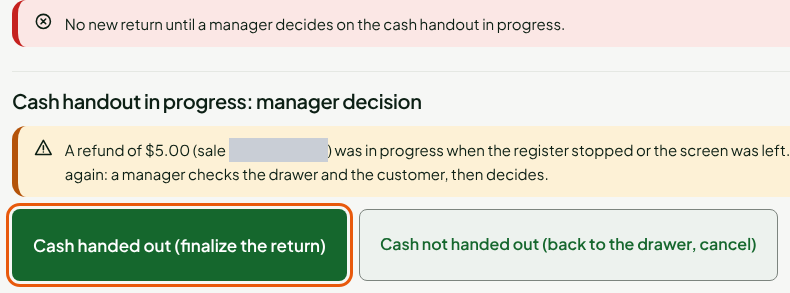
You left the screen, or the register stopped, between opening the drawer and confirming. Nothing is handed out a second time. A manager checks the drawer and asks the customer whether they received the cash, then clicks Cash handed out (finalize the return) or Cash not handed out (back to the drawer, cancel). No new return can be made before this decision.
"A return of this sale paid by gift card is already open"
A sale paid by gift card has only one return in progress at a time. First finish the other return (the Return to finish button on the Sell screen, or the register where it was started), then start again.
"Refund impossible: the sale was paid with store credit without a customer…"
The credit cannot be given back to anyone: nothing is reserved, at the web register or at the installed register.
"Credit refused by the server"
The amount is more than your employee can issue alone ($200, or the daily limit), or over the customer's cap. Nothing is given back. An employee who can confirm store credit finishes this return.
"Nothing left to return on this sale"
Every item was already returned, or another return holds them. Finish the other return first (the Return to finish button on the Sell screen).
The "Return items" button does not appear
The button is missing in three cases: your role does not have the Process a return and refund permission, the sale is voided, or it was made in a store other than the chosen register's (click Change and choose a register of that store). The web register does not make returns without the server; for the installed register, see Offline returns: what is allowed.