Taking cash payments and rounding to 5 cents
- For
- Cashier
- Where
- Web register, Installed register
- Permission
- Sell at the register
- Checked on
There is no 1-cent coin any more: a cash payment is rounded to the nearest multiple of 5 cents. The register does the math, and you only take the amount it shows. This guide shows what the customer pays, what the register records, and what is never rounded.
Before you start
- The register must be open, with a cart ready to pay (Making a sale).
- The screenshots in this guide come from the web register. On the installed register, you type the Amount received, then click Take payment; the receipt panel then has its own buttons (Print the receipt, No receipt, Done). The rounded amount is the same.
The rule
Rounding happens after tax, on the cash part of the payment only:
| Last digit of the total | Rounded to |
|---|---|
| 1 or 2 | Down (0) |
| 3 or 4 | Up (5) |
| 6 or 7 | Down (5) |
| 8 or 9 | Up (10) |
A total of $7.46 becomes $7.45. A total of $10.34 becomes $10.35. A total that already ends in 0 or 5 does not change.
The register never rounds a cart line, a tax, or a payment that is not cash (store credit, gift card). Item prices and taxes stay exact to the cent.
Taking a cash payment
For a sale of $7.46, tax included:
Click Pay, then Cash.
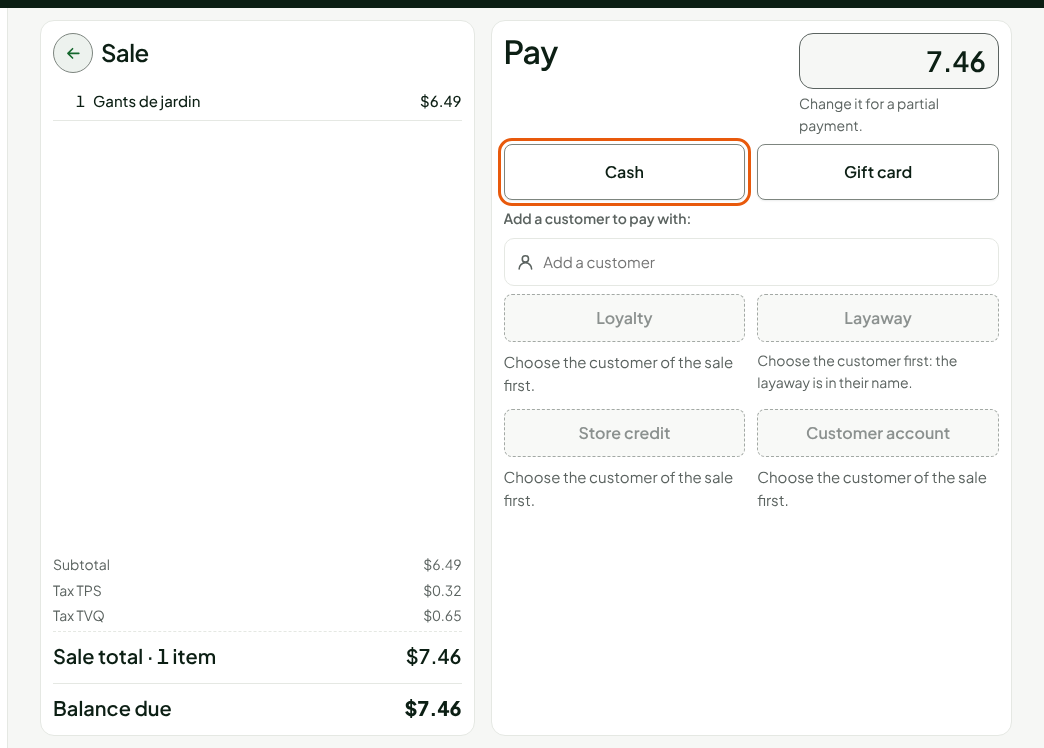
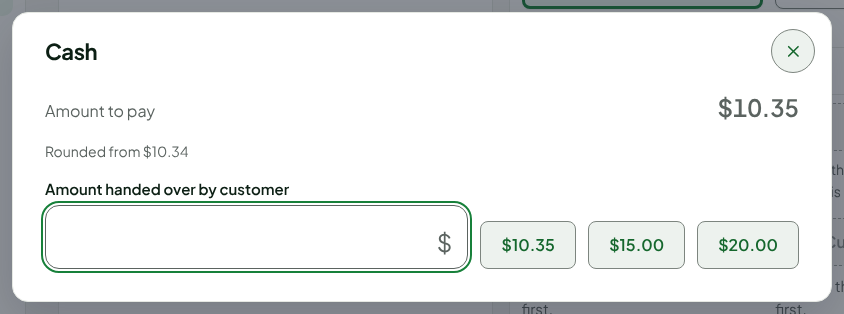
Read the Amount to pay in the Cash window: $7.45. The exact total, $7.46, is written below it (Rounded from $7.46).
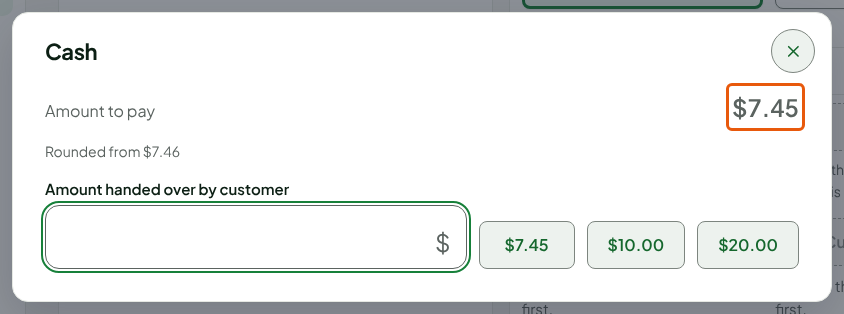
Type the amount the customer hands over in Amount handed over by customer, or click one of the suggested amounts.
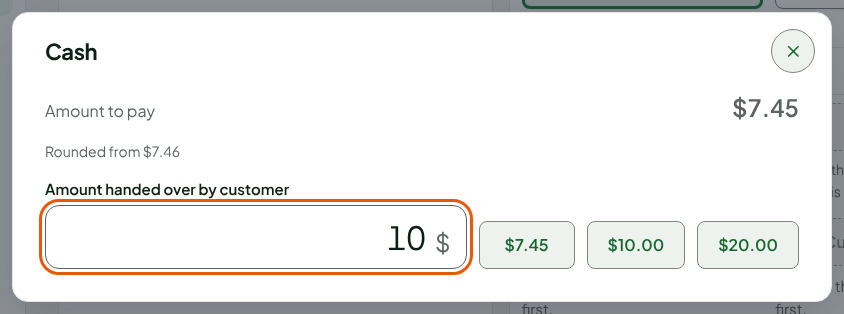
Press Enter.
The screen shows the Change due, worked out from the rounded amount: $10 minus $7.45, which is $2.55.
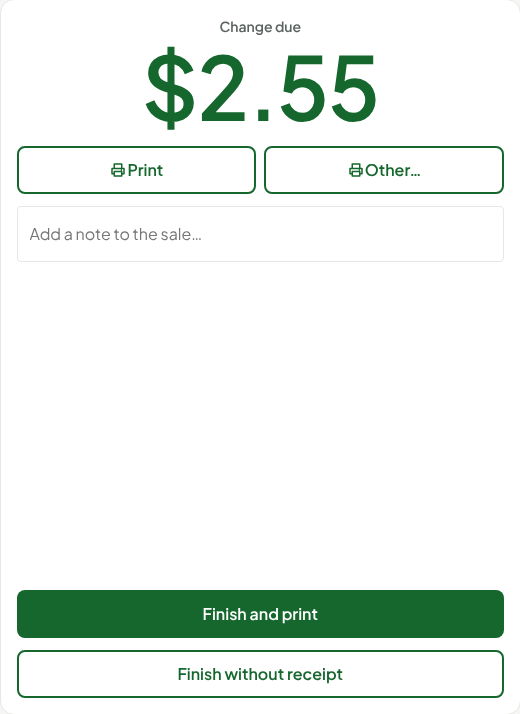
- Give the change, then click Finish and print or Finish without receipt.
When the total is rounded up
The customer then pays 1 or 2 cents more than the total. For a set of glasses at $8.99, the total is $10.34: the Cash window shows $10.35 to pay, and Rounded from $10.34 below it.
When the sale is paid with two methods
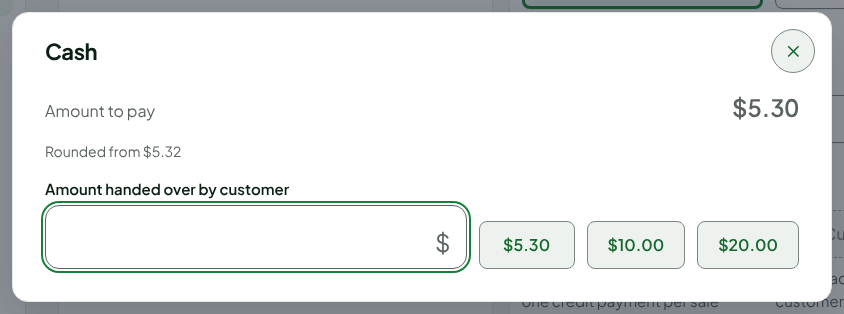
Only the cash part is rounded. If a customer pays $10.00 with store credit on a $15.32 total, the credit pays exactly $10.00. The $5.32 left to pay in cash shows in the Cash window as $5.30.
The steps are in Splitting a payment between several methods.
Where to find the rounding
After payment, the sale summary shows the exact total, then a Rounding line: -$0.01 for $7.46 rounded to $7.45. A negative amount means the customer paid slightly less than the total; a positive amount, slightly more.
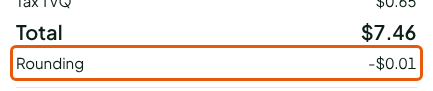
The same line is on the receipt. Each rounding is also written separately in the cash journal: it is part of the expected cash at closing and appears in the Cash movements report, under the type Rounding.
A cash refund is rounded the same way: the Refund button already shows the rounded amount (Returning items and refunding).
Troubleshooting
"Amount too low: … missing."
The amount typed is smaller than the Amount to pay. Ask the customer for the rest, or correct the amount.
"Unusual amount received: … Confirm this amount?"
An amount over $2,000 is repeated in full before payment. Click Confirm if it is right, Correct to type it again.