Voiding a sale
- For
- Cashier, Manager
- Where
- Web register
- Permission
- Sell at the register, Void a sale
- Checked on
A register mistake spotted right away is corrected by voiding the sale, before the session ends. The void removes the sale's amount from the register totals, without erasing anything that happened.
Before you start
- Your role must allow voiding a sale (permission Void a sale). In the base roles, only the administrator has it. Without it, the Manager approval window opens: the manager picks their name in Manager, types their PIN, then clicks Approve.
- The sale must have been made at this register, in the open register session: a sale from a session that is already closed can no longer be voided, it is returned.
- A reason is required (500 characters at most).
A void does not edit the sale. It is a separate fact, linked to the original sale: the sale, its items and its payments stay as they are, and the history shows that it is voided, with its reason.
Voiding a sale from the session
To void a sale you just made:
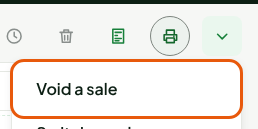
Open Sell > Sell, then click More actions… above the cart.
Click Void a sale.
Choose the sale in Sale to void. The most recent one is offered first, with its receipt number and its time.
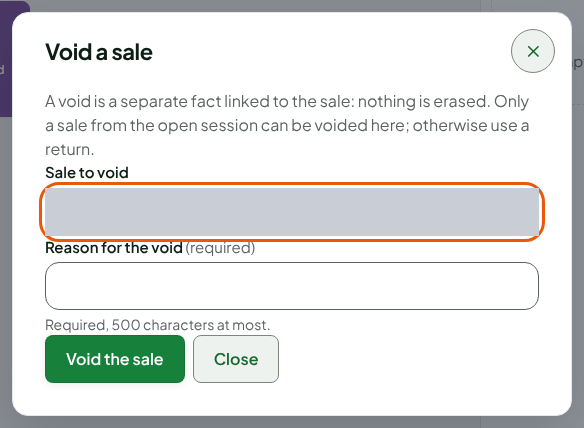
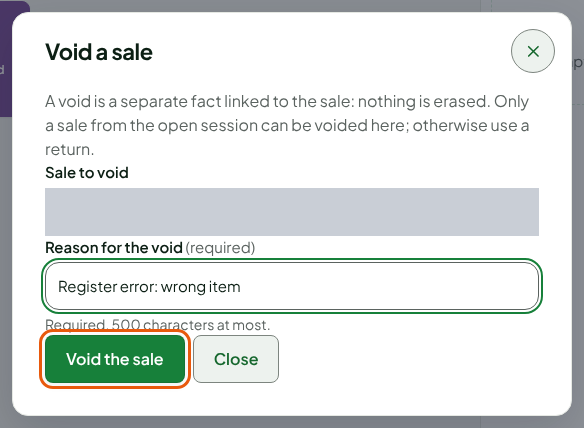
Type the reason in Reason for the void.
Click Void the sale.
A message confirms: Sale followed by the receipt number, then voided, then the amount to give back: Give the amount in cash back to the customer. A sale with no cash says No cash to give back.

The items go back into stock, and the register closing no longer counts this sale's payments. Give the customer back the cash amount shown in the message: it is the part of the sale that was paid in cash, rounding included.
Checking the void
Open Sell > Sales history and find the sale by its receipt number (Finding a sale in the history).
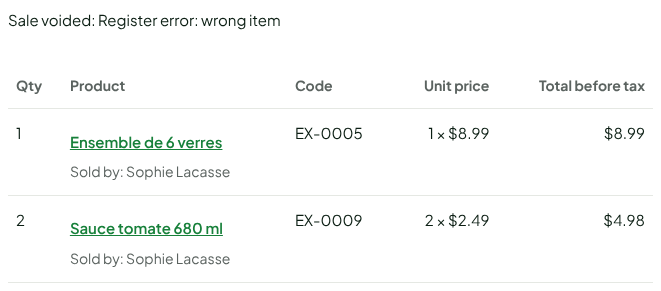
The detail shows Sale voided and the reason.
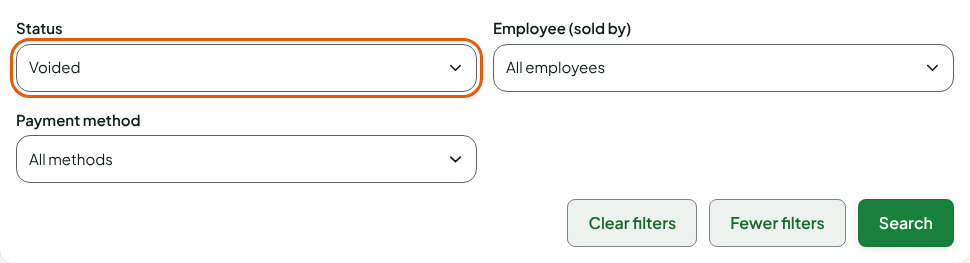
Choose Voided in Status, then click Search, to list every voided sale.
A voided sale cannot be returned, and is not offered on the Process a return tab.
A void cannot be undone. Check the receipt number in Sale to void before you click Void the sale.
Troubleshooting
"This sale was already returned, or a return is in progress: it can no longer be voided."
A sale that has a return, even a partial one, can no longer be voided. The return corrects it: Returning items and refunding.
"Sale paid by gift card, store credit or on account"
The message goes on: "it cannot be voided, correct it with a return". Make a return (Returning items and refunding): the gift card that paid is reloaded and the credit given back to the customer, at the web register as at the installed register. A sale on account is returned at the web register (Sales history > Return items): a credit note is issued to the customer account.
"A gift card from this sale was already used: the sale can no longer be voided."
The message appears in the Void a sale window, which stays open. A gift card from the sale has already paid for something else: the sale can no longer be voided, and the balance stays on the card. A gift card is never refunded in cash.
"Beyond the merchant's threshold"
The sale's total is over your business's threshold: another employee who may void a sale approves with their PIN.
"No response received: the void is not considered done"
Nothing is confirmed. Open the history and check the latest sales before trying again: if the sale is already voided, do not void it twice.