Managing deposits
- For
- Manager
- Where
- Back office, Web register
- Permission
- Manage the catalogue
- Checked on
A deposit is an amount added to the sale of a product, for example $0.10 for a bottle. You create your deposits once, then link them to a category or a product: the register adds them to every sale by itself.
Before you start
- You need access to all stores to create, edit or link a deposit. A person limited to some stores can only read the list.
- The software does not take back empty containers: the deposit is charged at the sale, and refunded with the product when it is returned.
- The tax on the deposit is set in Settings > Taxes, in the Advanced part (guide Setting up taxes).
Create a deposit
Open Catalog > Deposits.
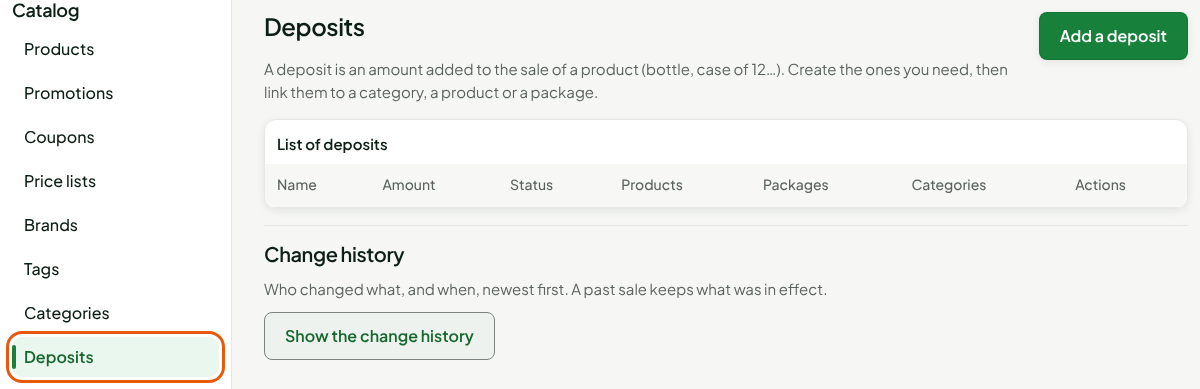
Click Add a deposit.
Type the name in Name, for example
Consigne bouteille.Type the amount in dollars in Amount, for example
0.10. It must be above zero, with at most two decimals.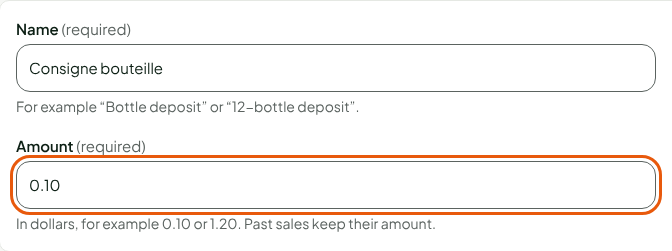
Click Save, in the bar at the bottom of the window.
The screen shows "The deposit “Consigne bouteille” is created." and the deposit joins the list, with no link.
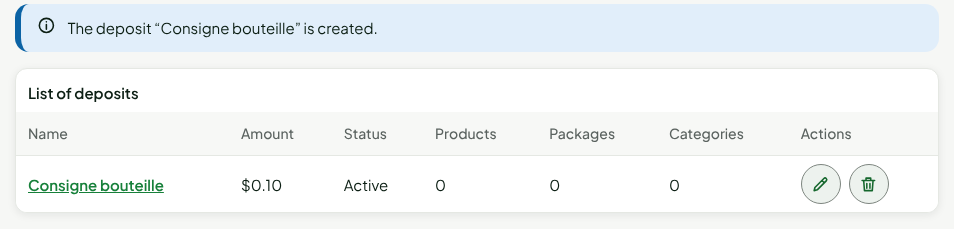
To change the name or the amount, click the deposit in the list. Past sales keep their amount.
Give a deposit to a category
The products of a category receive its deposit, except those that have another one on their sheet. A subcategory with no deposit receives that of the category above.
Open Catalog > Categories, then the category (guide Managing categories).
In the Deposit section, choose the deposit in Category deposit.
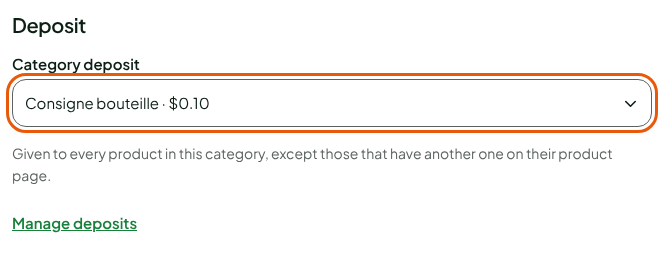
Click Save.
A new category does not have this section yet: save it first.
Give a deposit to a product
On the product's sheet, the Deposit section offers three choices. From the category gives the category's deposit, which the screen names with its amount.
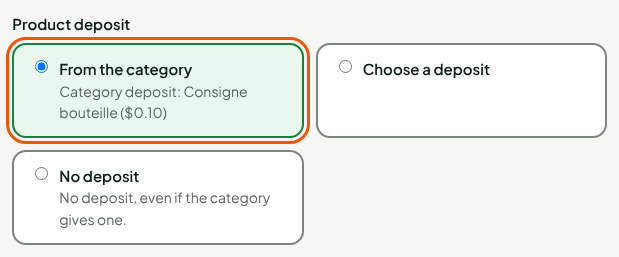
For a deposit of the product's own:
Click Choose a deposit.
Choose the deposit in Chosen deposit.
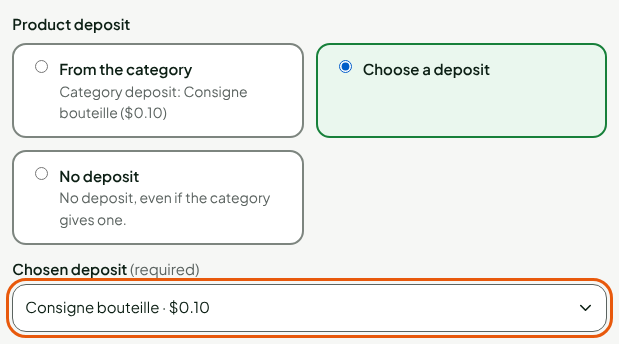
Click Save, in the bar at the top of the sheet.
No deposit removes any deposit from the product, even if its category gives one. For a product sold in a package (a case of 12), the sheet lists each package: it has its own deposit, or else the deposit of one unit times the number of units.
See the deposit at the register
At the register, the deposit is added for each unit sold, offline as well as online. It appears under the product, in the total and on the receipt, and no discount or promotion reduces it.

When the product is returned, the deposit is refunded with it.
Archive a deposit
A deposit is never deleted. An archived deposit is no longer offered in the choice lists, but its history stays.
- In Catalog > Deposits, click the trash on its line.
A deposit that is still linked to a product, a package or a category cannot be archived: the screen says what it is still linked to. Remove those links, then try again.
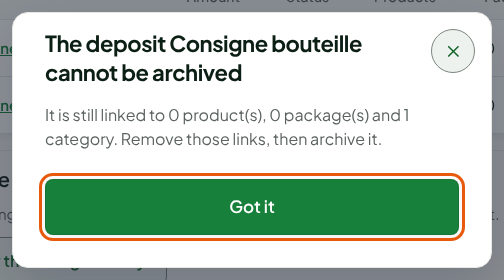
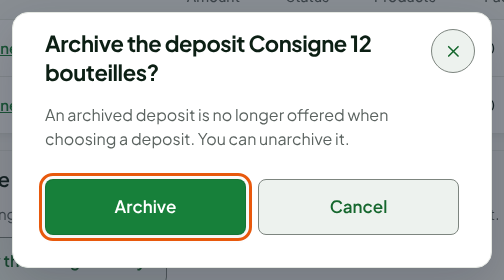
A deposit with no link asks for a confirmation:
Click Archive.
To find an archived deposit again:
Tick Show archived deposits.
Click Unarchive, on its line.
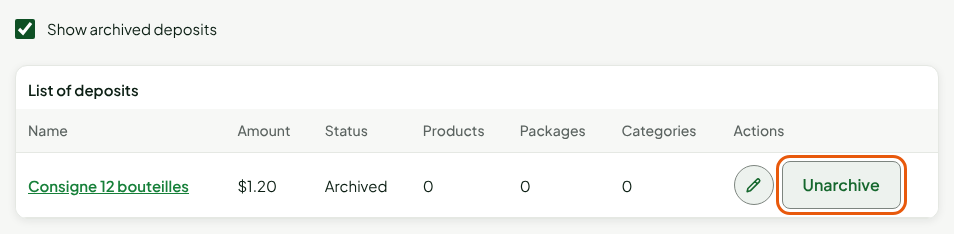
The screen shows "The deposit “Consigne 12 bouteilles” is active again."
Troubleshooting
"An active deposit already has this name."
Choose another name. The name of an archived deposit is free again: an archived deposit cannot be unarchived while an active one has its name.
"Your role does not allow managing deposits."
You need the Manage the catalogue permission, with access to all stores.