Adjusting stock
- For
- Manager, Administrator
- Where
- Back office
- Permission
- Adjust stock
- Checked on
An adjustment adds an entry or an exit to an item's stock in a store: a damaged item, a box found in the back room, a gap you noticed. The item keeps the trace of what moved it.
Before you start
- Your role needs the permission Adjust stock.
- The store must be the one where the goods are: an adjustment only touches the stock of one store.
- The reasons offered are those of the business's list. An administrator sets it in Settings > Adjustment reasons.
An adjustment is never edited and never deleted. A mistake is fixed by a new adjustment in the opposite direction.
Adjusting an item's stock
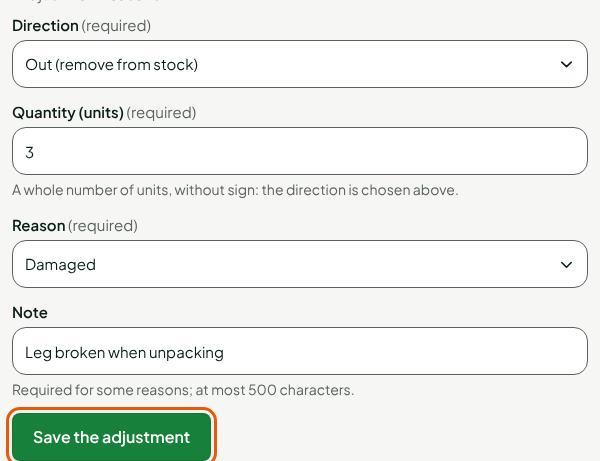
To remove 3 damaged chairs from the Centre-ville stock:
Open Stock > Inventory, choose the store, search for the item, then click its name (Viewing stock levels and movements).
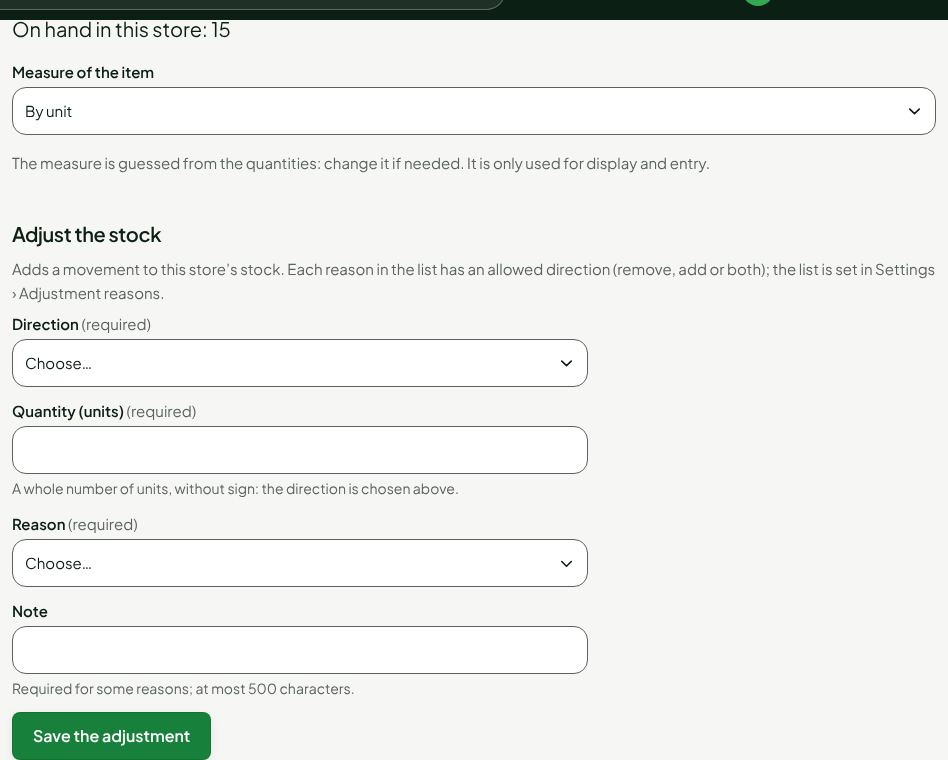
In Direction, choose Out (remove from stock). To add to the stock, choose In (add to stock).
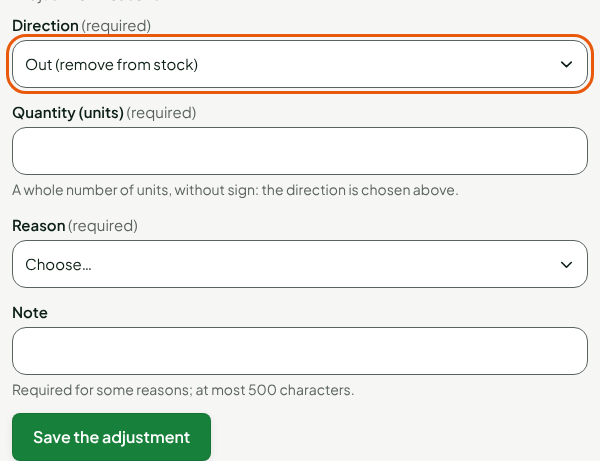
In Quantity (units), type a whole number, without a sign: the direction is already chosen. For an item sold by weight, first choose By weight (kg, to the gram) in Measure of the item: the quantity is then typed in kg, to the gram (1.234 for 1 kg and 234 g).
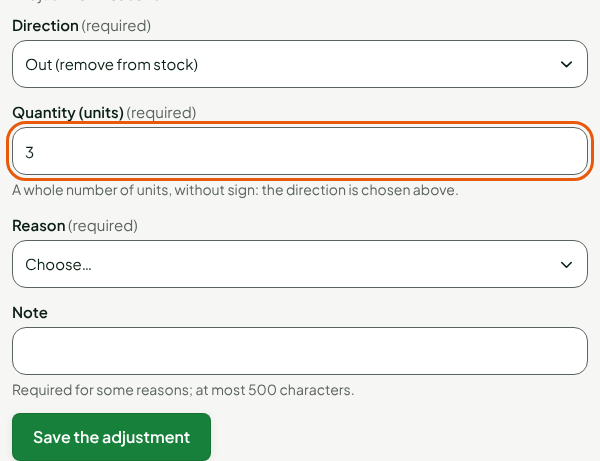
In Reason, choose the reason from the list.
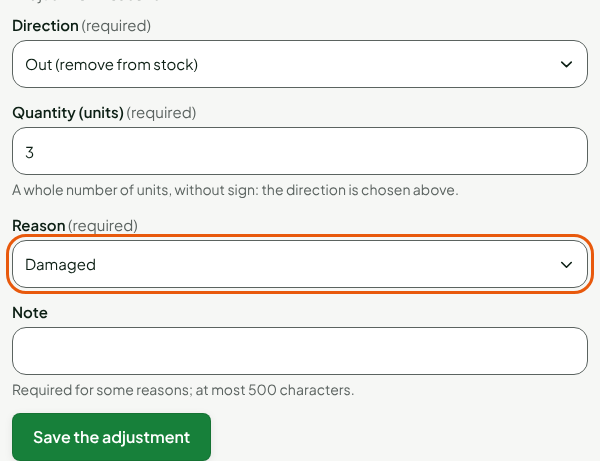
In Note, write what happened. The note is optional, except for some reasons (the reason Other, for example).
Click Save the adjustment.
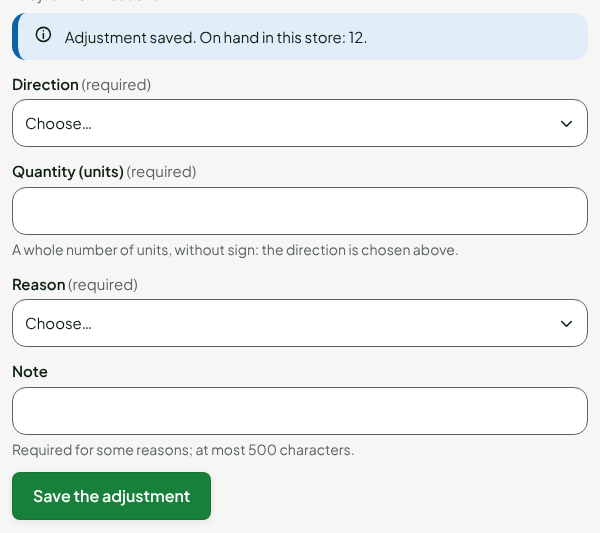
The screen shows "Adjustment saved. On hand in this store: 12." and the form empties, ready for another adjustment.
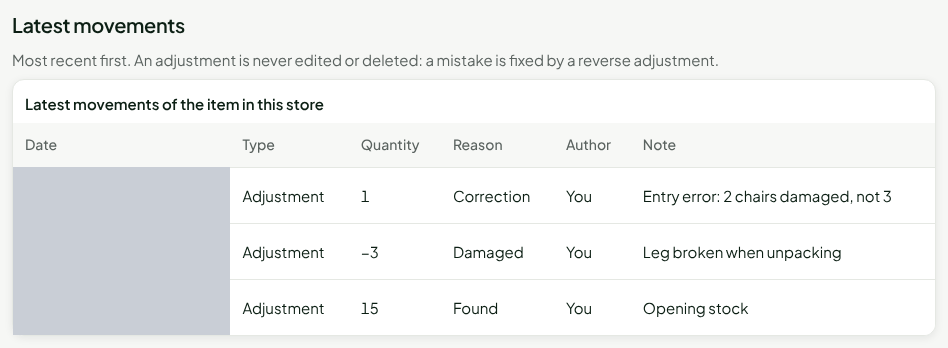
The movement is at the top of Latest movements, with the type Adjustment and You as the Author.
If the server's answer is lost, the screen offers Send the adjustment again. Send it as it is: it will never be counted twice.
Fixing an adjustment mistake
If only 2 chairs were damaged, do not try to change the row: add a reverse adjustment.
Open the item page, as above.
In Direction, choose the opposite of the mistake: In (add to stock).
Type the quantity to put back in Quantity (units).
Choose the reason Correction, and write in Note what was corrected.
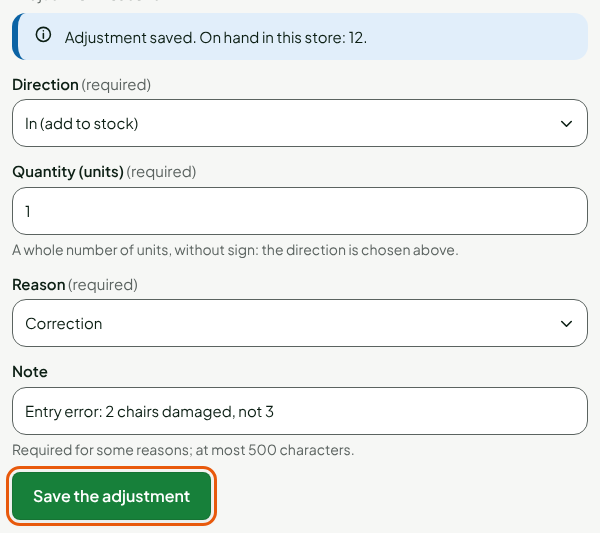
Click Save the adjustment.
Both adjustments stay in Latest movements: the mistake, then its correction.
Troubleshooting
"This reason does not go in this direction: change the direction or the reason"
Each reason has a permitted direction: remove, add or both. In the starting list, Damaged only removes. Change the direction or the reason.
"A note is required for this reason"
Write the reason in Note (500 characters at most).
"This reason is turned off: choose another one from the list."
An administrator turned this reason off. Choose another one.