Viewing a customer's loyalty account
- For
- Manager, Administrator
- Where
- Back office
- Permission
- Manage customers
- Checked on
A customer's loyalty account shows their point balance and the story of every point earned, spent or corrected. Open it when a customer asks where their points stand, or before correcting their balance.
Before you start
- Your role must have the permission Manage customers. To correct points, it also needs Configure the loyalty program: without it, the account opens read only.
- The customer must have a record.
Read the overview in the list
To see the balance without leaving the list:
Open Customers > Customer records, then type part of the name in Search for customers. The Loyalty column gives each customer's points.
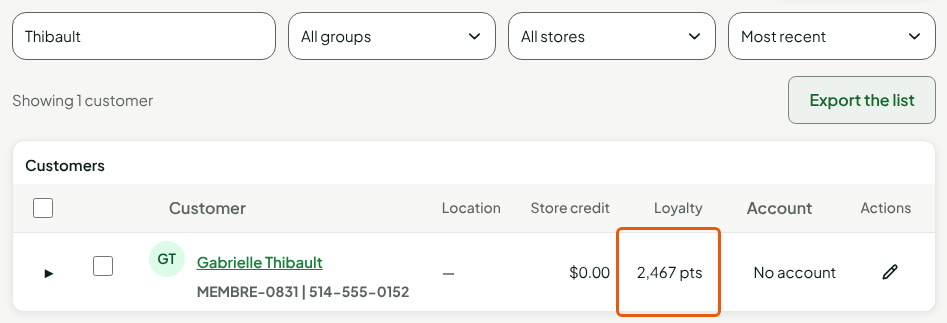
Click the arrow to the left of the row, then the Loyalty tab.
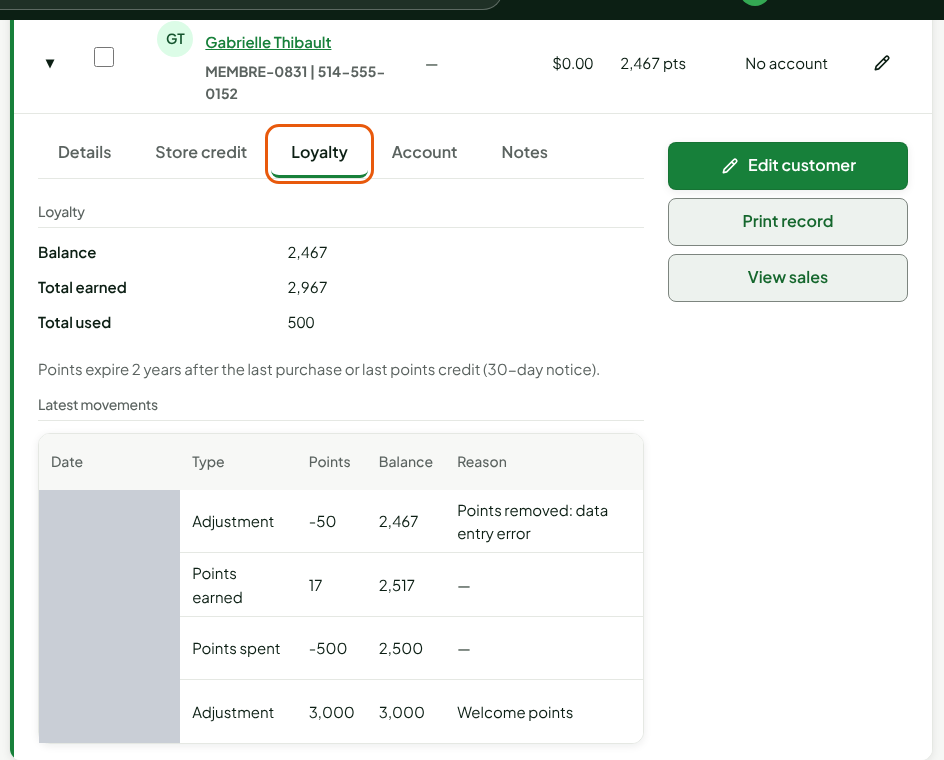
The tab shows the Balance, the Total earned (every movement except spending and void refunds, so corrections and takebacks are included) and the Total used, with the latest movements. It also reminds you that points expire 2 years after the last purchase or the last points credit.
Open the account
To read the whole account:
In the list, click the customer's name.
Click Loyalty: point balance and movements.
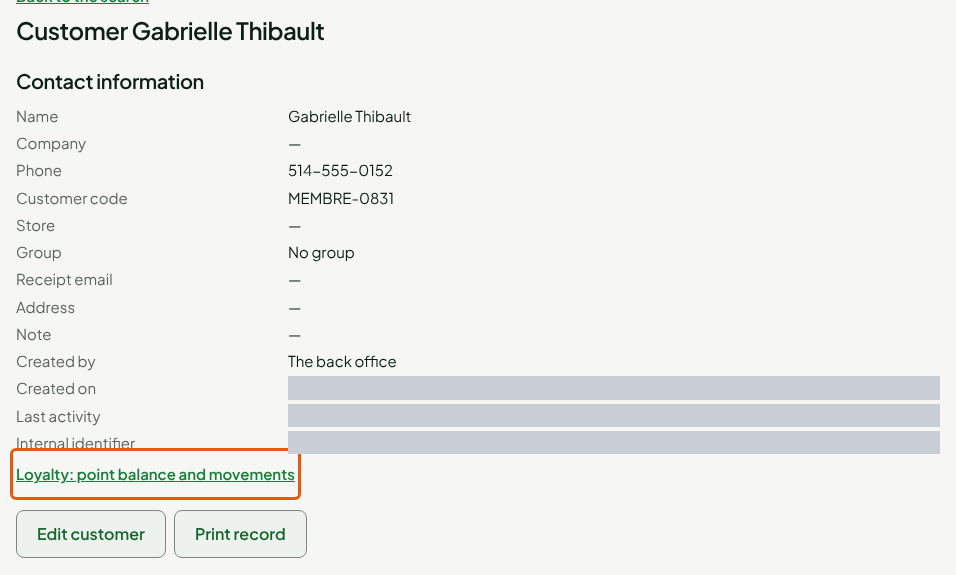
The Loyalty account page opens. Back to the customer record takes you back to the record.
The balance
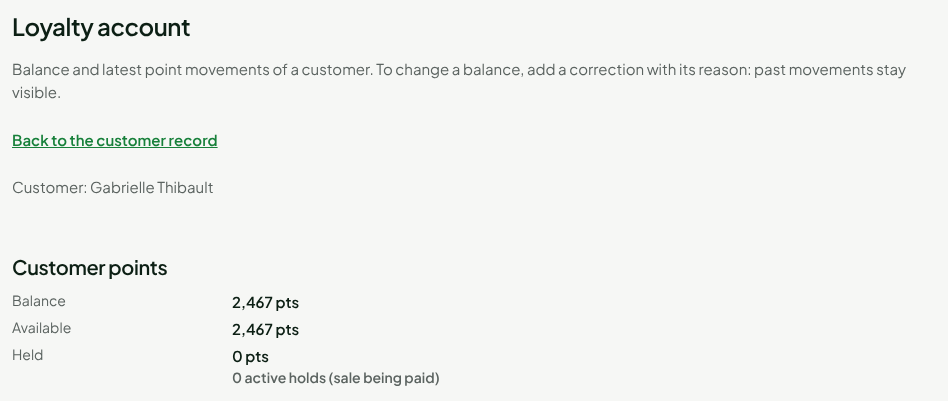
Customer points gives three numbers:
| Label | What it is |
|---|---|
| Balance | The sum of all the account's movements |
| Available | The balance minus the held points: what the customer can spend |
| Held | The points set aside by a sale being paid; the line below counts the active holds |
The movements
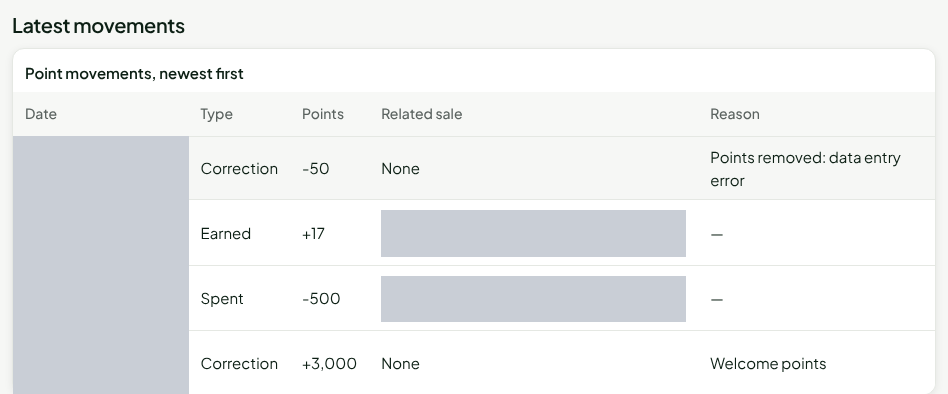
Latest movements lists the movements, newest first: the Date, the Type, the Points (positive or negative), the Related sale and the Reason. The Related sale shows the receipt number of the sale and opens that sale with one click. At the same time, the order is always the same: the points spent on a sale come first and the points earned after, so the earning is listed above the spending. An earning and a spending keep the link to their sale; a reason exists only for a correction. Only the latest 100 movements are shown.
| Type | What it is |
|---|---|
| Earned | The points of a paid sale with the customer on it |
| Taken back on return | The points taken back, in proportion, when items are returned |
| Taken back on void | The points of a voided sale, taken back |
| Spent | Points exchanged for a discount |
| Credited back on void | The points spent in a voided sale, given back |
| Correction | An addition or a removal made by a manager, with its reason |
| Expired (2 years without a purchase) | The whole balance, removed at once |
| Expiry credited back (late purchase) | The expired points, given back when an older sale arrives late |
| Sale customer corrected in the back office | The points of a sale that move from one customer to another |
A movement can be neither changed nor deleted. To undo a mistake, add the opposite movement: see Adjusting a customer's points balance.
The account of an anonymized customer
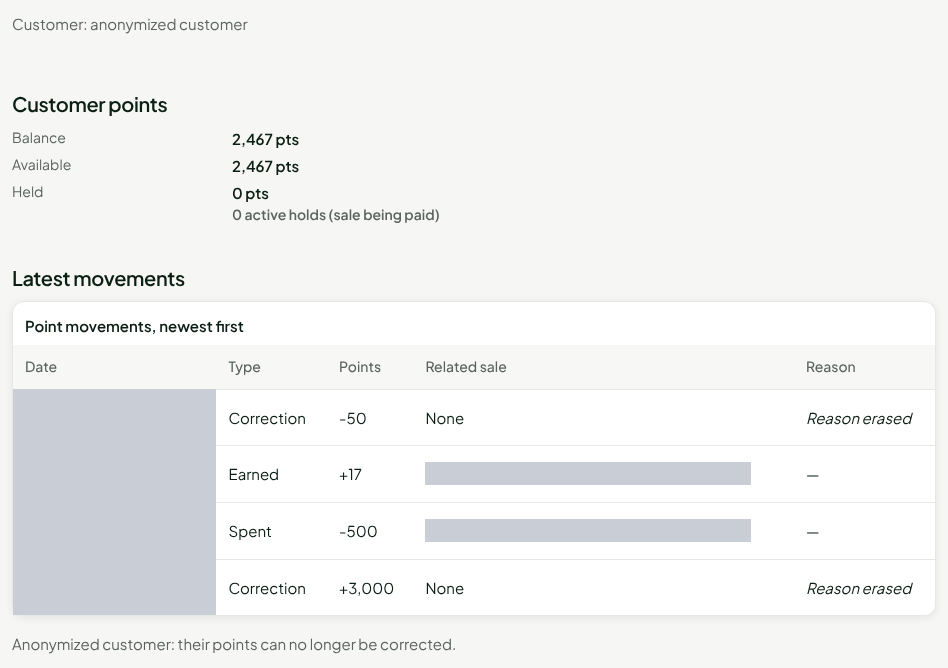
Once the record is anonymized, the account can still be read, but without the name (Customer: anonymized customer). The Reason of each correction is erased (Reason erased), and the page says Anonymized customer: their points can no longer be corrected.
Troubleshooting
"Customer not found." or "Account unreadable"
The record does not exist or can no longer be read with your role. Click Try again if it is offered; otherwise go back to the list and search for the customer again.
The correction form is not on the page
Your role does not have the permission Configure the loyalty program: the page shows Read only: correcting points requires the permission to manage loyalty. Ask an administrator for it.