Changing a tax rate
- For
- Administrator
- Where
- Back office
- Permission
- Manage stores and settings
- Checked on
When the rate of a tax changes, you change it in one place, and every store that charges it follows. You can change it right away, or choose the day the new rate starts.
Before you start
- The tax must already exist in Settings > Taxes (see Setting up taxes).
- The numbers in this guide, a 5% rate that becomes 6%, are only an example: type your tax's official rate.
A rate change only applies to future sales. Past sales keep the tax they were made with: nothing is rewritten.
Changing a tax's rate
Open Settings > Taxes.
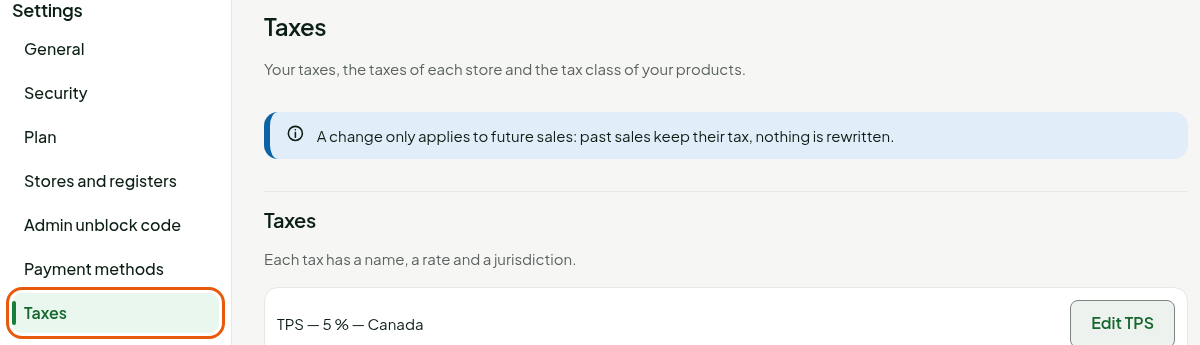
Click Edit followed by the tax's name, in its row, for example Edit TPS.

Type the new rate in Rate (%), for example
6. The Starting on field appears as soon as the rate changes.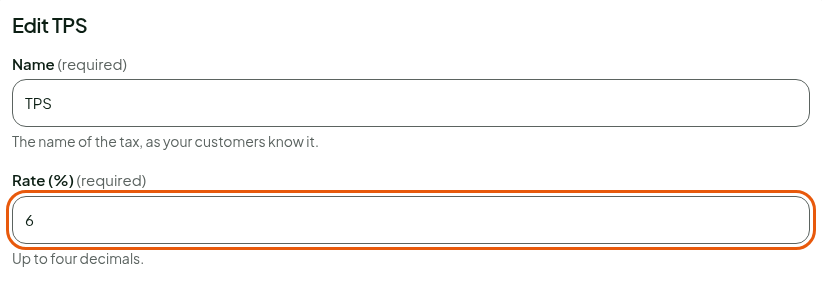
Choose the day the new rate starts in Starting on.

- Today (the date offered): the new rate applies right away.
- A future date: the new rate applies from midnight that day, at each store's local time. The tax keeps its current rate until then.
Click Save the tax.
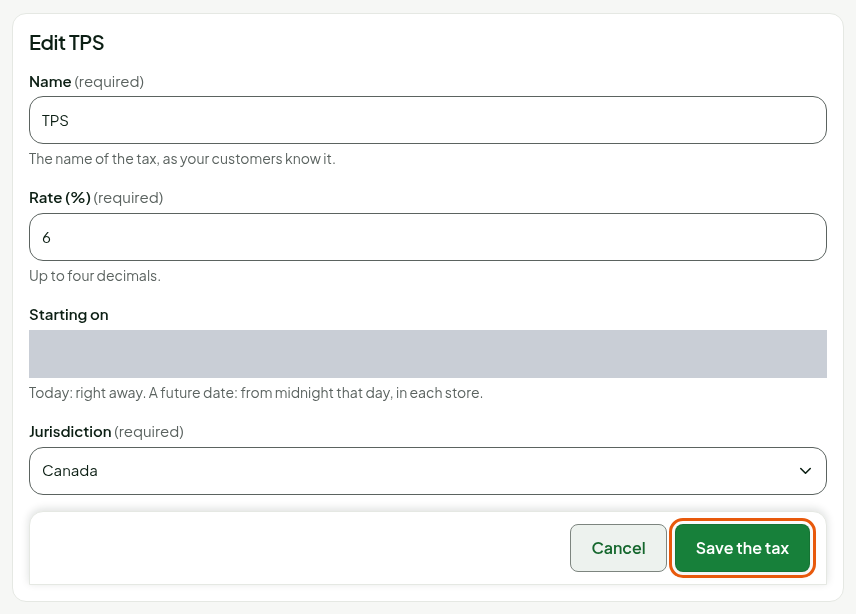
The screen shows "Tax TPS saved." and the tax's row shows its new rate: "TPS — 6 % — Canada". The next sales take this rate.

The change applies to the stores whose taxes you have checked in Settings > Taxes. If a store has taxes set up another way, the screen shows "This rate does not reach these stores because their taxes are configured differently:" followed by their names. Check its taxes in Settings > Taxes to bring it under this screen.
Troubleshooting
"An advanced exception (register or product) or a category outside the tax classes charges this tax and would not follow this change."
A change with a future date is refused as long as an advanced exception charges this tax, or products of a store set up in Settings > Taxes have no tax class. First remove the exception, or choose the tax class of those products on their product page, then save again.
"These taxes changed since they were read."
Someone changed the tax while you were editing it. The screen was read again: start the change over.