Troubleshooting a count
- For
- Cashier, Manager
- Where
- Phone, Back office
- Permission
- Run an inventory count, Adjust stock
- Checked on
This guide covers the troubles a count meets most often: a code the phone does not recognize, entries waiting for the network, refused entries, a count that does not move at the office. To count, see Counting on a phone.
"Code …: no item of this count"
The phone only recognizes an item among those of the count, by its SKU or by one of its barcodes.
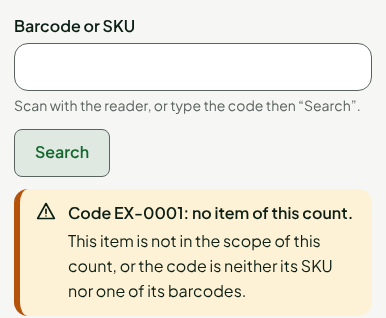
Read the reason written under the message:
- This item is not in the scope of this count, or the code is neither its SKU nor one of its barcodes. Check that the item belongs to the aisle or category of the count, then type its SKU or its barcode. An item outside the scope cannot be counted here.
- Several items of this count share this code: count them at the office. Do not pick for the screen: tell the office.
- The code was misread (wrong check digit): scan the label again.
- Scale label whose item is not in this count: scan the item itself.
While you type a quantity, a scanned code that is not recognized clears the quantity field and shows a warning. Type the quantity again.
Entries do not show at the office
The office reads the count again every 30 seconds. An entry still waiting on the phone is not there.
On the phone, check that the entry is Sent under Last entry, not Waiting to be sent.
At the office, open Stock > Inventory counts, open the count, then click Read the document again.
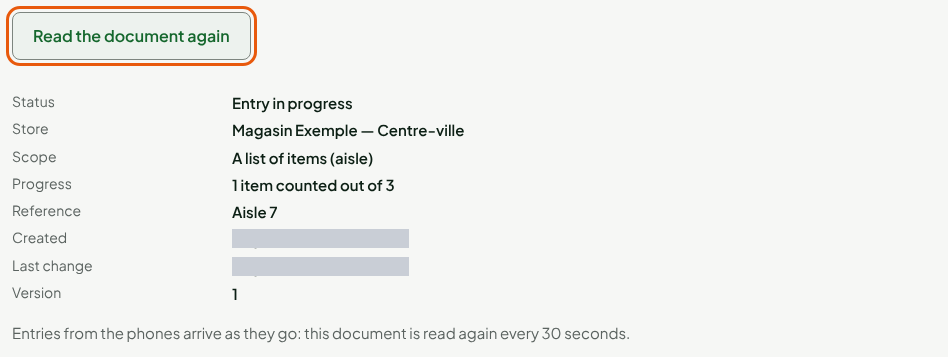
Progress says how many items are counted.
Entries stay on the phone
Without a network, the screen shows Offline and 1 entry waiting to be sent. This is not an error: entries are kept on the phone and leave once when the network is back.
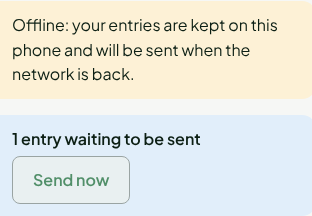
When the network is back, tap Send now. If the screen says Sending interrupted, it will retry automatically., wait: sending retries on its own.
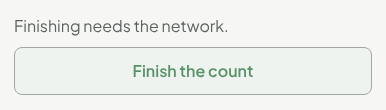
Finish the count stays grayed out while entries are waiting, and without a network: the screen says Send the waiting entries first. or Finishing needs the network.
If the screen says This browser blocks local storage, allow the site's storage in the browser settings, or count at the office. If an entry shows Entry not kept, nothing was saved: type it again.
If the screen says Your session has expired, sign in again: the entries stay kept on the phone.
An entry is refused
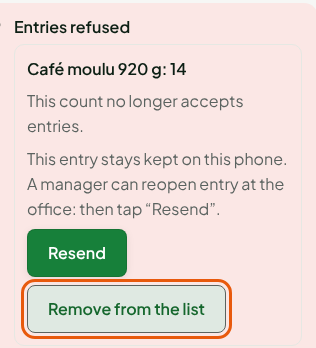
The server may refuse an entry that arrives late. It appears under Entries refused, with the reason.
| Message | What it means |
|---|---|
| This count no longer accepts entries. | Entry for the count is finished. The entry stays kept on the phone. |
| Item outside the scope of this count. | The item is not in the count. |
| Only your last entry of this item can be corrected. | A correction only replaces your last entry. |
| This count has reached the maximum number of entries. | No more entries are possible. |
| Quantity too large for this count. | Check the quantity. |
| Your role does not allow counting the inventory. | Ask an administrator for the permission. |
A refused entry stays kept on the phone and is not counted. If entry for the count is finished, tell the person who closes it: at the office, they see the entry under Entries refused after entry was finished and, as long as the count is not closed, a manager can click Reopen the entry. Then tap Resend: the entry goes as it is and counts only once. Remove from the list clears the refusal from the screen, without the entry being counted.
The count waits to be closed
When entry is finished, the count goes to Entry ended, to close. You need the Adjust stock permission to close it; without it, the screen says so.
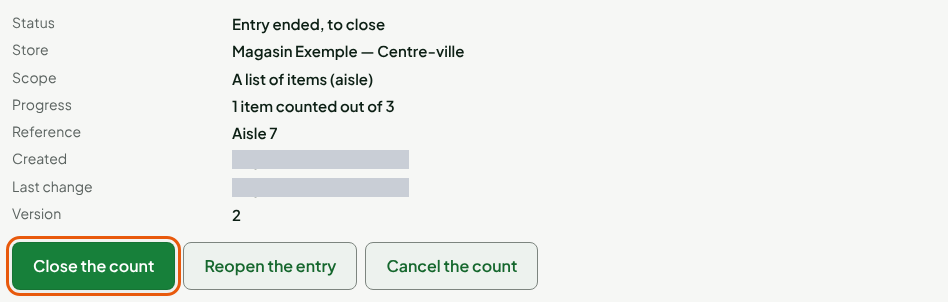
- Close the count corrects the stock of each counted item; an item that was not counted stays unchanged.
- Cancel the count writes no discrepancy to stock.
Closing writes stock movements: it cannot be undone. A mistake is corrected with an adjustment (Adjusting stock).