Creating a coupon campaign
- For
- Manager, Administrator
- Where
- Back office
- Permission
- Manage promotions
- Checked on
A coupon campaign rewards a purchase: a sale that meets its conditions prints a coupon at the end of the receipt, which the customer uses on a later purchase. This guide creates a typical campaign: for $50 of purchases, a $10 coupon on a later purchase of $50.
Before you start
- Decide on the reward before you enter it: once coupons are printed, it can no longer change.
- To limit the minimum to categories or brands (optional), your role also needs the Manage the catalogue permission (code
catalog_manage); without it, the screen asks for their identifiers. With no choice, every item counts.
A coupon can only be used online: at the register, it is checked online before it is accepted. When offline, the sale goes on at the regular price.
A sale gives at most one coupon. When it meets the conditions of several campaigns, the highest Priority wins.
Create the campaign
To create a campaign:
Open Catalog > Coupons, then click New campaign.

Under General, type the name in Campaign name, for example
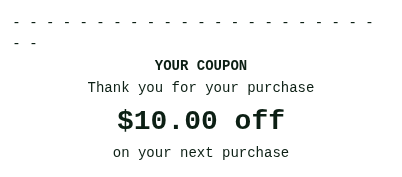
Thank you for your purchase. This name is printed on the coupon.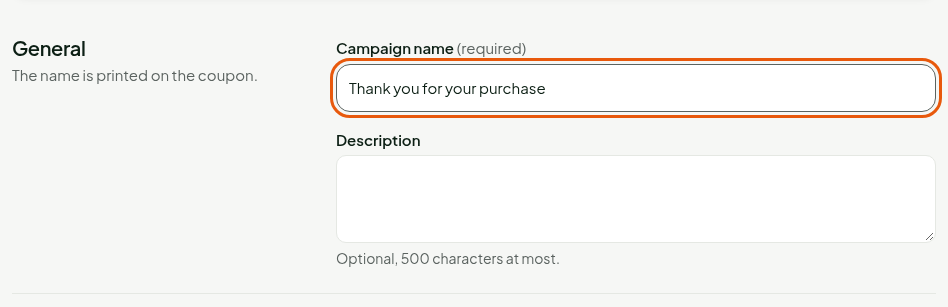
Under Issuing, type
50in Minimum purchase to receive a coupon. Choose Before taxes or After taxes in Amount measured, then type the date and time in Issuing starts. Leave Issuing ends empty to give out coupons with no end date.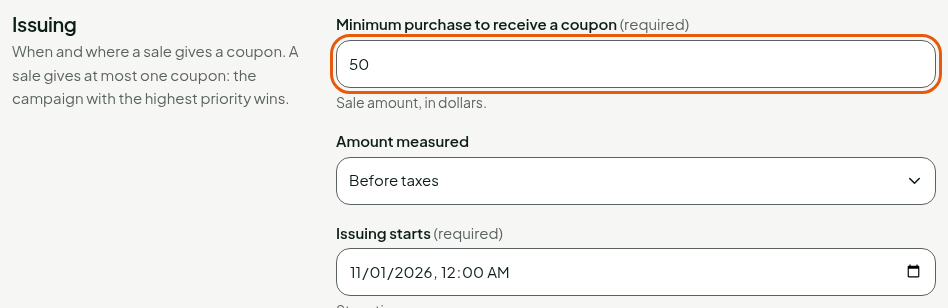
Under Reward, keep Fixed amount and type
10in Discount ($). For a percentage discount, choose Percentage: the screen then asks for Discount (%) and an optional Discount cap ($). Type50in Minimum purchase to use the coupon ($) to require a minimum purchase when the coupon is used.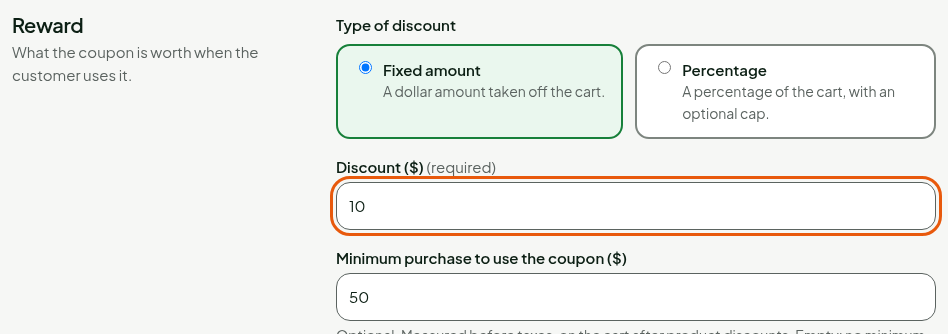
Under Validity, type
3in Number of days of use (from 1 to 365, first day included). Choose From the next day or The same day in Use starts.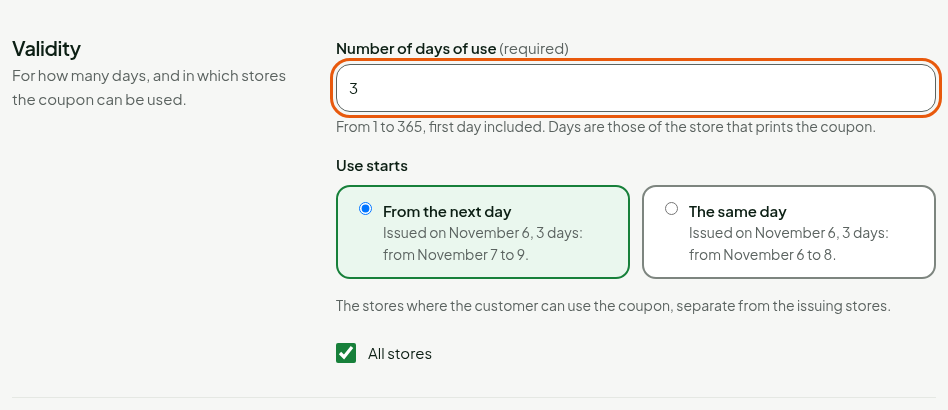
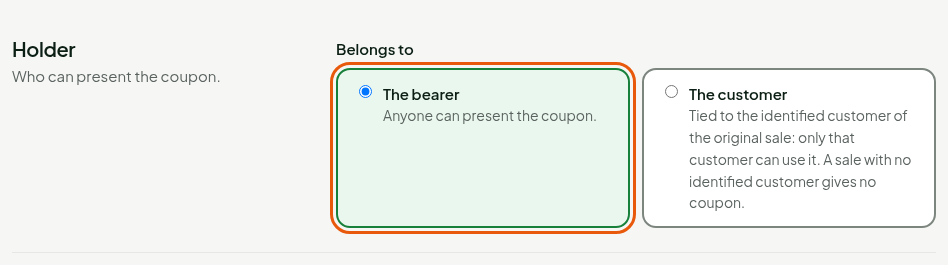
Under Holder, choose The bearer so that anyone can present the coupon, or The customer to tie it to the identified customer of the original sale: only that customer can use it. A sale with no identified customer then gives no coupon.
Under Priority, keep
0, unless several campaigns can apply to the same sale: then enter a number from 0 to 1,000, and the highest priority wins.Under Coupon preview on the receipt, check the coupon as the register prints it. Its code, dates and barcode are examples.
Click Save, at the top of the screen.
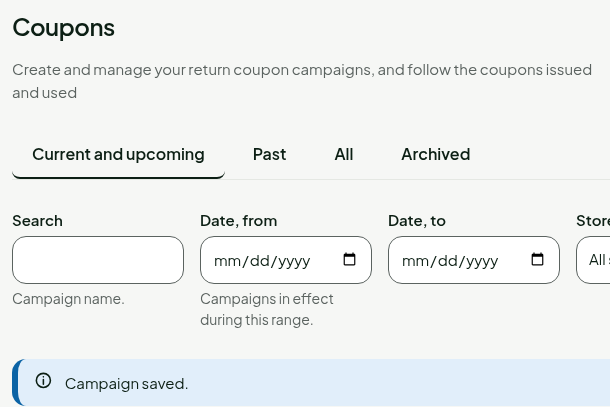
The screen returns to the list and shows “Campaign saved.”. The campaign goes to the registers of its stores at their next sync.
By default, the campaign applies to all stores, for issuing and for use. To limit it, clear All stores under Issuing or Validity and check the stores you want: the stores where the coupon prints and the stores where it can be used are two separate choices.
Stop issuing
To stop giving out coupons without losing the ones in circulation:
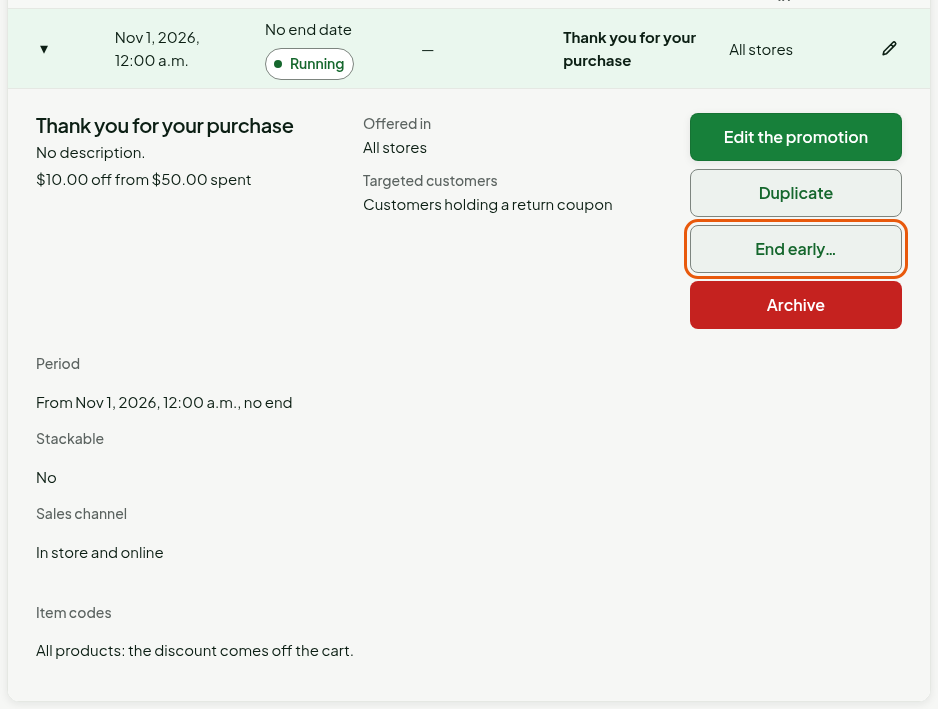
Type the campaign name in Search, click Search, then click the arrow on its row.
Click End early….
Click End now.

The campaign stops printing coupons and moves to the Past tab. Coupons already printed stay valid until their own date.
Archive removes the campaign for good, and coupons already printed stop being valid: a customer presenting one is told “unknown code”. To only stop issuing new ones, use End early….
Follow the campaign
Click Coupon report, at the top of the Coupons page, to see the coupons Issued, Used and Cancelled by campaign and by issuing store, with the Usage rate and the Discounts given.
Troubleshooting
The reward is locked
As soon as coupons are in circulation, the form shows “Coupons in circulation: the reward is locked.”: the type, amount, percentage, cap and minimum purchase can no longer change, because the receipt promised that value. The name, the stores where it can be used, excluded products and stacking can still be edited. For another value, archive the campaign and create a new one.
“The start of issuing is required.”
Fill in Issuing starts under Issuing.