Handling an anomaly
- For
- Administrator
- Where
- Back office
- Permission
- View logs, Replay quarantined operations
- Checked on
An anomaly is a trace that needs a look: an operation the server set aside, or a copy that does not match the original. This guide shows the two actions the screen offers: replaying an operation to review, and releasing a differing copy.
Before you start
- First spot the anomaly on the Register uploads screen (see the guide Following register uploads).
- Replaying and releasing need the Replay quarantined operations permission, on top of View logs. Without it, the screens stay view-only.
- You never need to force an operation. If an action on the screen does not settle the anomaly, call support.
Each action is logged: who, when, and for a release the reason you wrote. A sale or a payment is never rewritten: a mistake is fixed by an addition linked to the original.
Replaying an operation to review
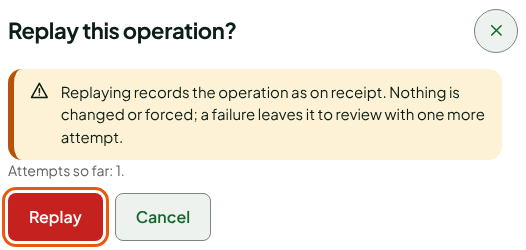
Replaying asks the server to record the operation again, as on receipt. Nothing is changed or forced. If the operation goes through, it is recorded; if it fails again, it stays to review.
Open Settings > Register uploads.
Click Full record on the operation's card, under Operations to review.
Read the Status, the Reason and the Support code.
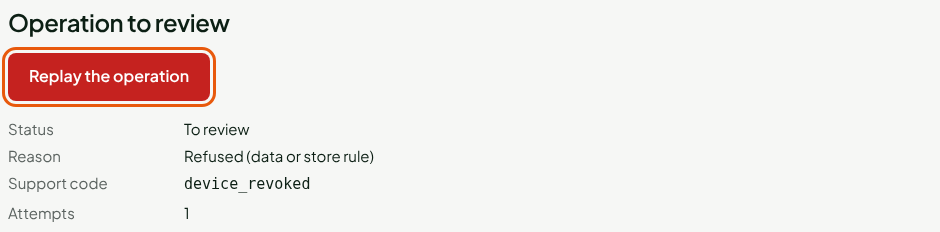
Click Replay the operation.
Read the warning in the Replay this operation? window, then click Replay.
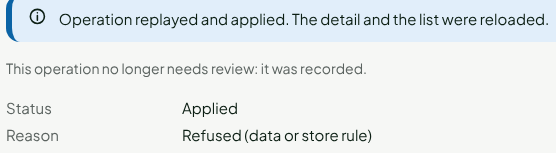
The screen shows "Operation replayed and applied." and the Status changes to Applied. The operation is no longer under Operations to review.
If the operation fails again, the screen says "The replay failed: the operation stays to review.", with the new reason and the number of Attempts. That attempt is noted under Logged replays. Do not replay in a loop: call support and give them the Support code.
If the screen says "An earlier operation of this device is not applied yet", replay the one before it first, or wait until it is applied.
Releasing a differing copy
A differing copy is an operation the server received twice with different content. It keeps the original and sets the copy aside. The copy is never applied. Releasing it marks it as reviewed.
Open Settings > Anomalies.
Choose Open in Copy status, under Register conflicts.
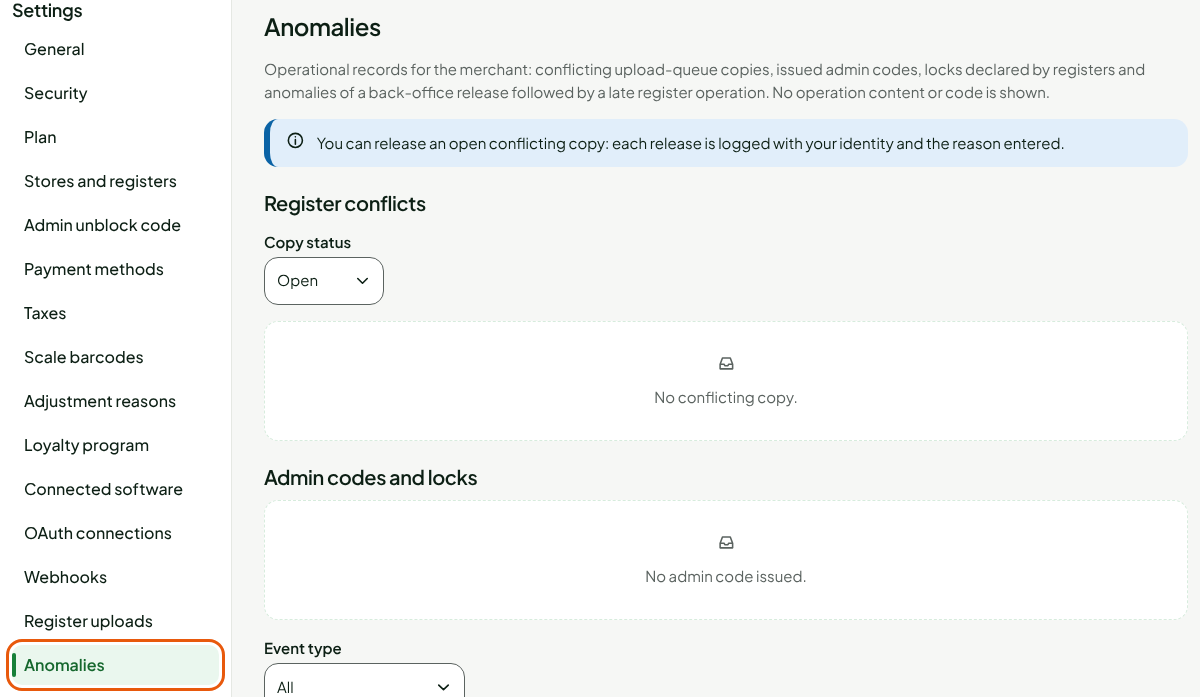
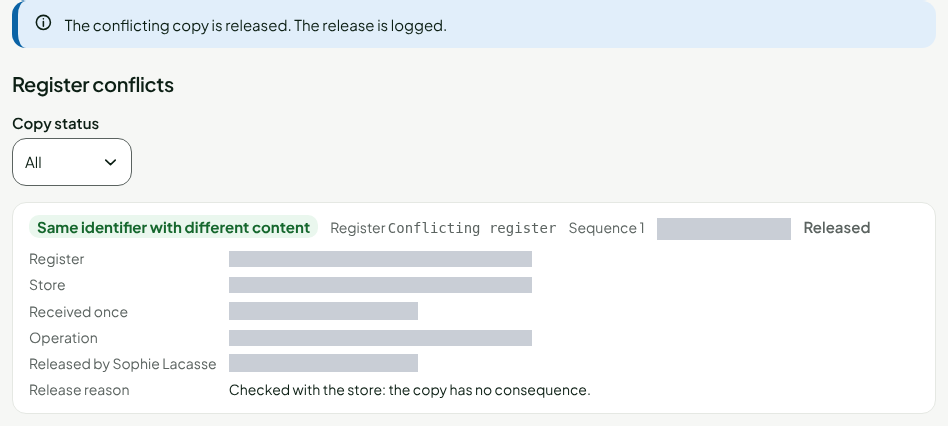
Read the copy's card: the reason (for example "Same identifier with different content"), the register, the sequence and the Open status.
Click Release this copy.
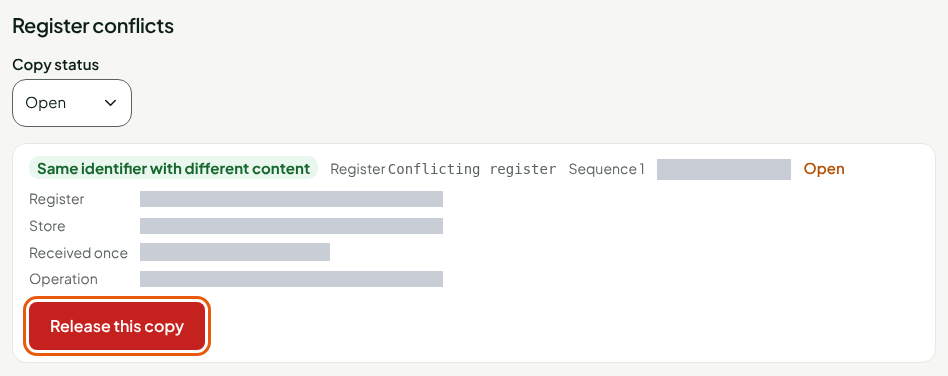
Type the Reason in the window: what you checked, with no information about a customer.
Click Release.
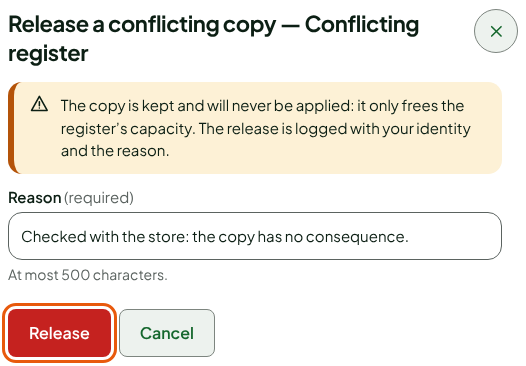
The screen shows "The conflicting copy is released. The release is logged." The card changes to Released and keeps your name, the time and the reason.
Release a copy only after you understand why it exists. If the reason is "Sequence already taken by another identifier" or "Journal checkpoint does not match", do not release it: call support.
Reading the screen's other traces
The Anomalies screen also shows, read-only:
- Admin codes and locks: the unblock codes issued, and the locks, unlocks and refused manager PINs declared by registers. The Event type filter sorts the list.
- Release anomalies: a late return from a register after an administrator released what it was holding (store credit, layaway, gift card).
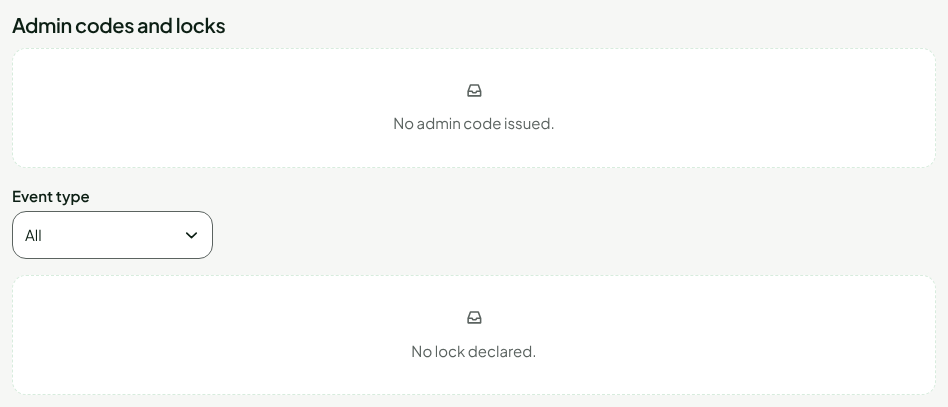
No code or operation content is shown there. If a line worries you, call support.
When to call support
Call support, with the Support code and the store concerned, if:
- the replay fails again;
- the Missing sends list is not empty: a gap is not filled from this screen;
- a differing copy has a reason you do not understand;
- a release anomaly appears.