Running a full count
- For
- Manager, Administrator
- Where
- Back office, Phone
- Permission
- Run an inventory count, Adjust stock, Manage stores and settings
- Checked on
A full count checks the stock of the whole store: you open it at the office, the phones send what is counted on the floor, then you close it. At closing, the stock of each counted item is corrected. It is the gesture of a yearly inventory, or of an opening stock.
Before you start
- Your role needs the permission Run an inventory count. Closing also takes Adjust stock, and picking the store from a list, Manage stores and settings.
- The people who count need a phone and the permission to count: entries are made on the phone.
- A count of the whole store covers all the items in the catalog (5,000 at most). For an aisle or a category, see Running a partial count.
A closed count can no longer be edited: it keeps its discrepancies, even if a sale arrives after closing. A mistake is fixed by an adjustment (Adjusting stock).
Opening the count
Open Stock > Inventory counts, then click Open a count. If no count exists yet, the button is called Start a first count.

In Store, choose the store to count.
In Count name, type the name the phones will show, for example "Month-end count".
In Scope, choose Whole store.
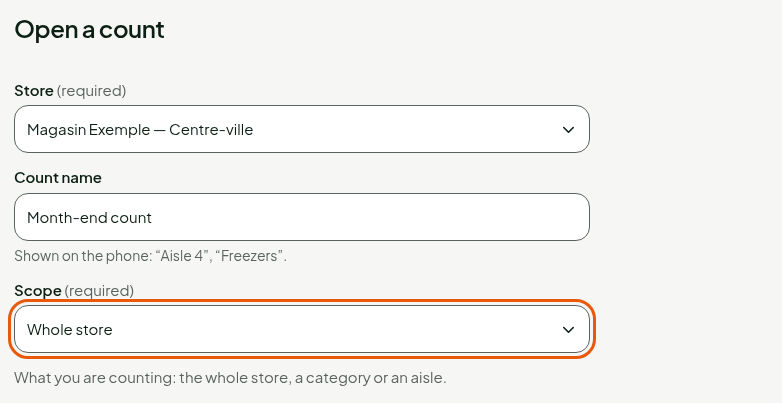
Click Open the count.
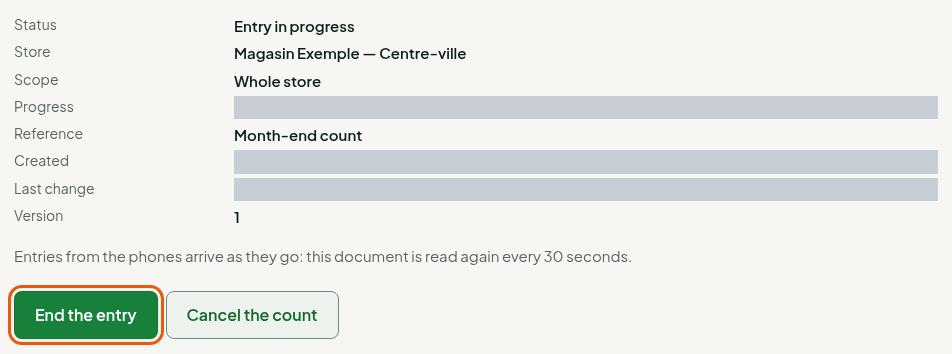
The count opens with the status Entry in progress. The software notes, for each item, the On hand at opening quantity: it is the reference for discrepancies.
Receiving the entries
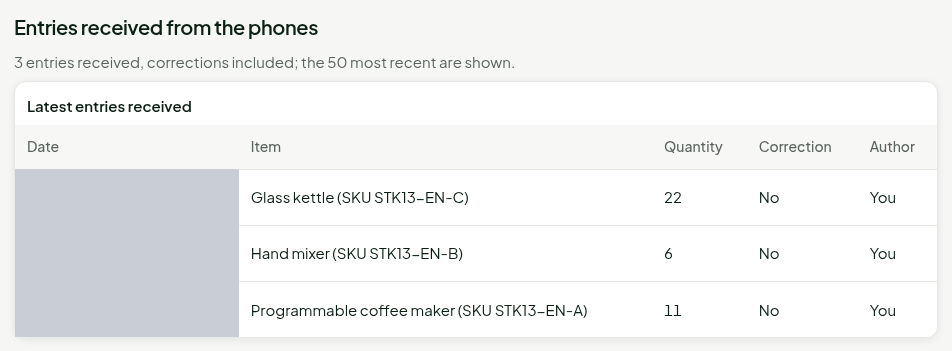
The people who count open the count on their phone and enter the quantity of each item (guide "Counting on a phone"). To recount an item, tap Correct on its latest entry: the new quantity replaces the previous one (0 cancels the entry). A new entry made without Correct adds up.
On this screen, the Entries received from the phones section shows each entry: the item, the counted quantity and the author. It reads again by itself every 30 seconds.
Ending the entry and closing
When everything is counted, check that every phone has sent everything (no entry waiting), then click End the entry and Confirm. An entry that arrives afterwards is refused: it stays kept on its phone and shows here under Entries refused after entry was finished.
Click Close the count.
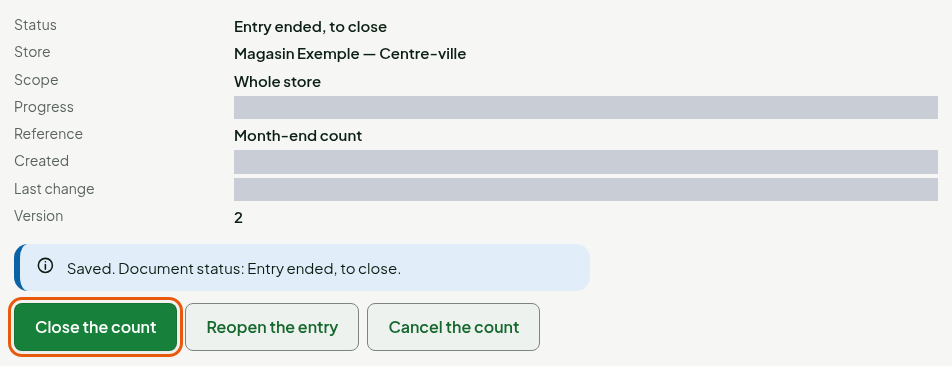
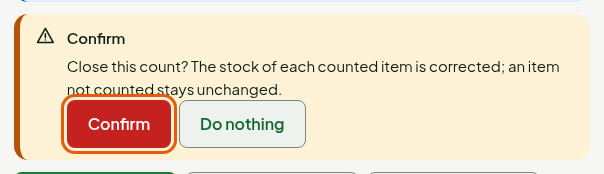
Read the confirmation, then click Confirm. To back out, click Do nothing; Cancel the count writes no discrepancy.
Reading the result
The count moves to Closed. The screen shows Saved. Document status: Closed.
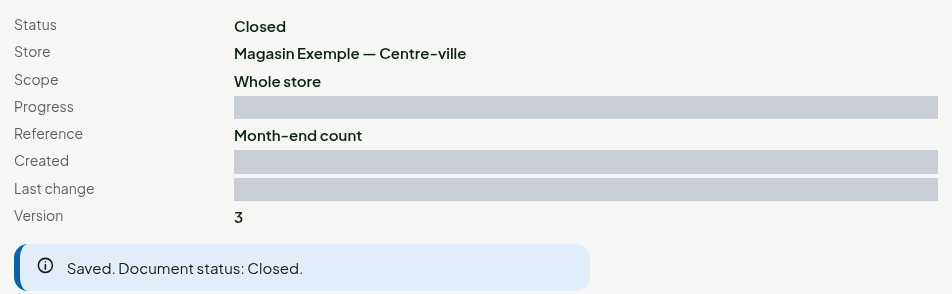
The lines table shows, for each item, the On hand at opening, the Counted, the Discrepancy and the Movement number. An item nobody counted stays Not counted (unchanged): its stock does not move.
For each counted item whose discrepancy is not zero, closing writes a Count stock movement, positive or negative, that brings the stock to the counted quantity. An item counted with no discrepancy writes nothing. You see the movement in Stock > Inventory (Viewing stock levels and movements).
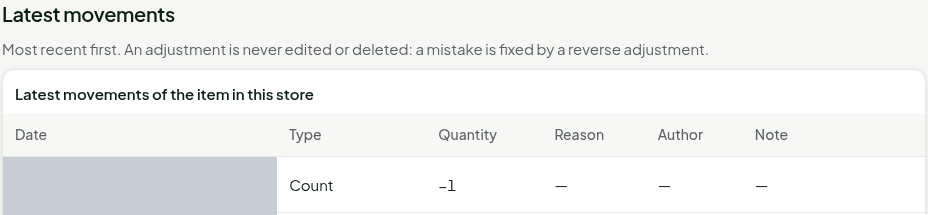
A sale made between the opening of the count and the entry of an item does not become a discrepancy. A sale made after the entry stays a real removal from stock.
Troubleshooting
"The entry of this count has ended: no new entry is accepted."
Someone clicked End the entry. A phone can no longer send anything to this count. As long as the count is not closed, a manager who has Adjust stock can click Reopen the entry: the phones then resend their refused entries with Resend. After closing, the count can no longer be reopened: for a forgotten item, adjust its stock.
"Closing requires the permission to adjust stock."
Your role can count, but not close. Ask a manager who has Adjust stock to close.
"Blind count: on-hand quantities at opening and discrepancies are only shown with the permission to adjust stock."
Without Adjust stock, the table hides the expected quantity: you count without seeing the software's figure.
"This scope contains too many items (5,000 at most): choose a smaller scope."
The catalog exceeds 5,000 items. Count by category or by aisle (Running a partial count).