Editing products in bulk with a CSV file
- For
- Manager
- Where
- Back office
- Permission
- Manage the catalogue
- Checked on
To change the prices, names or categories of several products at once, you export the catalogue, edit the file in a spreadsheet, then import it back. A trial run shows what will change before anything is modified. To create products, see Importing products from a CSV file.
Before you start
- Your role must have the Manage the catalogue permission. To change a price you also need Manage prices; without it, those lines are refused.
- The file is a UTF-8 CSV: see Preparing a CSV file in Excel.
Export the catalogue
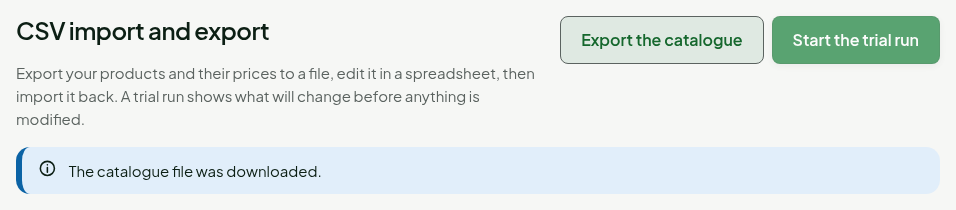
Open Catalog > CSV import and export, then click Export the catalogue.

The screen shows “The catalogue file was downloaded.” The file is named catalogue- followed by the date. It holds one row per product, active and deactivated.
Edit the file
Open the file in a spreadsheet and change the values. Four rules:
- Column missing, field unchanged. A file reduced to
skuanddefault_pricechanges only that price. The order and the case of column names do not matter, and unknown columns are ignored. - Cell empty, value erased. An empty cell in
default_priceerases the shared selling price; inprice:<store>, it erases the store's own price, which then takes the shared price (or stops selling the product, if there is no shared price). Forsku,nameandtax_category_code, an empty cell is refused (“required value”). - Keep
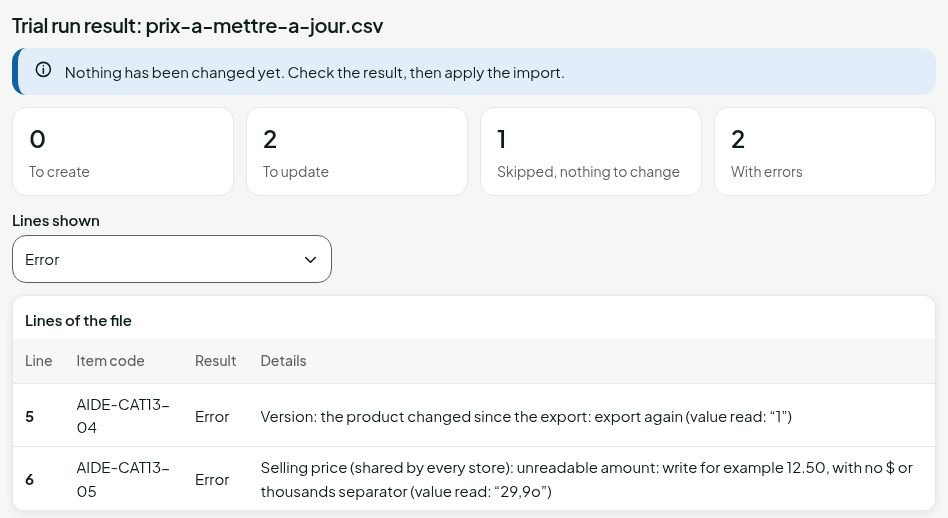
product_idandversion. They identify the product and say which version you read. Withoutproduct_id, the product is the active one with item codesku. If the product has changed since the export, the line is refused: “the product changed since the export: export again”. - An unknown item code creates a product. It then requires a name and a tax class: without them, the line is refused. Check your item codes.
What the file does not change: the brand, the tags, the weight, the dimensions and the accounts (export-only columns, ignored on import, to be changed on the product sheet); the stores where a product is removed; dated prices (price_effective_date stays empty). active set to false deactivates a product, but reactivation is done on its sheet. Exporting then importing the same file changes nothing.
Import the edited file
Click the CSV file field, under Import a file, and choose the file.
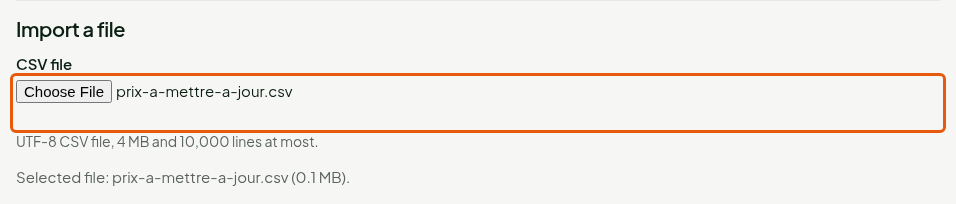
Click Start the trial run.
The trial gives four totals. Here, 2 lines To update, 1 Skipped (nothing to change) and 2 with Error. The lines with errors show first, with their reason.
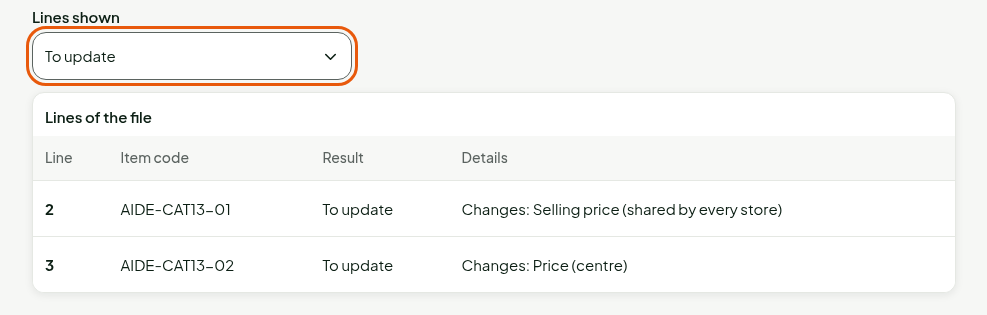
Choose To update in Lines shown to read what each line changes, for example “Changes: Selling price (shared by every store)” or “Changes: Price (centre)” for a store's own price.
Click Apply the import, then Yes, apply in the confirmation window.
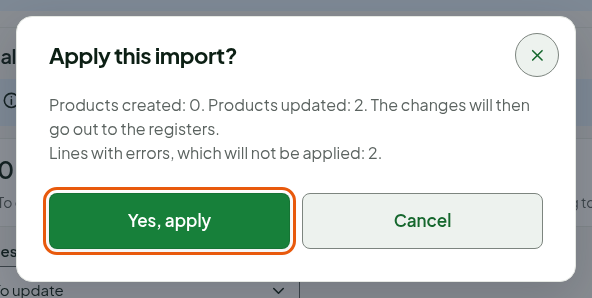
The screen shows “Import finished” and the totals: Created, Updated, Skipped and Not applied, with errors.
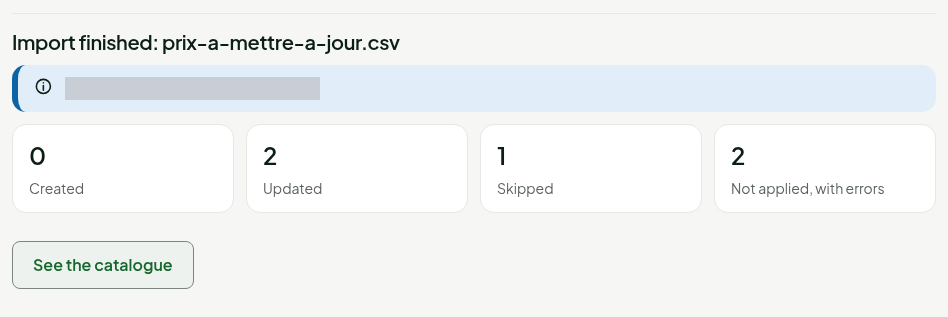
A line with an error is not applied, but it does not stop the others. The lines without errors are written together, then go out to the registers. For the refused lines, fix the file, export again if a version is outdated, and start over.
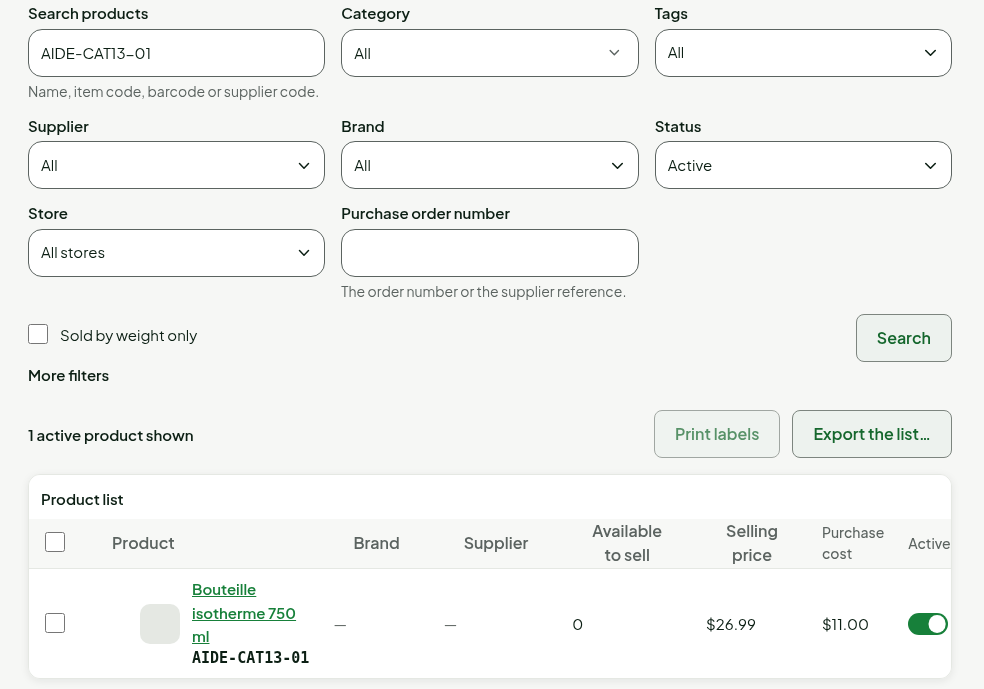
In the product list, the price has changed.
Troubleshooting
“the product changed since the export: export again”
A product was changed, on its sheet or by another import, since your export. Export the catalogue again and redo your changes in that file.
“unreadable amount”
A price contains a letter, a $ or a thousands separator (1 299.99). Write 12.50, 12,50 or 12, from 0 to 1,000,000.00.
“The catalogue changed since the trial run: nothing was applied.”
Someone changed the catalogue between the trial run and the application. Run the trial again: the file stays chosen.
“product not found” or “unknown tax group”
The product_id or the tax class does not exist. Take the values from the export. A line's tax class is never emptied.