Creating a customer at the register
- For
- Cashier, Manager
- Where
- Web register
- Permission
- Sell at the register, Manage customers
- Checked on
A customer without a record wants loyalty points or an emailed receipt? Create their record without leaving the sale: it attaches to the cart right away. This guide follows the web register of the back office.
Before you start
- Your role must allow selling (the Sell at the register permission) and managing customers (the Manage customers permission). Without the second one, the Add a customer field does not appear above the cart.
- The register must be open and chosen: see the guide "Making a sale".
- Ask the customer for their name, and if possible their phone number and email. Only a name is required.
Creating the record during the sale
To create a customer and add them to the sale:
Open Sell > Sell.
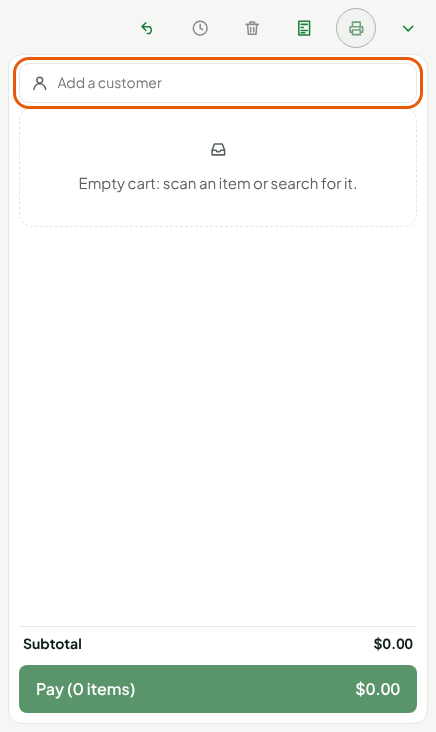
In Add a customer, type the customer's name. The search starts at 2 characters.
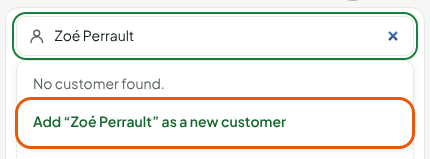
If No customer found. appears, click the line Add “Zoé Perrault” as a new customer. If the customer already exists, click them in the Customers found list: their record attaches to the sale.
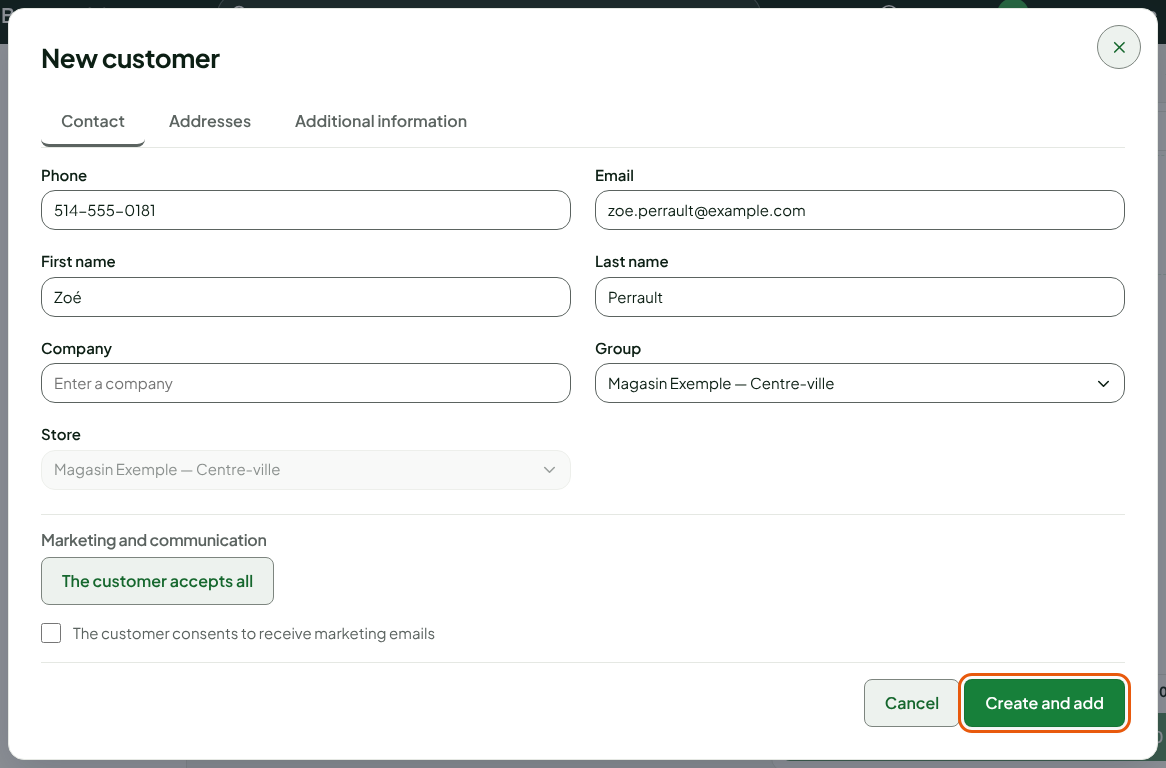
In the New customer window, check the First name and Last name: the name you typed is already there.
Type the Phone and Email if the customer gives them.
Click Create and add.
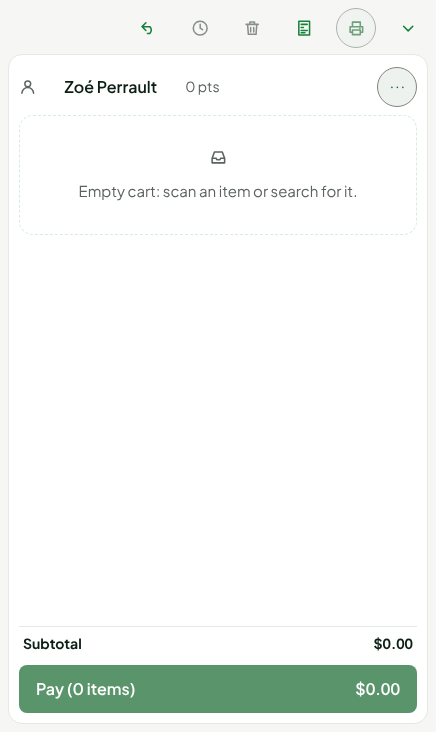
The customer is attached to the sale: their name and points appear at the top of the cart.
The window's other tabs, Addresses and Additional information, are the same as in the back office (guide "Adding, editing, and anonymizing customers"). The Group is the store's; the Store is the register's and cannot be changed here.
The Email is used to send the receipt the customer asks for. To receive marketing emails, the customer must consent separately: tick The customer consents to receive marketing emails only if they say so.
Removing or correcting the sale's customer
To change customer or correct their record:
Click the … menu to the right of the customer's name.
Choose Remove customer to detach the record from the sale, or Edit customer to correct their details. Use points also appears when the customer has points to spend.
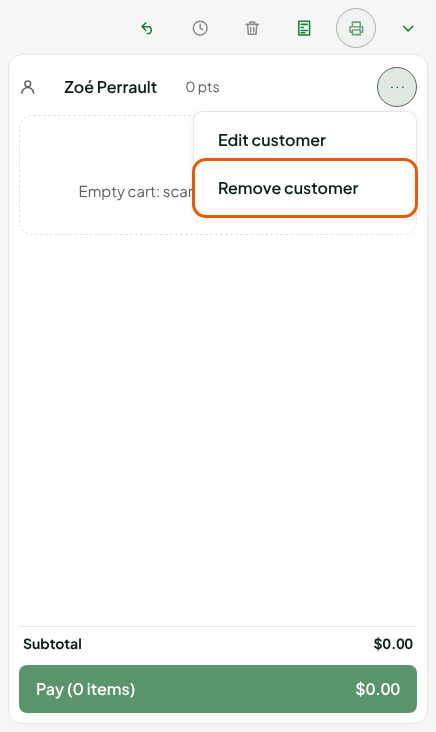
Removing the customer does not delete their record: it stays in Customers > Customer records.
When the register reminds you
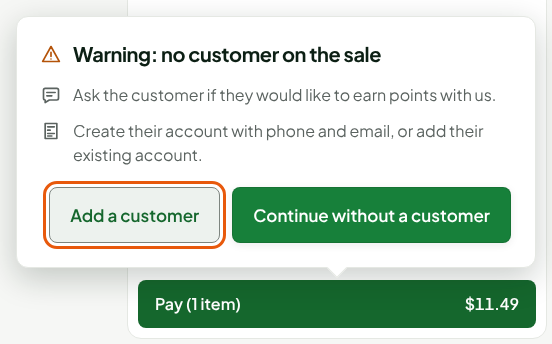
By default, when you pay, a sale without a customer opens the Warning: no customer on the sale window, once per sale. It asks you to ask the customer if they would like to earn points. The business can change the message's two lines, or turn this reminder off, in Settings > General (Remind to add a customer when paying): with no reminder, the window does not open.
Click Add a customer to go back to the cart field and search for or create the record.
Click Continue without a customer to pay without a record.
On the workstation's installed register, the Customers panel has a New customer button and a shorter form: Name, Phone, Customer code, Email, and the consent boxes. Creating needs the server: with no network, the screen shows "Offline: creating a customer needs the server. Try again when the network is back."
Troubleshooting
The "Add a customer" field is missing
Your role does not have the Manage customers permission. Ask an administrator for it, or create the record from Customers > Customer records with someone who has it.
"Search failed. Try again."
The server did not answer. Click in the field again and retype the name.
"This customer code is already used by another record"
Another customer has this code. Empty the Customer code field on the Additional information tab: the software creates one.