Setting up account security
- For
- Administrator
- Where
- Back office
- Permission
- Manage stores and settings, Manage back-office access
- Checked on
To enter the back office, a person gives their password, and can also give a code that their phone shows: it is two-step sign-in. You choose, for each role, what is asked. You also see who has turned it on, and you help a person who lost their phone.
Before you start
- Each person who will have to give a code needs an authenticator app on their phone (Google Authenticator, Microsoft Authenticator or another one).
- If a setting requires the code of the person who saves it, turn on your own two-step sign-in first. Otherwise the screen refuses to save: "First turn on your own two-step sign-in (top of the page). Otherwise you could no longer sign in."
Turning on your two-step sign-in
Open Settings > Security.

Click Turn on two-step sign-in, under My two-step sign-in.

Install the app on the phone, add an account in it by scanning the QR code, then type the 6-digit code it shows in App code. If the QR code cannot be scanned, the screen gives a key to type in the app.
Click Turn on.
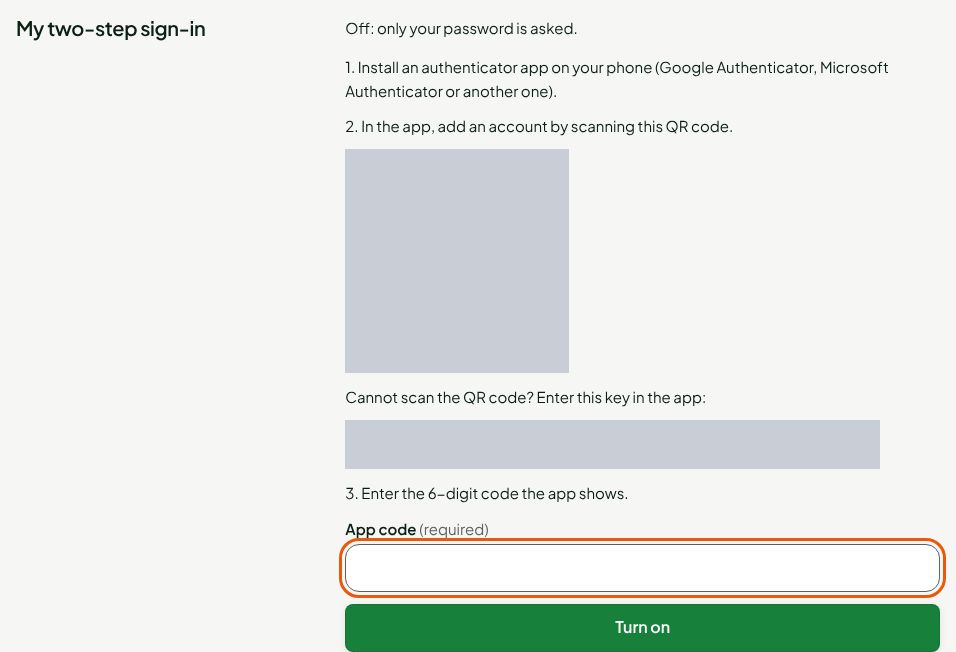
The screen then shows your backup codes. Each one replaces the app code once, if you lose your phone. They are shown only once: click Copy the codes, keep them somewhere safe, then check I have saved my backup codes and click Continue.
Choosing what is asked at sign-in
Open Settings > Security.
Under Back-office sign-in, choose what is asked of every role in By default, for every role: Password only or Password and app code.

Under By role, choose what is asked of a role, for example Password and app code for Gérant. Same as default follows the choice at the top. A role that only has access to the register has no list: it does not enter the back office. Back-office access is changed in Roles.
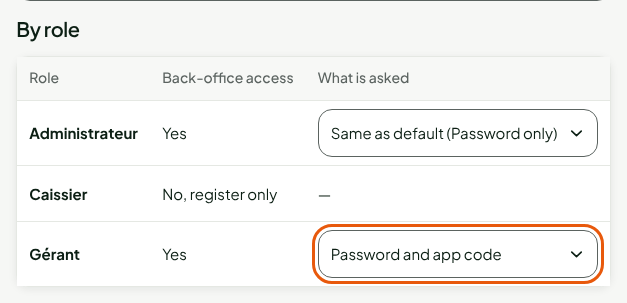
Click Save.

The screen shows "Settings saved."
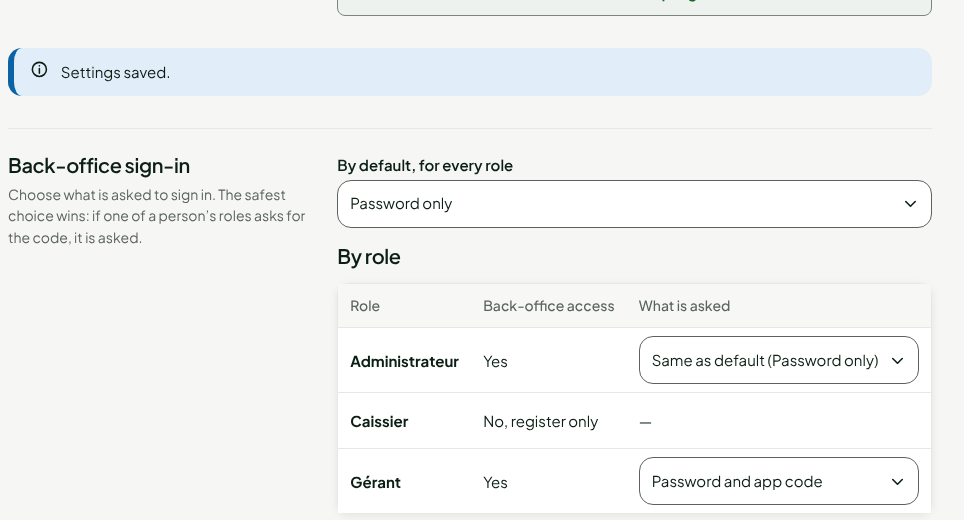
The safest choice wins: if one of a person's roles asks for the code, it is asked.
What the person sees
At their next sign-in, a person whose role requires it enters their password, then:
- if they have not turned on two-step sign-in yet, the Turn on two-step sign-in screen tells them "Your business asks for a code on top of the password. Turn it on now: it takes a minute." They follow the same steps as you, then note their backup codes;
- if they have turned it on, the Verification code screen asks for the 6-digit code from their app. "Lost your phone?": they enter one of their backup codes instead.
In Settings > Security, My two-step sign-in tells them how many backup codes they have left, and New backup codes creates more, with an app code; the old ones stop working.
Resetting a person's two-step sign-in
When a person has lost their phone and their backup codes:
Open Settings > Security. The People table shows who has it On and who has it Required.

Click Reset, in the row of a person who has turned two-step sign-in on, then confirm. The button does not appear on your own row, which shows "You".
The person is signed out. At their next sign-in, they turn on two-step sign-in again if their role requires it. Only an administrator can reset, and not a person who has more rights than they do.
What the register does
The At the register section of the page is read-only: it is not changed here. The register locks after a period without activity, and the employee enters their PIN to resume. To switch employees, the next one always enters their PIN: every sale stays under the right person. After several wrong PINs, the employee is blocked on this register until a manager unblocks them. All of this also works without Internet.
Troubleshooting
"Wrong code. Check the time on your phone and try again."
The code changes every few seconds: type the one shown now, and check that the phone's time is right.