Receiving stock without a purchase order
- For
- Manager, Administrator
- Where
- Back office
- Permission
- Receive a delivery, Manage stores and settings, Adjust stock
- Checked on
A delivery can arrive without a purchase order: a counter purchase, an unplanned shipment. You still receive it, with an expected receipt that you create yourself, then you enter what arrived.
Before you start
- Your role needs the permission Receive a delivery. To choose the store from a list, it also needs Manage stores and settings, and to search for items, Adjust stock. Without them, the screen asks for the store's identifier and each item's identifier: ask an administrator for them.
- The items must already exist in the catalogue.
- Keep the supplier's delivery slip at hand: its reference is noted on the receipt, and what you count on the pallet is entered afterwards.
A validated receipt goes into stock and can no longer be edited. A mistake is fixed by an adjustment (Adjusting stock).
Creating the expected receipt
Open Stock > Stock receipts, then click New expected receipt. If no receipt exists yet, the button is called Plan a first receipt.

In Store, choose the store that receives the goods.
In Reference, type the delivery slip or order number. It is optional; do not put a person's name in it.
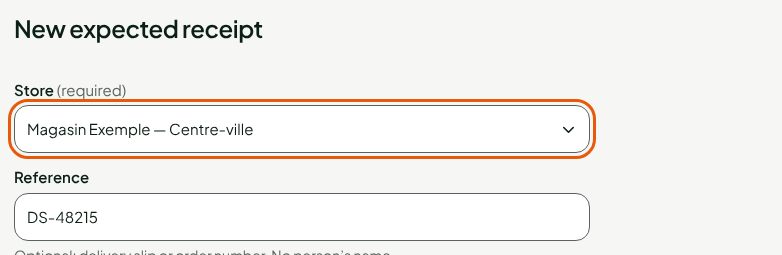
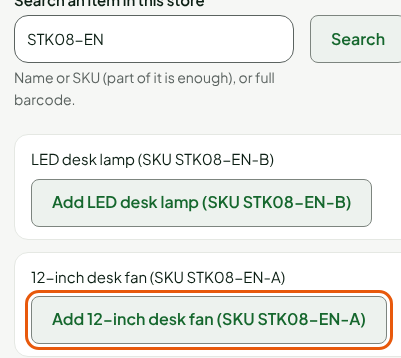
In Search an item in this store, type the name, the code or the full barcode, then click Search.
Click Add followed by the item's name. Repeat for each item in the delivery.
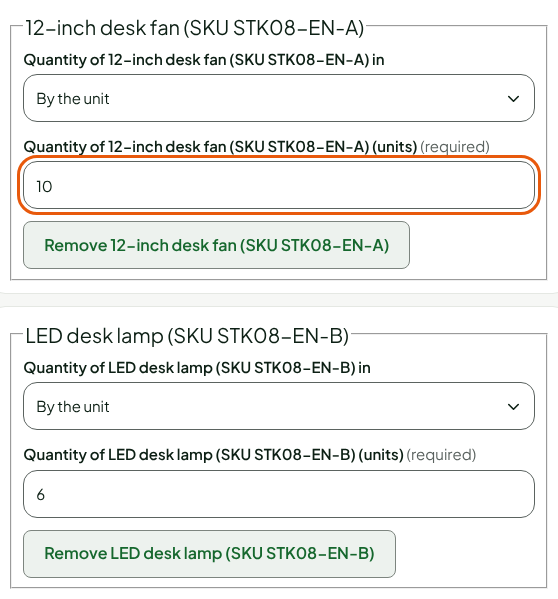
For each line, type the expected quantity in Quantity of followed by the item's name, with (units). For an item sold by weight, first choose By weight (kg, to the gram) in the line's list. For a delivery in cases, choose In packs (cases): the catalogue pack is then requested and the stock stays counted in units.
Click Create the expected receipt.
Entering what arrived
The receipt opens, in the Expected status, on the Received quantities screen. The proposed received quantity is the expected quantity.
For each item, correct the quantity in Received of followed by the item's name, according to what you counted (0 if nothing arrived). For an item sold by weight, first choose By weight (kg, to the gram) in Measure of followed by the item's name.
If it differs from the expected one, choose the Discrepancy reason: Missing, Damaged (not put in stock), Received in excess or Other. No discrepancy when everything arrived.
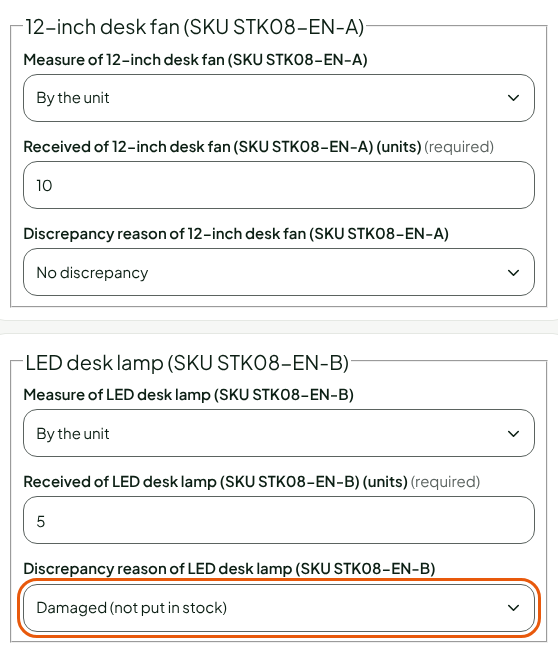
Click Validate the receipt.
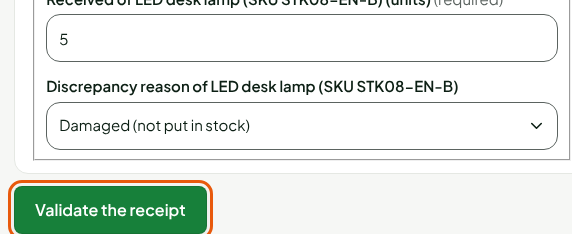
The receipt becomes Received: the received quantities go into the store's stock, with one movement of type Receipt per item.

Cancelling an expected receipt
As long as a receipt is Expected, you can drop it: open the receipt, click Cancel the receipt, then Confirm. Nothing goes into stock and it can no longer be received.
Troubleshooting
"Add at least one item"
A receipt has at least one line. Search for an item and add it.
The item I am looking for does not appear
The search covers the items of this store. An item already added to the receipt is no longer offered: the screen shows "No item found (or already added).".