Setting a price for a customer group
- For
- Manager, Administrator
- Where
- Back office, Web register
- Permission
- Manage prices, Manage customers, Manage the catalogue, Sell at the register
- Checked on
A price list can be reserved to a customer group: members, employees, wholesalers. At the register, the group's price applies as soon as the customer is on the sale. This guide creates a list reserved to the VIP group and shows what the cashier sees.
Before you start
- Your role must have the Manage prices permission (code
price_manage). To tick the group in a list of names, it must also have Manage customers (codecustomer_manage); without it, the screen asks for the group's identifier. To search items by name, it needs Manage the catalogue (codecatalog_manage). To see the result at the web register, it also needs Sell at the register (codesell). - The group must exist, and the customers concerned must be in it: a customer's group is chosen in the Group field of their record (see the guide "Adding, editing or deactivating a customer").
- You know how to create a price list: Creating a price list.
A sale without a customer only gets All customers lists. A customer without a group, or in another group, does not get the group's list either.
Check the group
Open Customers > Customer groups.
Find the group in the table: the Customers column says how many active customers belong to it.

Each store also has a group named after it, which the table shows. An archived group is no longer offered to new lists.
Create the group's list
Open Catalog > Price lists, then click New price list.
Type
VIP pricesin List name. In Status, choose Active so the list is used right away.Untick All customers under Targeted customers.

Tick the VIP group. A list can target several groups: tick them all.

Add the item under Items and tiers, for example the wired earphones, then type
15.99in Unit price of the first tier. The earphones' normal price is $18.99.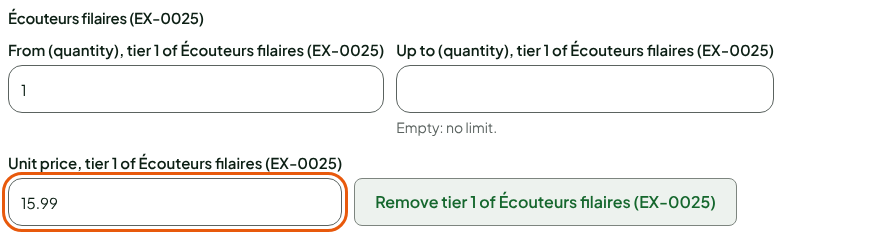
Click Create the list.
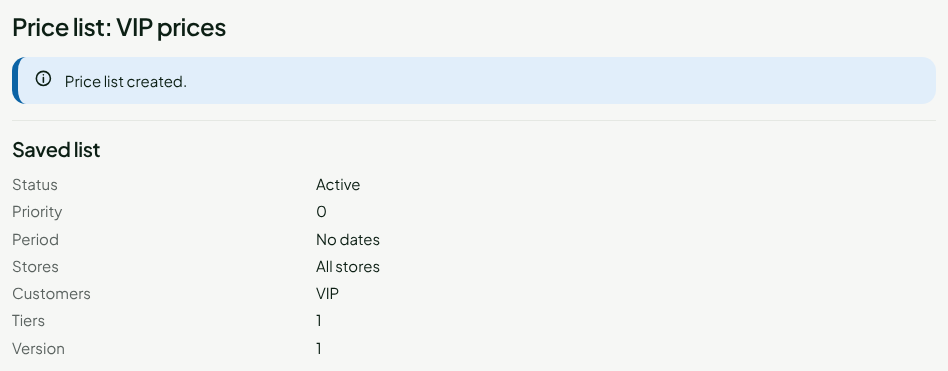
The page shows "Price list created." and, in the summary, Customers: VIP.
See the group's price at the register
This is what the web register does. The installed register applies the list at its next synchronisation.
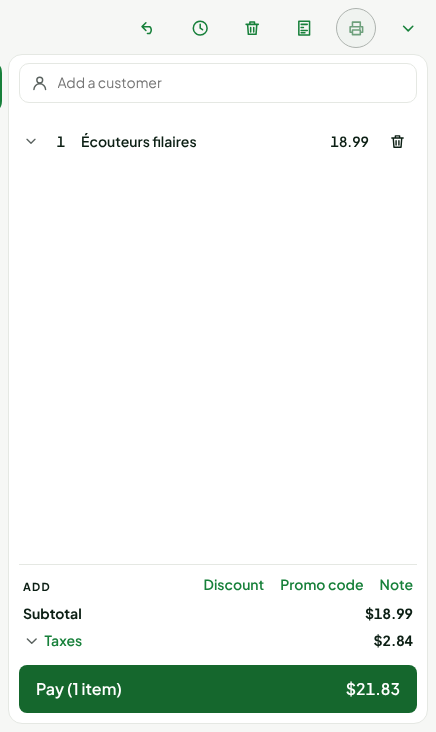
Open Sell > Sell, then add the item to the cart. Without a customer, it sells at the normal price.
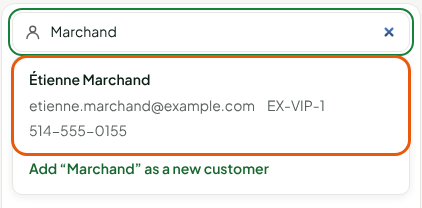
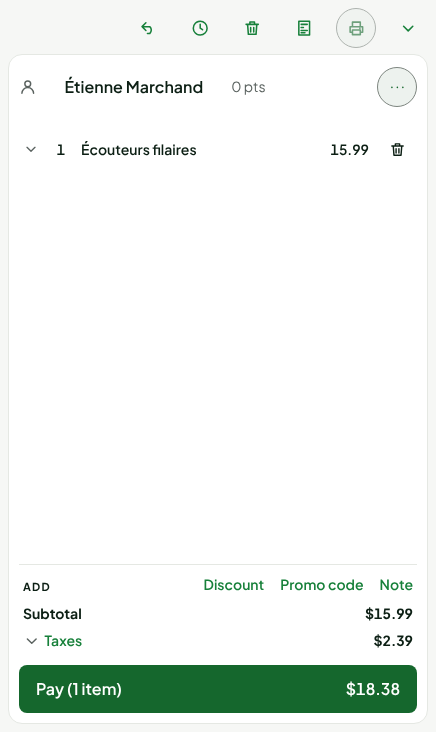
Type the customer's name in Add a customer, then click the customer found.
The cart recalculates: the earphones drop to $15.99. If you remove the customer, they go back to $18.99.
Troubleshooting
The group's price does not apply
Check, in this order:
- The sale has a customer, and that customer is in the group (Group field of their record).
- The list is Active, and its period is neither over nor yet to come.
- The item is on the list, with a tier that contains the quantity sold.
- No other list with a higher priority targets the same item for this customer.