Creating a promotion
- For
- Manager, Administrator
- Where
- Back office, Web register
- Permission
- Manage promotions, Manage the catalogue, Sell at the register
- Checked on
A promotion gives a discount during a period, in one or more stores. The register calculates it on its own, sale by sale. This guide creates a basic promotion: 20% off an item.
Before you start
- Your role must have the Manage promotions permission (code
promotion_manage) and, to search items by name, Manage the catalogue (codecatalog_manage). Without the second permission, the screen asks for the item code. To see the result at the web register, it also needs Sell at the register (codesell). - The targeted items must be active in the catalog.
A promotion is never deleted: a sale may cite it. To remove it from the registers, end it or archive it.
Create the promotion
Open Catalog > Promotions, then click New promotion.

Under General, type the name in Promotion name, for example
Back-to-school pens. The name is shown to employees and customers; the description, optional, is for managers. Leave All stores ticked, or untick it to choose the stores.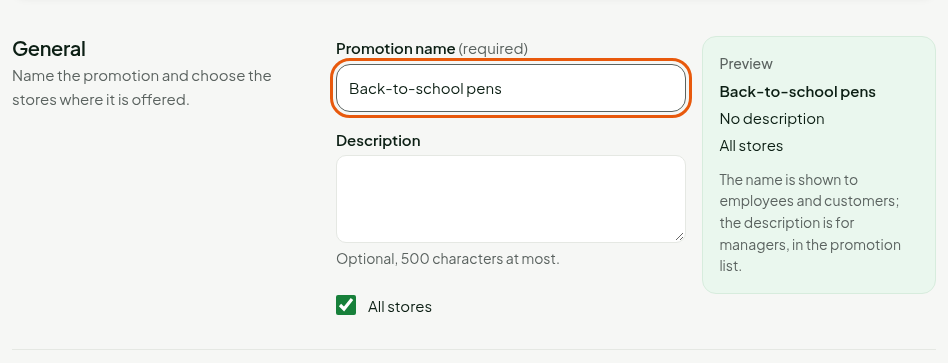
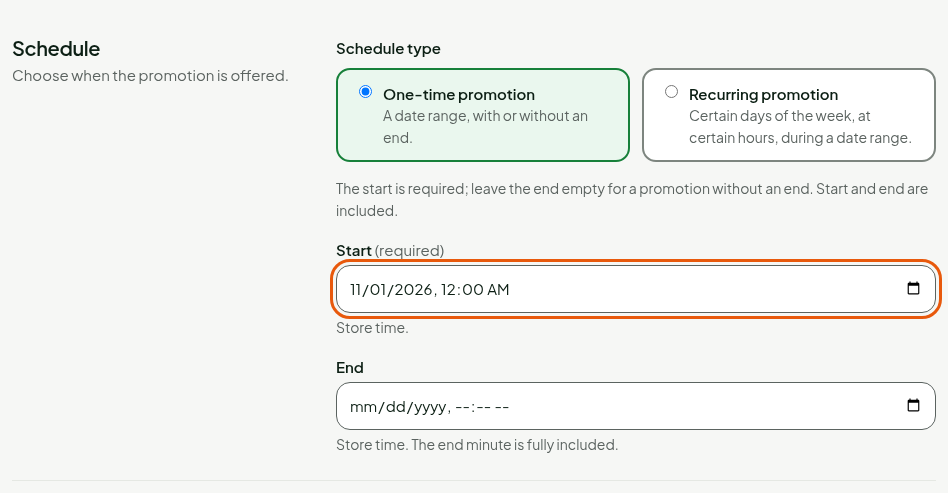
Under Schedule, leave One-time promotion, then type the date and time in Start. The start is required. Leave End empty for a promotion without an end; the start and the end are included.
Under Promotion type, leave Basic. Under Get, choose Percentage (%), type
20in Discount percentage, then choose Some and Items: the discount only targets the items you choose.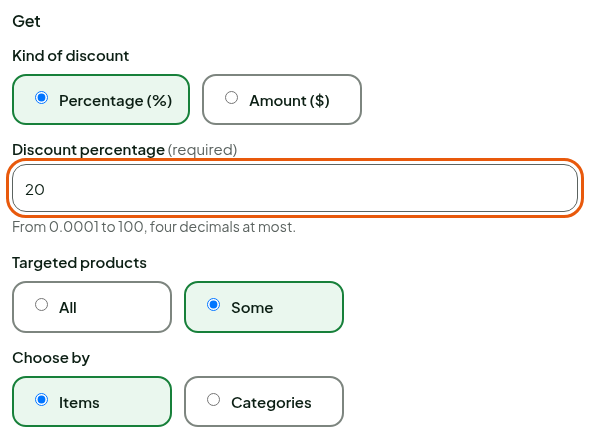
In Add a targeted item, type
Stylos, then click the item found.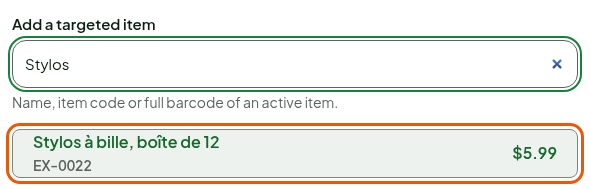
Under Targeted customers, leave Offered to everyone. To reserve the promotion to a customer group, choose Reserved for some.
Click Save, at the top of the screen.
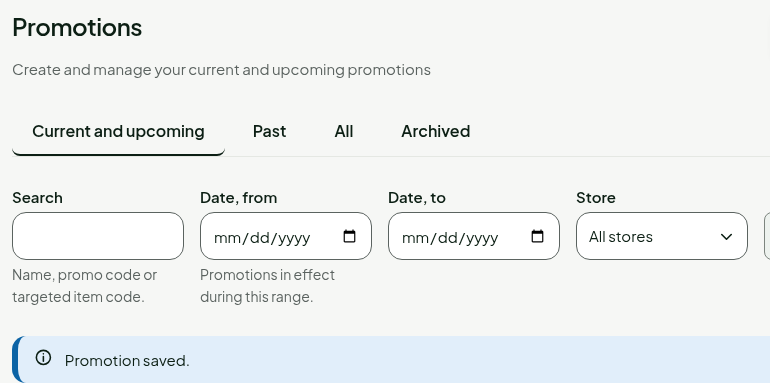
The screen goes back to the list and shows "Promotion saved." The promotion goes to the registers of its stores at their next synchronization and applies there during its period.
With Percentage (%) or Amount ($) on Some items, the discount applies to each unit. When several promotions target the same unit, the register keeps the best one for the customer: they do not add up. With All, the discount comes off the whole cart, after the item promotions.
Find the promotion
Under Catalog > Promotions, type its name in Search and click Search. The Current and upcoming tab shows the promotions that apply or are about to; Past, All and Archived show the others.
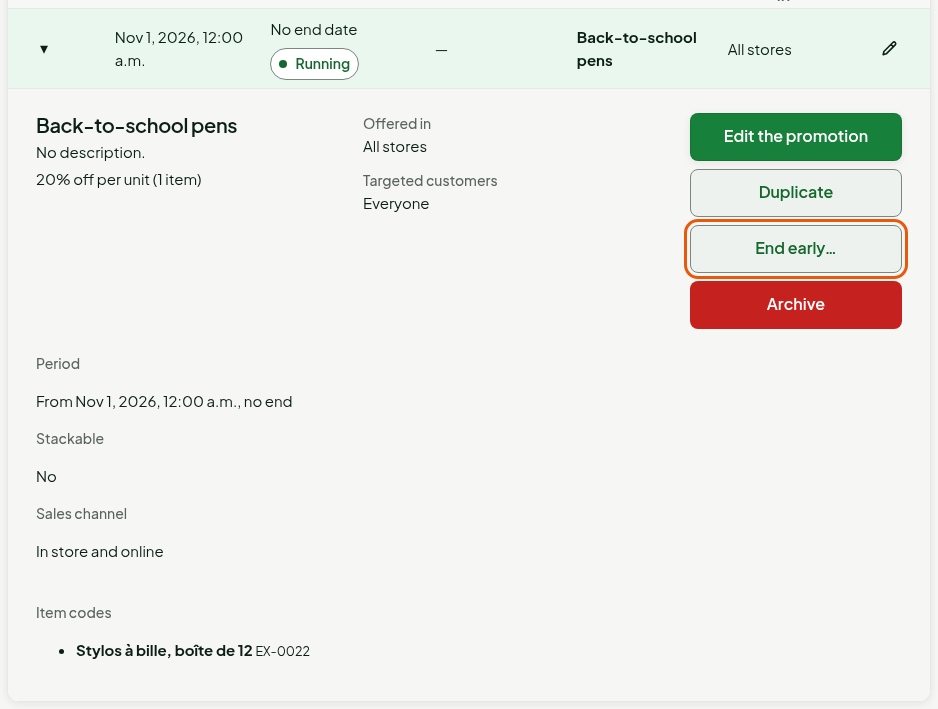
Click the arrow of the row to open the details: the offer, the stores, the targeted customers and the actions Edit the promotion, Duplicate, End early… and Archive.
See the promotion at the register
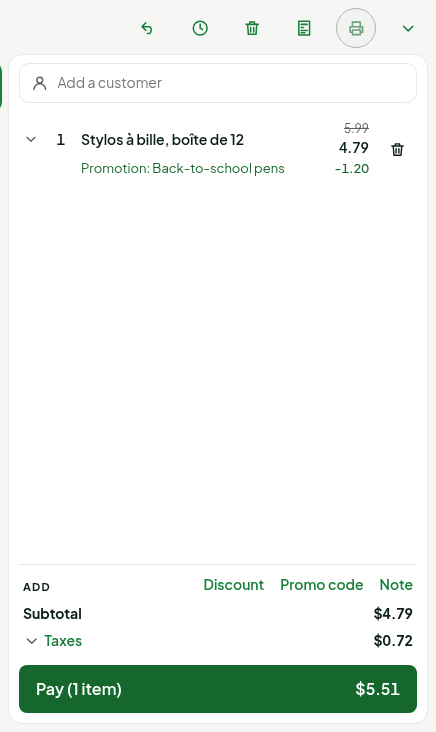
At the web register, open Sell > Sell and add the item. Under the line, the screen writes "Promotion:" followed by the name, with the discount; the old price is crossed out.
End the promotion
To stop a running promotion before its end:
In the promotion's details, click End early….
Click End now.

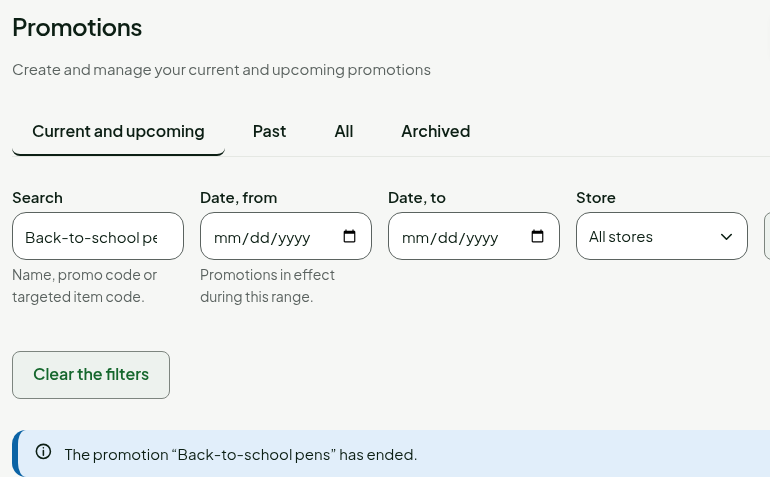
The end of the promotion becomes the present moment. It stops applying on the registers at their next synchronization and moves to the Past tab.
To run a promotion again, click Duplicate. Archive removes it from the registers for good: an archived promotion can no longer be changed.
Troubleshooting
"Time not verified on the register"
A promotion with an end does not apply on an installed register whose time is not verified: the sale is made at the regular price and it is flagged. See Promotions and offline register time.
"The start is required."
Fill in Start under Schedule.