Creating a purchase order
- For
- Manager, Administrator
- Where
- Back office
- Permission
- Manage purchase orders, Manage suppliers, Manage stores and settings, Adjust stock, View purchase costs
- Checked on
A purchase order lists what you buy from a supplier, for one store. You first prepare it as a draft, which you can correct, before sending it.
Before you start
- The supplier must exist, with its items and their cost (Managing suppliers).
- Your role needs the permission Manage purchase orders. To create an order, it also needs Manage suppliers and Manage stores and settings: the screen tells you if they are missing.
- For the suggestion from thresholds, it also needs Adjust stock. Without it, add the items yourself.
- To see costs (the Unit cost field, the estimated value and the order total), it also needs View purchase costs. Without it, these amounts are not shown.
A sent order can no longer be edited. Only the draft can be corrected: check every line before you send the order.
Creating the draft
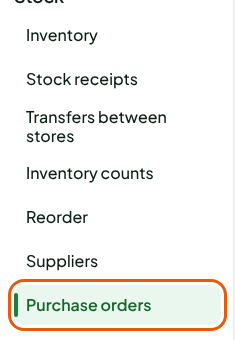
Open Stock > Purchase orders, then click New purchase order. If no order exists yet, the button is called Create a first order.

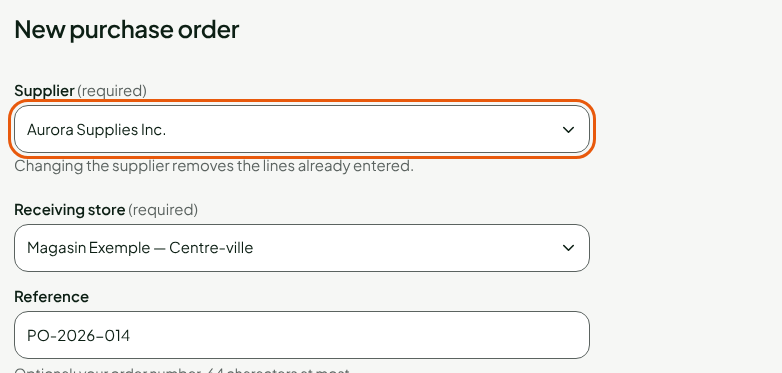
In Supplier, choose the supplier. Changing the supplier later removes the lines already entered.
In Receiving store, choose the store where the goods will be delivered.
In Reference, type your order number, if you have one. It is optional: the order gets its own number anyway.
Adding the items
Letting the software propose the items to order
For the supplier's items whose stock is below the store's reorder threshold:
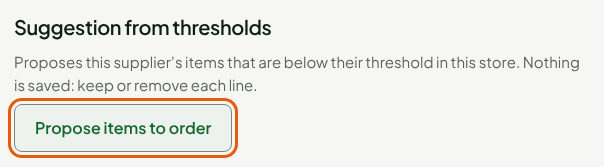
Under Suggestion from thresholds, click Propose items to order.
Each proposed item becomes a line, with what the screen knows about it: On hand, Reserved, Available, Threshold, Needed, and the multiple it is ordered in. The proposed quantity covers the need, raised to the supplier's order multiple.
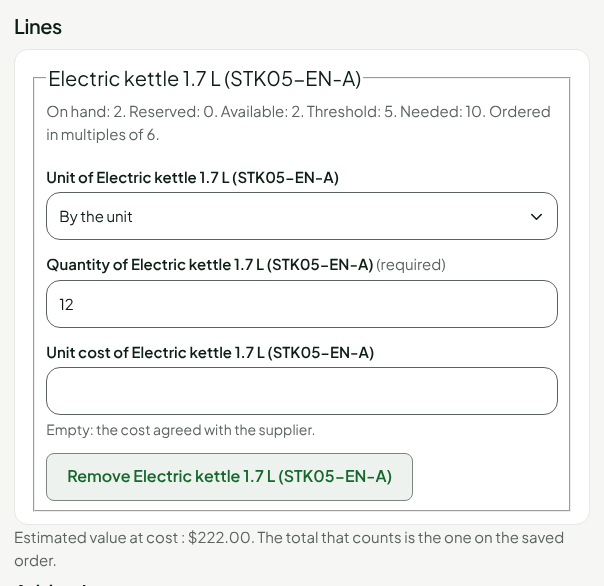
Nothing is saved at this stage. Keep or remove each line, and change the quantity if needed.
Adding an item yourself
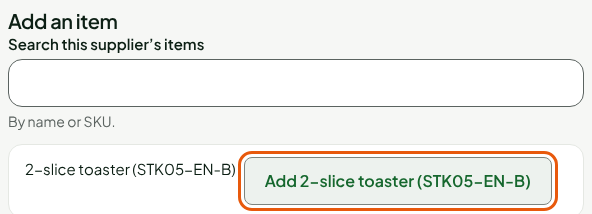
Under Add an item, find the item in the list of the supplier's items. To look for one, type its name or SKU in Search this supplier’s items.
Click the item's Add button.
In Quantity, type the quantity to order.
Leave Unit cost empty to use the cost agreed with the supplier, or type another cost for this order only.
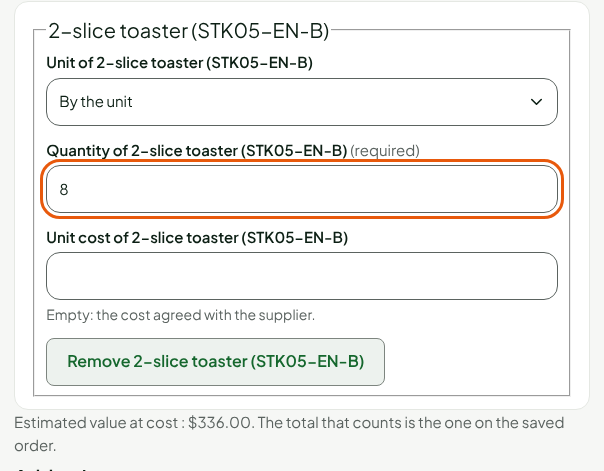
Under the lines, the screen shows the Estimated value at cost. The total that counts is the one on the saved order. To remove a line, click Remove followed by its name.
Saving the draft
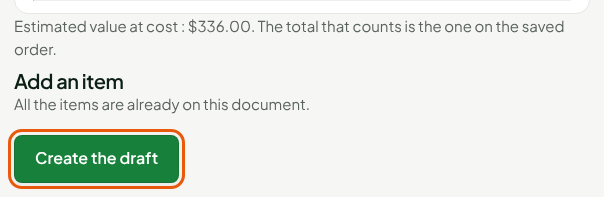
Click Create the draft.
The order opens in the Draft status, with its supplier, its store, its total at cost and its lines. Nothing is sent to the supplier, and the stock does not change.
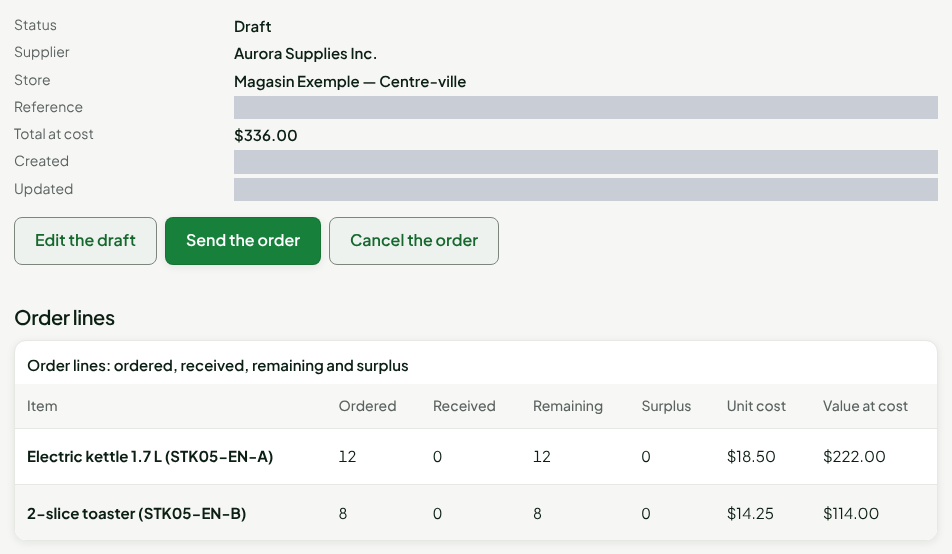
To correct the draft, click Edit the draft. To drop it, click Cancel the order. To send it, see Sending and tracking a purchase order.
Troubleshooting
"This supplier is deactivated: it no longer receives orders or returns."
Reactivate the supplier in Stock > Suppliers, or choose another one.
"An item is not linked to this supplier: enter its unit cost."
The agreed cost comes from the link between the item and the supplier. Link the item to the supplier, or type the unit cost on the line.
"None of this supplier’s items is below its threshold in this store."
Nothing to propose for this store. Add the items yourself.