Replacing or restoring a workstation
- For
- Administrator
- Where
- Back office, Installed register
- Permission
- Manage registers, Issue a register code
- Checked on
A workstation is replaced when a register's computer is changed or reinstalled. The new computer is enrolled as a new workstation: it has its own identity, its own receipt prefix, and its receipt numbers start again at 1. The old one changes to the status Replaced: it no longer sells, but the sales left on its disk can still be sent to the server. A lost or stolen computer is revoked instead.
Before you start
- Your role needs the permissions Manage registers and Issue a register code. To open the workstation's record from the register's record, as below, it also needs Manage stores and settings.
- If the old computer still exists, do not erase it and do not reinstall it before the end of this guide.
Replacing a register's computer
Open Settings > Stores and registers, click the store's pencil, unfold the register with the arrow left of its name, then click View the backup computer (details, removal).

On the workstation's record, read Waiting operations. These are the sales the workstation has not sent to the server yet.
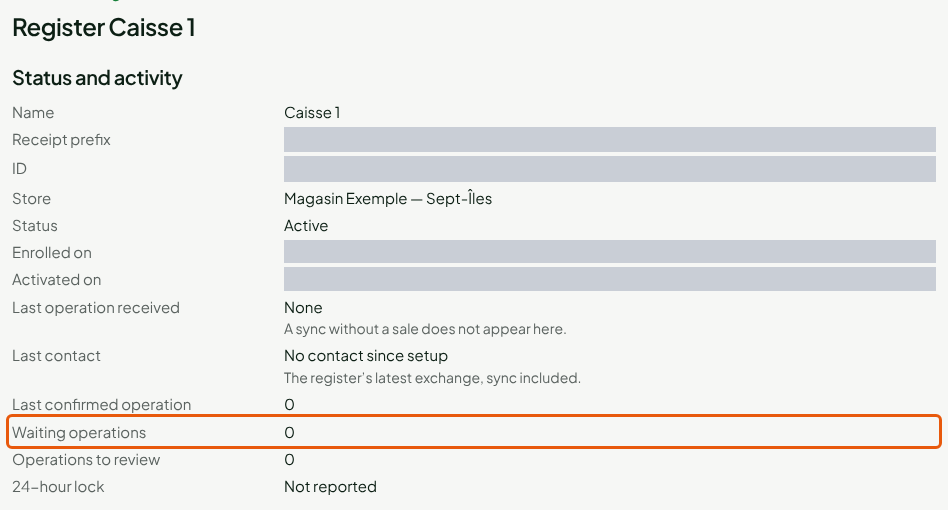
If the number is not 0, keep the old computer as it is: see "If sales were not sent", further down. The replacement does not lose them.
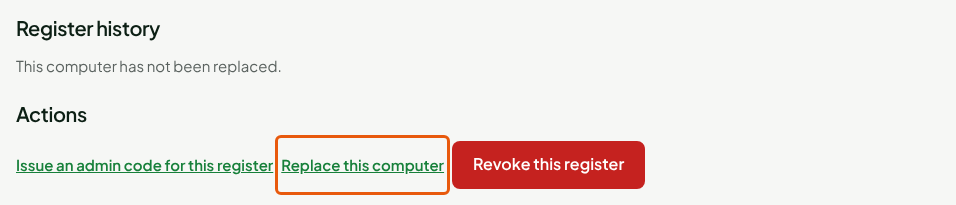
Click Replace this computer, under Actions.
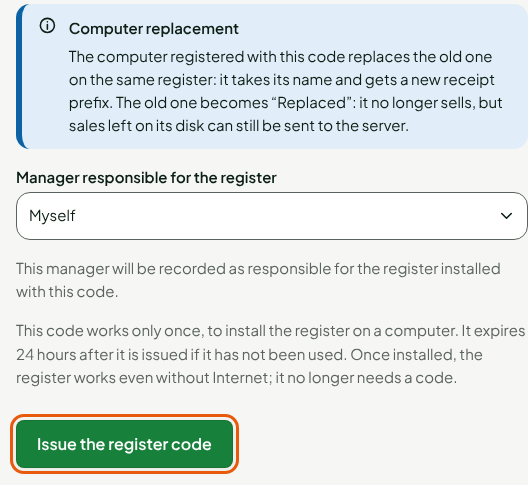
The Register code page opens with the notice Computer replacement. Click Issue the register code.
Install the register on the new computer and enter the code, as in Installing the register on a workstation and enrolling it.
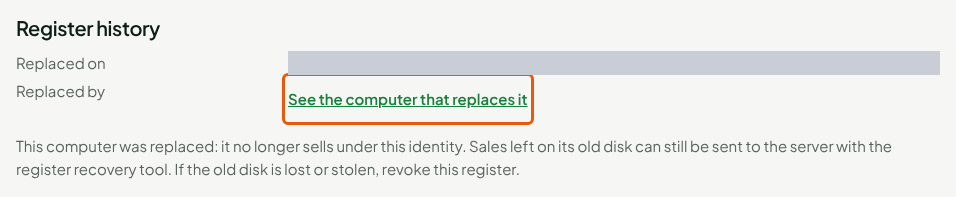
The new workstation takes the register's name and gets its own receipt prefix. As soon as it is enrolled, the old one changes to Replaced. Its record gives the date of the replacement and leads to the new workstation through See the computer that replaces it.
INFO
A Replaced workstation never becomes active again. It no longer syncs; it only keeps the right to send to the server the sales made on its disk. Left on without Internet, the old computer can still sell until its next connection to the server, where it stops: turn it off as soon as the new one is installed. Once its sales are sent, revoke it; do the same if it no longer starts while a register session was left open on it, so that this session can then be closed on the server.
If the computer is lost or stolen
A lost or stolen computer is revoked, whether it is Active or Replaced.
Revoking a workstation is permanent: it can no longer sell or sync, and the revocation cannot be undone. The sales it had not sent no longer enter the records by themselves: an administrator reviews them one by one.
On the workstation's record, click Revoke this register, under Actions.
In Reason for the revocation, type the reason, for example
Computer stolen, then click Revoke permanently.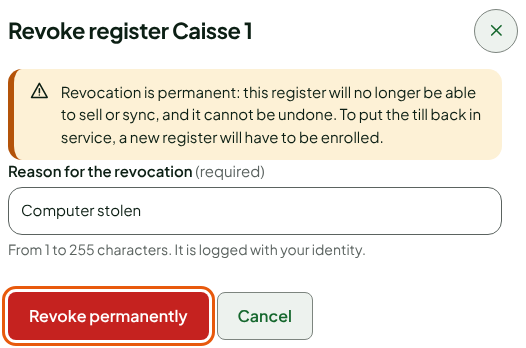
The screen shows "Register Caisse 1 revoked." and the status changes to Revoked.
To install another computer, go back to the register's record and click Install the backup computer.

Issue the code, install the register on the new computer and enter the code, as in Installing the register on a workstation and enrolling it.
If the workstation kept sales on hold
A sale on hold resumed on a workstation stays kept by that workstation: no other register in the store can resume it. If that workstation does not come back, its record lists the sale under Sales on hold kept by this register, once the workstation is Revoked or Replaced.
Before releasing a sale, check with the employee or the customer that it was not already paid on that workstation: if it had been rung up without being sent, it would be sold twice.
On the workstation's record, under Sales on hold kept by this register, click Release at the end of the sale's row.

In Reason for the release, type the reason, for example
Register stolen, customer came back, then click Release the sale.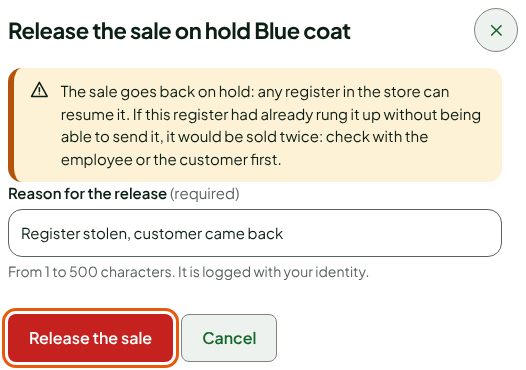
The screen shows "Sale … released: it is on hold again for every register in the store." The sale is back in the Resume a sale list of every register. The release is logged, with your name and the reason.
A workstation that is still Active does not release its sales this way: it resumes or deletes them itself. If it is lost, revoke it first.
If the register shows "Station to register again"
The register shows this screen when it can no longer talk to the server: its permission to talk to the server is missing, damaged or was refused. It gives the reason and the number of operations the server has not received yet.
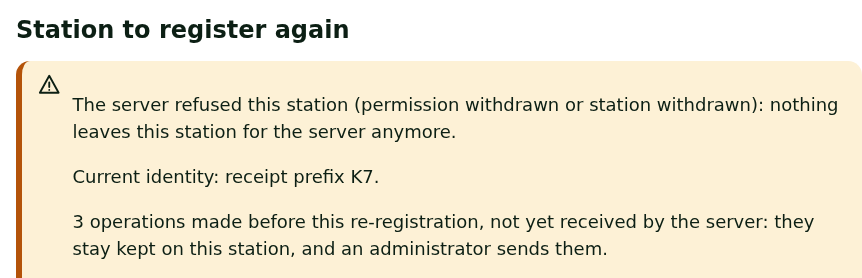
In the back-office, issue a register code: if the workstation is still Active, through Replace this computer on its record; if it is Revoked, through Install the backup computer on the register's record.
On the register, in Station registration again, type the code in Station code, then click Register the station again.
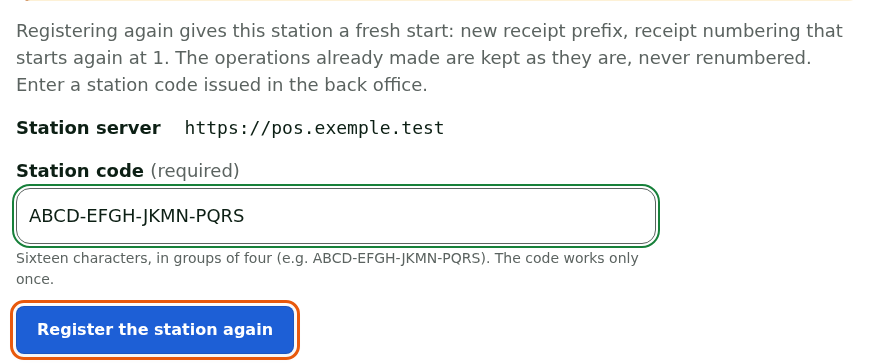
Click Restart the register.
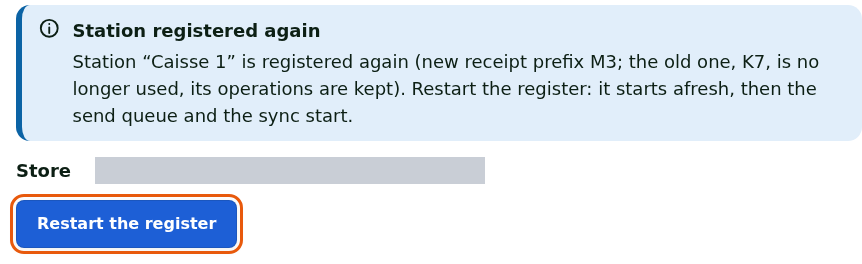
Continue without registering again lets the register keep selling under its current identity; the screen comes back at the next start.
If sales were not sent
The sales a workstation has not sent stay kept on its disk. They are not lost, but they do not leave by themselves under the new workstation: they leave under the old one, from its disk. A Replaced workstation keeps the right to send them; for a Revoked workstation, an administrator reviews them one by one.
- Do not erase anything on the old computer and do not reinstall it.
- Call support. Have at hand the store name, the register name, the receipt prefix of the old workstation (on its record), its status, the number of Waiting operations and the reason for the replacement.
Support tells you what to do next.
Troubleshooting
"All your registers already have their backup computer."
A register has only one backup computer in service. To change a register's computer, open its record and click Replace this computer.
"This register cannot be replaced"
Only an Active computer can be replaced. If the old one is already Replaced or Revoked, the register is free: click Install the backup computer in the register's record.