Adding a product
- For
- Manager
- Where
- Back office
- Permission
- Manage the catalogue
- Checked on
A product is created once, in the catalogue, with its name, its code, its tax class and its price. It can then be sold at the register of every store that has a price for it. This guide creates a simple product, with no sizes or colours, from start to finish.
Before you start
- Your role must have the Manage the catalogue permission. To enter the price you also need Manage prices; to enter the cost, View purchase costs. Without them, you cannot change those fields.
- Tax classes must exist (guide Setting up taxes): the class is required.
- A product that comes in sizes or colours is created differently: see Adding a product with variants.
Create the product
Open Catalog > Products.

Click New product.

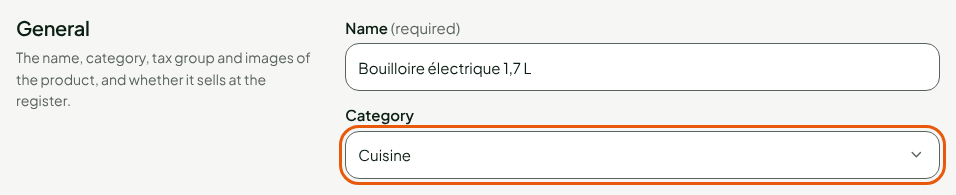
In Name, type the name that staff and customers will see, for example
Bouilloire électrique 1,7 L.In Category, choose the product's category, for example Cuisine. If the category sets a minimum age, the register has it checked at the sale.
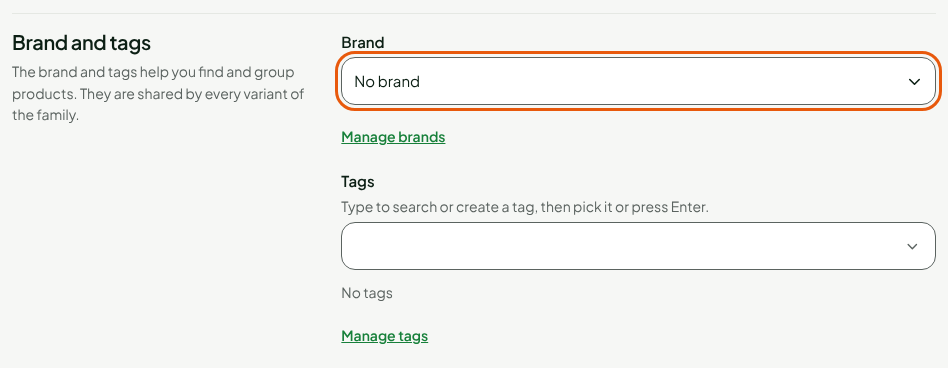
Optional: in Brand and tags, choose the Brand and add Tags. They help you find and group products.
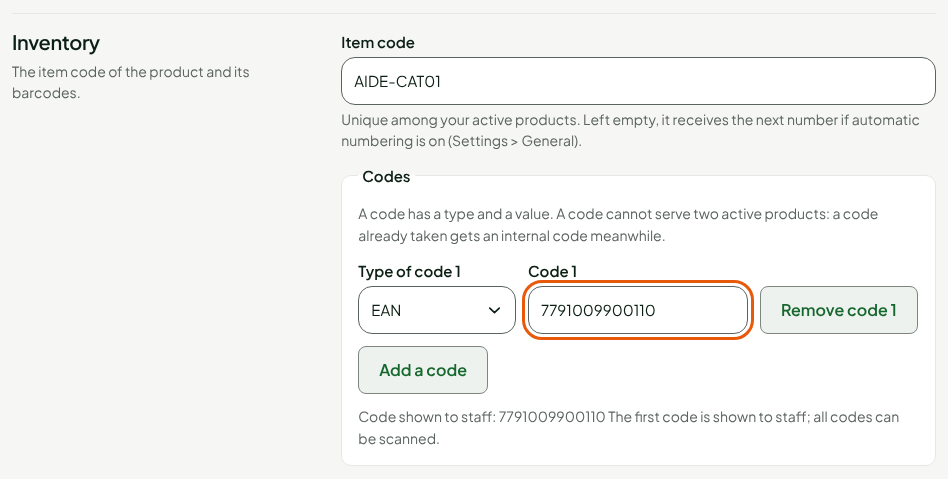
In Item code, type the product's internal code, for example
AIDE-CAT01. Left empty, it receives the next number if automatic numbering is on in Settings > General.Under Codes, click Add a code, leave Type of code 1 on EAN and type the barcode printed on the packaging in Code 1.
In Tax class, choose the product's class. It decides which of each store's taxes apply.

In Selling price, type the price shared by all stores, for example
39.99. In Last cost, type what the product costs you, for example24.50: the Markup % on the selling price and the Margin % on the selling price work themselves out.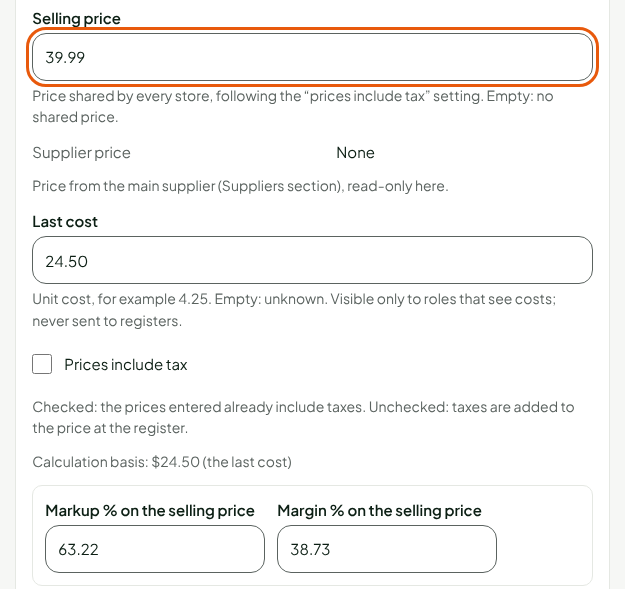
Click Save, in the bar at the top of the sheet.

The product sheet opens, with the product name as its title and the status Active. The product is created: it sells in every store where it has a price.
Set what comes next
Once the product is saved, the sheet adds a Stock levels section. It tracks the product's stock and says when to reorder it in each store: a reorder method, a threshold, a quantity to order and a location for each store.
Images, suppliers, weight and dimensions are completed on the same sheet. In the Tax section, Advanced: other taxes in one store lets you, in the rare cases where it is needed, apply other taxes to this product in a store than those of its class.
A product is never deleted: a past sale may refer to it. To take it off the registers, untick Sell at the register on the sheet, or deactivate it in the list. Its item code and its barcodes are then released.
Find the product in the list
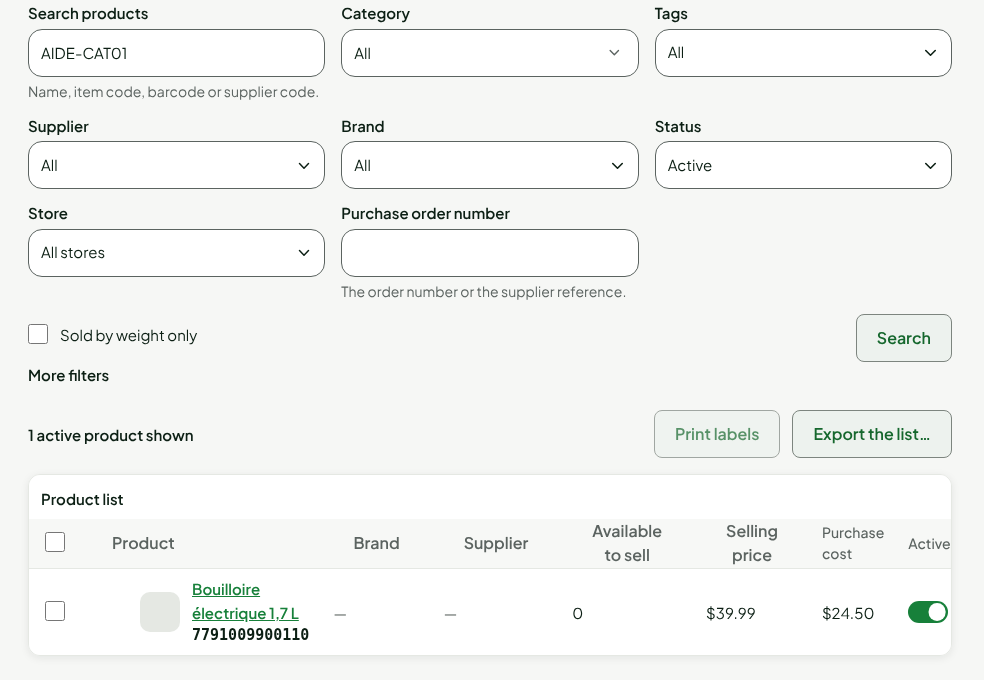
In Catalog > Products, type the item code in Search products: the product appears in the list, active, with its price and its cost.
Troubleshooting
"This item code is already carried by another active product."
The item code is unique among active products. Choose another one, or deactivate the other product first.
"Fix the barcodes shown (20 at most, no duplicates)."
A code is badly written for its type (length or check digit), or it is typed twice. The message Invalid code for this type appears under the code at fault.
The barcode already belongs to another product
This is not a refusal: the sheet saves with an internal code, which the register reads in the meantime. The requested code returns to the product as soon as the other one releases it. See Understanding product codes and barcodes.