Transferring on a phone
- For
- Manager, Administrator
- Where
- Phone
- Permission
- Transfer between stores, Manage stores and settings, Adjust stock
- Checked on
On the floor, the phone prepares a transfer's shipment by scanning the items, then receives the one that arrives. A transfer is done in two steps: the source store sends, the destination store receives.
Before you start
- Your role needs the permission Transfer between stores. To pick the stores from a list, it also needs Manage stores and settings, and to look up an item by its code, Adjust stock. Without them, the screen asks for identifiers: ask an administrator for them.
- The phone must be online: nothing is kept on the device, and offline the buttons are disabled.
- The Bluetooth barcode scanner is optional: you can type the code.
A transfer that is sent or received can no longer be edited. A mistake is fixed by an adjustment (Adjusting stock).
Preparing and sending a transfer
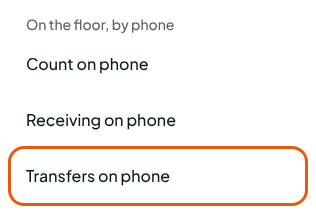
Open the menu, then tap Transfers on phone, under On the floor, by phone.
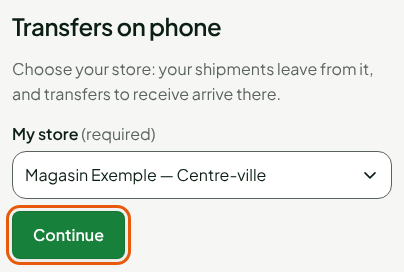
In My store, choose the store the goods leave from, then tap Continue.
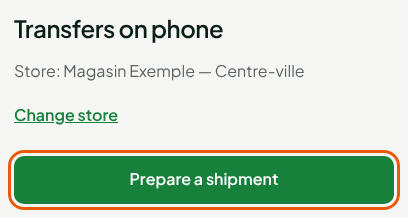
Tap Prepare a shipment.
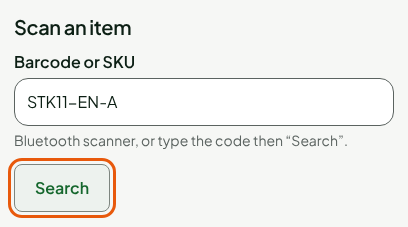
Scan the item, or type its code in Barcode or SKU, then tap Search. Repeat for each item: the screen confirms each addition.
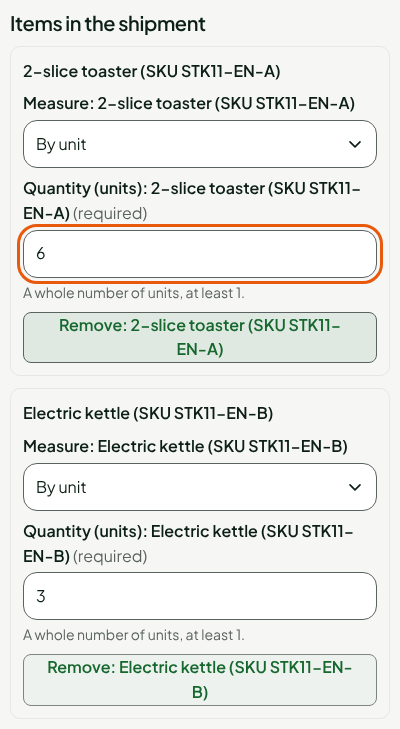
Type the quantity sent in Quantity (units): followed by the item's name. For an item sold by weight, first choose By weight (kg) in Measure:: the quantity is then typed in kg, to the gram. To remove an item, tap Remove: followed by its name.
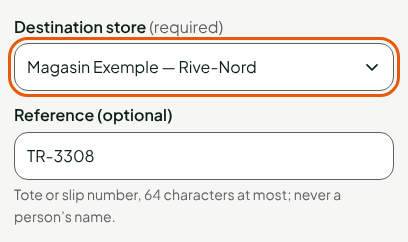
In Destination store, choose the store that receives. In Reference (optional), type a tote or slip number; do not put a person's name in it.
Tap Create shipment. The shipment is created in preparation, without touching stock.
On the transfer's screen, tap Send the transfer.
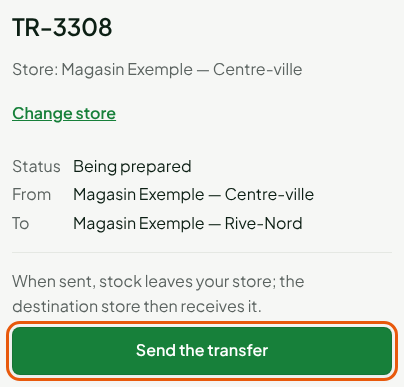
The screen shows Transfer sent. Each item writes a Transfer sent stock movement in the source store: its stock goes down when you send.
The phone does not cancel a shipment in preparation: to cancel it, use the office (Transferring stock between stores).
Receiving a transfer
When the goods arrive at the destination store:
In Transfers on phone, tap Change store, choose the destination store in My store, then tap Continue.
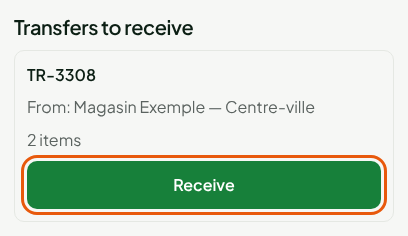
Under Transfers to receive, tap Receive on the transfer's card. The card says which store it comes from and how many items it holds.
Count the goods, then correct the quantity in Received (units): followed by the item's name, if it differs from what was sent. The proposed quantity is the one that left.
For each discrepancy, choose the Discrepancy reason: Missing, Damaged (not put in stock), Received in excess or Other.
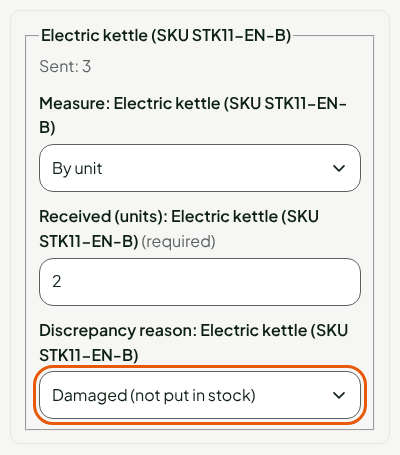
Tap Finish receiving.
The screen shows Transfer received. and, for each item, the quantity sent, the quantity received, the discrepancy and its reason.
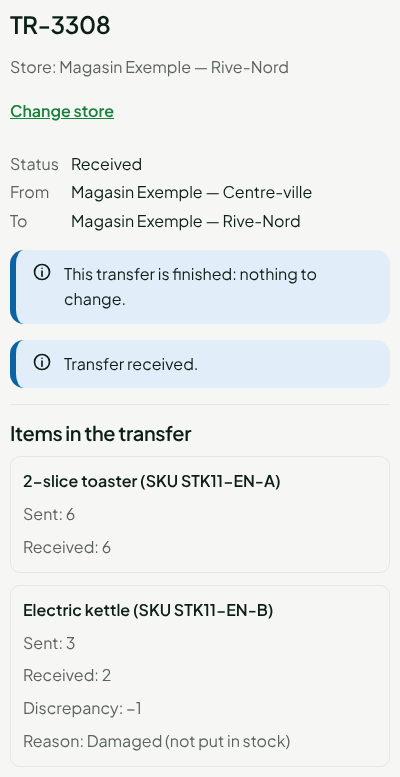
Each item received at more than 0 writes a Transfer received movement in the destination store's stock. The discrepancy enters no stock: if the missing goods come back to the source, adjust its stock. You read the movements in Stock > Inventory (Viewing stock levels and movements).
Troubleshooting
"Code not recognized: …"
No item in the store has this code. Scan again, or type the code or the SKU. If several items answer to the same code, the screen asks you to choose the right one.
"This transfer was already received (or cancelled) elsewhere: it is never received twice."
Someone received it at the office or on another phone. Nothing is counted twice.
"This transfer neither leaves from nor arrives at your store: nothing to do here."
You chose a store other than those of the transfer. Tap Change store.