Connecting the cash drawer
- For
- Administrator, Manager
- Where
- Installed register
- Permission
- Open the drawer without a sale
- Checked on
The cash drawer opens through the receipt printer: it has no driver or network cable of its own. This guide connects it, sets the two print queues so that only one of them opens it, then shows how a manager opens it without a sale when the receipt did not come out.
Before you start
- The receipt printer is installed with its two queues Reçu + tiroir and Reçu seul (Setting up the receipt printer).
- The drawer plugs into the printer's drawer port, an RJ-11 or RJ-12 connector, usually marked “DK”.
Connect the drawer
- Plug the drawer cable into the drawer port of the receipt printer.
- Set each queue in Windows (next section).
Set the opening on each queue
The Epson driver carries the difference between the two queues. Labels vary a little with the driver version; Windows is not illustrated here.
For the Reçu + tiroir queue:
- Open Control Panel > Devices and Printers, right-click Reçu + tiroir, then click Printer properties.
- Open the Device Settings tab.
- For Cash Drawer 1 in the Cash Drawer section, choose to open at the end of the print job.
- Click Apply, then Print Test Page: the drawer must open.
For the Reçu seul queue:
- Do the same on Reçu seul.
- Choose Do not open in the Cash Drawer section.
- Click Apply, then Print Test Page: the drawer must stay closed.
Print a test page on each queue, twice in a row: Reçu + tiroir always opens it, Reçu seul never does.
How the register opens the drawer
- Only the first receipt of a sale paid wholly or partly in cash goes to Reçu + tiroir: it opens the drawer.
- A sale paid by card only goes to Reçu seul: the drawer does not open.
- Every reprint goes to Reçu seul: reprinting never opens the drawer.
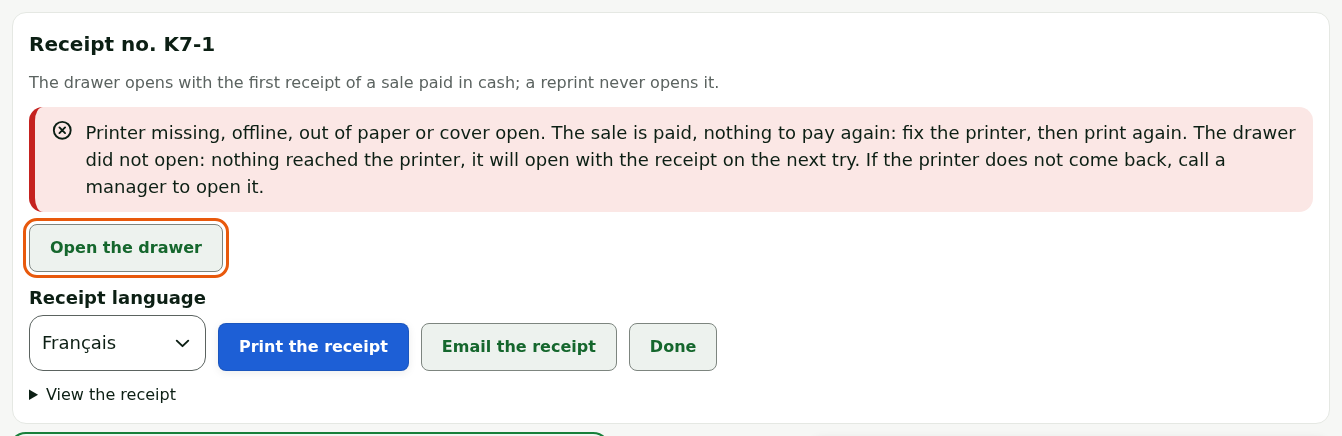
- If the first receipt never left at all (printer missing, not found, print job refused), the next try is still the first receipt: it goes to Reçu + tiroir. After a print with an uncertain outcome, never: the drawer may already have opened.
- Each opening of the drawer is noted in the station log, with the sale or, without a sale, the manager and the reason.
If the drawer did not open with the first receipt, read the message: after Printer missing, Printer not found or Windows refused the print job, fix the printer then click Print the receipt, and the drawer will open with the receipt. After Uncertain print, or when the button says Reprint (receipt only), a reprint never opens it: call a manager.
Open the drawer without a sale
A manager can open the drawer with their PIN, printing nothing, for example when the printer is down. To open the drawer:
Open Manager menu, from the session menu.
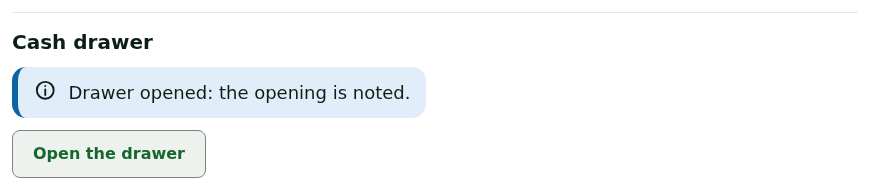
Click Open the drawer, in the Cash drawer section.

Choose the manager in Who authorizes the opening, type their PIN in PIN of the person authorizing, then choose the Reason: Printer missing, Change or Other (which asks for details).
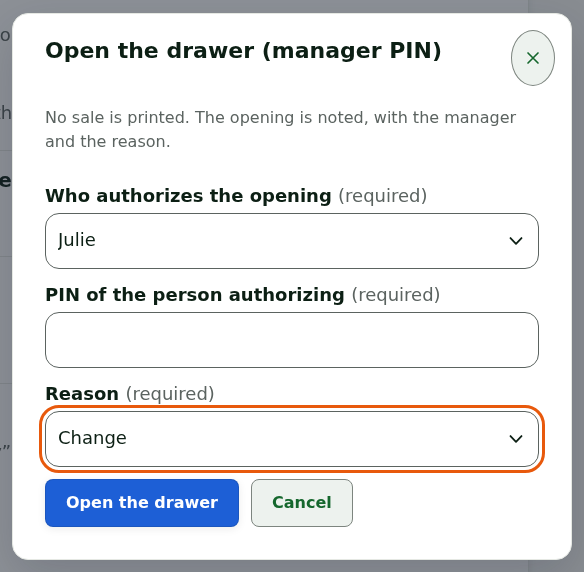
Click Open the drawer.
The drawer opens and the screen shows Drawer opened: the opening is noted.
The same Open the drawer button appears under the receipt when the first receipt of a cash sale did not come out.
Read the uncertain openings
If the register stops while a receipt is being sent to Reçu + tiroir, it does not know whether the drawer opened. It never sends the receipt again with the opening: it notes it, and the register closing shows it.
To read them:
Open Register: opening, movements, closing, from the session menu, then Register closing.
Read the Drawer may have opened list: the time, the sale and the state of the printing.
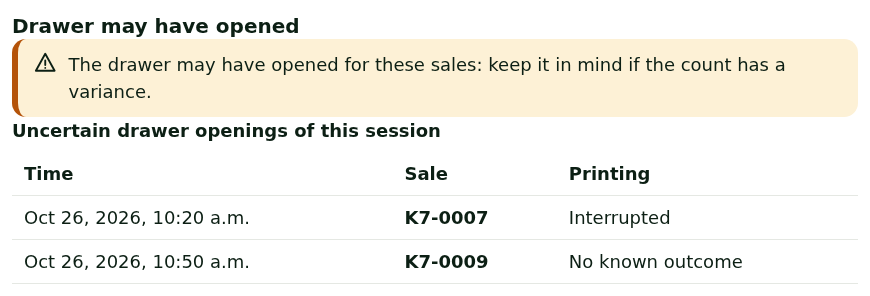
Keep them in mind if the drawer count has a variance.
Troubleshooting
The drawer does not open at the sale
The receipt went to Reçu + tiroir (the message says “Receipt sent to “Reçu + tiroir”: the drawer opens.”), but the drawer stays closed: the drawer cable is not properly plugged into the printer, or the Reçu + tiroir queue is not set to open it. Check the cable, then the driver setting above. If the receipt did not come out, see Troubleshooting receipt printers.
“Wrong PIN: the drawer stays closed”
The PIN typed is not the chosen manager's. The try is noted. Try again with the right PIN. If the message says the manager's PIN is blocked on this station, another manager must open the drawer.
“Register closed: open a cash session before opening the drawer”
Without a sale, the drawer only opens during an open cash session.